
1. Introduction
This manual provides detailed instructions for the installation, operation, and maintenance of your Generic 9-Inch Universal Car Receiver, model DSP02. This advanced car stereo features an Android 12 operating system, a 9-inch Full HD IPS capacitive display with Gorilla Glass, 2GB RAM, and 32GB ROM. It supports various functions including GPS, Bluetooth for voice calling, Mirror Link, Wi-Fi connectivity, and steering wheel control, enhancing your in-car entertainment and navigation experience.
2. What's in the Box
Please verify that all the following components are included in your package:
- Android Car Stereo Unit (Model DSP02)
- RCA Input/Output Cable
- External Microphone
- 2 X USB Cables
- CAM VIN Cable (for backup camera connection)
- GPS Antenna
- User Manual (this document)
3. Setup and Installation
The DSP02 car receiver is designed for universal fit in vehicles with a standard double DIN space of 9x4 inches. Professional installation is recommended. Ensure the vehicle's power is disconnected before beginning installation.
3.1 Physical Dimensions
Refer to the image below for the physical dimensions and key interface points of the car receiver.

Figure 1: Product Dimensions and Interface Overview. The unit measures approximately 18cm wide and 10cm high. Key controls for Power, Menu, Back, and Volume are indicated on the left side of the unit.
3.2 Wiring and Connections
Connect the provided cables to their respective ports. If your vehicle has a compatible coupler, a coupler-to-coupler installation can simplify the wiring process without harming your car's warranty or original wiring. Ensure all connections are secure.
- Power Cables: Connect to the vehicle's power supply.
- USB Cables: Connect the two USB cables for external device connectivity.
- GPS Antenna: Mount the GPS antenna in a location with a clear view of the sky for optimal signal reception.
- External Microphone: Connect the external microphone for improved voice clarity during calls.
- RCA Input/Output Cable: Use for connecting external amplifiers, subwoofers, or other audio/video devices.
- CAM VIN Cable: Connect your backup camera to this input for automatic display when reversing.
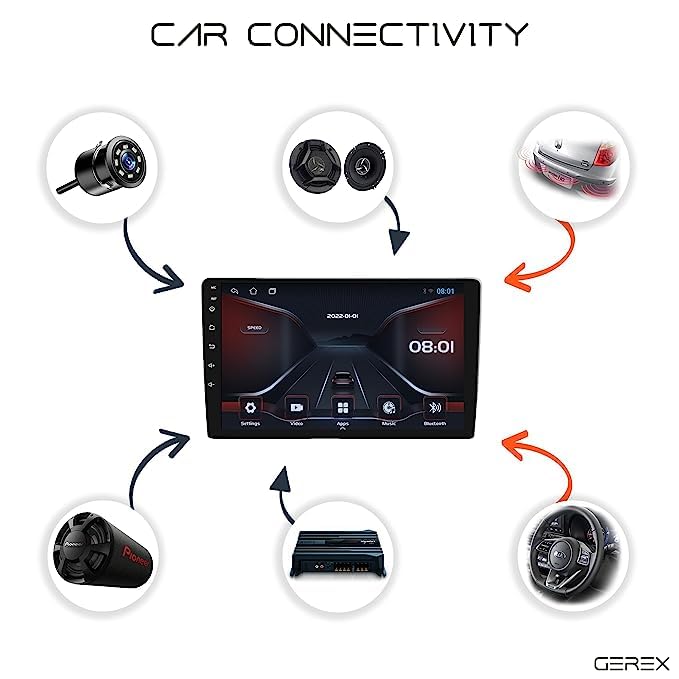
Figure 2: Car Connectivity Diagram. This diagram illustrates various connection points including a backup camera, car speakers, rear view mirror, subwoofer, external amplifier, and steering wheel controls, all connecting to the central car receiver unit.
4. Operating Instructions
Your car receiver operates on an Android 12 system, providing a user-friendly interface similar to a smartphone or tablet.
4.1 Basic Operation
- Power On/Off: Press and hold the Power button (refer to Figure 1) to turn the unit on or off. A short press typically mutes or puts the unit into standby.
- Touch Screen: Navigate the interface by tapping, swiping, and pinching on the 9-inch IPS capacitive display.
- Volume Control: Use the Volume + and Volume - buttons (refer to Figure 1) or the on-screen controls to adjust audio levels.
- Home Screen: The main screen displays various app icons for quick access to functions like Radio, Video, GPS, Bluetooth, and more.
4.2 Key Features
- GPS Navigation: Utilize the built-in GPS and pre-installed navigation apps (e.g., Google Maps, iGO Navigation) for accurate route guidance. Ensure the GPS antenna is properly installed.
- Bluetooth 5.0: Pair your smartphone via Bluetooth for hands-free calling and audio streaming. Access the Bluetooth menu to search for devices and connect.
- Mirror Link: Connect your iOS or Android smartphone to mirror its screen onto the car receiver's display. Follow the on-screen instructions in the "Mirror Link" app.
- Wi-Fi Connectivity: Connect to a Wi-Fi hotspot (e.g., from your smartphone or a dedicated car hotspot) to access online features, download apps from the Google Play Store, and stream content from platforms like YouTube.
- Steering Wheel Control: Configure the unit to work with your vehicle's existing steering wheel controls for safe and convenient operation. Access the "Steering Wheel Control" settings in the system menu.
- Split Screen: Run two applications simultaneously on the screen, such as navigation and music playback.
- Audio Output: The unit provides 50x4 sound output with a built-in Digital Sound Processor (DSP) for enhanced audio quality. Connect to external amplifiers via RCA outputs for further customization.
- Backup Camera Support: When a backup camera is connected to the CAM VIN input, the display will automatically switch to the camera view when the vehicle is in reverse gear.
5. Maintenance
Proper maintenance ensures the longevity and optimal performance of your car receiver.
- Cleaning the Display: Use a soft, lint-free cloth to gently wipe the screen. For stubborn smudges, slightly dampen the cloth with water or a screen-safe cleaner. Avoid harsh chemicals or abrasive materials.
- Software Updates: Periodically check for system updates via the Wi-Fi connection in the system settings to ensure you have the latest features and security patches.
- Environmental Conditions: Avoid exposing the unit to extreme temperatures, direct sunlight for prolonged periods, or excessive moisture.
6. Troubleshooting
If you encounter issues with your car receiver, refer to the following common problems and solutions:
- No Power:
- Check all power connections and fuses.
- Ensure the vehicle's ignition is on.
- No Sound:
- Verify volume levels are not muted or set too low.
- Check speaker connections.
- Ensure the correct audio source is selected.
- GPS Not Working / Poor Signal:
- Ensure the GPS antenna is properly connected and mounted in a location with a clear view of the sky.
- Check GPS settings in the system menu.
- Bluetooth Connectivity Issues:
- Ensure Bluetooth is enabled on both the car receiver and your smartphone.
- Delete previous pairings and try re-pairing the devices.
- Move your smartphone closer to the unit.
- Touch Screen Unresponsive:
- Restart the unit by pressing and holding the power button.
- Ensure the screen is clean and free from debris.
If the problem persists, please contact customer support.
7. Specifications
| Model Number | DSP02 |
| Operating System | Android 12 |
| Processor | Quad Core (ARMv7 Processor rev 5 (v71) | Type: Quad-SL8141E) |
| RAM | 2GB |
| ROM | 32GB |
| Display Size | 9 inches |
| Display Type | Full HD IPS Capacitive Touch Screen with Gorilla Glass (2.5D Screen) |
| Resolution | 1080x720P |
| Bluetooth Version | 5.0 BLE Host |
| Wi-Fi Connectivity | Yes |
| GPS Positioning | GPS + AGPS |
| Sound Output | 50x4 (with DSP) |
| Control Method | Touch, Steering Wheel Control |
| Supported Internet Services | YouTube |
| Manufacturer | BACKDROP |
8. Warranty Information
This Generic 9-Inch Universal Car Receiver (Model DSP02) comes with an 18-month warranty from the date of purchase. This warranty covers manufacturing defects and malfunctions under normal use. Please retain your proof of purchase for warranty claims. The warranty does not cover damage caused by improper installation, misuse, accidents, or unauthorized modifications.
9. Customer Support
For technical assistance, troubleshooting beyond this manual, or warranty claims, please contact the seller or manufacturer directly. Refer to your purchase documentation for contact details. When contacting support, please have your product model number (DSP02) and proof of purchase readily available.


