
1. Introduction
Thank you for choosing the VSDISPLAY 12.3-inch Portable IPS LCD Monitor. This manual provides essential information for the proper setup, operation, and maintenance of your monitor. Please read it thoroughly before use to ensure optimal performance and longevity of the product.
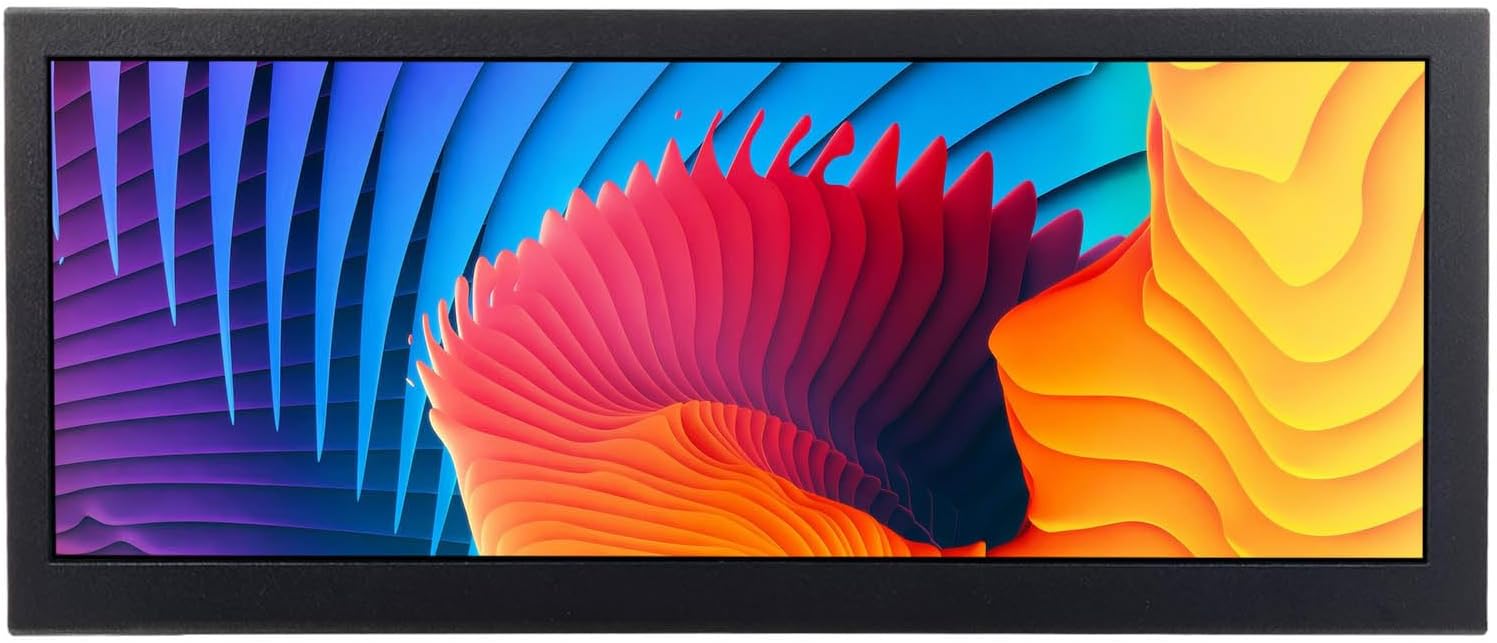
Image: The VSDISPLAY 12.3-inch Portable IPS LCD Monitor displaying a colorful image of parrots.
2. Key Features
- Bar Display: 12.3-inch portable bar-style LCD monitor with a resolution of 1920x720.
- Image Rotation: Supports 180-degree image rotation for flexible viewing orientations.
- High Brightness & Contrast: Screen brightness of 700cd/m2 and a contrast ratio of 1000:1.
- IPS LCD Panel: Features a 178° full viewing angle IPS LCD screen for clear and vivid image display.
- USB Video Input: Supports USB video input with autoplay functionality (videos with Dolby sound effects are not supported).
- Versatile Mounting: Includes brackets for installation and features 75x75mm and 100x100mm VESA mounting holes for desk stands.
- Wide Application: Suitable for DIY projects, secondary displays, game cabinet topper screens, and advertising displays.
3. Package Contents
Please check the package contents upon receipt to ensure all items are present:
- 1 x VSDISPLAY 12.3-inch Portable IPS LCD Monitor
- 1 x Power Adapter
- 2 x Mounting Brackets

Image: Contents of the VSDISPLAY 12.3-inch monitor package, including the monitor, power adapter, and mounting brackets.
4. Product Overview
4.1. Control Buttons
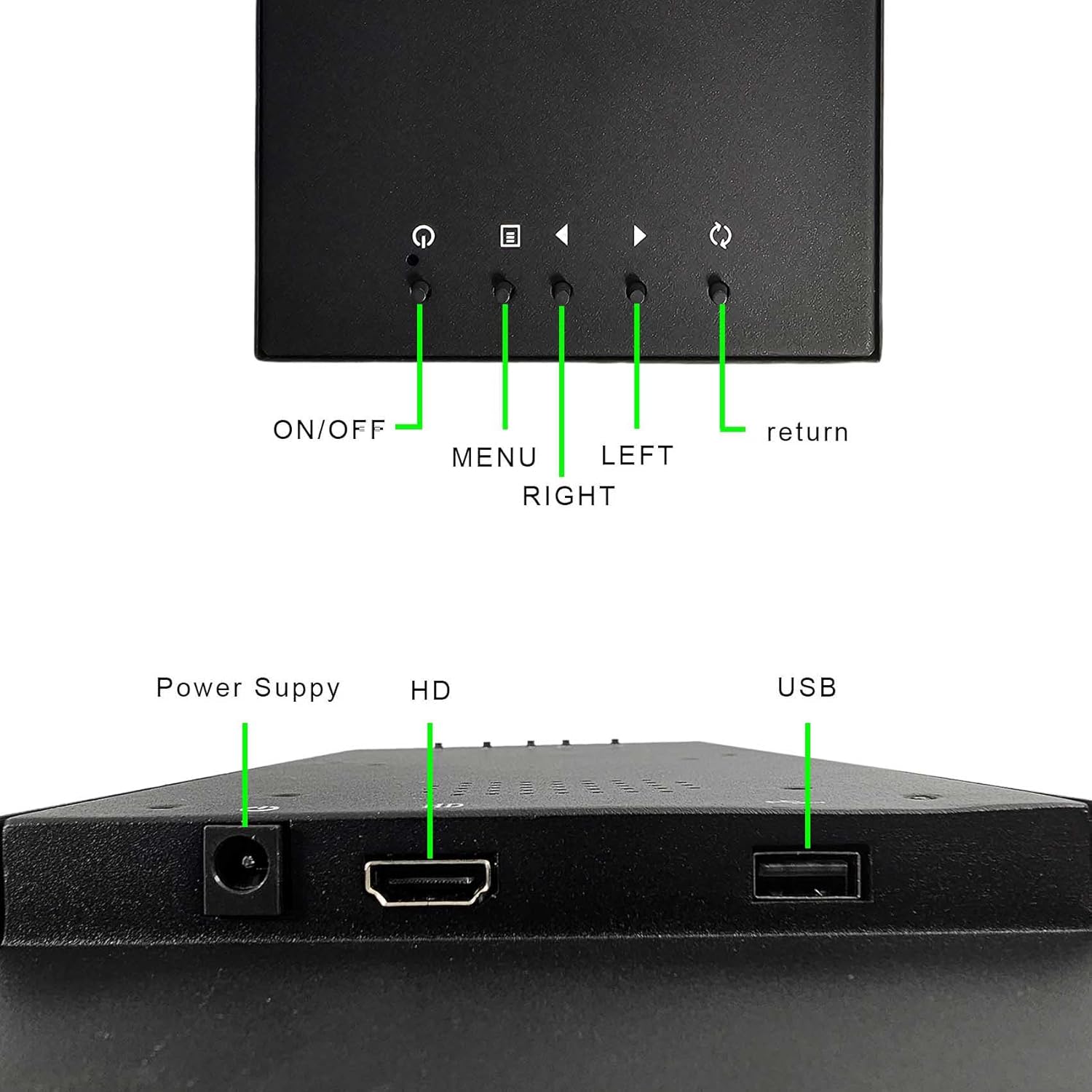
Image: Detailed view of the monitor's control buttons.
- ON/OFF: Powers the monitor on or off.
- MENU: Accesses the On-Screen Display (OSD) menu.
- LEFT/RIGHT: Navigates through menu options or adjusts settings.
- RETURN: Exits the current menu or confirms a selection.
4.2. Ports
Image: Detailed view of the monitor's input ports.
- Power Supply: Connects to the included power adapter.
- HD (HDMI): Connects to devices via HDMI cable for video and audio input.
- USB: Connects to USB storage devices for media playback.
5. Setup and Installation
5.1. Connecting the Monitor
- Connect the power adapter to the monitor's Power Supply port and then plug it into a power outlet.
- For video input, connect an HDMI cable from your source device (PC, laptop, game console) to the monitor's HD (HDMI) port.
- If using USB media playback, insert your USB storage device into the USB port.
5.2. Mounting Options
The monitor offers two primary mounting methods:
- Using Included Brackets: Attach the provided mounting brackets to the sides of the monitor using screws. These brackets allow for custom integration into various setups.
- VESA Mount: The monitor features 75x75mm and 100x100mm VESA mounting holes on the back, compatible with standard desk mounts or wall mounts (sold separately).

Image: Instructions for attaching the included mounting brackets to the monitor.

Image: Example of the monitor installed in a custom setup.
6. Operating Instructions
6.1. Power On/Off
Press the ON/OFF button to power the monitor on or off. The power indicator light will illuminate when the monitor is on.
6.2. OSD Menu Navigation
Press the MENU button to open the On-Screen Display (OSD) menu. Use the LEFT/RIGHT buttons to navigate through options and adjust settings. Press RETURN to confirm selections or exit the menu.
6.3. Image Rotation (180 Degrees)
The monitor supports 180-degree image rotation, which can be useful for specific mounting orientations. This setting is accessible via the OSD menu.
Video: Demonstration of the 180-degree image rotation feature on the VSDISPLAY monitor, showing how to adjust the display orientation through the OSD menu.
6.4. USB Media Playback
When a USB storage device containing compatible media files is inserted, the monitor can automatically play videos. Ensure your video files are in a supported format (Dolby sound effects are not supported).
Video: Example of USB video playback on the VSDISPLAY monitor, demonstrating its ability to display media directly from a USB drive.
7. Specifications
| Feature | Detail |
|---|---|
| Model Number | K003265 |
| Screen Size | 12.3 inches |
| Resolution | 1920x720 |
| Panel Type | IPS LCD |
| Viewing Angle | 178° (Full Viewing Angle) |
| Brightness | 700 cd/m2 |
| Contrast Ratio | 1000:1 |
| Input Ports | HDMI, USB |
| Power Input | 12 Volts |
| Product Dimensions | 1.57 x 12.6 x 5.28 inches |
| Item Weight | 3 pounds |
| Mounting Options | Brackets, 75x75mm & 100x100mm VESA |

Image: Dimensional drawing of the VSDISPLAY 12.3-inch monitor.
8. Troubleshooting
If you encounter issues with your VSDISPLAY monitor, please refer to the following common solutions:
- No Display/Black Screen:
- Ensure the power adapter is securely connected to both the monitor and a working power outlet.
- Verify that the HDMI cable is properly connected to both the monitor and the source device.
- Check the input source setting in the OSD menu to ensure it matches your connection (e.g., HDMI).
- Test with a different HDMI cable or source device if possible.
- Image is Upside Down or Rotated Incorrectly:
- Access the OSD menu and navigate to the 'Rotate 180°' setting. Adjust it to 'Off' or 'On' as needed to correct the orientation.
- No Sound (if applicable):
- Check the volume settings on both the monitor (via OSD menu) and your source device.
- Ensure the HDMI cable supports audio transmission.
- USB Video Playback Issues:
- Confirm that the video file format is supported by the monitor. Videos with Dolby sound effects are not supported.
- Ensure the USB drive is properly inserted and functioning.
If these steps do not resolve the issue, please contact VSDISPLAY customer support for further assistance.
9. Warranty and Support
VSDISPLAY products are designed for reliability and performance. For information regarding warranty coverage, technical support, or service inquiries, please refer to the warranty card included with your product or visit the official VSDISPLAY website. Keep your purchase receipt as proof of purchase for warranty claims.