
1. Product Overview
The Podofo 4+64G 2 Din 7-inch Car Stereo is an advanced in-dash multimedia system designed to enhance your driving experience. Featuring Android 13, this touchscreen unit offers seamless integration with your smartphone via Wireless Carplay and Android Auto. It includes built-in GPS navigation, Bluetooth 5.0 for hands-free calling and audio streaming, Steering Wheel Control (SWC) compatibility, FM/RDS/AM radio, Digital Sound Processor (DSP) with Equalizer (EQ) for superior audio, WiFi connectivity, USB ports, and support for an AHD backup camera.
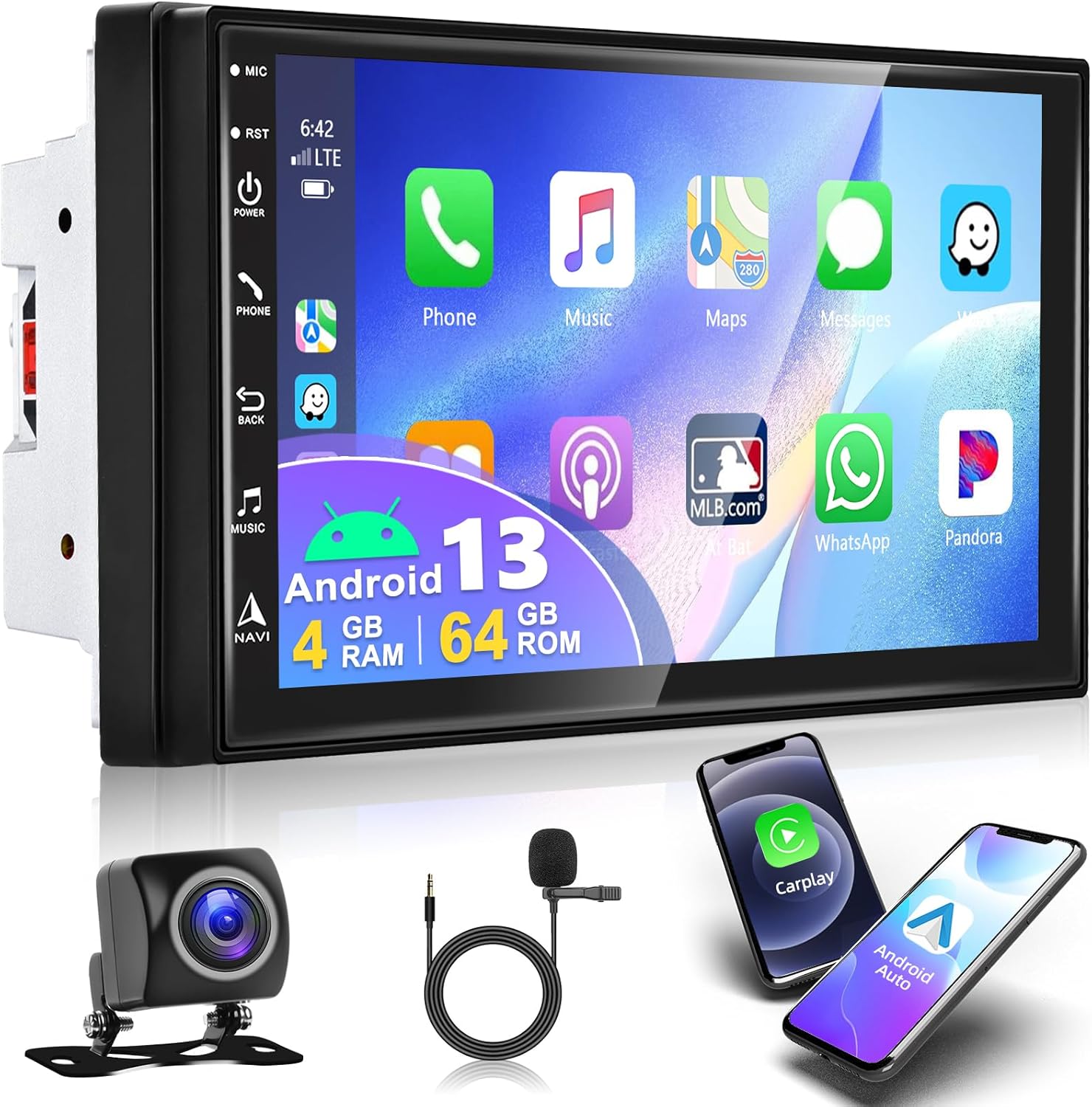
Image 1.1: Podofo 7-inch Car Stereo unit with included microphone, backup camera, and smartphone icons representing Carplay/Android Auto functionality.
2. Package Contents
Before installation, please verify that all items are present in the package:
- 1 x Car Multimedia Player
- 1 x Power Cable
- 1 x RCA Input / Output Cable
- 1 x Rear Camera Input Cable
- 1 x 4G Module (if applicable)
- 2 x USB Cable
- 1 x GPS Antenna
- 1 x User Manual
- 1 x Mounting Bracket
- 1 x Rear Camera (AHD Backup Camera)
- 1 x Microphone
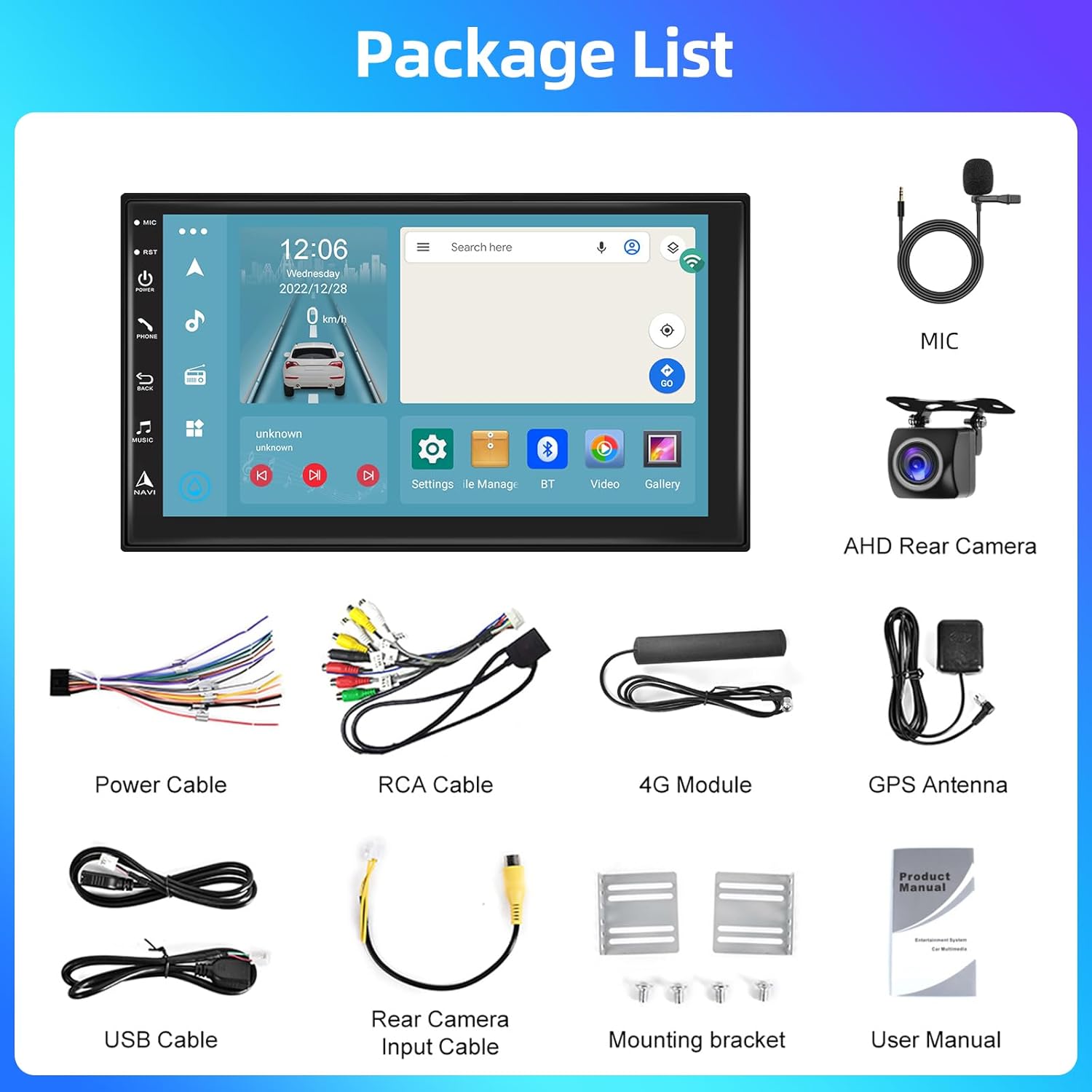
Image 2.1: Visual representation of all components included in the product package, such as the main unit, cables, antennas, camera, and microphone.
3. Setup and Installation
3.1 Wiring Diagram
Proper wiring is crucial for the correct operation of the car stereo. Refer to the diagram below for connection points. If your vehicle has a CANbus system, ensure the appropriate CANbus connector is used, but do not plug it directly into the radio if it's a 16-pin or 20-pin connector meant for CANbus decoding.

Image 3.1: Comprehensive wiring diagram illustrating connections for power, RCA, USB, camera input, GPS antenna, and 4G module. Note the warning regarding CANbus connection.
- Power Cable: Connect to your vehicle's power supply (ACC, B+, GND).
- RCA Input/Output: For external amplifiers, subwoofers, or video output.
- USB Cables: For USB devices, media playback, and smartphone connection.
- Camera Input: Connect the AHD backup camera for reverse video display.
- GPS Antenna: Mount in a location with clear sky view for optimal signal reception.
- 4G Module: Connect for mobile data connectivity (if applicable).
- Radio Antenna: Connect your vehicle's radio antenna.
3.2 General Installation Tips
Due to the complexity of vehicle electrical systems, professional installation is recommended. Ensure all connections are secure and insulated to prevent short circuits. Test all functions before fully reassembling your dashboard.
4. Operating Instructions
4.1 Power On/Off
Press the POWER button on the front panel or use your vehicle's ignition to turn the unit on/off.
4.2 Touchscreen Interface
Navigate the Android 13 operating system by tapping and swiping on the 7-inch capacitive touchscreen. The main screen displays various app icons for quick access to functions like Phone, Music, Maps, Messages, and more.
4.3 Wireless Carplay / Android Auto
This unit supports both wireless and wired Carplay/Android Auto. This feature allows you to integrate your smartphone's functions directly onto the car stereo screen.
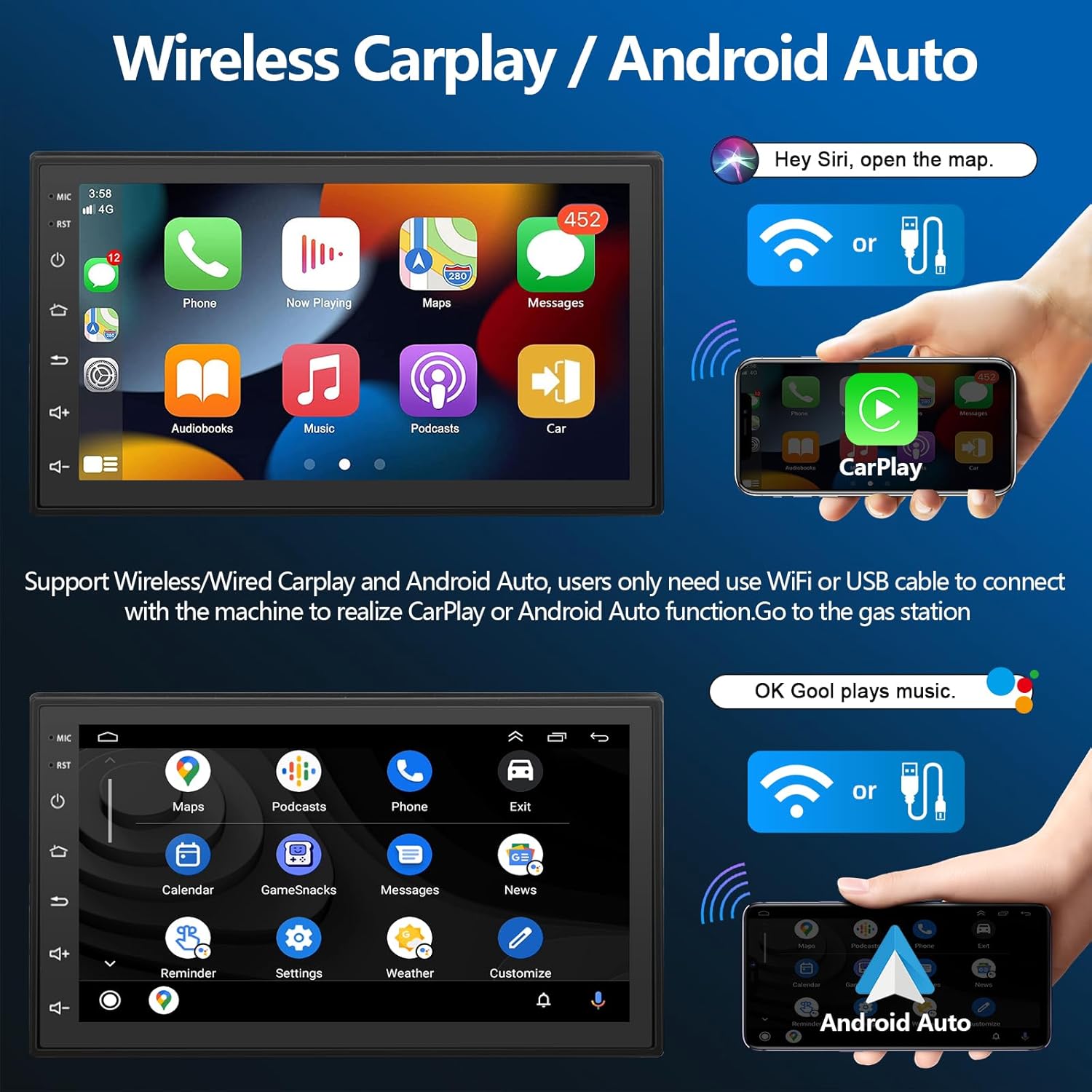
Image 4.1: User interfaces for Wireless Carplay and Android Auto, showing app icons and voice command prompts like "Hey Siri, open the map." and "OK Gool plays music."
- Wireless Connection: Pair your phone's Bluetooth with the car stereo (Bluetooth name: CarBT123, default password: 0000). Once paired, the unit's hotspot will automatically turn on. Open the Zlink app on the stereo to display the Carplay/Android Auto interface.
- Wired Connection: Connect your smartphone to the stereo via a USB cable.
- Functionality: Access phone maps, send messages, make/receive calls, listen to music, and play videos. Supports Siri and Google Assistant voice commands.
4.4 Bluetooth 5.0
Connect your smartphone via Bluetooth for hands-free calling, music streaming, and directory uploading.
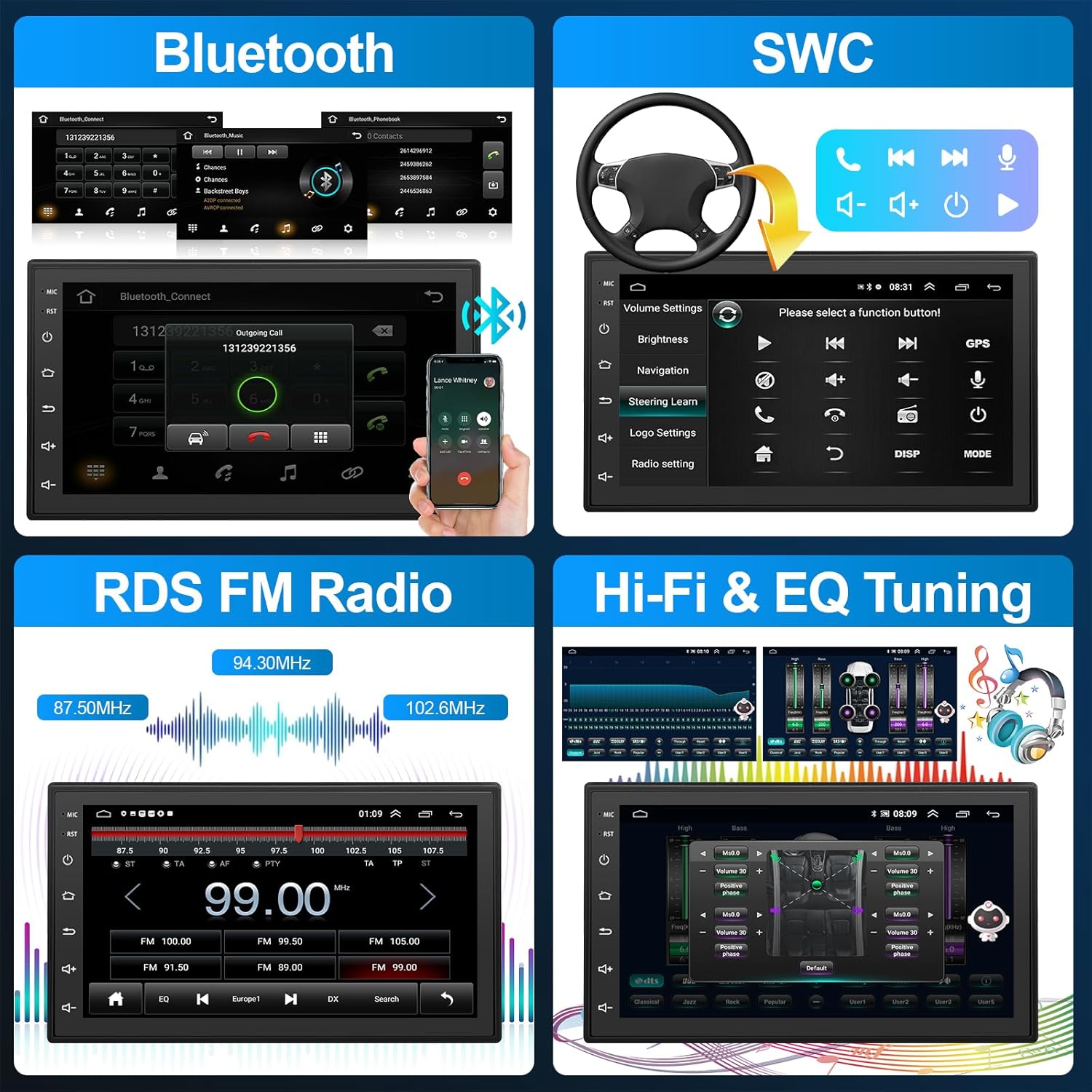
Image 4.2: Bluetooth interface for phone calls and music playback, alongside Steering Wheel Control (SWC) setup, RDS FM Radio, and Hi-Fi & EQ Tuning screens.
- Go to the Bluetooth menu on the stereo.
- Enable Bluetooth on your phone and search for
Ask a question about this manual
Ask about setup, troubleshooting, compatibility, parts, safety, or missing instructions. Manuals+ will review the question and use this page’s manual context to help answer it.