
Introduction
This manual provides comprehensive instructions for the Ant Esports GM340 Wired Gaming Mouse. It covers setup, operation, maintenance, and troubleshooting to ensure optimal performance and longevity of your device. Please read this manual thoroughly before using the mouse.
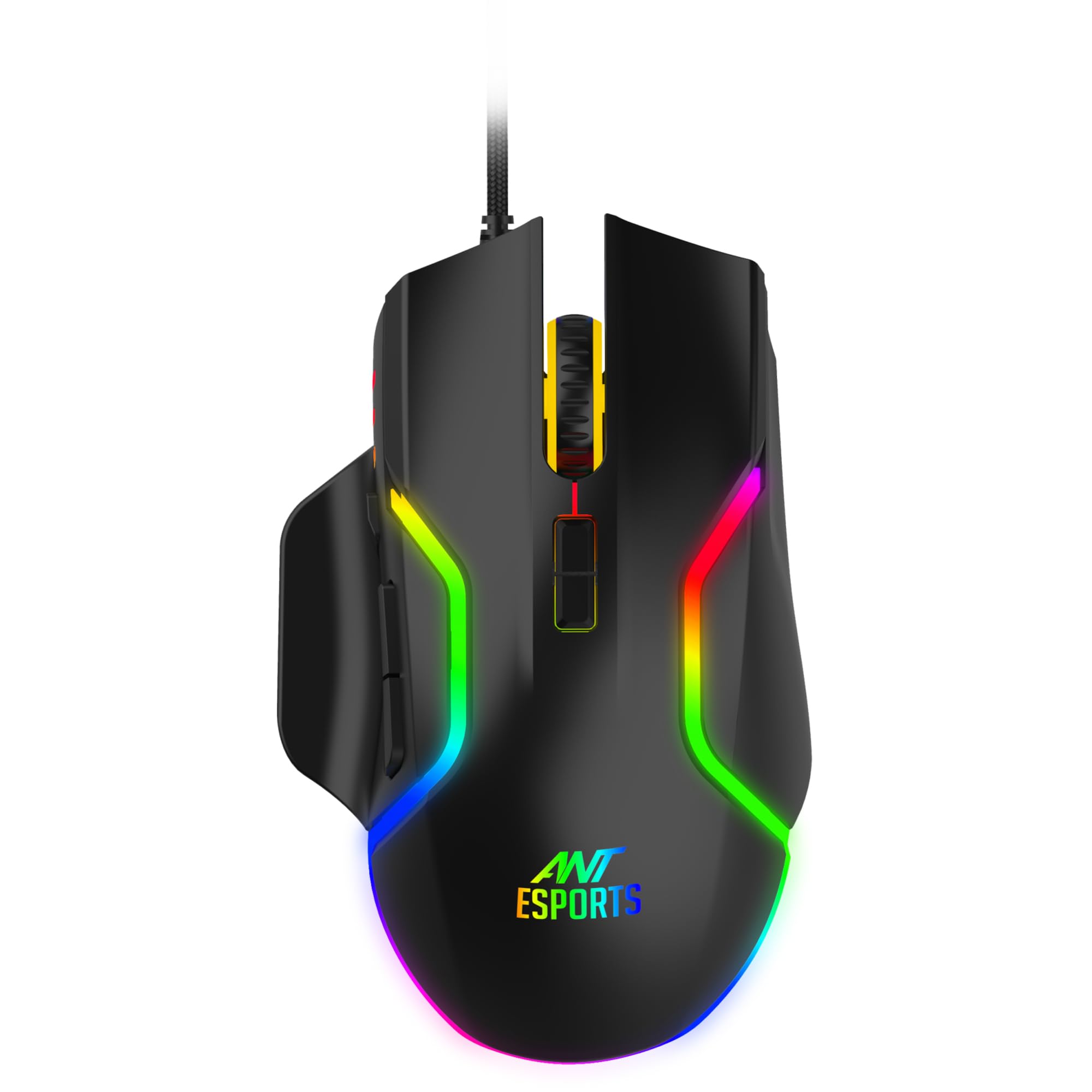
Figure 1: Ant Esports GM340 Wired Gaming Mouse
Product Overview
The Ant Esports GM340 is a high-precision wired gaming mouse designed for performance and comfort. It features an optical sensor with adjustable DPI, 8 programmable buttons, and customizable RGB backlighting.
Button Layout
The GM340 mouse is equipped with 8 buttons, each serving a specific function or being programmable for custom actions.
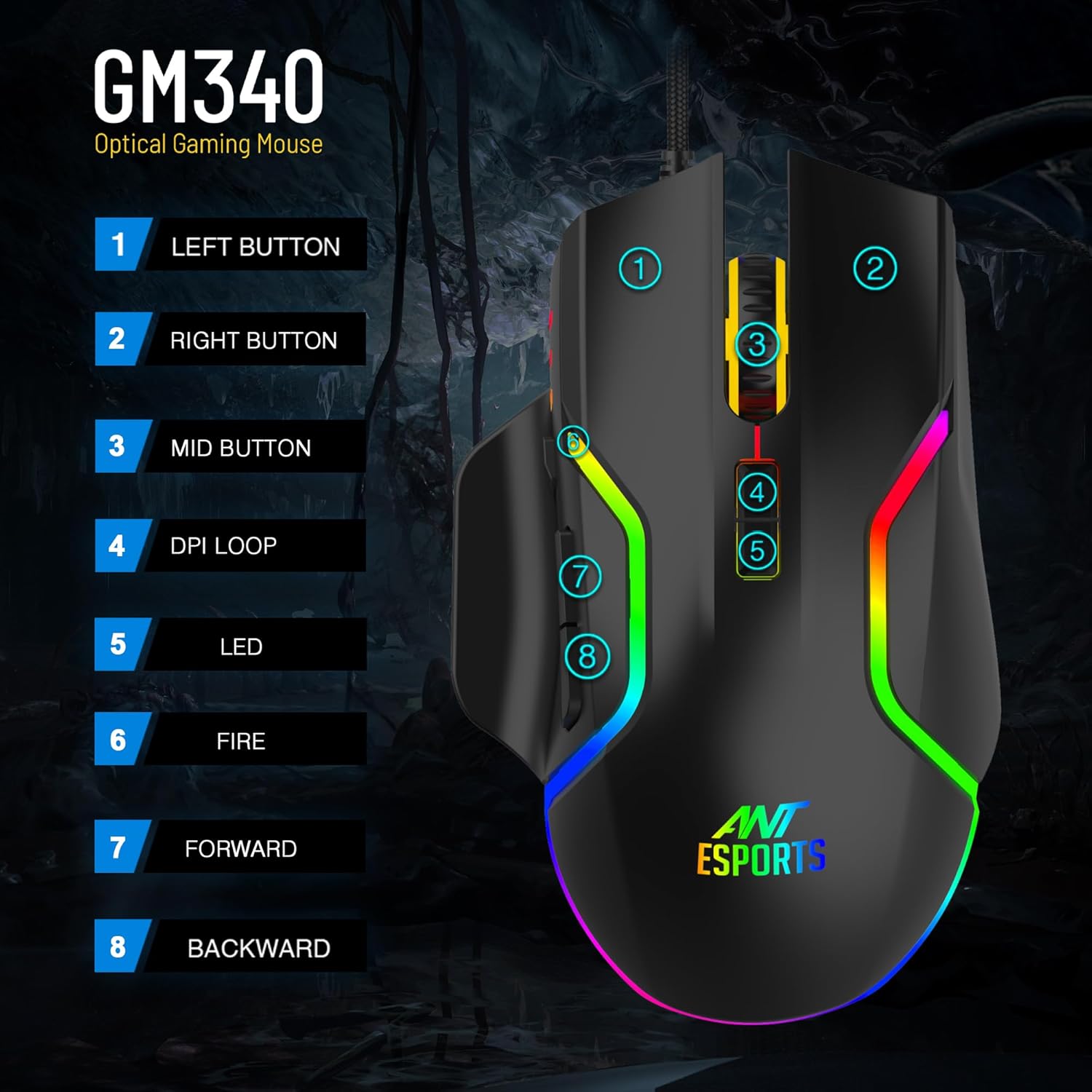
Figure 2: Ant Esports GM340 Button Layout
- Left Button
- Right Button
- Mid Button (Scroll Wheel Click)
- DPI Loop Button
- LED Indicator
- Fire Button (Programmable)
- Forward Button (Programmable)
- Backward Button (Programmable)
Setup
Follow these steps to set up your Ant Esports GM340 gaming mouse:
- Connect the Mouse: Plug the USB connector of the Ant Esports GM340 mouse into an available USB 2.0 port on your computer.
- Driver Installation: The mouse is plug-and-play. Your operating system (Windows, Linux, Mac) will automatically detect and install the necessary drivers. No manual driver installation is typically required.
- Software Installation (Optional): For advanced customization of programmable buttons and RGB lighting, download and install the official Ant Esports GM340 software from the Ant Esports website. Refer to the software's instructions for detailed configuration.

Figure 3: Operating System Compatibility
Operating Instructions
DPI Adjustment
The Ant Esports GM340 features an adjustable DPI (Dots Per Inch) sensor, allowing you to change mouse sensitivity on the fly. Use the DPI Loop Button (Button 4) to cycle through preset DPI levels.
- Available DPI settings: 1200, 1600, 2400, 3200, 4800, 12800.
- Each DPI level may correspond to a different LED color on the mouse for visual indication.

Figure 4: DPI Sensitivity Levels
Programmable Buttons
The GM340 includes 8 buttons, with several being programmable. Utilize the dedicated software to assign custom macros, keyboard functions, or multimedia controls to buttons 6, 7, and 8 (Fire, Forward, Backward) to enhance your gaming or productivity experience.
RGB Backlighting
The mouse features multicolor RGB backlighting. The lighting effects can be customized through the Ant Esports software, allowing you to personalize your setup with various colors and patterns.

Figure 5: RGB Backlighting
Maintenance
Proper maintenance ensures the longevity and performance of your gaming mouse:
- Cleaning: Use a soft, dry cloth to wipe the surface of the mouse. For stubborn dirt, slightly dampen the cloth with water or a mild cleaning solution. Avoid harsh chemicals or abrasive materials.
- Sensor Care: Keep the optical sensor area on the bottom of the mouse clean and free from dust or debris to ensure accurate tracking.
- Cable Management: Avoid sharp bends or excessive pulling on the braided USB cable to prevent damage.
- Storage: Store the mouse in a clean, dry environment when not in use.
Troubleshooting
If you encounter issues with your Ant Esports GM340 mouse, refer to the following common solutions:
- Mouse Not Responding:
- Ensure the USB cable is securely plugged into a working USB port on your computer.
- Try plugging the mouse into a different USB port.
- Restart your computer.
- Inaccurate Tracking or Cursor Lag:
- Clean the optical sensor on the bottom of the mouse.
- Ensure you are using the mouse on a suitable surface (e.g., a mouse pad).
- Adjust the DPI settings using the DPI Loop Button (Button 4).
- Buttons Not Working or Not Programmable:
- Verify that the Ant Esports software is installed correctly and updated to the latest version.
- Check button assignments within the software.
- Ensure no other software is conflicting with mouse button functions.
- RGB Lighting Not Working:
- Check the lighting settings within the Ant Esports software.
- Ensure the mouse is properly connected and receiving power.
Specifications
| Feature | Description |
|---|---|
| Brand | Ant Esports |
| Model Name | Ant Esports GM340 |
| Model Number | GM340 |
| Colour | Black |
| Connectivity Technology | USB |
| Movement Detection Technology | Optical |
| Button Quantity | 8 |
| Hand Orientation | Ambidextrous |
| Compatible Devices | Gaming Console, Personal Computer, Tablet, Laptop |
| Operating System Compatibility | Linux, Windows 10, Windows 8, Mac |
| Maximum Sensitivity | 12800 Dots per Inch (DPI) |
| Power Source | Corded Electric |
| Item Weight | 185 Grams |
| Material | Acrylonitrile Butadiene Styrene (ABS) |
Warranty Information
The Ant Esports GM340 Wired Gaming Mouse comes with a 1 Year Manufacturer Warranty. Please retain your proof of purchase for any warranty claims. For detailed terms and conditions, refer to the official Ant Esports warranty policy or contact customer support.
Support
For further assistance, technical support, or to download the latest software and drivers for your Ant Esports GM340 mouse, please visit the official Ant Esports website or their Amazon store page:
- Ant Esports Amazon Store: Visit Ant Esports Store
- Manufacturer Contact: Acro Engineering Company


