
1. Introduction
This manual provides detailed instructions for the installation, operation, and maintenance of your Hikity Double Din Car Stereo, Model 7018B. This unit features a 7-inch HD touchscreen, Apple CarPlay, Android Auto, Bluetooth connectivity, mirror link, and support for a backup camera. Please read this manual thoroughly before use to ensure proper functionality and safety.
2. Safety Information
- Always operate the vehicle safely. Distracted driving can lead to accidents.
- Do not attempt to install or repair the unit yourself if you are not qualified. Improper installation can cause damage or injury.
- Ensure all wiring is correctly connected to prevent short circuits or electrical hazards.
- Keep the volume at a level that allows you to hear outside traffic sounds.
- Avoid exposing the unit to extreme temperatures, direct sunlight for prolonged periods, or excessive moisture.
3. Package Contents
Verify that all items are present in the package:
- Double Din Car Stereo (Model 7018B)
- Backup Camera
- Remote Control
- External Microphone
- Power and Audio Cable Harness
- User Manual (this document)

4. Product Overview
4.1 Front Panel Controls
The front panel features a 7-inch touchscreen display and physical buttons for essential functions, including a volume knob for easy adjustment.
- Power/Mode Button: Press to turn on/off, short press to change mode.
- Volume Knob: Rotate to adjust volume. Press to mute/unmute.
- Previous/Next Track Buttons: Navigate media tracks or radio stations.
- USB Port: For media playback and smartphone connection.
- AUX Input: 3.5mm audio input.
- TF Card Slot: For media playback from a memory card.
4.2 Rear Panel Connections
The rear panel provides various ports for power, audio output, video input, and external devices.

- Power Cable Connector: Main power input.
- Fuse: Overcurrent protection.
- MIC Interface: For external microphone connection.
- Left/Right Audio Output (RCA): For connecting to external amplifiers.
- Video Output 1 & 2: For connecting to external monitors.
- CVBS Input: Composite video input.
- Reversing Video Input: Dedicated input for the backup camera.
- Radio Antenna: For FM/AM radio reception.
- Rear USB Port: Additional USB port for media or charging.
5. Installation Guide
Professional installation is recommended for this car stereo. Incorrect wiring can damage the unit or your vehicle's electrical system. Ensure the vehicle's battery is disconnected before starting installation.
5.1 Pre-Installation Check
- Confirm the unit's dimensions (7.01 x 2.44 x 3.94 inches) are compatible with your vehicle's double din opening.
- Gather necessary tools: wire strippers, crimpers, electrical tape, multimeter.
5.2 General Installation Steps
- Disconnect the negative terminal of the car battery.
- Remove the existing car stereo and dashboard trim.
- Connect the wiring harness from the new stereo to your vehicle's wiring. Refer to the wiring diagram in Section 6.
- Install the backup camera (if applicable) and route its cable to the stereo.
- Connect the external microphone and route its cable to a suitable location.
- Mount the stereo securely into the dashboard.
- Reconnect the car battery and test all functions before reassembling the dashboard trim.
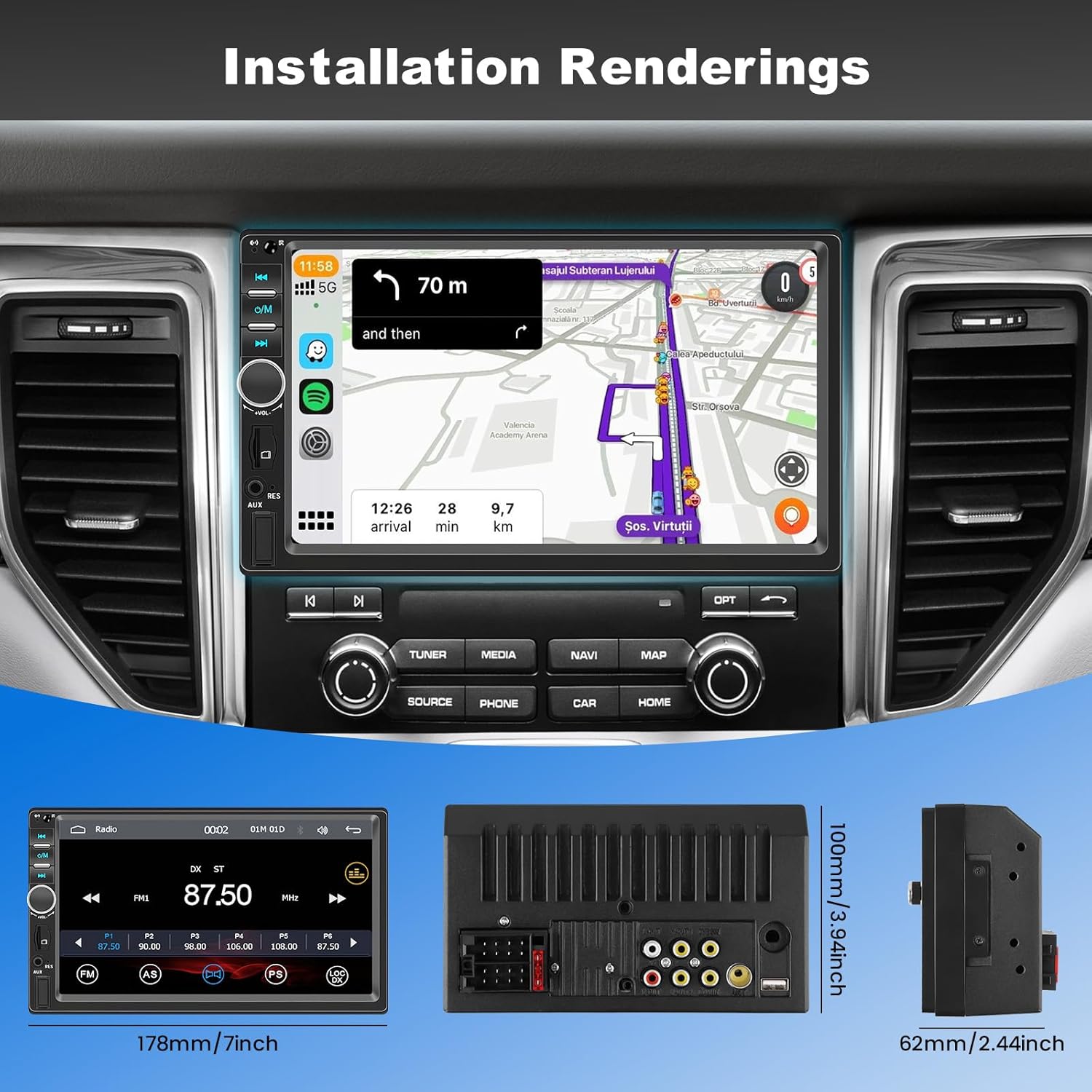
6. Wiring Diagram
The following diagrams illustrate the standard wiring connections for the Hikity 7018B car stereo, including power, speakers, and the backup camera.

6.1 Main Power and Speaker Wiring
| Wire Color | Function |
|---|---|
| Red | ACC (Ignition Switch +12V) |
| Black | GND (Ground Wire) |
| Blue | ANT (Radio Antenna / Amplifier Remote) |
| Orange | ILLUMINATION (Dash Light) |
| Yellow | BATTERY (+12V Constant) |
| Brown | KEY (Steering Wheel Control Input) |
| Pink | REVERSE (Reversing Camera Trigger) |
| Green | Brake Control Line |
| White / White-Black Stripe | Front Left Speaker (+/-) |
| Gray / Gray-Black Stripe | Front Right Speaker (+/-) |
| Green / Green-Black Stripe | Rear Left Speaker (+/-) |
| Purple / Purple-Black Stripe | Rear Right Speaker (+/-) |
6.2 Backup Camera Wiring
Connect the backup camera's video output to the "Reversing Video Input" (RCA) on the stereo. The camera's power should be connected to the vehicle's reverse light circuit, and the pink "REVERSE" wire from the stereo should also be connected to the reverse light trigger for automatic display switching.
7. Basic Operation
7.1 Power On/Off
Press the Power/Mode button on the front panel to turn the unit on. Press and hold to turn it off.
7.2 Volume Adjustment
Rotate the Volume Knob to increase or decrease the audio level. Press the knob to mute or unmute the sound.
7.3 Main Menu Navigation
Tap the icons on the 7-inch touchscreen to access different functions such as Radio, PhoneLink (CarPlay/Android Auto), USB, AUX, Bluetooth Music, and Settings.
7.4 Backlight Color Adjustment
The unit supports seven-color backlight adjustment for the physical buttons. Navigate to the settings menu to select your preferred color or turn off the backlight.

8. Apple CarPlay & Android Auto
The Hikity 7018B supports wired Apple CarPlay and Android Auto, allowing you to integrate your smartphone's features directly onto the stereo's display.
8.1 Connection Procedure
- Connect your iPhone or Android smartphone to the stereo's USB port using a high-quality USB data cable.
- The stereo will automatically detect the connection and prompt you to launch CarPlay or Android Auto.
- Follow any on-screen instructions or prompts on your phone to grant necessary permissions.
8.2 Features
Once connected, you can access navigation, make calls, send messages, play music, and use voice assistants (Siri/Google Assistant) directly from the stereo's touchscreen, minimizing distractions while driving.

9. Bluetooth Operation
The unit features Bluetooth 5.1 for hands-free calling and wireless audio streaming.
9.1 Pairing a Device
- Go to the Bluetooth menu on the stereo.
- Enable Bluetooth on your smartphone and search for available devices.
- Select "Hikity 7018B" (or similar name) from the list on your phone.
- Confirm the pairing code if prompted.
9.2 Hands-Free Calling
Once paired, you can make and receive calls directly through the stereo. Use the external microphone for clear communication.

9.3 Bluetooth Audio Streaming
Stream music from your paired smartphone to the car stereo. Control playback (play/pause, skip tracks) from the stereo's touchscreen or the remote control.
10. Mirror Link Function
The Mirror Link function allows you to display your smartphone's screen directly onto the car stereo's 7-inch display via a wired USB connection.
10.1 How to Use
- Connect your smartphone to the stereo's USB port using a data cable.
- Select the "Mirror Link" option on the stereo's main menu.
- Follow the on-screen instructions to establish the connection. For Android devices, you may need to enable USB debugging. For iOS devices, confirm the connection on your phone.
This feature is useful for displaying navigation apps, videos (when parked), or other content from your phone on a larger screen.

11. Backup Camera Function
The included backup camera provides a 170° wide-angle view and is waterproof, enhancing safety when reversing.
11.1 Operation
When the vehicle is shifted into reverse gear, the stereo's screen will automatically display the live feed from the backup camera, complete with parking guidelines.

12. Radio Operation
The unit features an FM radio tuner with the ability to store preset stations.
12.1 Tuning and Presets
- Select the "Radio" icon from the main menu.
- Use the on-screen controls or physical buttons to scan for stations.
- To save a station, press and hold one of the preset number buttons on the screen.

13. USB/TF/AUX Media Playback
The stereo supports media playback from USB drives, TF cards, and external devices connected via the AUX input.
13.1 USB and TF Card Playback
- Insert a USB drive into either USB port or a TF card into the TF card slot.
- Select the "USB" or "TF" icon from the main menu.
- Browse and select your desired audio or video files for playback.
13.2 AUX Input
Connect an external audio device (e.g., MP3 player) to the 3.5mm AUX input on the front panel using an audio cable. Select "AUX" from the main menu to play audio from the connected device.

14. Steering Wheel Control (SWC)
The unit supports steering wheel control functionality, allowing you to operate basic stereo functions without taking your hands off the wheel.
14.1 Setup
- Ensure the "KEY" wire (Brown) from the stereo's harness is correctly connected to your vehicle's steering wheel control output wire.
- Access the "Steering Wheel Control" settings menu on the stereo.
- Follow the on-screen instructions to program each steering wheel button to its corresponding function on the stereo. This typically involves pressing a button on the steering wheel and then selecting the desired function on the stereo's screen.

15. Maintenance
- Screen Cleaning: Use a soft, lint-free cloth to gently wipe the touchscreen. For stubborn smudges, slightly dampen the cloth with water or a screen cleaner designed for electronics. Avoid harsh chemicals.
- General Cleaning: Keep the unit free from dust and debris. Use a soft brush or compressed air to clean around buttons and ports.
- Firmware Updates: Check the manufacturer's website periodically for any available firmware updates to ensure optimal performance and compatibility.
16. Troubleshooting
If you encounter issues with your Hikity 7018B car stereo, refer to the following common problems and solutions:
| Problem | Possible Cause | Solution |
|---|---|---|
| Unit does not power on. | Incorrect wiring (ACC, Battery, GND), blown fuse, vehicle power issue. | Check all power connections (Red, Yellow, Black wires). Verify the fuse is intact. Ensure vehicle ignition is on. |
| No sound from speakers. | Speaker wires incorrectly connected, speaker impedance mismatch, unit muted, faulty speaker. | Check all speaker wire connections. Ensure the unit is not muted and volume is up. Test with known good speakers if possible. |
| CarPlay/Android Auto not connecting. | Faulty USB cable, phone not compatible, USB debugging not enabled (Android), permissions not granted. | Use a certified USB data cable. Ensure your phone's OS is up to date. Check phone settings for USB debugging (Android) or CarPlay permissions (iOS). |
| Backup camera not displaying. | Camera power issue, video cable disconnected, reverse trigger wire not connected. | Verify camera power and video cable connections. Ensure the pink "REVERSE" wire is connected to the vehicle's reverse light trigger. |
| Bluetooth connection issues. | Device not paired, Bluetooth disabled, interference. | Ensure Bluetooth is enabled on both devices and they are paired. Try unpairing and re-pairing. |
If the problem persists after trying these solutions, please contact Hikity customer support.
17. Specifications
| Feature | Detail |
|---|---|
| Model Number | 7018B |
| Product Dimensions | 7.01 x 2.44 x 3.94 inches |
| Item Weight | 0.634 ounces |
| Display | 7-inch HD Touchscreen |
| Connectivity Technology | USB, Auxiliary, Bluetooth 5.1 |
| Special Features | Apple CarPlay, Android Auto, Mirror Link, Backup Camera Input, FM Radio, Multi-band EQ |
| Compatible Devices | Camera, Smartphone |
| Audio Output Mode | Stereo |
| Output Power | 45 Watts x 4 channels (180 Watts total) |
| Video Encoding Support | RM/RMVB/DVD/(VOB)/VCD(DAT)/MP1/MP2/MP4 |
18. Warranty and Support
Hikity provides comprehensive support for its products:
- 12-Month Quality Warranty: The product is covered by a 12-month warranty against manufacturing defects.
- 30-Day Free Return: You may return the product within 30 days of purchase for a full refund.
- Online Support: Customer support is available to answer questions and provide assistance. Expect a reply within 24 hours.
For any questions regarding installation, operation, or troubleshooting, please contact Hikity Tech customer service. When contacting support, please provide your Amazon order number for faster service.