1. Product Overview
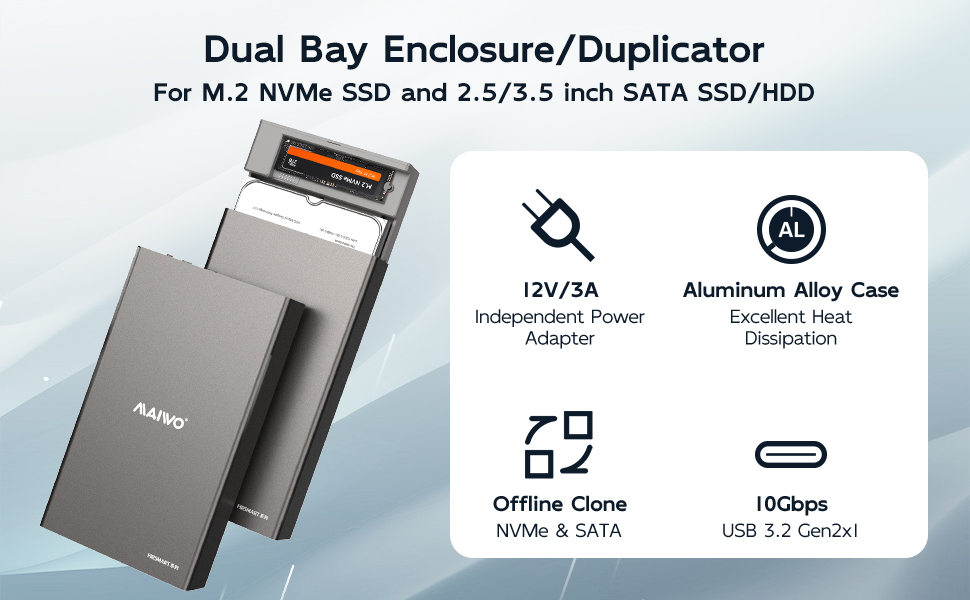
The MAIWO M.2 NVMe to 2.5/3.5” SATA Cloner is a versatile external hard drive enclosure and cloning station designed for efficient data management. It supports both M.2 NVMe B-Key SSDs (sizes 2230/2242/2260/2280mm) and 2.5/3.5 inch SATA SSDs/HDDs, allowing simultaneous access to data from two drives. This device features USB 3.2 Gen2 (10Gbps) for high-speed data transfer and offers bidirectional offline cloning capabilities, enabling direct drive-to-drive duplication without requiring a computer.
Key Features:
- Dual Bay Support: Accommodates M.2 NVMe B-Key SSDs and 2.5/3.5 inch SATA SSDs/HDDs. (Note: M.2 SATA SSDs are not supported.)
- High-Speed Transfer: USB 3.2 Gen2 interface provides data transfer speeds up to 10Gbps.
- Offline Cloning: Supports bidirectional cloning (SATA to NVMe or NVMe to SATA) without a host computer.
- Wide Compatibility: Compatible with various devices including laptops, desktops, TVs, smartphones (OTG support required), routers, MacBooks, and tablets. Supports multiple operating systems like Windows, MacOS, Linux, Harmony OS, and Android.
- Large Capacity: Supports up to 24TB SATA HDD + 8TB M.2 NVMe, totaling 32TB capacity.
- Efficient Heat Dissipation: Features an aluminum alloy case for excellent thermal management.
- Plug and Play: Driver-free operation for ease of use.
- Independent Power Adapter: Includes a 12V 3A power adapter for stable operation.
2. What's in the Box
Please verify that all items are present in the package:
- 1x MAIWO M.2 NVMe SSD and 2.5''/3.5'' SATA Hard Drive Cloner
- 1x 12V 3A Power Adapter
- 1x USB-C to USB-C Data Cable (10Gbps)
- 1x USB-A to USB-C Data Cable (10Gbps)
- 1x Silicone Thermal Pad
3. Setup and Installation
Follow these steps to install your M.2 NVMe SSD and 2.5/3.5 inch SATA HDD/SSD into the enclosure:
- Prepare the Enclosure: Gently slide out the middle frame (drive tray) from the aluminum alloy casing.
- Install M.2 NVMe SSD: Insert your M.2 NVMe SSD into the designated M.2 slot on the tray. Ensure it is securely seated and fastened with the provided screw if necessary.
- Install 2.5/3.5 inch SATA Drive: Place your 2.5 inch SSD or 3.5 inch HDD into the SATA drive bay on the tray. Align the SATA data and power connectors on the drive with the corresponding connectors on the tray. Secure the drive with screws from the bottom of the tray.
- Apply Thermal Pad: For M.2 NVMe SSDs, place the silicone thermal pad onto the SSD to aid in heat dissipation.
- Reassemble Enclosure: Carefully slide the loaded drive tray back into the aluminum alloy casing until it clicks into place.
- Connect Power: Connect the 12V 3A power adapter to the DC 12V port on the enclosure and plug it into a power outlet.
- Connect to Host Device: Use either the USB-C to USB-C cable or the USB-A to USB-C cable to connect the enclosure to your computer or other compatible device.

4. Operating Instructions
4.1. Read & Write Mode (Connected to PC)
Once the drives are installed and the enclosure is connected to your computer via USB, the drives will appear as external storage devices. You can then perform read and write operations as you would with any other external drive.
- High-Speed Data Transfer: The USB 3.2 Gen2 interface supports speeds up to 10Gbps, allowing for rapid file transfers.
- Simultaneous Access: Both the M.2 NVMe and SATA drives can be accessed simultaneously by your computer.


4.2. Offline Clone Mode
The offline clone function allows you to duplicate data from one drive to another without connecting to a computer. The target drive must have a capacity equal to or larger than the source drive.
- Insert Drives: Ensure both the source drive (containing data to be copied) and the target drive (where data will be copied to) are correctly installed in their respective slots within the enclosure.
- Select Clone Direction: Use the switch on the back of the enclosure to select the desired cloning direction:
- NVMe → SATA: Clones data from the M.2 NVMe SSD to the 2.5/3.5 inch SATA drive.
- SATA → NVMe: Clones data from the 2.5/3.5 inch SATA drive to the M.2 NVMe SSD.
- Initiate Cloning: Press and hold the 'Clone' button for approximately 3-5 seconds until the progress indicator LEDs begin to flash.
- Monitor Progress: The LEDs (25%, 50%, 75%, 100%) will illuminate sequentially to indicate the cloning progress. All LEDs will remain solid when the cloning process is complete.
- Completion: Once all LEDs are solid, the cloning is finished. You can then safely disconnect the power and remove the drives.
4.3. LED Indicators
The enclosure features several LED indicators to provide status information:
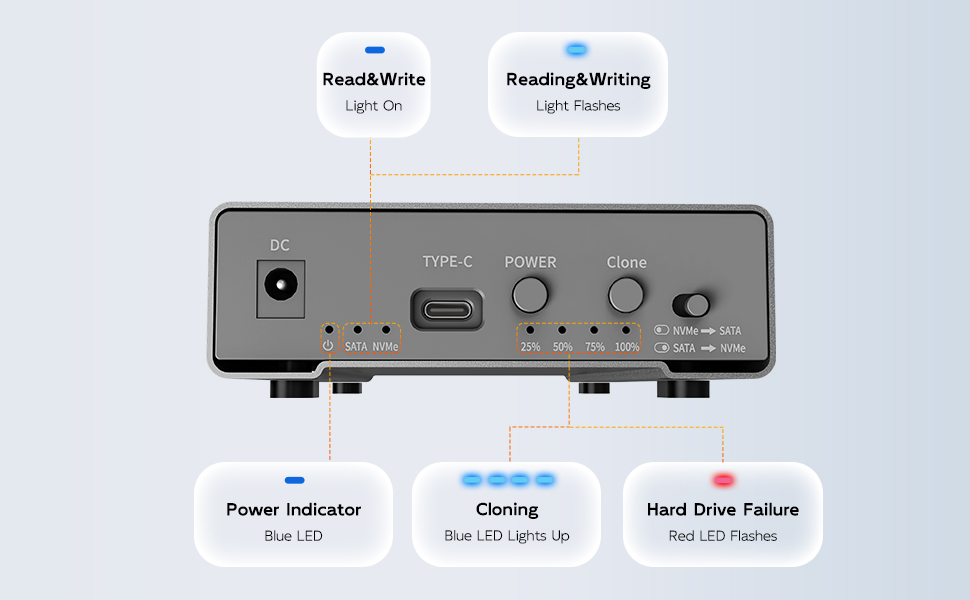
- Power Indicator (Blue LED): Indicates the device is powered on.
- SATA/NVMe Read & Write (Lights On/Flashes): Solid light indicates a drive is detected. Flashing light indicates data activity (reading or writing).
- Cloning Progress (25%, 50%, 75%, 100% Blue LEDs): These LEDs light up sequentially during an offline clone operation, indicating the percentage of completion. All remain solid when cloning is complete.
- Hard Drive Failure (Red LED Flashes): A flashing red LED indicates an error or failure with one of the installed hard drives.
4.4. Official Product Video
Watch this official video for a visual guide on setting up and using the MAIWO Dual Bay Enclosure, including the cloning process.
5. Maintenance
To ensure the longevity and optimal performance of your MAIWO Hard Drive Enclosure, follow these maintenance guidelines:
- Cleaning: Use a soft, dry cloth to wipe the exterior of the enclosure. Avoid using liquid cleaners or solvents, as they may damage the finish or internal components.
- Storage: Store the enclosure in a cool, dry place away from direct sunlight, extreme temperatures, and high humidity.
- Handling: Handle the enclosure with care. Avoid dropping it or subjecting it to strong impacts, which can damage the internal drives or the enclosure itself.
- Heat Dissipation: The aluminum alloy case and honeycomb heat sink are designed for efficient heat dissipation. Ensure the ventilation holes are not obstructed during operation to prevent overheating.
- Firmware Updates: Periodically check the MAIWO official website for any available firmware updates for your device to ensure compatibility and performance improvements.
6. Troubleshooting
If you encounter issues with your MAIWO Hard Drive Enclosure, refer to the following common problems and solutions:
- Drive Not Detected by Computer:
- Ensure all cables (power and USB) are securely connected.
- Verify that the drives are correctly seated in their slots within the enclosure.
- Check if the drive appears in your computer's Disk Management (Windows) or Disk Utility (macOS). If it appears but is unallocated, you may need to initialize and format it. If it's a cloned drive, you might need to bring it online or extend the volume.
- Try connecting the enclosure to a different USB port or computer.
- Offline Cloning Fails or Stops:
- Ensure the target drive's capacity is equal to or larger than the source drive's capacity.
- Check for any bad sectors or errors on both source and target drives before cloning.
- Verify the cloning direction switch is set correctly.
- Ensure the power adapter is providing stable power.
- Slow Data Transfer Speeds:
- Ensure you are using a USB 3.2 Gen2 compatible port on your computer and the provided 10Gbps cables.
- Check if other USB devices are consuming significant bandwidth.
- The actual speed may vary depending on the performance of the installed SSD/HDD.
- Hard Drive Failure (Red LED Flashes):
- This indicates a potential issue with one of the installed drives. Try removing and reinserting the drives.
- Test the drives individually in another enclosure or directly connected to a computer to determine if the drive itself is faulty.
7. Specifications
| Feature | Specification |
|---|---|
| Model Number | M.2 NVMe to 2.5/3.5” SATA Cloner |
| Compatible Drives | M.2 NVMe B-Key SSD (2230/2242/2260/2280mm), 2.5/3.5 inch SATA SSD/HDD (M.2 SATA SSD not supported) |
| Max Capacity | 24TB SATA HDD + 8TB M.2 NVMe (Total 32TB) |
| Data Transfer Rate | 10Gbps (USB 3.2 Gen 2) |
| Hardware Interface | USB 3.2 Gen 2 Type-C |
| Power Adapter | 12V 3A Independent Power Adapter |
| Material | ABS Plastic Bracket, Aluminum Alloy Case |
| Product Dimensions | 7.52 x 4.37 x 1.38 inches (19.1 x 11.1 x 3.5 cm) |
| Item Weight | 10.6 ounces (300 Grams) |
| Compatible OS | Windows, MacOS, Linux, Harmony OS, Android |
8. Warranty and Support
MAIWO products are designed for reliability and performance. For warranty information, technical support, or any inquiries regarding your MAIWO M.2 NVMe to 2.5/3.5” SATA Cloner, please contact MAIWO customer service through the retailer where you purchased the product or visit the official MAIWO website for support resources.
Please retain your proof of purchase for warranty claims.


