
KOLMAX BT98 whiteblue
KOLMAX BT98 Wireless Keyboard and Mouse Combo User Manual
Model: BT98 whiteblue | Brand: KOLMAX
Introduction
Thank you for choosing the KOLMAX BT98 Wireless Keyboard and Mouse Combo. This versatile set offers triple-mode connectivity (Wired, 2.4G Wireless, and Bluetooth), ergonomic design, and vibrant RGB backlighting, making it ideal for various computing needs across multiple platforms. This manual provides detailed instructions to help you set up, operate, and maintain your new keyboard and mouse combo.
What's in the Box
- KOLMAX BT98 Triple-Mode Keyboard x 1
- KOLMAX Triple-Mode Mouse x 1
- Type-C Charging Cable (for Wired Mode and Charging) x 2
- USB Receiver x 1
- User Manual x 1

Image: Contents of the KOLMAX BT98 package, including the keyboard, mouse, cables, and USB receiver.
Setup
1. Charging the Devices
Both the keyboard and mouse are rechargeable. Use the provided Type-C charging cables to charge them. Connect one end of the cable to the device's Type-C port and the other end to a USB power source (e.g., computer USB port, USB wall adapter).

Image: The keyboard and mouse connected to USB-C charging cables, illustrating their rechargeable nature.
2. Connection Modes
The KOLMAX BT98 combo supports three connection modes: Wired, 2.4G Wireless, and Bluetooth. You can easily switch between these modes to suit your needs.
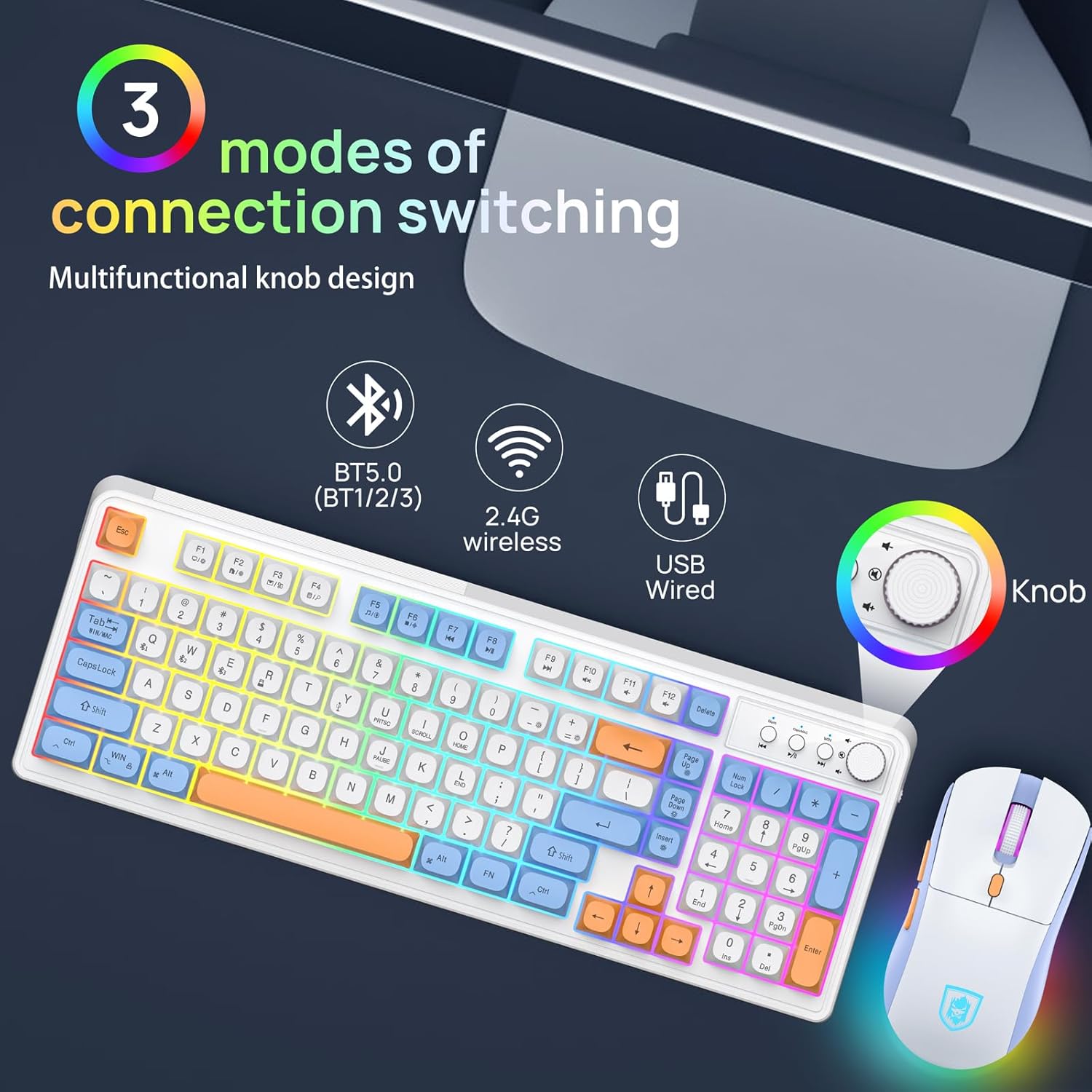
Image: Visual representation of the three connection modes available for the keyboard and mouse: Bluetooth, 2.4G Wireless, and USB Wired.
2.1. Wired Mode
Connect the keyboard and/or mouse directly to your computer using the provided Type-C to USB-A cables. This mode provides a stable, low-latency connection and simultaneously charges the devices.
2.2. 2.4G Wireless Mode
Insert the USB receiver into an available USB port on your computer. The keyboard and mouse should automatically connect. If not, ensure the devices are powered on and in 2.4G wireless mode (indicated by 'R' on the keyboard, accessed via FN+R).
2.3. Bluetooth Mode
The keyboard and mouse can connect to up to three different Bluetooth devices. To switch between Bluetooth channels (BT1, BT2, BT3) on the keyboard, press FN + Q (for BT1), FN + W (for BT2), or FN + E (for BT3). For the mouse, use the mode switch on its underside. To pair, put the device into pairing mode (refer to device-specific instructions if needed) and select 'KOLMAX Keyboard' or 'KOLMAX Mouse' from your device's Bluetooth settings.

Image: The keyboard demonstrating multi-device compatibility across Windows, Mac, iOS, Android, and Chrome OS via three Bluetooth channels.
Operating Instructions
1. Keyboard Functions
1.1. Switching Windows/Mac Layout
To switch between Windows and Mac operating system layouts, press FN + TAB. The corresponding indicator light (Win or Caps/MAC) will flash three times to confirm the switch.

Image: The keyboard illustrating the ability to switch between Windows and Mac layouts using the FN+TAB key combination.
1.2. Customizable Knob and Multimedia Functions
The multi-function knob on the keyboard allows for quick control of media and backlight settings. By default, rotate the knob to adjust volume (up/down) or press it to play/pause media. To switch the knob's function to control keyboard backlight, press FN + Knob Press. Rotate the knob to cycle through backlight modes or adjust brightness.
1.3. RGB Backlight Effects
The keyboard features 12 gorgeous RGB backlight effects. You can cycle through different modes, colors, and adjust speed.
- Change Backlight Mode: Press FN + Insert to cycle through the 12 backlight modes (e.g., monochrome, flow, ripple).
- Change Backlight Color: Press FN + Right Arrow to change the color within certain modes.
- Adjust Backlight Speed: Press FN + '+' to increase speed and FN + '-' to decrease speed.
- Turn Backlight On/Off: Press FN + Page Down to turn the backlight off. Press FN + Page Up to turn it back on.

Image: The keyboard displaying various RGB backlight effects, including different modes and color transitions.
1.4. Special Function Keys
Access secondary functions printed on certain keys by pressing FN simultaneously with the desired key. These include Print Screen (PRTSC), Scroll Lock (SCROLL), Home, Pause Break (PAUSE), and End.
2. Mouse Functions
2.1. Adjustable DPI Settings
The mouse offers 5 levels of adjustable DPI (800-1200-2400-3200-4800 DPI) for precise control. Press the DPI button located on the top of the mouse to cycle through the settings.
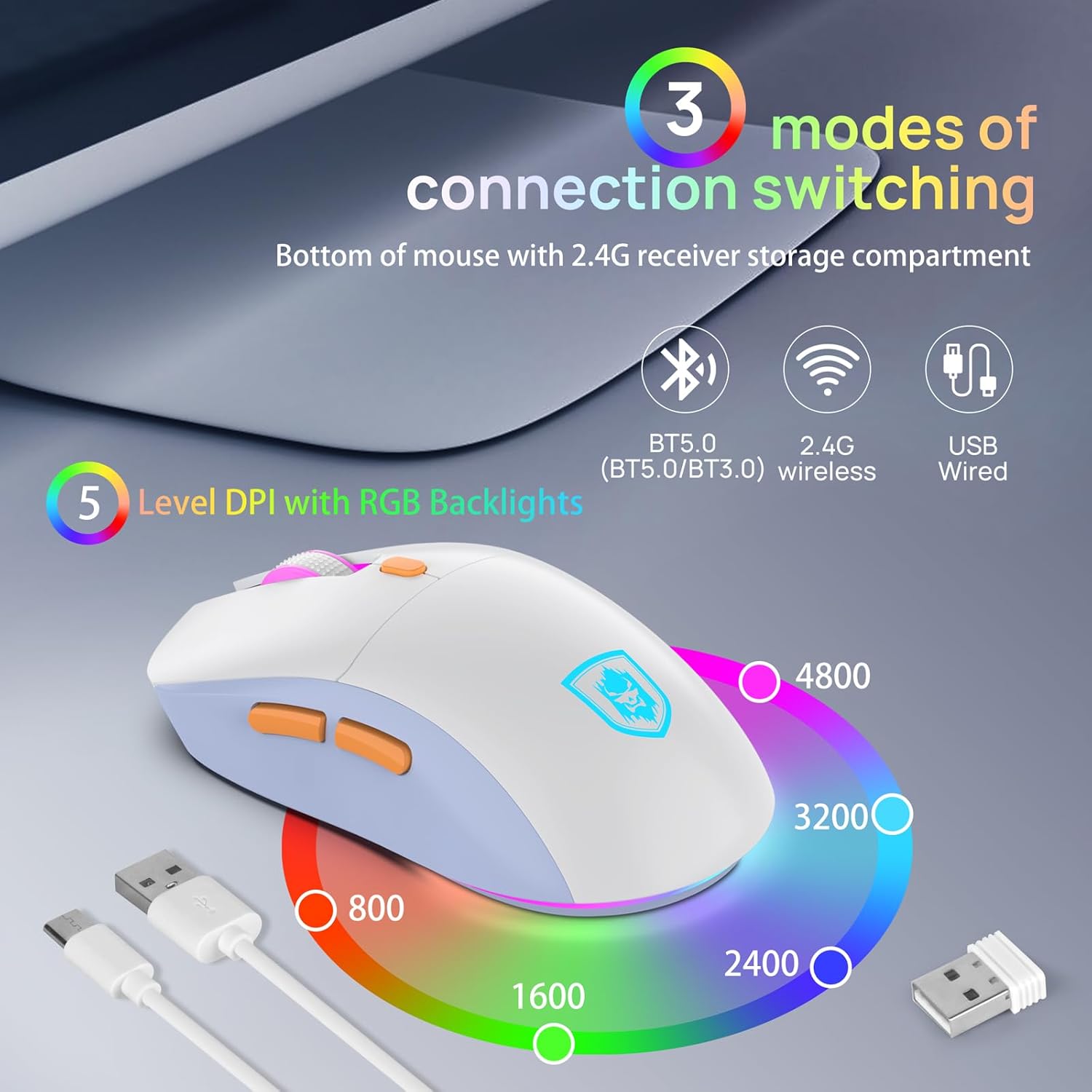
Image: The mouse highlighting its 5 adjustable DPI levels and the location of the DPI switch.
2.2. Mouse Lighting Modes
The mouse also features RGB backlighting with 7 colors and 10 lighting modes. Use the 'Light Mode Switch' on the underside of the mouse to change modes.
Maintenance
- Clean the keyboard and mouse regularly with a soft, dry cloth.
- Avoid using harsh chemicals or abrasive materials.
- Keep devices away from liquids and extreme temperatures.
- Store in a cool, dry place when not in use.
Troubleshooting
| Problem | Solution |
|---|---|
| Device not connecting via 2.4G Wireless | Ensure USB receiver is properly inserted. Check if the device is powered on and in 2.4G wireless mode (FN+R on keyboard). Try a different USB port. |
| Device not connecting via Bluetooth | Ensure device is in Bluetooth pairing mode (FN+Q/W/E for keyboard, mode switch for mouse). Check your computer's Bluetooth settings and ensure Bluetooth is enabled. Remove previous pairings and try again. |
| Backlight not working or dim | Ensure the backlight is turned on (FN+Page Up). Check battery level and charge the device if low. |
| Keys or mouse unresponsive | Check connection mode (wired, 2.4G, Bluetooth) and ensure it's correctly set. Recharge the device. Restart your computer. |
| Knob not controlling media/backlight | Press FN + Knob Press to toggle between media and backlight control modes. |
Specifications
- Brand: KOLMAX
- Model: BT98 whiteblue
- Connectivity Technology: Bluetooth, Wired/Wireless/Bluetooth
- Special Features: Ergonomic, Rechargeable, RGB Backlit, Customizable Knob
- Compatible Devices: Gaming Console, Laptop, Smartphone, Tablet, Television (Windows, Mac, iOS, Linux, Chrome OS, Android)
- Keyboard Layout: 98 Keys
- Mouse DPI: 5 Levels (800-1200-2400-3200-4800 DPI)
- Keyboard Battery: 2000mAh (approx. 365 days standby)
- Mouse Battery: 600mAh (approx. 270 days standby)
- Package Dimensions: 17.63 x 9.21 x 1.93 inches
- Item Weight: 2.33 pounds

Image: Detailed dimensions of the KOLMAX BT98 keyboard and mouse, highlighting their ergonomic design.
Warranty and Support
KOLMAX provides a 24-Month Warranty for this product. If you encounter any problems or have questions, please do not hesitate to contact KOLMAX customer service. They are committed to providing the best service within 24 hours.
For support, please refer to the contact information provided with your product packaging or visit the official KOLMAX store on Amazon: KOLMAX Store.
Ask a question about this manual
Ask about setup, troubleshooting, compatibility, parts, safety, or missing instructions. Manuals+ will review the question and use this page’s manual context to help answer it.