Introduction
Thank you for choosing the UGREEN Rechargeable Wireless Keyboard. This manual provides detailed instructions on how to set up, operate, and maintain your keyboard, ensuring optimal performance and longevity. Please read this manual thoroughly before using the product.
Package Contents
- UGREEN Rechargeable Wireless Keyboard
- USB-C Charging Cable
- 2.4G USB Receiver
- User Manual
Product Overview

Figure 1: UGREEN Rechargeable Wireless Keyboard, showcasing its full layout with Spanish characters.
The UGREEN Wireless Keyboard is designed for multi-device compatibility and ease of use. It features a slim, compact design with a full Spanish layout, including the 'Ñ' key. The keyboard supports both Bluetooth and 2.4G wireless connections, allowing seamless switching between up to four devices.

Figure 2: Close-up of the keyboard highlighting dedicated keys for both Mac and Windows operating systems.
The keyboard includes specific key legends for both macOS and Windows, ensuring a familiar typing experience regardless of your operating system. It also features a dedicated numeric keypad for efficient data entry.
Figure 3: Diagram illustrating the compact dimensions of the keyboard: 365mm (length) x 123mm (width) x 7.1mm (height).
Its ultra-thin profile (7.1mm) makes it highly portable and suitable for various workspaces.
Setup
Initial Power On and System Selection
Upon first use, the keyboard defaults to Windows operating system mode. To switch between operating systems:
- For Mac OS: Press Fn + W
- For Windows: Press Fn + Q

Figure 4: Visual representation of multi-system compatibility, including Windows, macOS, iOS, Linux, and Android.
The keyboard is compatible with Windows 7/8.1/10/11, macOS 10.15 and later, iOS 15 and later, iPadOS 14.0 and later, Linux, Chrome OS, and Android 5.0 and later.
Operating Instructions
Multi-Device Connectivity
The UGREEN keyboard supports simultaneous connection to up to four devices: one via 2.4G wireless and three via Bluetooth 5.0/3.0. It automatically recognizes the device's system and can reconnect automatically.
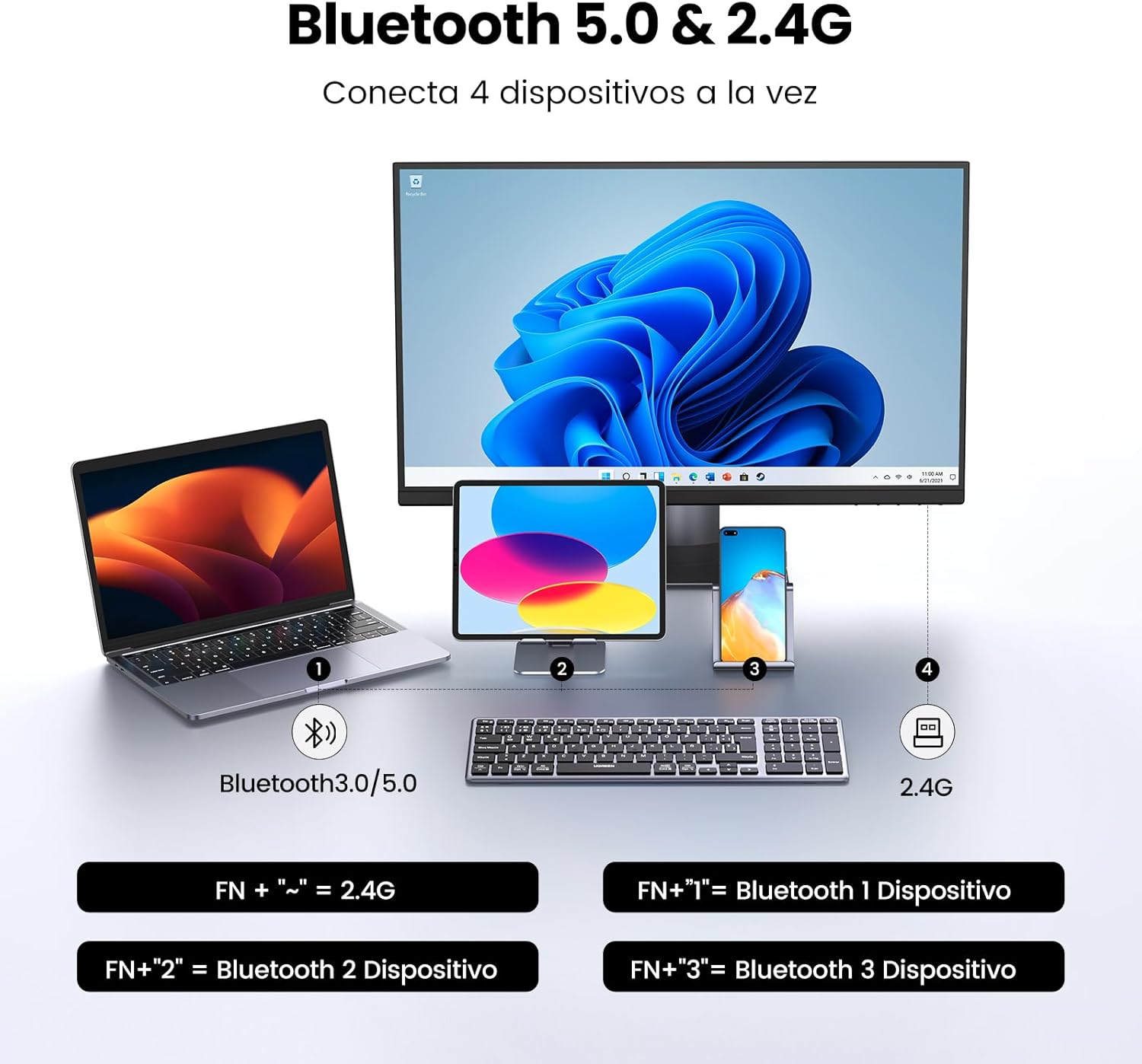
Figure 5: Illustration demonstrating how the keyboard connects to multiple devices (laptop, tablet, phone) via Bluetooth and 2.4G.
To switch between connected devices:
- For 2.4G connection: Press Fn + ~
- For Bluetooth Device 1: Press Fn + 1
- For Bluetooth Device 2: Press Fn + 2
- For Bluetooth Device 3: Press Fn + 3
Pairing Instructions
2.4G Connection:
- Insert the 2.4G USB receiver into an available USB port on your computer.
- Press Fn + ~ on the keyboard. The indicator light will flash, then remain solid when connected.
Bluetooth Connection:
- Press Fn + 1 (or 2, or 3) to select a Bluetooth channel. The corresponding indicator light will flash rapidly.
- On your device (computer, tablet, phone), enable Bluetooth and search for new devices.
- Select "UGREEN Keyboard" from the list of available devices.
- Follow any on-screen prompts to complete the pairing process. The indicator light will remain solid when connected.

Figure 6: User demonstrating simultaneous typing on a tablet and mobile phone using the UGREEN keyboard via Bluetooth.
Charging
The keyboard features a built-in rechargeable battery and comes with a USB-C charging cable. A single charge can provide up to 3 months of standby time, eliminating the need for frequent battery replacement.

Figure 7: The keyboard connected via USB-C for charging, indicating a 400mAh battery capacity and 3 months of working time per charge.
To charge the keyboard, connect the USB-C cable to the keyboard's charging port and the other end to a USB power source (e.g., computer, wall adapter). The charging indicator light will show charging status and turn off when fully charged.
Ergonomics and Design
The keyboard is designed with a 6-degree tilt support, promoting a more natural wrist position to reduce hand fatigue during extended typing sessions. The scissor-switch key mechanism provides a light and responsive typing experience.

Figure 8: Side view of the keyboard illustrating its ergonomic 6-degree tilt for comfortable typing.
The keys are designed for silent clicks, making it ideal for quiet environments.

Figure 9: A user typing on the keyboard, emphasizing its silent click feature, suitable for quiet environments.
Maintenance
To ensure the longevity and optimal performance of your UGREEN keyboard, follow these maintenance guidelines:
- Cleaning: Use a soft, dry, lint-free cloth to wipe the surface of the keyboard. For stubborn dirt, slightly dampen the cloth with water or a mild cleaning solution. Avoid excessive moisture.
- Dust Removal: Use compressed air to remove dust and debris from between the keys.
- Storage: When not in use for extended periods, store the keyboard in a cool, dry place away from direct sunlight and extreme temperatures.
- Avoid Spills: Keep liquids away from the keyboard to prevent damage to internal components.
- Handle with Care: Avoid dropping the keyboard or subjecting it to strong impacts.
Troubleshooting
| Problem | Possible Cause | Solution |
|---|---|---|
| Keyboard not connecting via Bluetooth. | Bluetooth not enabled on device; keyboard not in pairing mode; interference. | Ensure Bluetooth is on. Press Fn + 1/2/3 to enter pairing mode. Move closer to the device. Remove other wireless devices causing interference. |
| Keyboard not connecting via 2.4G. | USB receiver not properly inserted; keyboard not in 2.4G mode. | Ensure the USB receiver is fully inserted. Press Fn + ~ to switch to 2.4G mode. Try a different USB port. |
| Keys not responding or delayed response. | Low battery; out of range; system conflict. | Charge the keyboard. Move closer to the device. Ensure correct OS mode (Fn+Q for Windows, Fn+W for Mac). |
| Incorrect characters typed. | Incorrect operating system mode selected. | Switch to the correct operating system mode using Fn+Q (Windows) or Fn+W (Mac). |
| Battery life is shorter than expected. | Frequent usage; aging battery. | Ensure the keyboard is fully charged. Reduce usage if possible. Battery performance may degrade over time. |
Specifications
- Brand: UGREEN
- Model Number: 25726
- Connectivity Technology: Bluetooth 5.0/3.0 & 2.4G Wireless
- Power Source: Rechargeable Battery (400mAh Lithium Polymer)
- Operating Systems: Windows 7/8.1/10/11, macOS 10.15+, iOS 15+, iPadOS 14.0+, Linux, Chrome OS, Android 5.0+
- Dimensions: 365mm x 123mm x 7.1mm
- Weight: Approximately 700g
- Key Mechanism: Scissor-switch
- Special Features: Multi-device pairing (up to 4), Silent Click, Ergonomic 6° Tilt, Spanish Layout
Warranty and Support
UGREEN products come with a standard manufacturer's warranty. For specific warranty terms and conditions, please refer to the warranty card included in your product packaging or visit the official UGREEN website. If you encounter any issues or require technical assistance, please contact UGREEN customer support through their official channels or the retailer from whom you purchased the product.
For further assistance, please visit: UGREEN Official Store on Amazon


