1. Introduction
Welcome to the user manual for your new AIYUNDI QW33 Smartwatch. This guide provides comprehensive instructions on how to set up, operate, and maintain your device. The QW33 Smartwatch is designed to enhance your daily life with its advanced features, including health monitoring, Bluetooth calling, and various sports modes. Please read this manual carefully to ensure optimal performance and longevity of your smartwatch.
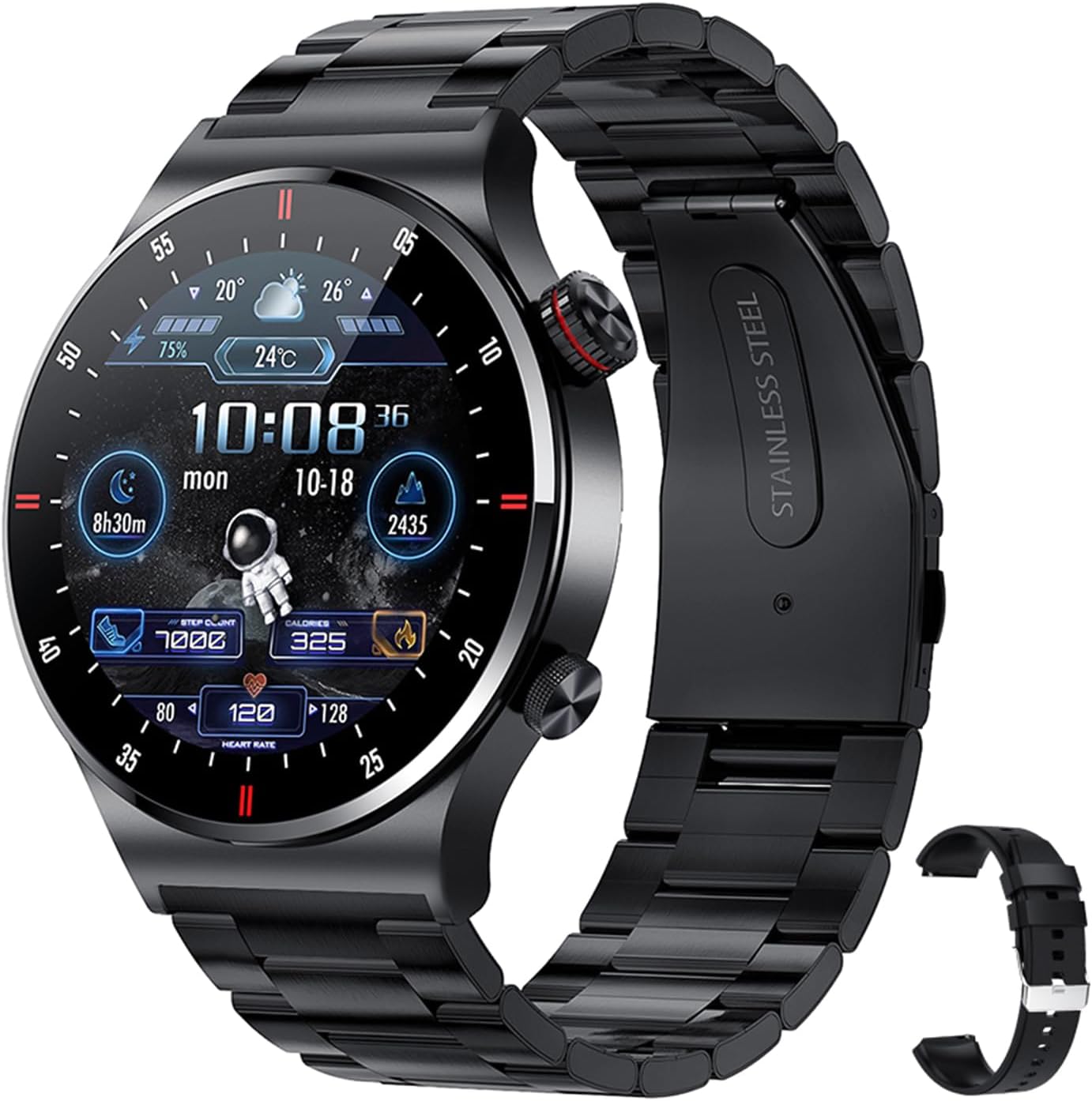
Figure 1: AIYUNDI QW33 Smartwatch Overview
2. Key Features
- 1.28-inch HD Display: Large and vivid 240x240 pixel IPS screen for clear visuals.
- Bluetooth Calling: Make and receive calls directly from your wrist with high-fidelity speakers.
- Health Monitoring: Track sleep quality, body temperature, blood pressure, and heart rate.
- Multiple Sport Modes: Choose from various sports modes to track your workouts.
- IP67 Water Resistance: Protected against dust and water damage for daily use.
- NFC Access Control: Supports NFC unlocking for convenient access.
- Customizable Dials: Over 100 watch faces and three menu interfaces to personalize your style.
- Rotatable Knob: Easily navigate the user interface without accidental screen touches.
- Offline QR Code Payment: Supports offline QR code payment after account binding.
3. Package Contents
Please check the box for the following items:
- AIYUNDI QW33 Smartwatch (with chosen band)
- Magnetic Charging Cable
- User Manual
4. Setup
4.1. Charging the Device
Before first use, fully charge your smartwatch. Use the provided magnetic charging cable.
- Connect the USB end of the charging cable to a power adapter (5V/1A recommended) or a computer's USB port.
- Align the magnetic end of the cable with the charging contacts on the back of the smartwatch. It will snap into place.
- The watch screen will display the charging status. A full charge typically takes about 2-3 hours.

Figure 2: Magnetic Charging
4.2. Powering On/Off
- Power On: Press and hold the side button for a few seconds until the screen lights up.
- Power Off: From the watch face, swipe down to access quick settings, or navigate to 'Settings' > 'System' > 'Power Off'. Confirm your selection.
4.3. App Installation and Pairing
To unlock the full potential of your smartwatch, download and install the companion app on your smartphone.
- Scan the QR code in the manual or on the watch screen (if available) to download the app, or search for the app name (usually mentioned in the watch's packaging or quick start guide) in your phone's app store (Google Play Store for Android, Apple App Store for iOS).
- Ensure Bluetooth is enabled on your smartphone.
- Open the app and follow the on-screen instructions to create an account or log in.
- In the app, navigate to 'Device' or 'Add Device' and select your QW33 Smartwatch from the list of nearby devices.
- Confirm the pairing request on both your phone and the smartwatch.
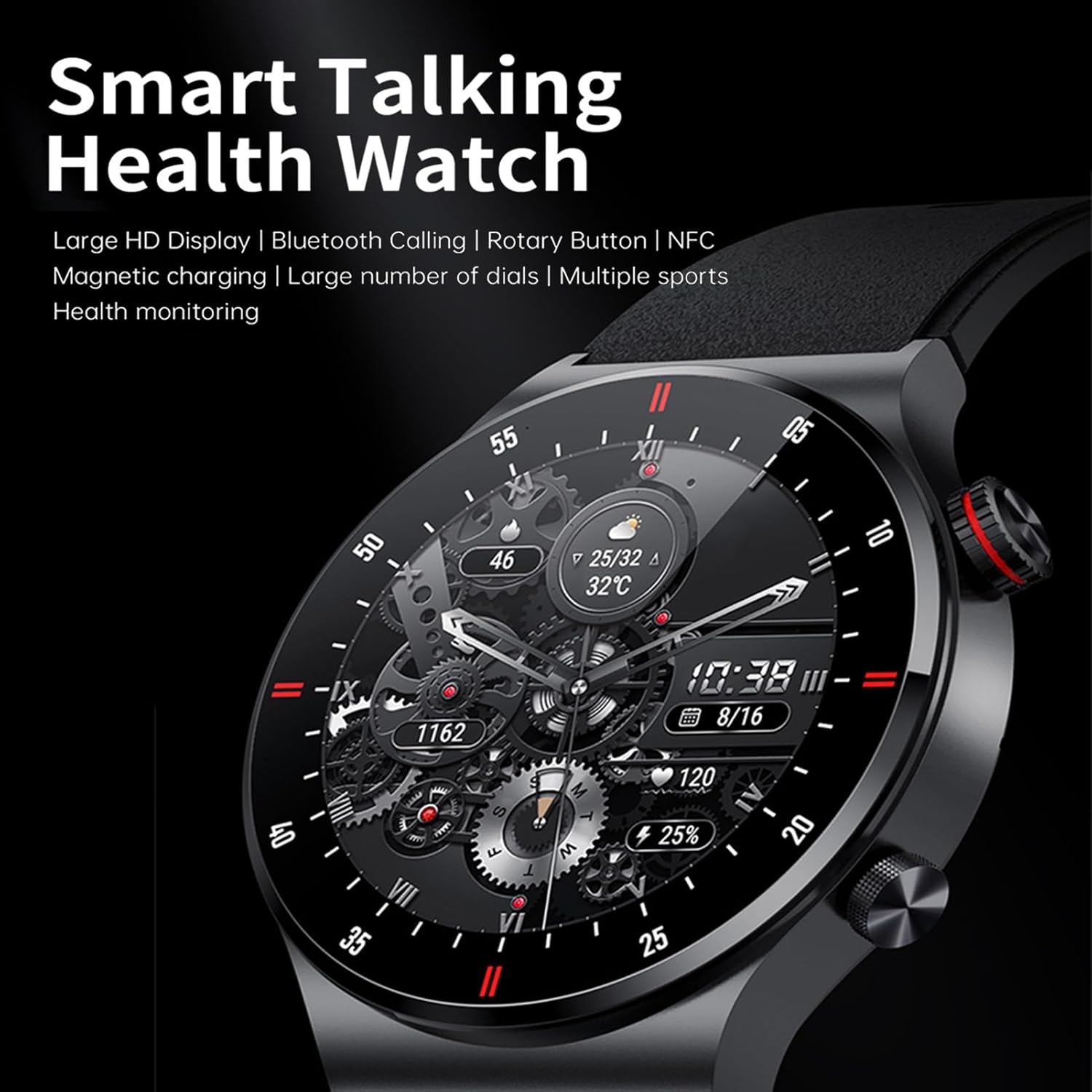
Figure 3: Smartwatch Display and App Connection
5. Operating Instructions
5.1. Navigating the Interface
- Touch Screen: Swipe left/right, up/down to navigate through menus and features. Tap to select.
- Rotatable Knob: Rotate the side knob to scroll through lists, zoom in/out, or switch watch faces. Press the knob to return to the main watch face or confirm selections.

Figure 4: Rotatable Knob Functionality
5.2. Customizing Watch Faces
The QW33 Smartwatch offers over 100 customizable watch faces.
- On Watch: Long-press the watch face, then swipe left/right to browse available faces. Tap to select.
- Via App: Open the companion app, go to 'Dial Market' or 'Watch Faces', and download/sync new watch faces to your device.

Figure 5: Multiple Creative Dials
5.3. Making and Receiving Calls
Once connected via Bluetooth, you can manage calls directly from your smartwatch.
- Making Calls: Access the 'Dial Pad' or 'Contacts' on your watch to initiate a call.
- Receiving Calls: When a call comes in, the watch will display the caller ID. Tap the green icon to answer or the red icon to reject.

Figure 6: Making Phone Calls

Figure 7: Call & Information Reminder
5.4. Health Monitoring
The smartwatch provides various health tracking features:
- Heart Rate: Access the heart rate monitor on the watch to measure your current heart rate. For continuous monitoring, enable it in the app.
- Blood Pressure: Follow the instructions on the watch to take a blood pressure reading.
- Sleep Tracking: Wear the watch to bed, and it will automatically track your sleep patterns. View detailed sleep data in the app.
- Body Temperature: Measure your body temperature directly from the watch.
5.5. Sport Modes
Select from a variety of sport modes to track your physical activity accurately. Navigate to the 'Sports' icon on your watch, choose your activity, and start your workout. The watch will record duration, calories burned, and other relevant metrics.
5.6. NFC Access Control Unlocking
The QW33 Smartwatch supports NFC access control for compatible systems.
- Ensure your NFC function is enabled on the watch (if applicable).
- Follow the instructions provided by your NFC access system to pair your smartwatch as an access key.

Figure 8: NFC Access Control Unlocking
5.7. Offline QR Code Payment
After binding your payment account within the companion app, you can use your smartwatch for offline QR code payments at supported terminals. Consult the app's payment section for setup details.
6. Maintenance
6.1. Cleaning
- Wipe the watch screen and body with a soft, lint-free cloth.
- For stubborn stains, dampen the cloth slightly with water. Do not use harsh chemicals or abrasive materials.
- Clean the charging contacts regularly to ensure proper charging.
6.2. Water Resistance (IP67)
The QW33 Smartwatch has an IP67 water resistance rating. This means it is protected against dust ingress and can withstand immersion in water up to 1 meter for up to 30 minutes. However, it is not suitable for hot water, diving, or high-pressure water activities (e.g., showering, sauna, hot springs). Avoid prolonged exposure to water.
7. Troubleshooting
If you encounter issues with your smartwatch, refer to the table below for common problems and solutions.
| Problem | Possible Cause | Solution |
|---|---|---|
| Watch won't turn on | Low battery; System crash | Charge the watch for at least 30 minutes; Press and hold the side button for 10-15 seconds to force restart. |
| Cannot pair with phone | Bluetooth off; App issue; Watch not discoverable | Ensure Bluetooth is on for both devices; Restart phone and watch; Reinstall the app; Reset watch to factory settings. |
| Inaccurate health data | Improper wearing; Sensor obstruction | Ensure watch is snug on wrist (not too tight/loose); Clean sensor on back of watch. |
| Notifications not received | App permissions; Notification settings | Check app notification permissions on phone; Ensure notifications are enabled in the watch app. |
| Short battery life | Frequent use of power-intensive features; Background apps | Reduce screen brightness; Limit continuous heart rate monitoring; Close unnecessary background apps on watch. |
8. Specifications
| Feature | Detail |
|---|---|
| Model Name | QW33 |
| Dimensions | 45.7 * 45.7 * 12 mm |
| Weight | 58g |
| Display | 1.28-inch IPS Screen, 240 * 240 px |
| Touch Screen | Full Touch Screen |
| CPU | GR5515 |
| Battery Capacity | 260 mAh Lithium Battery |
| Charging Mode | Magnetic Suction |
| Standby Time | 15 days |
| Working Time | 5-7 days |
| Bluetooth | BLE 5.1 |
| Waterproof Grade | IP67 |
| System Compatibility | Android 5.0 and above, iOS 10.0 and above |
| Available Languages | Simplified Chinese, English, Italian, Japanese, German, Spanish, French, Russian, Portuguese, Polish, Turkish, Greek, Hebrew, Czech, Hungarian, Arabic |
9. Warranty and Support
Your AIYUNDI QW33 Smartwatch comes with a standard manufacturer's warranty. Please refer to the warranty card included in your package for specific terms and conditions. For technical support, troubleshooting assistance, or warranty claims, please contact AIYUNDI customer service through the contact information provided on our official website or the product packaging. Please have your product model and purchase details ready when contacting support.