
UNISHEEN UR230A
UNISHEEN UR230A Video to Digital Converter User Manual
Model: UR230A
1. Introduction
The UNISHEEN UR230A Video to Digital Converter is designed to easily convert and store analog video and audio signals into digital formats. This device supports various input sources such as VHS, VCR, DVR, DVD, Cassette, Hi8, Mini DV players, camcorders, and gaming consoles. It features a plug-and-play design, eliminating the need for a PC, additional software, or drivers for basic operation. The UR230A allows direct saving of converted files to a USB drive or TF/SD card and includes a 3.0-inch LCD screen for real-time preview and playback.
2. Safety Information
- Ensure the device is powered by the correct voltage as specified in the power adapter.
- Do not expose the device to water, moisture, or extreme temperatures.
- Avoid dropping or subjecting the device to strong impacts.
- Do not attempt to disassemble or modify the device. Refer all servicing to qualified personnel.
- Keep the device away from direct sunlight and heat sources.
- Use only accessories and cables provided or recommended by the manufacturer.
3. Package Contents
Verify that all items are present in the package:
- UNISHEEN UR230A Video to Digital Converter
- Power Adapter
- Remote Control
- USB Cable
- RCA Cable (AV Cable)
- Audio Cable
- User Manual (this document)

Image: All components included in the UNISHEEN UR230A package, including the converter unit, remote control, power adapter, USB cable, RCA cable, and audio cable.
4. Product Overview
Familiarize yourself with the device's layout and connections.
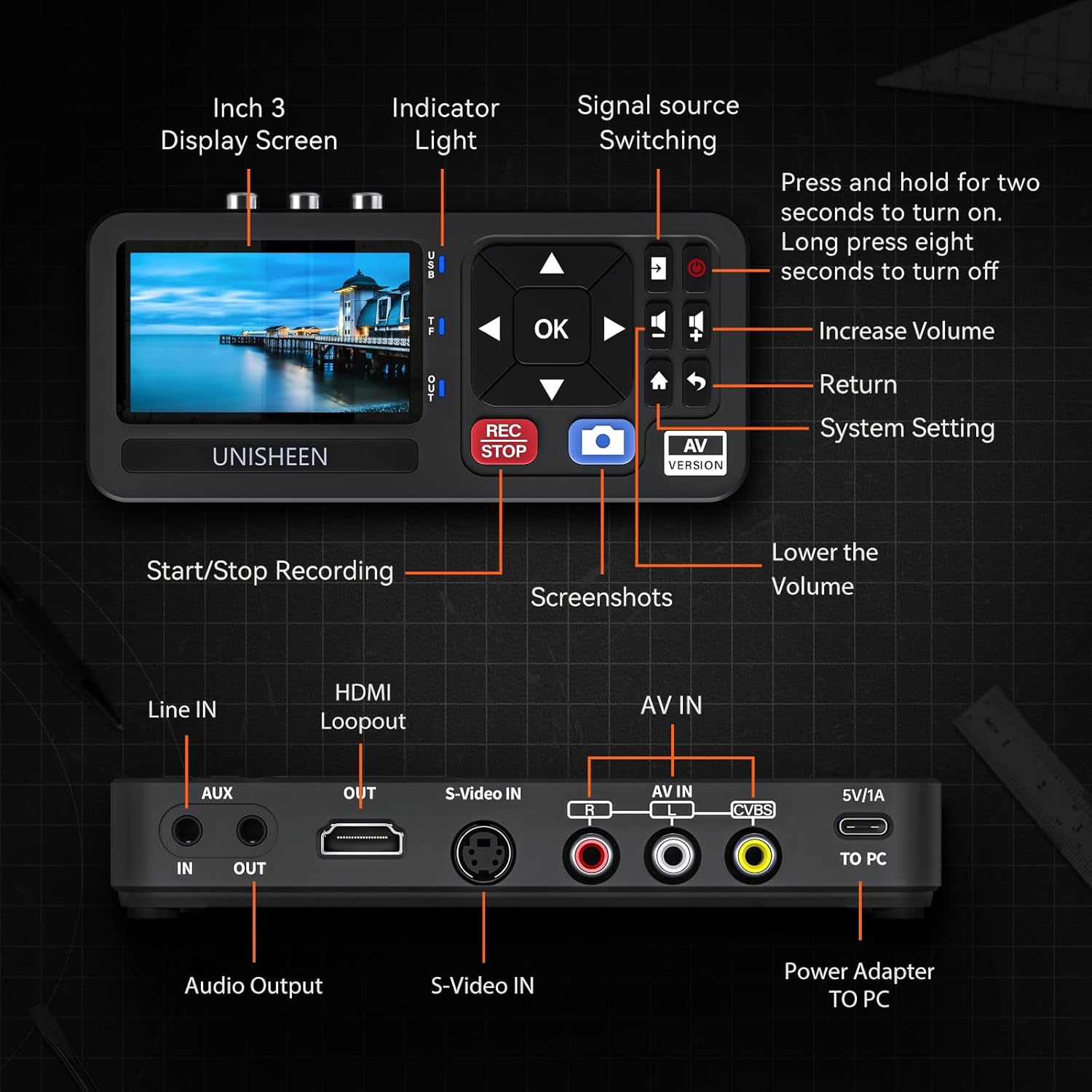
Image: Detailed diagram illustrating the front and rear panels of the UNISHEEN UR230A. Key features include the 3-inch display screen, indicator light, signal source switching button, volume controls, return button, system setting button, start/stop recording button, screenshots button, Line IN (AUX), HDMI Loopout, S-Video In, AV IN (CVBS), 5V/1A power input, TO PC port, and Audio Output.
Front Panel Controls:
- 3 Inch Display Screen: For previewing video and navigating menus.
- Indicator Light: Shows device status.
- Signal Source Switching: Button to cycle through input sources.
- Increase/Lower Volume: Adjusts audio output volume.
- Return: Navigates back in menus.
- System Setting: Accesses device settings.
- REC/STOP: Starts and stops recording.
- Screenshots: Captures still images from the video feed.
- AV Version: Indicates the AV input mode.
- OK Button: Confirms selections.
- Directional Buttons: For menu navigation.
Side/Rear Panel Ports:
- Line IN (AUX): 3.5mm audio input.
- HDMI Loopout: HDMI output for connecting to a display.
- S-Video In: S-Video input port.
- AV IN (CVBS): RCA composite video (yellow) and stereo audio (red/white) inputs.
- 5V/1A: Power input port.
- TO PC: USB port for connecting to a computer (for data transfer, not for live capture).
- Audio Output: 3.5mm audio output.
- TF Card Slot: For inserting a TF/Micro SD card (up to 512GB).
- USB Port: For connecting a USB flash drive (up to 512GB).
5. Setup
Follow these steps to set up your UNISHEEN UR230A converter:
- Connect Power: Connect the provided power adapter to the 5V/1A port on the device and plug it into a power outlet.

Image: A close-up view of the UNISHEEN UR230A showing the AV IN ports with red, white, and yellow RCA cables connected, emphasizing the plug-and-play nature of the device.
- Connect Input Source:
- For VHS/VCR/DVD players, camcorders, or gaming consoles with RCA (AV) outputs: Use the provided RCA cable to connect the device's AV OUT (yellow for video, white for left audio, red for right audio) to the UR230A's AV IN ports.
- For S-Video sources: Connect the S-Video cable to the S-Video In port.
- For AUX audio sources: Connect a 3.5mm audio cable to the Line IN (AUX) port.
- Connect Output Display (Optional): If you wish to view the signal on a larger screen, connect an HDMI cable from the UR230A's HDMI Loopout port to an HDMI input on your TV or monitor.
- Insert Storage Device: Insert a TF/Micro SD card into the TF slot or a USB flash drive into the USB port. The device supports up to 512GB for both.
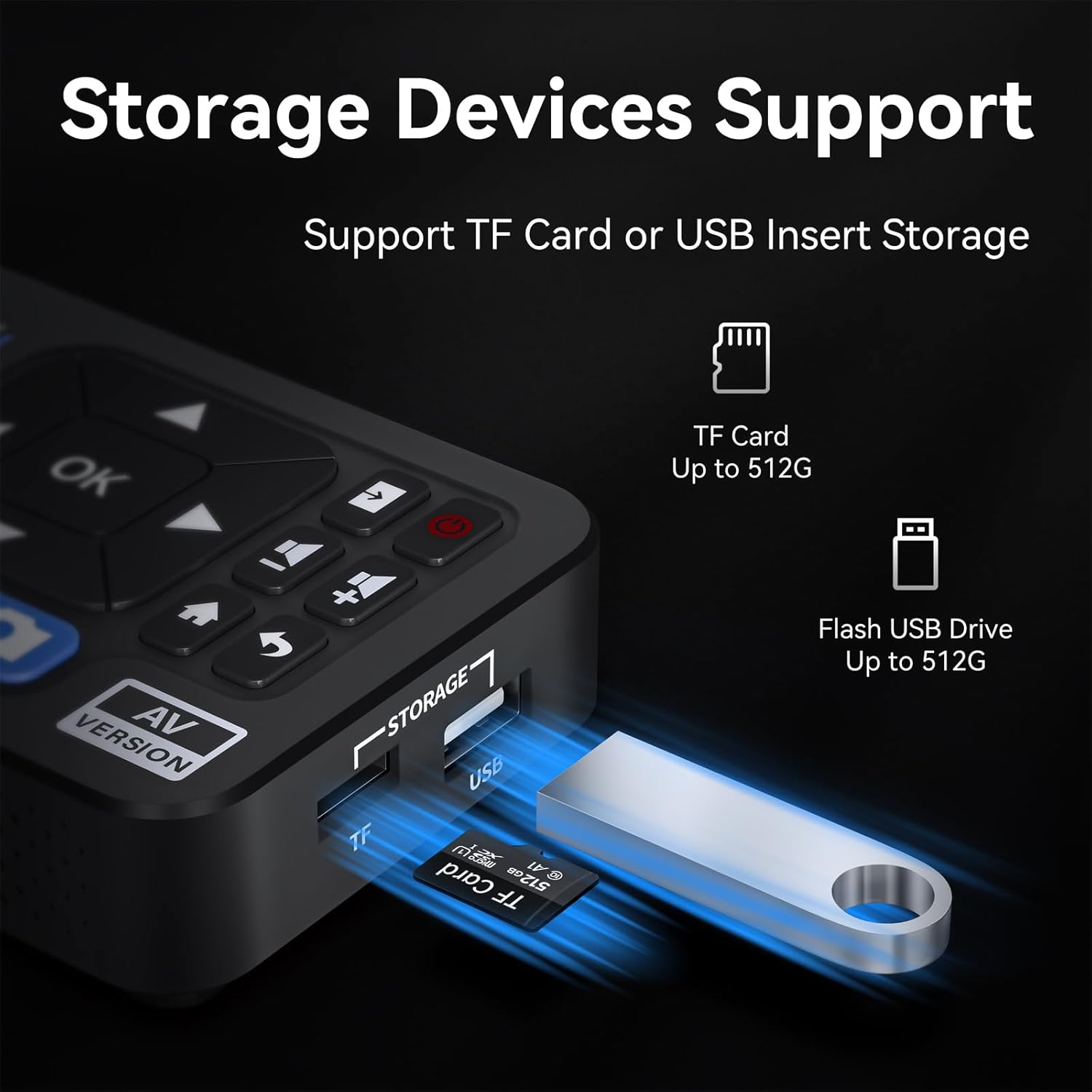
Image: A close-up of the UNISHEEN UR230A's side panel, highlighting the TF card slot and USB port, indicating support for both TF cards up to 512GB and Flash USB Drives up to 512GB for storage.
- Power On: Press and hold the power button (usually the top right button on the control panel) for two seconds to turn on the device.
6. Operating Instructions
6.1. Source Selection
After powering on, the device will display the current input source. Use the "Signal Source Switching" button (often indicated by an arrow icon pointing to a square) to cycle through available inputs: AV, S-Video, or AUX. Ensure the selected input matches your connected source.
6.2. Recording Video
To record video from your analog source:
- Ensure your source device (e.g., VCR, camcorder) is playing the content you wish to record.
- Verify the video signal is visible on the UR230A's 3-inch display screen.
- Press the REC/STOP button to begin recording. A recording indicator will appear on the screen.
- Press the REC/STOP button again to stop recording. The recorded file will be saved to your inserted USB drive or TF/SD card.
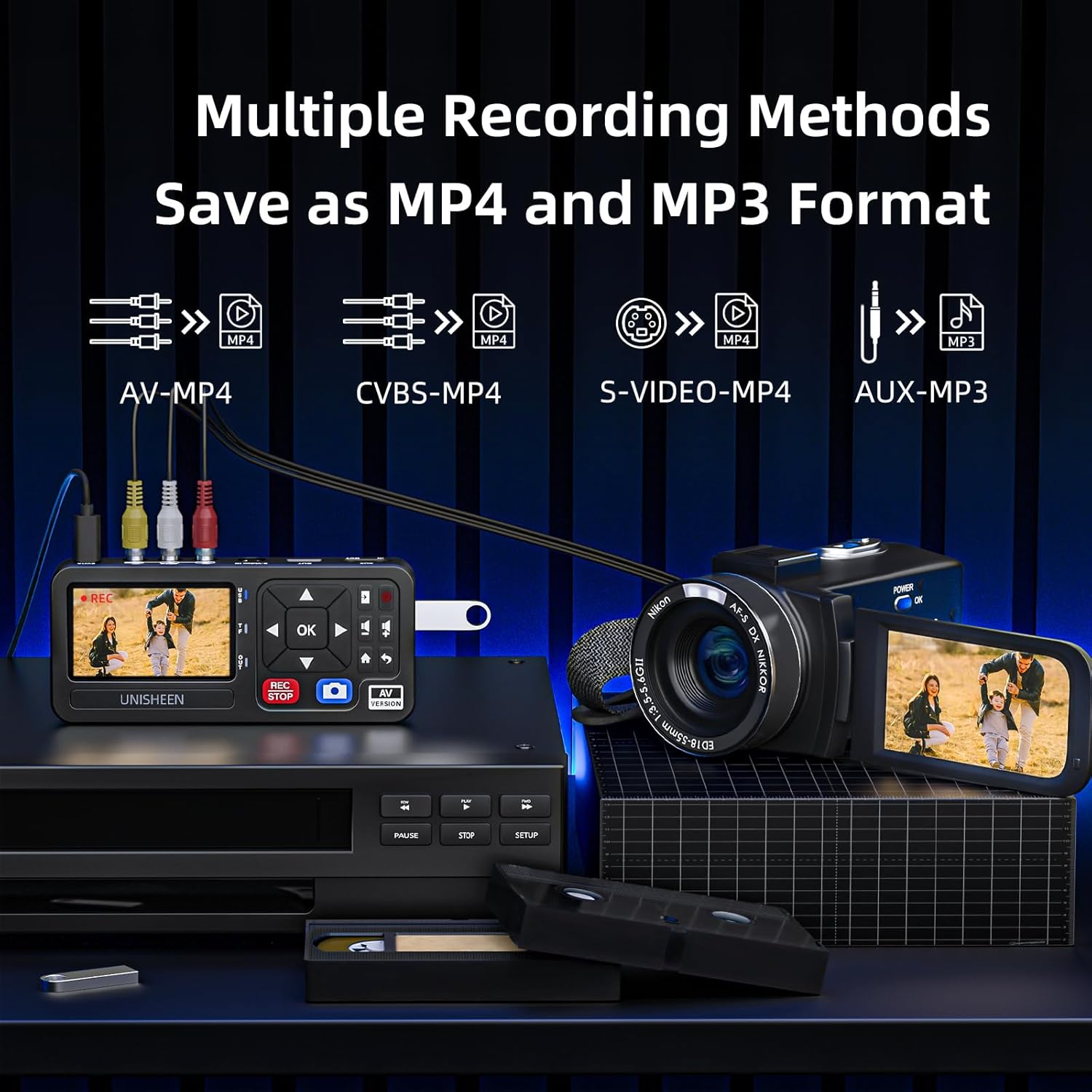
Image: A visual representation of the UNISHEEN UR230A connected to a camcorder and a VCR, illustrating multiple recording methods. It shows how AV, CVBS, and S-Video inputs can be saved as MP4 video files, and AUX input can be saved as MP3 audio files.
6.3. Taking Snapshots
To capture a still image from the video feed:
- While viewing the live video feed, press the Screenshots button (often indicated by a camera icon).
- The image will be saved as a picture file on your storage device.
6.4. Playback
To play back recorded videos or view captured images:
- From the main screen, navigate to the "Videos" or "Pictures" section using the directional buttons and press OK.
- Select the desired file from the list and press OK to play/view.
- Use the volume buttons to adjust playback volume.
6.5. Using the Remote Control
The included remote control provides convenient access to various functions, including snapshot, playback, and schedule recording (if supported by firmware). Refer to the on-screen menu for specific remote control functionalities.

Image: The UNISHEEN UR230A connected to a television, displaying a family video being converted from an analog source. This illustrates the device's function in digitizing content for viewing on modern displays.
Video: An unboxing and usage tutorial for the UNISHEEN UR230A video capture box. This video demonstrates how to set up the device, connect cables, switch video sources, take snapshots, and start/stop recordings, providing a visual guide to its operation.
7. Storage Options
The UR230A supports direct saving of recorded files to external storage devices without the need for a computer. It is compatible with:
- TF/Micro SD Cards: Up to 512GB capacity.
- USB Flash Drives: Up to 512GB capacity.
Ensure your storage device is formatted to a compatible file system (e.g., FAT32, exFAT) for optimal performance. There is no capacity limit for recording duration, only by the storage device's available space.
8. Compatibility
The UNISHEEN UR230A offers broad compatibility with various devices and operating systems:
8.1. Device Compatibility:
- VHS Players
- VCR Players
- DVRs
- DVD Players
- Cassette Players (for audio conversion)
- Hi8 Camcorders
- Mini DV Players
- Gaming Consoles (retro consoles with AV/S-Video output)
- TV Boxes
- Other devices with AV (RCA) or S-Video outputs.
8.2. Operating System Compatibility (for PC connection):
- Windows 10
- Mac OS
- Linux

Image: A comprehensive diagram illustrating the broad compatibility of the UNISHEEN UR230A. It lists various compatible devices such as DVD players, VHS players, game machines, camcorders, TV boxes, VCR players, and Hi8, along with supported operating systems including Windows, Linux, and Mac OS.
9. Maintenance
- Cleaning: Use a soft, dry cloth to clean the device. Do not use liquid cleaners or aerosols.
- Storage: Store the device in a cool, dry place away from direct sunlight and extreme temperatures when not in use.
- Firmware Updates: Check the manufacturer's website periodically for any available firmware updates to ensure optimal performance and compatibility.
10. Troubleshooting
| Problem | Possible Cause | Solution |
|---|---|---|
| No signal on screen. | Incorrect input source selected; cables not connected properly; source device not playing. | Ensure the correct input (AV, S-Video, AUX) is selected. Check all cable connections. Verify the source device is powered on and playing content. |
| Device not powering on. | Power adapter not connected; power outlet issue; faulty adapter. | Check power adapter connection. Try a different power outlet. Ensure the power button is pressed and held for 2 seconds. |
| Cannot record or save files. | Storage device full; incompatible format; storage device not inserted correctly. | Check available space on your TF card or USB drive. Ensure the storage device is properly inserted. Format the storage device to FAT32 or exFAT if issues persist. |
| Poor video/audio quality. | Poor quality of original source; damaged cables; incorrect settings. | The output quality depends on the input source quality. Try different cables. Check device settings for resolution options. |
| Remote control not working. | Batteries low/incorrectly inserted; IR sensor blocked. | Replace batteries. Ensure batteries are inserted with correct polarity. Point the remote directly at the device's IR sensor. |
11. Specifications
- Model Name: UR230A
- Product Dimensions: 7.28 x 5.87 x 3.11 inches
- Item Weight: 1.37 pounds
- Video Capture Resolution: Up to 1080p 30Hz
- Video Formats: MP4
- Audio Formats: MP3
- Audio Sampling Rate: Up to 48KHz
- Audio Output: Uncompressed 2-channel LPCM digital audio
- Inputs: AV (RCA), S-Video, AUX (3.5mm)
- Outputs: HDMI Loopout, 3.5mm Audio Output
- Storage Support: TF Card (up to 512GB), USB Flash Drive (up to 512GB)
- Display Screen: 3.0-inch LCD
- Power Input: 5V/1A
- Operating System Compatibility (for PC connection): Windows 10, Mac OS, Linux

Image: The UNISHEEN UR230A being held in a pocket, illustrating its compact and portable design. The image also displays its dimensions (158x70x25mm) and weight (0.18kg).
12. Warranty and Support
UNISHEEN provides a 3-year warranty and lifetime technical support for the UR230A Video to Digital Converter.
- For any questions or assistance, please contact the UNISHEEN customer service team.
- To contact support, locate your order on Amazon, then click the "Contact Seller" button.
- Issues are typically resolved within 24 hours.
- If the product is damaged upon receipt, you may apply for an exchange through the Amazon platform within 30 days.
For more information, visit the official UNISHEEN Store: UNISHEEN Store
Ask a question about this manual
Ask about setup, troubleshooting, compatibility, parts, safety, or missing instructions. Manuals+ will review the question and use this page’s manual context to help answer it.