
1. Introduction
Thank you for purchasing the STF Lumo Tower Portable Wireless Speaker. This device is designed to provide high-quality audio playback with versatile connectivity options, including Bluetooth, FM radio, USB, Micro SD, and a 3.5mm auxiliary input. It features a rechargeable battery for portable use and integrated LED lights to enhance your listening experience. Please read this manual carefully before using the product to ensure proper operation and to maximize its lifespan.
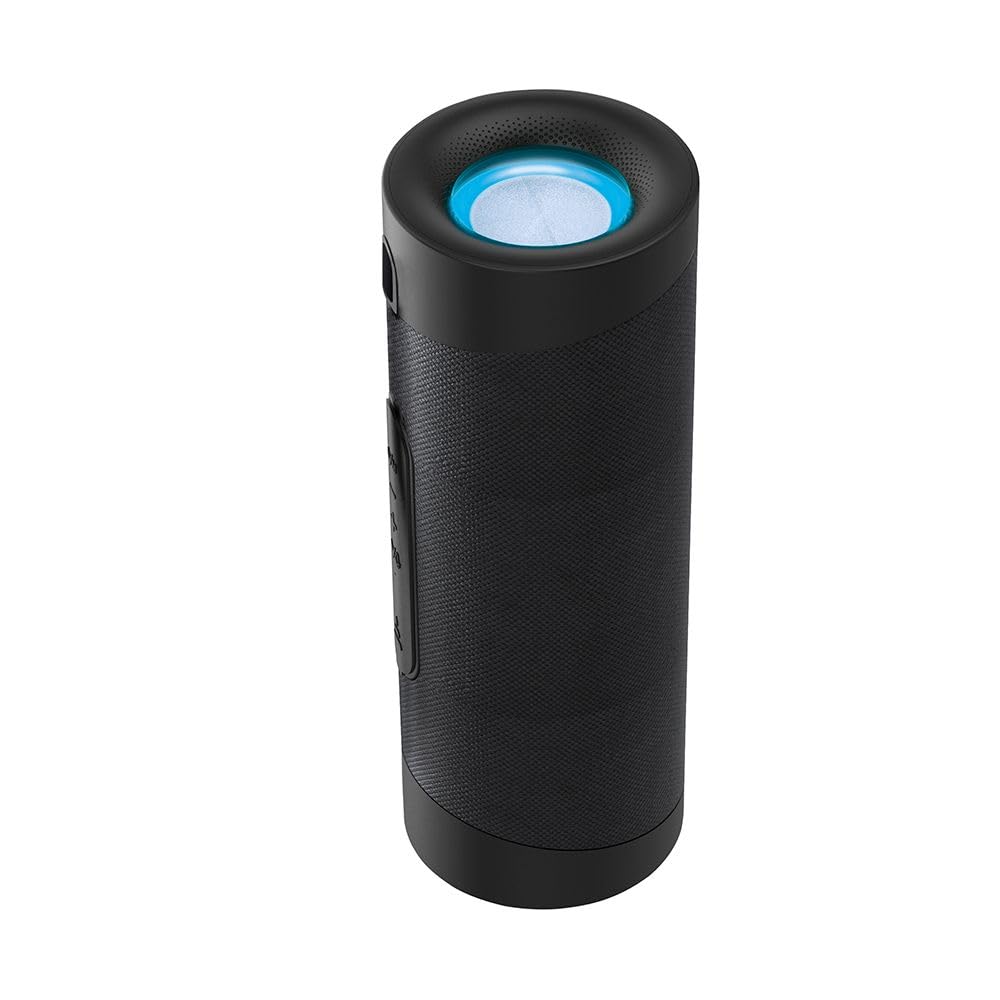
Image: The STF Lumo Tower Portable Wireless Speaker, a cylindrical black speaker with a textured body and control panel on the side.
2. Safety Information
To ensure safe and effective operation, please observe the following safety guidelines:
- Do not expose the speaker to extreme temperatures, direct sunlight, or high humidity.
- Avoid dropping or subjecting the speaker to strong impacts.
- Do not disassemble, repair, or modify the device yourself. Contact qualified service personnel for assistance.
- Keep the speaker away from water and other liquids.
- Use only the provided charging cable or a certified equivalent.
- Do not operate the speaker at excessively high volumes for prolonged periods to prevent hearing damage.
- Keep out of reach of children.
3. Package Contents
Please check that all items are present in your package:
- STF Lumo Tower Portable Wireless Speaker
- USB Type-C Charging Cable
- User Manual

Image: The STF Lumo Tower speaker shown inside its retail packaging, highlighting the product and its branding.
4. Product Overview
Familiarize yourself with the various parts and controls of your Lumo Tower speaker.
4.1 Controls and Ports
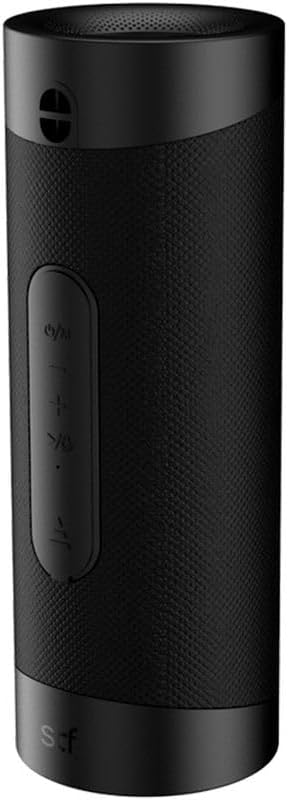
Image: A close-up view of the STF Lumo Tower speaker's side panel, displaying the power/mode button, volume controls, and play/pause button.
- Power/Mode Button (ⓘ/M): Press and hold to power on/off. Short press to switch between modes (Bluetooth, FM, USB, Micro SD, AUX).
- Volume Down / Previous Track (-/<<): Short press for volume down. Long press for previous track.
- Play/Pause / FM Scan (▶/▌▌): Short press to play/pause. In FM mode, long press to auto-scan and save stations.
- Volume Up / Next Track (+/>>): Short press for volume up. Long press for next track.
- USB Port: For USB flash drive playback.
- Micro SD Card Slot: For Micro SD card playback.
- AUX Input (3.5mm): For wired audio connection.
- USB Type-C Charging Port: For charging the speaker.
4.2 LED Light

Image: The top of the STF Lumo Tower speaker, featuring a circular, illuminated LED light ring.
The Lumo Tower features an integrated LED light at the top, which illuminates during operation, adding a visual element to your audio experience.
5. Setup
5.1 Charging the Speaker
- Connect the provided USB Type-C charging cable to the speaker's charging port.
- Connect the other end of the USB cable to a compatible USB power adapter (not included) or a computer's USB port.
- The LED indicator will show charging status (e.g., red for charging, off when fully charged).
- A full charge takes approximately 2-3 hours and provides up to 3 hours of playback time, depending on volume and usage.
5.2 Powering On/Off
- To power on, press and hold the Power/Mode button (ⓘ/M) for approximately 3 seconds until you hear an audible prompt.
- To power off, press and hold the Power/Mode button (ⓘ/M) for approximately 3 seconds until you hear an audible prompt.
6. Operating Instructions
6.1 Bluetooth Pairing
- Power on the speaker. It will automatically enter Bluetooth pairing mode, indicated by a flashing LED light and an audible prompt.
- Enable Bluetooth on your smartphone, tablet, or other Bluetooth-enabled device.
- Search for available devices and select "STF Lumo Tower" from the list.
- Once paired, the LED light will stop flashing, and you will hear a confirmation sound.
- You can now play audio from your device through the speaker.
6.2 True Wireless Stereo (TWS) Pairing
The Lumo Tower supports TWS functionality, allowing you to pair two Lumo Tower speakers together for a stereo sound experience.
- Ensure both Lumo Tower speakers are powered on and in Bluetooth pairing mode (not yet connected to any device).
- On one of the speakers (this will be the primary speaker), double-press the Power/Mode button (ⓘ/M). The speakers will attempt to pair with each other.
- Once successfully paired, you will hear a confirmation sound, and the LED light on the primary speaker will flash, while the secondary speaker's LED will remain solid.
- Now, connect your Bluetooth device to the primary speaker as described in Section 6.1.
- Audio will now play in stereo through both speakers.
6.3 FM Radio Operation
- Power on the speaker and short press the Power/Mode button (ⓘ/M) until you enter FM Radio mode.
- Long press the Play/Pause button (▶/▌▌) to initiate an automatic scan for FM stations. The speaker will scan and save available stations.
- Short press the Volume Down / Previous Track (-/<<) or Volume Up / Next Track (+/>>) buttons to navigate between saved stations.
6.4 USB / Micro SD Playback
- Insert a USB flash drive or a Micro SD card (with audio files) into the respective port/slot on the speaker.
- The speaker will automatically switch to USB or Micro SD mode and begin playing audio. If it doesn't, short press the Power/Mode button (ⓘ/M) to cycle through modes until you reach the correct one.
- Use the Play/Pause button (▶/▌▌) to control playback.
- Use the Volume Down / Previous Track (-/<<) and Volume Up / Next Track (+/>>) buttons to change tracks.
6.5 AUX Input Usage
- Connect one end of a 3.5mm audio cable (not included) to the AUX input port on the speaker.
- Connect the other end of the 3.5mm audio cable to the audio output jack of your device (e.g., smartphone, MP3 player).
- The speaker will automatically switch to AUX mode. If it doesn't, short press the Power/Mode button (ⓘ/M) to cycle through modes.
- Control playback and volume from your connected device.
6.6 Volume Control
- Short press the Volume Up button (+/>>) to increase the volume.
- Short press the Volume Down button (-/<<) to decrease the volume.
7. Maintenance
7.1 Cleaning
- Wipe the speaker with a soft, dry cloth.
- Do not use abrasive cleaners, alcohol, or chemical solvents, as these may damage the surface.
7.2 Storage
- When not in use for extended periods, store the speaker in a cool, dry place.
- Avoid storing in areas with extreme temperatures or high humidity.
7.3 Battery Care
- To prolong battery life, fully charge the speaker before first use.
- Recharge the battery at least once every three months if not used regularly.
- Avoid completely draining the battery frequently.
8. Troubleshooting
| Problem | Possible Solution |
|---|---|
| Speaker does not power on. | Ensure the battery is charged. Connect the speaker to a power source using the USB Type-C cable. |
| Cannot pair via Bluetooth. |
|
| No sound or low volume. |
|
| FM radio reception is poor. | Move the speaker to an open area, away from obstructions or other electronic devices that may cause interference. Perform an auto-scan again. |
| USB/Micro SD playback not working. |
|
9. Specifications
| Feature | Detail |
|---|---|
| Brand | STF |
| Model Name | Lumo Tower |
| Connectivity Technology | Bluetooth, USB, Micro SD, 3.5mm AUX |
| Wireless Communication | Bluetooth |
| Audio Output Mode | Stereo |
| Power Source | Battery Powered |
| RMS Power Output | 10 Watts |
| Battery Life | Up to 3 hours (at moderate volume) |
| Charging Port | USB Type-C |
| Special Features | Bluetooth, Wireless, Portable, LED Light, FM Radio, TWS Function |
| Product Dimensions | 20 x 5 x 20 cm |
| Weight | 670 grams |
| Included Components | USB Type-C Charging Cable |
10. Warranty and Support
For warranty information and customer support, please refer to the warranty card included in your product packaging or visit the official STF website. Keep your purchase receipt as proof of purchase for any warranty claims.
If you encounter any issues not covered in the troubleshooting section, please contact STF customer service for further assistance.