
Skyworth 65UE7600
Skyworth 65-Inch UE7600 Series LED 4K UHD Google TV User Manual
Model: 65UE7600 | Brand: Skyworth
1. Introduction and Overview
The Skyworth UE7600 Series LED 4K UHD Google TV offers an immersive entertainment experience with cutting-edge technology and intuitive smart features. This manual provides comprehensive instructions for setting up, operating, maintaining, and troubleshooting your new television. It is designed to help you maximize your viewing pleasure and ensure the longevity of your device.
Key features include 4K UHD resolution, HDR10 and Dolby Vision support for enhanced visuals, the Google TV operating system with personalized recommendations, Google Assistant voice control, Chromecast Built-In, Chameleon Extreme 2.0 for picture enhancement, and Eyecare Protection Technology.
2. Safety Information
Please read all safety instructions carefully before using your television. Keep this manual for future reference.
- Power Source: Ensure the TV is connected to an AC 100-240V, 50/60Hz power supply. Do not overload power outlets.
- Ventilation: Do not block ventilation openings. Allow adequate space around the TV for proper airflow.
- Water and Moisture: Do not expose the TV to rain or moisture. Do not place objects filled with liquids, such as vases, on the TV.
- Cleaning: Unplug the TV before cleaning. Use a soft, dry cloth. Do not use liquid cleaners or aerosol cleaners.
- Placement: Place the TV on a stable, level surface. Avoid placing it in direct sunlight or near heat sources.
- Lightning: Unplug the TV during lightning storms or when unused for long periods.
- Servicing: Do not attempt to service the TV yourself. Refer all servicing to qualified service personnel.
3. What's in the Box
Upon opening the packaging, please verify that all the following components are included:
- Skyworth 65-Inch UE7600 Series LED 4K UHD Google TV
- Power Cable
- Remote Control
- TV Stand (2 pieces)
- Screws for Stand Assembly
- User Manual (this document)
- Quick Start Guide
4. Setup
4.1 Attaching the TV Stand
If you are not wall-mounting your television, follow these steps to attach the included stand:
- Carefully place the TV face-down on a soft, clean surface to prevent screen damage.
- Align each stand piece with the corresponding screw holes on the bottom of the TV.
- Secure each stand piece with the provided screws using a Phillips head screwdriver. Ensure they are tightened firmly but do not overtighten.
4.2 Connecting Peripherals
Connect your external devices such as cable boxes, gaming consoles, or sound systems to the appropriate ports on the back or side of the TV.

Image: Side view of the Skyworth UE7600 TV, highlighting the accessible input ports for various devices.
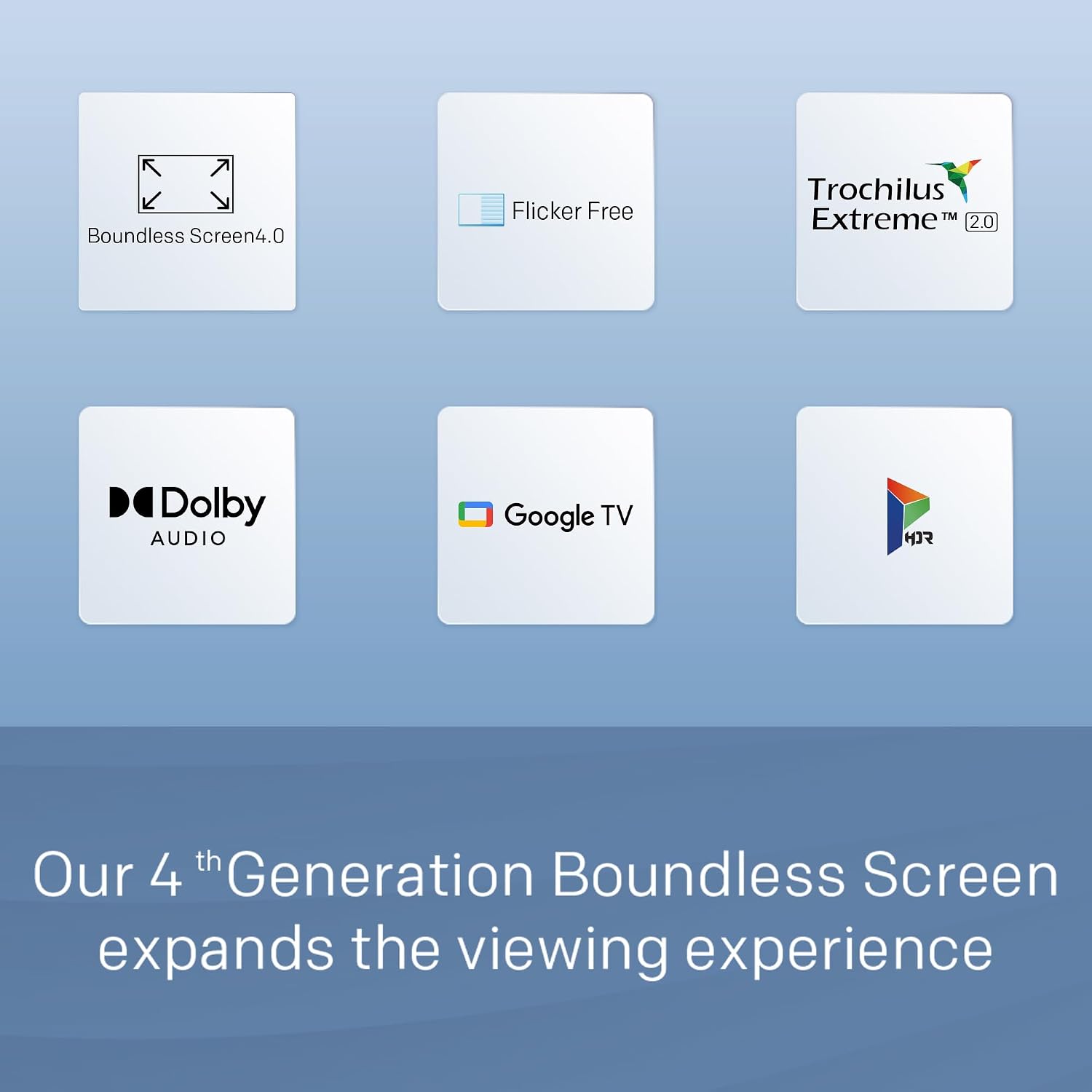
Image: Rear view of the Skyworth UE7600 TV, illustrating the VESA mounting pattern and additional connectivity options.
4.3 Initial Power On and Network Setup
After connecting the power cable, press the power button on the TV or remote control. Follow the on-screen instructions to complete the initial setup, including language selection, network connection (Wi-Fi or Ethernet), and Google TV account sign-in.

Image: The Skyworth UE7600 TV showcasing its display with the Google TV interface, ready for initial setup.
5. Operating Instructions
5.1 Remote Control Usage
The included Bluetooth remote control allows for seamless navigation. Use the directional pad to move through menus, the 'OK' button to select, and dedicated buttons for quick access to popular streaming services and Google Assistant.
5.2 Google TV Interface
Google TV organizes your content from various streaming services into a single, personalized interface. Explore recommended content, browse by genre, or use the search function to find specific titles.
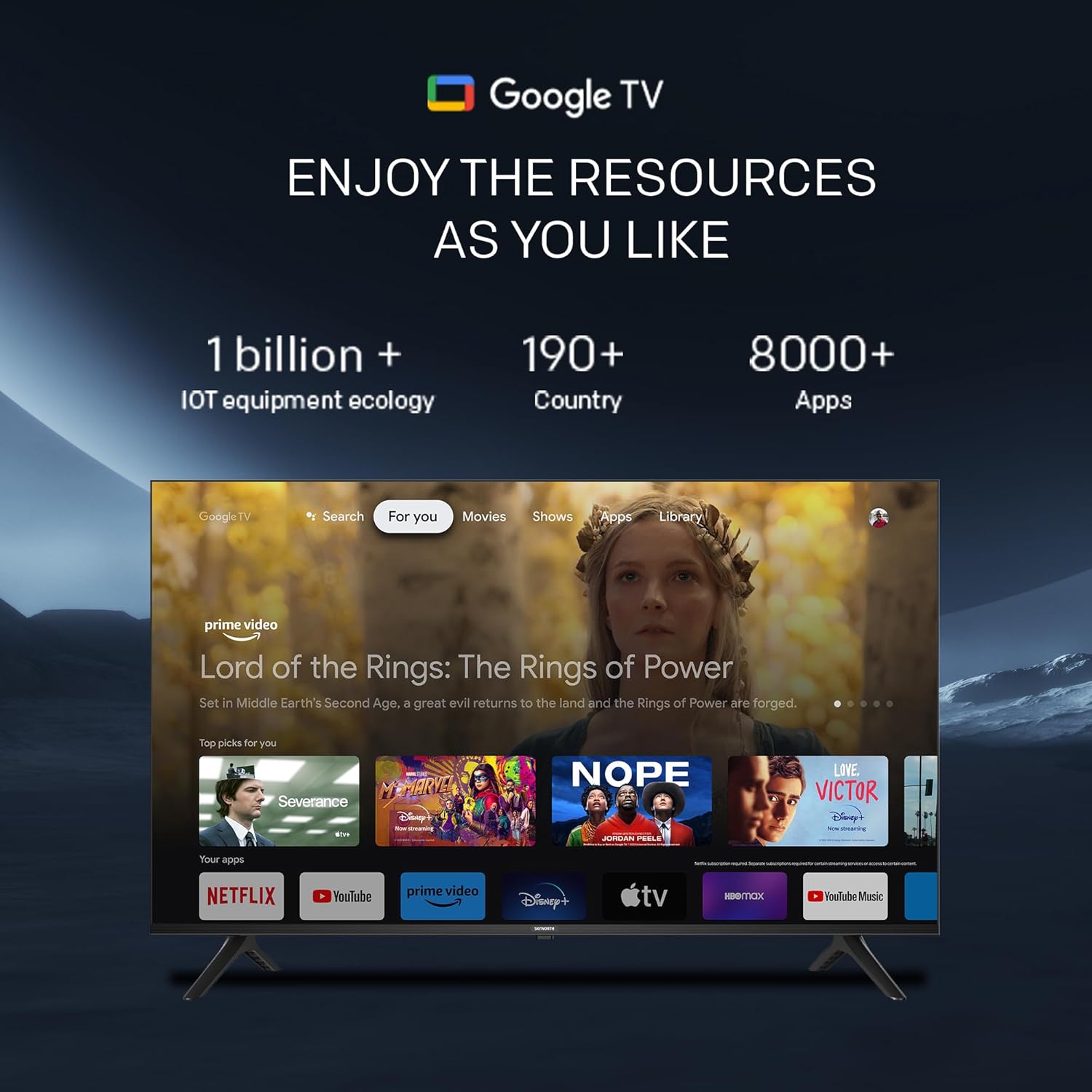
Image: The Google TV home screen on the Skyworth TV, showing personalized content recommendations and access to numerous applications.

Image: The Google TV interface, illustrating the wide range of streaming resources available, including Netflix, YouTube, and Prime Video.
5.3 Voice Control with Google Assistant
Press the Google Assistant button on your remote and speak your commands. You can search for movies, launch apps, control smart home devices, and get answers to your questions directly on screen.
5.4 Chromecast Built-In
Easily cast content from your compatible smartphone, tablet, or computer directly to your TV. Open a Chromecast-enabled app on your device and tap the Cast icon to begin streaming.

Image: Demonstrating the Chromecast Built-In feature, where content from a mobile device is mirrored onto the Skyworth TV screen.
6. Features
6.1 4K UHD Resolution and HDR10/Dolby Vision
Experience stunning clarity with 4K UHD resolution, offering four times the detail of Full HD. HDR10 and Dolby Vision technologies enhance contrast, brightness, and color accuracy for a more dynamic and lifelike picture.

Image: A visual comparison demonstrating the superior detail and clarity of 4K UHD with HDR compared to standard 1080P resolution.
6.2 Chameleon Extreme 2.0 with 4K Upscaling
This advanced picture processing engine utilizes intelligent algorithms to improve contrast, sharpness, color accuracy, and motion smoothness. It also upscales lower-resolution content to near-4K UHD quality, ensuring optimal viewing regardless of the source.

Image: The Skyworth TV showcasing rich and vivid colors, a result of the built-in professional picture processing engine, Trochilus Extreme 2.0.
6.3 Eyecare Protection Technology
Designed to reduce eye strain and fatigue during extended viewing sessions, Skyworth EyeCare TVs minimize blue light emissions and feature flicker-free technology for a more comfortable experience.

Image: A side-by-side comparison illustrating how the Skyworth UE7600 reduces motion blur compared to a traditional television.
6.4 Dolby Audio and Bluetooth 5.0
Enjoy enhanced audio quality with Dolby Audio, providing immersive sound for your movies and shows. Bluetooth 5.0 allows you to wirelessly connect compatible audio devices like headphones or speakers, or stream music from your mobile device to the TV.

Image: The Skyworth TV displaying a serene beach scene, with visual effects suggesting the immersive audio experience provided by Dolby Audio.

Image: A depiction of individuals enjoying music streamed from a mobile device to the Skyworth TV, highlighting the convenience of Bluetooth 5.0 connectivity.
6.5 Boundless Screen 4.0
The bezel-less design of the UE7600 series provides a higher screen-to-body ratio, delivering a larger and more immersive picture experience that appears to float in space.

Image: The Skyworth TV featuring its Boundless Screen 4.0 design, which maximizes the display area for a more immersive viewing experience.

Image: A visual representation comparing the bezel size of a traditional TV to the full-view screen of the UE7600, emphasizing its expansive display.
6.6 Game Mode and Sport Mode
Optimize your viewing for specific content. Game Mode provides real-time data transmission and reduced picture delay for an enhanced gaming experience. Sport Mode ensures clear and smooth visuals even during rapid motion, capturing every detail of fast-paced sports.

Image: A split image demonstrating the benefits of Game Mode for an immersive gaming experience and Sport Mode for clear, smooth visuals during fast-paced sports.
7. Maintenance
Proper maintenance ensures the longevity and optimal performance of your television.
- Screen Cleaning: Gently wipe the screen with a soft, lint-free cloth. For stubborn marks, slightly dampen the cloth with water or a specialized screen cleaner. Never spray liquid directly onto the screen.
- Frame Cleaning: Use a soft, dry cloth to clean the TV frame and stand.
- Dusting: Regularly dust the ventilation openings on the back of the TV to prevent overheating.
- Power Cord: Periodically check the power cord for any damage. If damaged, contact customer support for replacement.
8. Troubleshooting
If you encounter issues with your Skyworth TV, refer to the following common problems and solutions:
| Problem | Possible Cause | Solution |
|---|---|---|
| No Power | Power cable disconnected; Power outlet issue. | Ensure power cable is securely plugged into TV and outlet. Test outlet with another device. |
| No Picture/Sound | Incorrect input source; Loose HDMI/AV cables. | Press the 'Input' button on the remote to select correct source. Check all cable connections. |
| Remote Not Responding | Low batteries; Obstruction; Remote not paired. | Replace batteries. Remove obstructions between remote and TV. Re-pair remote if necessary (refer to quick start guide). |
| Wi-Fi Connection Issues | Weak signal; Router issue; Incorrect password. | Move TV closer to router or use an Ethernet cable. Restart router. Double-check Wi-Fi password. |
| Sound Too Loud at Low Settings | Audio output settings. | Adjust audio settings in the TV menu. Consider connecting an external soundbar for more granular volume control. |
| Apps Crashing/Slow Performance | Temporary software glitch; Insufficient memory. | Restart the TV by unplugging it for 30 seconds. Clear app cache or reinstall problematic apps. Ensure TV software is updated. |
If the problem persists after trying these solutions, please contact Skyworth customer support.
9. Specifications
Detailed technical specifications for the Skyworth 65-Inch UE7600 Series LED 4K UHD Google TV:
- Brand Name: Skyworth
- Model Number: 65UE7600
- Screen Size: 65 Inches
- Display Technology: 4K UHD, LCD, LED
- Resolution: 4K (3840 x 2160)
- Refresh Rate: 60 Hz
- Aspect Ratio: 16:9
- Product Dimensions: 3.8"D x 56.9"W x 33"H (9.65 x 144.5 x 83.8 cm)
- Item Weight: 36.3 Pounds (16.47 kg)
- Color: Black
- Output Wattage: 200 Watts
- Energy Consumption: 225 Kilowatt Hours Per Year (based on 4 hours/day)
- Special Features: Chromecast, Bezel-Less Design, Wide Viewing Angle, Flat, Eye Comfort Mode
- Speaker Type: Built-In
- Connectivity Technology: Bluetooth, Wi-Fi, USB, Ethernet, HDMI
- Country of Origin: China
- First Available Date: August 7, 2023
10. Warranty and Support
Skyworth televisions come with a standard manufacturer's warranty. For specific warranty terms and conditions, please refer to the warranty card included with your product or visit the official Skyworth website. Keep your proof of purchase for warranty claims.
Customer Support
If you require technical assistance, have questions about your product, or need to arrange for service, please contact Skyworth customer support through their official channels. Contact information can typically be found on the Skyworth website or in your product's quick start guide.
For additional resources and frequently asked questions, you may visit the Skyworth Store on Amazon.
Ask a question about this manual
Ask about setup, troubleshooting, compatibility, parts, safety, or missing instructions. Manuals+ will review the question and use this page’s manual context to help answer it.