
1. Introduction
The FXTUL M6 Motorcycle Diagnostic Tool is a comprehensive OBD2 scanner designed for diagnosing and maintaining motorcycles. It features a 5-inch RGB display screen and offers full system coverage, real-time data recording, and printable reports. This manual provides detailed instructions for the proper use and maintenance of your M6 diagnostic tool.

Figure 1: FXTUL M6 Diagnostic Tool, cables, and protective carrying case.
2. Product Overview
2.1 Key Features
- System Diagnosis: Supports engine, ABS, tire pressure, anti-theft, and other systems. Reads and clears Diagnostic Trouble Codes (DTCs), views freeze frame data, displays data streams, and performs active tests.
- 104 Service Functions: Includes ECU reset, oil maintenance lamp reset, CO Trimmer adjustments, TPS adjustments, auto adaptive parameter reset, service light reset, and idling adjustments.
- Battery Test: Features cranking test, standard test, quick test, and charging test functions.
- Data Recording & Playback: Records diagnostic data for later review and analysis.
- Information Printing: Generates printable reports for diagnostic results, module information, fault codes, and data streams.
- Image Viewer: Captures and reviews screenshots of the device interface during diagnosis.
- 5-inch RGB Display: High-resolution (800x480) screen with customizable dark and light themes.
- Wide Motorcycle Coverage: Compatible with over 70 motorcycle brands and models globally.
- Free Lifetime Software Upgrade: Connects to a computer via USB for software updates.
- Multi-language Support: Offers various language options for user interface.
2.2 Components and Controls
The FXTUL M6 device features a user-friendly interface with a clear display and intuitive controls.
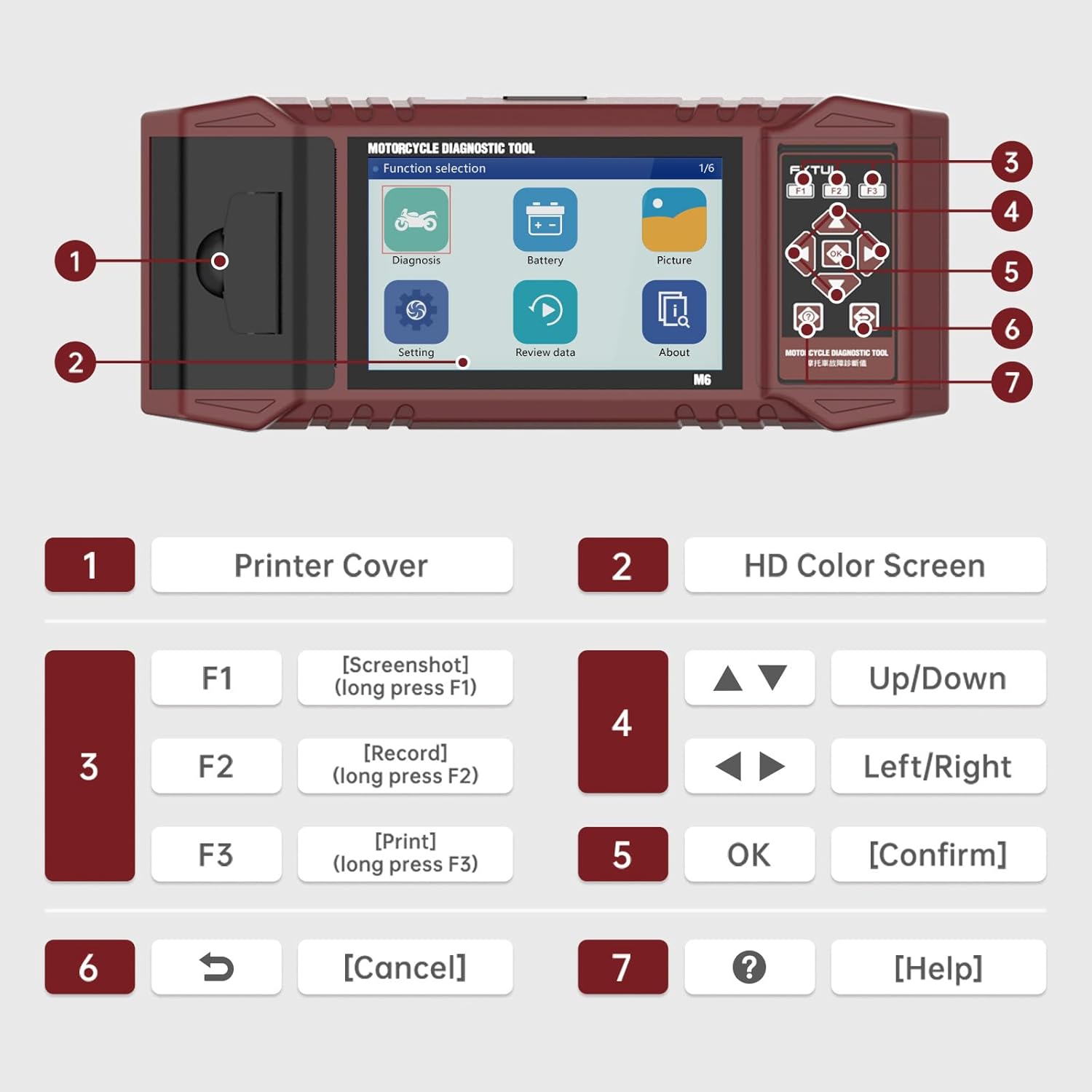
Figure 2: Labeled components and controls of the FXTUL M6 Diagnostic Tool.
| No. | Component | Function |
|---|---|---|
| 1 | Printer Cover | Covers the built-in thermal printer. |
| 2 | HD Color Screen | 5-inch RGB display for interface and data. |
| 3 | Function Keys (F1, F2, F3) | F1: Screenshot (long press), F2: Record (long press), F3: Print (long press). |
| 4 | Navigation Keys | Up/Down, Left/Right for menu navigation. |
| 5 | OK Key | Confirms selections. |
| 6 | Cancel Key | Returns to previous screen or cancels operation. |
| 7 | Help Key | Provides contextual help. |
3. Setup
- Unpacking: Carefully remove the M6 diagnostic tool and all accessories from the packaging. Verify all components listed in the "What's in the Box" section are present.
- Power Connection: The device is typically powered via the motorcycle's diagnostic port. Ensure the motorcycle's ignition is turned off before connecting the tool.
- Connecting to Motorcycle: Locate the diagnostic port on your motorcycle. Connect the appropriate diagnostic cable from the M6 tool to the motorcycle's port.
- Power On: Turn the motorcycle's ignition to the ON position. The M6 tool should power on automatically. If not, check the connection.
- Language Selection: Upon first use, you may be prompted to select your preferred language. Navigate using the arrow keys and confirm with the OK button.
4. Operating Instructions
4.1 System Diagnosis
This function allows for comprehensive scanning of various motorcycle systems to identify and resolve issues.
- From the main menu, select "Diagnosis".
- The tool will automatically identify the vehicle model and scan all available systems.
- Review the assembly status and fault codes for each system.
- To read fault codes, select the "Read Fault Codes" option.
- To clear all fault codes, select the "Clear Fault Codes" option. Confirm the action when prompted.

Figure 3: Vehicle System Diagnostic interface for reading and clearing fault codes.
4.2 Service Functions
The M6 supports over 100 service functions for various maintenance procedures.
- From the main menu, navigate to the "Service Functions" or similar option (may be under "Diagnosis" depending on software version).
- Select the desired service function from the list (e.g., ECU reset, Oil service light reset, CO adjustment).
- Follow the on-screen prompts to complete the procedure.

Figure 4: Examples of 104 service functions supported by the tool.
4.3 Read Data Stream
View real-time data parameters from the motorcycle's ECU. The data stream waveform graph automatically adapts for easy viewing.
- From the "Diagnosis" menu, select "Data Stream" or "Live Data".
- Choose the specific data parameters you wish to monitor.
- The data will be displayed numerically and can also be viewed as a waveform graph for trend analysis.

Figure 5: Data Stream Display and Waveform Analysis.
4.4 Battery Test
Perform various tests on the motorcycle's battery.
- From the main menu, select "Battery".
- Choose the desired test: "Cranking Test", "Standard Test", "Quick Test", or "Charging Test".
- Follow the on-screen instructions to perform the test and view results.

Figure 6: Battery Test functions interface.
4.5 Data Recording and Playback
Record diagnostic sessions for later review and analysis.
- During a diagnostic process, long-press the F2 key to initiate data recording.
- To play back recorded data, select "Review data" from the main menu.
- Navigate through recorded files and select the one you wish to play back.
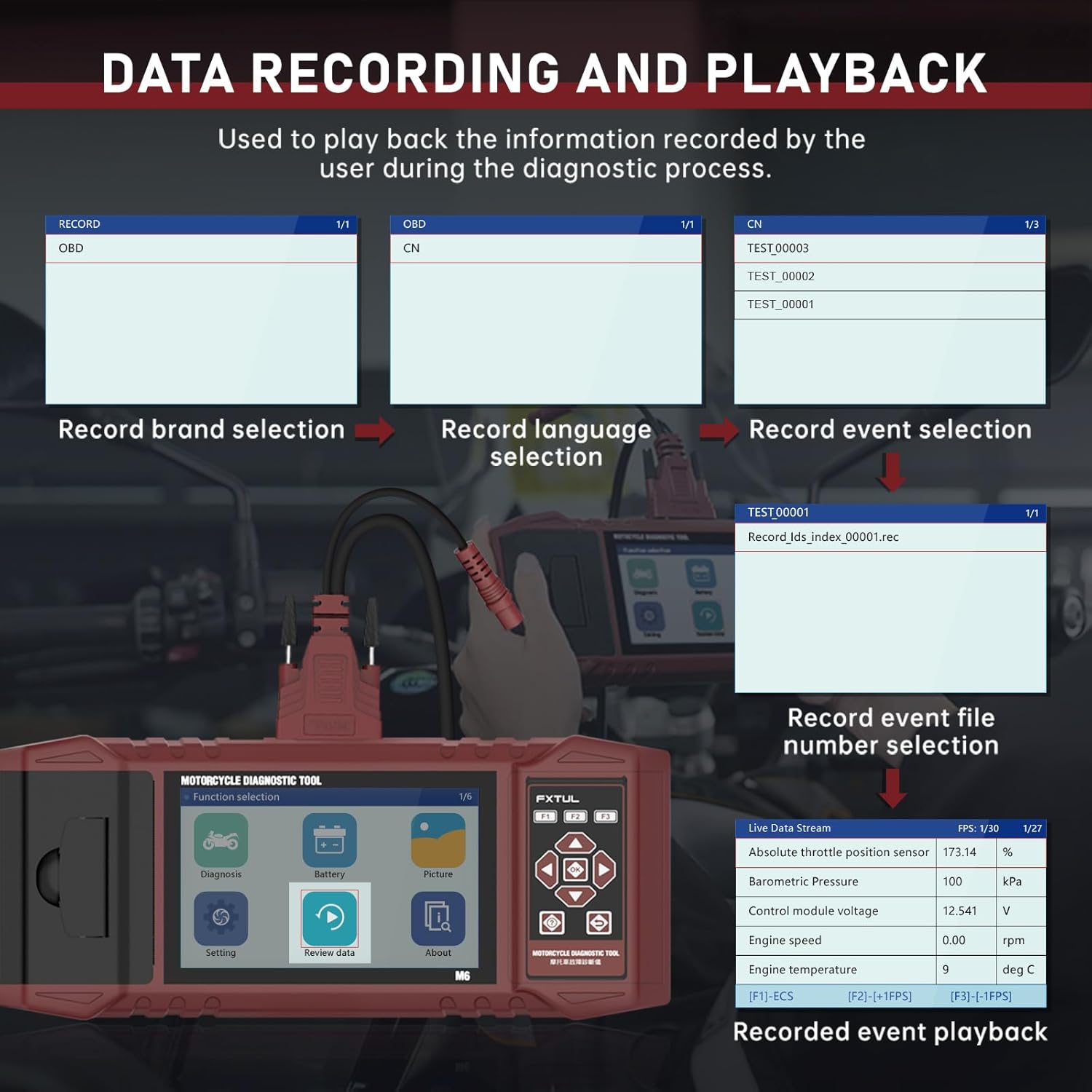
Figure 7: Data Recording and Playback process.
4.6 Information Printing
Print diagnostic reports directly from the device using the built-in printer.
- On any screen displaying information you wish to print (e.g., diagnostic reports, fault codes), long-press the F3 key.
- Input any required user or vehicle information using the on-screen keyboard.
- The device will print the information.

Figure 8: Information Printing function.
4.7 Image Viewer
Capture screenshots of the device interface and review them later.
- To capture a screenshot, long-press the F1 key on any interface.
- To view saved images, select "Picture" from the main menu.
- You can browse through saved images and delete them as needed.

Figure 9: Image Viewer interface for browsing and deleting screenshots.
5. Software Upgrade
The FXTUL M6 offers free lifetime software upgrades to ensure compatibility with new motorcycle models and features.
- Download Update: Obtain the latest software update files from the official FXTUL website or by contacting customer support.
- Connect to Computer: Connect the M6 device to your computer using a USB cable.
- Device Recognition: Wait for the computer to recognize the device. A new drive symbol should appear.
- Replace Folder: Open the new drive. Locate the "DIAGNOSE" folder. Replace this folder with the downloaded "DIAGNOSE" upgrade folder.
- Reboot: Disconnect the device from the computer and power it on again. The updated software will be loaded.

Figure 10: Software upgrade process via USB connection.
6. Troubleshooting
- Device does not power on:
- Ensure the diagnostic cable is securely connected to both the M6 tool and the motorcycle's diagnostic port.
- Verify the motorcycle's ignition is turned to the ON position.
- Check the motorcycle's battery voltage.
- Cannot connect to motorcycle ECU:
- Ensure the correct diagnostic cable for your motorcycle model is being used.
- Verify the motorcycle's ignition is ON and the engine is off (unless specific tests require it to be running).
- Check for any blown fuses in the motorcycle's diagnostic circuit.
- Ensure the M6 software is up to date. Some newer motorcycle models may require the latest software version.
- Specific motorcycle models not listed:
- While the tool supports over 70 brands, specific models within those brands may require the latest software updates. Perform a software upgrade as described in Section 5.
- Contact FXTUL customer support with your motorcycle's make, model, and year for assistance with compatibility.
- Printer not working:
- Check if the printer cover is properly closed.
- Ensure there is sufficient thermal paper loaded in the printer.
- Verify you are long-pressing the F3 key to initiate printing.
7. Specifications
| Specification | Detail |
|---|---|
| Model | FXTUL-M6 |
| Display Screen | 5-inch RGB Display (800x480 resolution) |
| Item Weight | 8.48 pounds |
| Package Dimensions | 15 x 12 x 5 inches |
| Supported Motorcycle Brands | 70+ (e.g., Ducati, Harley Davidson, BMW, Kawasaki, Yamaha, Honda, Suzuki, etc.) |
| Connectivity | OBD2, USB for updates |
| Power Source | Vehicle's diagnostic port |
| Software Updates | Free Lifetime Upgrade |

Figure 11: Partial list of supported motorcycle brands and models.
8. Warranty and Support
FXTUL is committed to providing high-quality products and customer satisfaction. The M6 Motorcycle Diagnostic Tool is designed for durability and reliability.
- Quality Assurance: The product is manufactured under strict quality control standards.
- Free Lifetime Software Upgrade: As mentioned in Section 5, software updates are provided free of charge for the lifetime of the product.
- Technical Support: For any technical assistance, troubleshooting, or inquiries regarding product functionality and compatibility, please contact FXTUL customer support. Refer to the product packaging or official website for contact details.


