
1. Product Overview
The HOVVIDA RGB 5050 LED Strip is a versatile lighting solution designed to enhance various indoor environments. Featuring 30 LEDs per meter, totaling 300 LEDs for the 10-meter length, it offers a balanced blend of brightness and density. This LED strip supports 16 million colors and can be controlled via a dedicated mobile application (HiLighting) or the included 44-key remote control. Key features include Music Mode, Microphone Mode, and Timer Mode, allowing for dynamic lighting effects and automated scheduling.

Image 1.1: Overview of the HOVVIDA RGB LED Strip, including the coiled strip, power adapter, remote control, and a smartphone displaying the control app interface.
2. Setup Instructions
- Unpack Components: Carefully remove all items from the packaging. Ensure you have the LED strip, power adapter, and remote control.
- Prepare Installation Surface: Choose a clean, dry, and smooth surface for installation. Wipe the surface with a clean cloth to remove any dust or debris.
- Measure and Cut (Optional): If necessary, measure the desired length and cut the LED strip only at the designated cutting marks (usually indicated by a scissor icon or copper pads). Do not cut elsewhere, as this may damage the strip.
- Peel and Stick: Carefully peel off the adhesive backing from the LED strip. Press the strip firmly onto the prepared surface, ensuring good contact along its entire length. For corners, use the provided plastic clips or gently bend the strip without creasing the LEDs.
- Connect Power: Connect the LED strip to the controller box, then connect the controller box to the power adapter. Plug the power adapter into a standard electrical outlet.
- App Connection (Optional but Recommended):
- Download the "HiLighting" app from your smartphone's app store (iOS or Android).
- Ensure Bluetooth is enabled on your smartphone.
- Open the HiLighting app. The app should automatically detect the LED strip. Follow the on-screen prompts to pair the device.

Image 2.1: The HOVVIDA LED strip can be controlled via a mobile application or the included remote control, offering flexible operation options.
3. Operating Instructions
3.1 Using the Remote Control
The 44-key remote control provides direct access to various functions:
- Power On/Off: Press the ON/OFF button.
- Color Selection: Choose from a wide range of preset colors using the color buttons.
- Brightness Adjustment: Use the V+ and V- buttons to increase or decrease brightness.
- DIY Colors: Some remotes allow custom color mixing. Refer to the remote's specific instructions for this feature.
- Mode Selection: Cycle through various dynamic modes like Flash, Strobe, Fade, and Smooth using the dedicated buttons.
3.2 Using the HiLighting App
The HiLighting app offers advanced control and customization options:
- 16 Million Colors: Access a full color wheel to select any desired color.
- Brightness and Saturation: Fine-tune the brightness and color saturation.
- Music Mode: The built-in microphone allows the LED strip to synchronize with music. Select this mode in the app, and the lights will change color and intensity according to the rhythm.
- Microphone Mode: Similar to Music Mode, but reacts to ambient sounds picked up by the device's microphone.
- Timer Mode: Set specific schedules for the lights to turn on or off automatically. This is useful for energy saving and creating routines.
- Scene Modes: Choose from various pre-programmed scene modes for different atmospheres (e.g., reading, party, relaxation).

Image 3.1: The LED strip features a Music & Mic Mode, allowing the lights to dynamically change in response to audio, creating an immersive experience.

Image 3.2: The adjustable brightness feature allows users to illuminate every corner of their home, with a slider indicating brightness levels from 0 to 100.

Image 3.3: The LED strip is capable of displaying 16 million colors, offering extensive customization for any mood or decor.
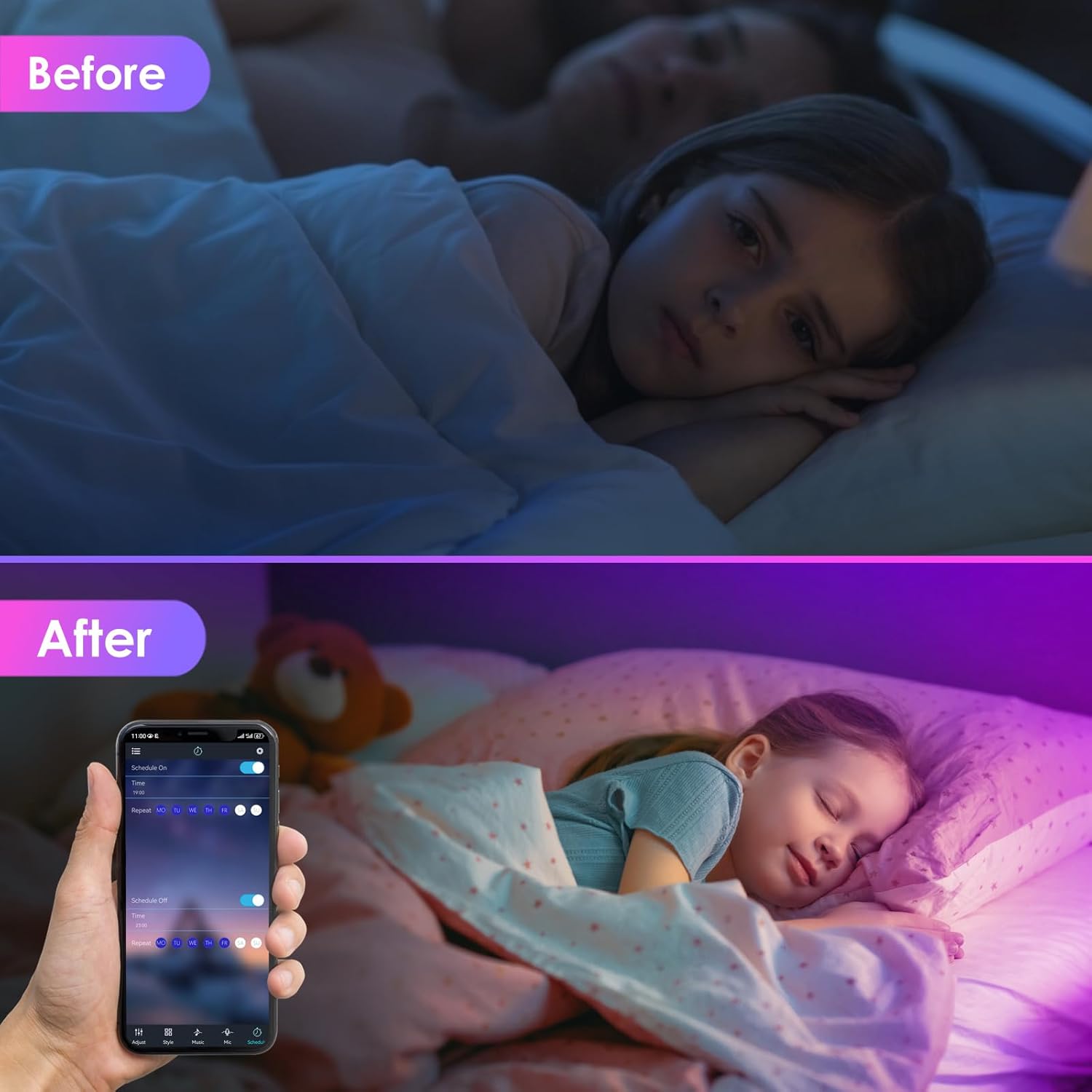
Image 3.4: The LED strip's timer mode can be used to create a comfortable ambiance, such as dimming lights for sleep, as shown in the 'Before' and 'After' comparison.
4. Maintenance
- Cleaning: To clean the LED strip, gently wipe it with a dry, soft cloth. Do not use liquid cleaners or abrasive materials, as they may damage the LEDs or the adhesive.
- Adhesive Longevity: Ensure the installation surface is clean and dry before applying the strip to maximize adhesive life. Avoid repositioning the strip frequently, as this can weaken the adhesive.
- Storage: If removing the strip for storage, gently coil it and store it in a cool, dry place away from direct sunlight and extreme temperatures.
- Safety: Always unplug the LED strip from the power source before performing any maintenance or if it will be unused for an extended period.
5. Troubleshooting
| Problem | Possible Cause | Solution |
|---|---|---|
| LED strip does not light up. | No power, loose connection, faulty power adapter. |
|
| Remote control not working. | Battery depleted, remote not pointed at receiver, obstruction. |
|
| App cannot connect to the LED strip. | Bluetooth off, app not updated, interference. |
|
| Lights remain slightly on even when turned off via app/remote. | Minor power leakage due to app integration or controller design. |
|
6. Specifications
| Feature | Detail |
|---|---|
| Brand | HOVVIDA |
| Model Number | 10M-30LED-BT |
| LED Type | RGB 5050 |
| LED Quantity | 30 LEDs/meter (Total 300 LEDs for 10M) |
| Length | 10 Meters |
| Color Options | 16 Million Colors (RGB) |
| Control Methods | HiLighting APP, 44-Key Remote Control |
| Special Features | Music Sync, Microphone Mode, Timer Mode, Adjustable Brightness |
| Voltage | 24 Volts |
| Power | 60 Watts |
| IP Rating | IP20 (Indoor Use Only) |
| Material | Plastic |
| Package Dimensions | 20.2 x 13.9 x 5.1 cm |
| Item Weight | 5 grams |
7. Warranty and Support
Specific warranty information for the HOVVIDA RGB 5050 LED Strip is not provided in the available product data. For details regarding warranty coverage, return policies, or technical support, please refer to the product listing on the retailer's website or contact HOVVIDA customer service directly.
As per the product information, the buybox winner is Amazon, and the return policy states 30 days for refund/replacement. Please check the latest information on the Amazon product page for the most accurate and up-to-date details.
For further assistance, you may visit the official HOVVIDA website or contact their support channels.