1. Introduction
This manual provides essential information for the proper use and maintenance of your DCU TECNOLOGIC Curved Glass Pro Smartwatch. Please read it carefully before using the device to ensure optimal performance and longevity.

Image 1.1: Front view of the DCU TECNOLOGIC Curved Glass Pro Smartwatch, showing its curved display and health tracking interface.
2. Product Overview
The DCU TECNOLOGIC Curved Glass Pro Smartwatch features a 1.83-inch high-definition touch screen with a curved glass design for an immersive visual experience and improved ergonomics. It is designed to adapt comfortably to your wrist.
Key Features:
- Display: 1.83-inch High-Definition Touch Screen, customizable with various designs or personal photos.
- Connectivity: Bluetooth for calls and notifications.
- Health Monitoring: Heart rate, blood oxygen, blood pressure, step counter, calorie tracking, sleep control, sedentary lifestyle alarm, water and medication reminders.
- Sports Modes: 123 integrated sports modes, including walking, running, cycling, yoga, jumping rope, rowing, and spinning.
- Water Resistance: IP67 rating, submersible up to 1 meter for 30 minutes in fresh water.
- Additional Functions: App notifications, Bluetooth call function with 8 favorite contacts, voice assistant, remote photo control, music player control, weather information, alarm clock, timer, and do not disturb mode.
- Compatibility: iOS 9.0 or above and Android 5.0 or higher devices. Compatible with Google Fit and Apple Health.

Image 2.1: The smartwatch showcasing its 1.83-inch high-definition touch screen with a customizable watch face.
3. Setup
3.1 Charging the Smartwatch
Before initial use, fully charge your smartwatch. Connect the charging cable to the charging port on the back of the watch and to a standard USB power adapter (not included). A full charge typically provides 5-7 days of active use or 10-15 days in standby mode. Charging time is approximately 1 day.

Image 3.1: The smartwatch connected to a charger, illustrating the charging process.
3.2 Pairing with Your Smartphone
- Ensure your smartphone's Bluetooth is enabled.
- Download the official companion app for the DCU TECNOLOGIC Curved Glass Pro Smartwatch from your device's app store (compatible with iOS 9.0+ and Android 5.0+).
- Open the app and follow the on-screen instructions to search for and connect to your smartwatch.
- Confirm the pairing request on both your smartphone and the smartwatch.
Once paired, the smartwatch will synchronize data and allow access to features like notifications and call functions.

Image 3.2: The smartwatch displaying its compatibility with Google Fit and Apple Health applications.
4. Operating Instructions
4.1 Basic Navigation
The smartwatch features a full touch screen. Swipe left, right, up, or down to navigate through menus and access different functions. Tap to select an option or open an application.
4.2 Notifications and Calls
- Notifications: Once paired, the smartwatch will display notifications from your connected smartphone apps.
- Call Function: Use the Bluetooth call function to make and receive calls directly from your watch. You can store up to 8 favorite contacts for quick dialing.
4.3 Health Monitoring
The smartwatch continuously monitors various health metrics:
- Heart Rate, Blood Oxygen, Blood Pressure: Access these measurements through the dedicated health apps on the watch.
- Step Counter & Calories: Tracks your daily activity and estimated calorie burn.
- Sleep Control: Monitors your sleep patterns.
- Sedentary Alarm: Reminds you to move after periods of inactivity.
- Reminders: Set reminders to drink water or take medication.
4.4 Sports Modes
Select from 123 sports modes to track your workouts accurately. Common modes include walking, running, cycling, yoga, jumping rope, rowing, and spinning. The watch will record relevant data for your chosen activity.
4.5 Customization and Additional Functions
- Watch Face Customization: Personalize your watch face with multiple designs or upload personal photos from your gallery via the companion app.
- Voice Assistant: Access your smartphone's voice assistant directly from the watch.
- Remote Control: Control your smartphone's camera for remote photo taking and manage music playback.
- Utilities: Access weather information, set alarms, use the timer, and stopwatch.
- Do Not Disturb Mode: Silence notifications during specific times.
- Games: The smartwatch includes 4 pre-installed games.
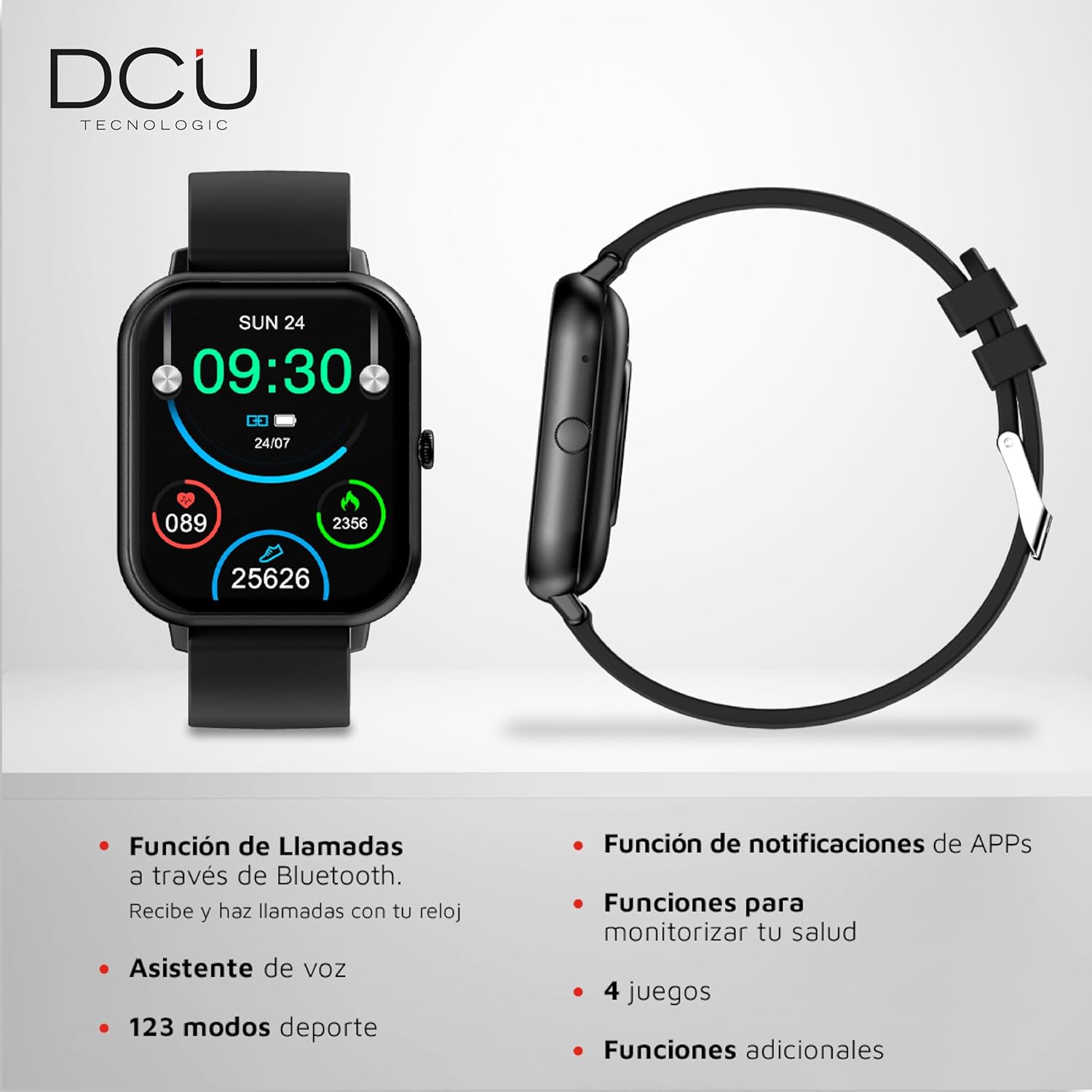
Image 4.1: The smartwatch interface showing icons for calls, notifications, health monitoring, and sports modes.
5. Maintenance
5.1 Cleaning
To clean your smartwatch, gently wipe the screen and body with a soft, dry, lint-free cloth. For stubborn smudges, slightly dampen the cloth with water. Avoid using harsh chemicals, abrasive materials, or strong cleaning agents.
5.2 Water Resistance
The smartwatch has an IP67 water resistance rating, meaning it is protected against dust and can withstand immersion in fresh water up to 1 meter for a maximum of 30 minutes. It is suitable for daily use and splashes, but it is not recommended for use in salt water, hot water, saunas, or during diving activities, as this may compromise its water resistance over time.

Image 5.1: Rear view of the smartwatch, highlighting the sensors and the anti-static silicone strap.
6. Troubleshooting
If you encounter issues with your smartwatch, refer to the following common solutions:
- Device Not Turning On: Ensure the smartwatch is fully charged. Connect it to the charger and wait a few minutes before attempting to power it on again.
- Cannot Pair with Smartphone: Check that Bluetooth is enabled on your phone and the smartwatch is within range. Restart both devices and try pairing again. Ensure the companion app is updated to the latest version.
- Inaccurate Health Data: Ensure the watch is worn snugly on your wrist, not too tight or too loose. Clean the sensors on the back of the watch.
- Notifications Not Appearing: Verify that app notifications are enabled in your smartphone's settings and within the smartwatch's companion app. Ensure the smartwatch is properly connected via Bluetooth.
- Screen Unresponsive: Try restarting the smartwatch. If the issue persists, ensure the screen is clean and dry.
For persistent issues, please refer to the support section.
7. Specifications
| Brand | DCU TECNOLOGIC |
| Model Number | 34157025 |
| Operating System | AsteroidOS |
| Screen Size | 1.83 Inches |
| Display Type | Digital, Touchscreen |
| Connectivity | Bluetooth, Wi-Fi |
| Battery Type | Lithium Polymer |
| Battery Capacity | 1000 mAh |
| Battery Life (Approx.) | 5-7 days (use), 10-15 days (standby) |
| Water Resistance | IP67 (up to 1m for 30 mins in fresh water) |
| Compatible Devices | Smartphone, Tablet (iOS 9.0+, Android 5.0+) |
| Special Features | Curved Glass Screen, Customizable HD Touch Screen, Multi-Health Monitoring, 123 Sports Modes |
| Package Dimensions | 21.5 x 14.9 x 3.9 cm |
| Weight | 160 g |
8. Warranty
The DCU TECNOLOGIC Curved Glass Pro Smartwatch comes with a 3-year warranty from the date of purchase. This warranty covers manufacturing defects under normal use. It does not cover damage caused by misuse, accidents, unauthorized modifications, or failure to follow the instructions in this manual. Please retain your proof of purchase for warranty claims.
9. Support
For further assistance, technical support, or warranty inquiries, please contact DCU TECNOLOGIC customer service. Refer to the official DCU TECNOLOGIC website or your purchase documentation for contact details.