
Introduction
This manual provides detailed instructions for the installation, operation, and maintenance of your WEILAILIFE Outdoor Wireless Security Camera System. This system features 5MP HD cameras with 2-way audio, PTZ capabilities, enhanced night vision, and an expandable 10-channel NVR with 2TB storage, designed for comprehensive home and business surveillance.

Image: Overview of the WEILAILIFE 5MP 6-Camera Wireless Security System, including the NVR, six PTZ cameras, and a 2TB hard drive.
What's in the Box
Carefully unpack the box and ensure all items listed below are present and in good condition. If any items are missing or damaged, please contact customer support.
- 5MP 2-Way Audio Wireless Security Camera * 6
- 10CH 8.0MP DVR Pre-install 2TB Hard Drive * 1
- 10FT Cable Power Supply for Camera * 6
- 3FT Cable Power Supply for DVR * 1
- USB Mouse * 1
- Remote Control * 1
- HDMI Cable * 1
- 3ft LAN Cable * 1
- Screw Kits * 6
- User Manual * 1

Image: Visual representation of all components included in the product package, such as NVR, cameras, power adapters, cables, and accessories.
Setup Guide
1. Initial System Connection
The WEILAILIFE system is designed for 'True Plug & Play' setup. Connect the NVR to a power source and a monitor (via HDMI or VGA). Connect each camera to its respective power supply. The cameras will automatically pair with the NVR.

Image: A camera connected to power, wirelessly transmitting data to the NVR, demonstrating the 'True Plug & Play' feature.
2. Network Connection (Optional for Remote Access)
For remote viewing via the 'HonestView' app, connect the NVR to your router using the provided LAN cable (wired connection) or via Wi-Fi (wireless connection). The system supports 2.4GHz Wi-Fi only.

Image: Wireless connection mode, showing a camera communicating wirelessly with the NVR/router.

Image: Wired connection mode, showing a camera connected to the NVR/router via an Ethernet cable.
3. App Installation and Pairing
Download the free 'HonestView' app from the App Store (iOS) or Google Play Store (Android). Follow the in-app instructions to add your NVR system by scanning the QR code or manually entering the device ID. This enables remote viewing and control.
4. System Expansion
The 10-channel NVR system can be expanded to accommodate up to 10 cameras. Additional cameras can be purchased separately and easily added to your existing system.

Image: Illustration of how the NVR system can be expanded by adding more cameras, up to a total of 10 channels.
Operating Instructions
1. Live View and Playback
Access live camera feeds and review recorded footage through the NVR connected to a monitor or via the 'HonestView' mobile app/PC client. The app provides a convenient interface for managing your surveillance.

Image: The 'HonestView' mobile application interface displaying multiple camera views.

Image: Live camera feeds accessible across multiple devices, including laptops, desktop monitors, and tablets.
2. PTZ Control and Preset Points
The cameras feature 355-degree horizontal rotation and 90-degree vertical tilt, allowing for 360-degree surveillance. Use the NVR interface or the 'HonestView' app to control the camera's pan, tilt, and zoom functions. You can also set preset points for quick navigation to specific areas.

Image: Visual representation of the camera's 355-degree horizontal and 90-degree vertical rotation capabilities.

Image: Illustration of setting and utilizing preset viewing points for quick camera positioning.
3. Two-Way Audio
Each camera is equipped with a built-in microphone and speaker, enabling two-way audio communication. Use the 'HonestView' app to speak through the camera and listen to audio from the camera's location.

Image: A person interacting with a delivery driver via the camera's two-way audio feature.

Image: A visual example of using the two-way talk feature to communicate with someone at your doorstep.
4. Motion Detection and Alerts
Configure motion detection zones and sensitivity settings via the NVR or app. When motion is detected, the system can send push notifications to your phone, email alerts, or trigger a buzzer alarm.

Image: Motion detection in action, highlighting alert methods like app push notifications, email, and buzzer.

Image: A smartphone screen showing a real-time alert notification for detected motion from the security camera.
5. Enhanced Night Vision
The 5MP cameras are equipped with 8 infrared LED arrays, providing clear and detailed night vision up to 65 feet, ensuring 24/7 surveillance even in low-light or complete darkness.

Image: The camera's infrared lights activated for clear night vision in dark conditions.

Image: A side-by-side comparison demonstrating the clarity of 5MP day view versus infrared night vision.
6. Recording Modes and Storage
The NVR supports 24/7 continuous recording, event-triggered recording (e.g., motion detection), and manual recording. The pre-installed 2TB hard drive provides ample storage. The system utilizes H.265+ video compression technology, which significantly reduces storage space requirements compared to H.264, allowing for longer recording times.

Image: The NVR system providing continuous 24/7 video and audio recording.

Image: A comparison illustrating the superior storage efficiency of H.265+ compression over H.264.
Maintenance
1. Weather Resistance (IP66 Waterproof)
The cameras are rated IP66 waterproof, meaning they are protected against dust and powerful water jets. They are designed to withstand various outdoor weather conditions, including sun, cold, rain, and dust.
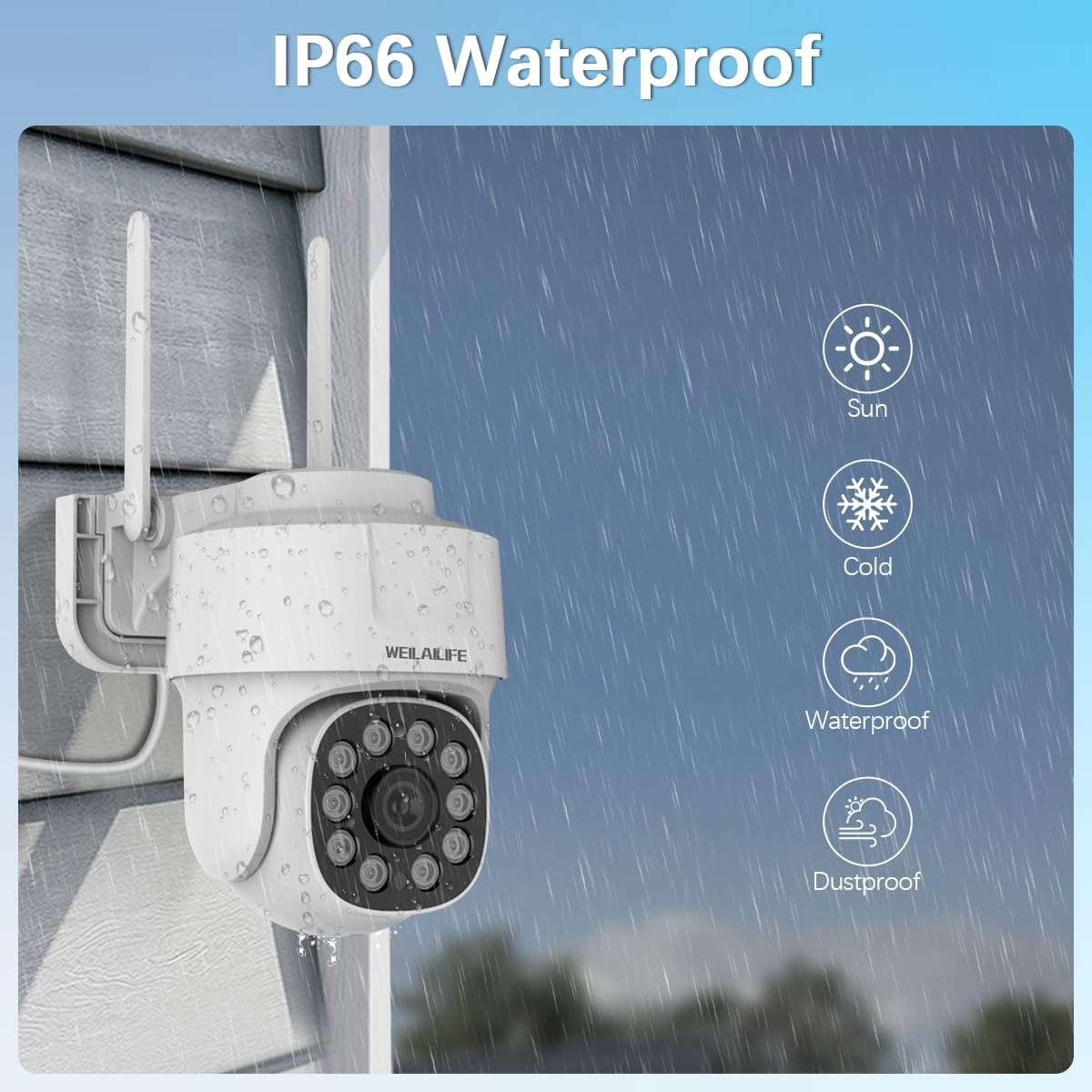
Image: A camera shown under rainfall, highlighting its IP66 waterproof and dustproof capabilities.

Image: A banner emphasizing the IP66 waterproof rating, indicating resistance to sun, cold, water, and dust.
2. General Care
Regularly clean the camera lenses with a soft, dry cloth to ensure clear image quality. Avoid using harsh chemicals. Ensure power connections are secure and free from moisture. Periodically check for firmware updates via the 'HonestView' app or WEILAILIFE website to ensure optimal performance and security.
Troubleshooting
| Problem | Possible Cause | Solution |
|---|---|---|
| No image/video on monitor or app. | Power issue, camera not paired, network problem. | Check all power connections. Ensure cameras are within NVR's wireless range. Re-pair cameras if necessary. Verify NVR is connected to monitor. |
| No audio or poor audio quality. | Microphone/speaker blocked, app settings, network interference. | Ensure nothing is obstructing the microphone/speaker. Check audio settings in the app. Reduce distance between camera and NVR/router if wireless. |
| Remote viewing not working. | NVR not connected to internet, app not configured, firewall issues. | Verify NVR has internet access (check network cable/Wi-Fi). Ensure NVR is added correctly in the 'HonestView' app. Check router firewall settings. |
| Motion detection not triggering alerts. | Sensitivity too low, detection zone incorrect, alert settings off. | Adjust motion detection sensitivity. Redraw detection zones. Enable push notifications/email alerts in app settings. |
| Night vision is unclear or not working. | Infrared LEDs blocked, dirty lens, insufficient power. | Clean the camera lens. Ensure no obstructions are blocking the infrared LEDs. Verify stable power supply to the camera. |
Specifications
| Feature | Detail |
|---|---|
| Brand | WEILAILIFE |
| Model Number | 360° PT Digital Zoom |
| Connectivity Technology | IEEE802.11 1/n/f, Wi-Fi, Wireless |
| Video Capture Resolution | 2536 x 1944 (5.0 Megapixel) |
| Special Features | HD 5.0 Megapixel, 2-Way Audio, No Monthly Fee App, PTZ Digital Zoom |
| Number of Channels | 10 (Expandable) |
| Memory Storage Capacity | 2 TB (Pre-installed HDD) |
| Color | White |
| Power Source | AC/DC |
| Item Dimensions L x W x H | 13 x 11 x 7 inches |
| Operating System | Linux |
| Recommended Uses | Indoor, Outdoor |
| Compatible Devices | Cameras, Laptops, Personal Computers, TV, Tablets |
| Other Camera Features | 2-Antennas Enhancement, 2-Way Audio |
| Low Light Technology | 860nm Infrared LED Array Super Night Vision |
| Night Vision Range | 65 Feet |
| Frame Rate | 15 fps |
| Recording Mode | Event, Manual |
| Total USB Ports | 2 |
| Hardware Interface | HDMI, USB, VGA |
| Lens Type | Wide Angle |
| Video Input | IP Digital Camera, RJ45 |
| Viewing Angle | 360 Degrees (PTZ capability) |
| Item Weight | 13 pounds |
| Date First Available | July 16, 2023 |
Warranty and Support
For detailed warranty information, please refer to the documentation included with your purchase or visit the official WEILAILIFE website. For technical support, troubleshooting assistance, or any inquiries regarding your security camera system, please contact WEILAILIFE customer service.
An additional user guide in PDF format is available for download: Download User Guide (PDF)