
buyink L3110
Product Instruction Manual
buyink Maintenance Box Waste Ink Tank Absorber Pad Sponge
Model: L3110
1. Introduction
This manual provides essential information for the proper installation and maintenance of your buyink Maintenance Box Waste Ink Tank Absorber Pad Sponge. This component is crucial for managing waste ink generated during printer operations, ensuring optimal performance and longevity of your compatible Epson printer.
2. Product Features
- Designed to absorb and collect excess ink during printer cleaning cycles and printing.
- Helps prevent ink overflow and potential damage to internal printer components.
- Essential for maintaining printer hygiene and performance.
- Direct replacement for specified Epson printer models.

Figure 1: The buyink Maintenance Box as packaged.
3. Compatible Printer Models
This maintenance box is compatible with the following Epson printer series:
- Epson L1110, L3100, L3110, L3150, L3160, L3101, L3151, L3158, L3165, L3166 Series
- Epson ET2710, ET2712, ET2714, ET2715, ET2720, ET4700 Series
4. Installation Guide
Follow these steps to safely replace the maintenance box in your printer. It is recommended to watch the accompanying video for a visual guide.
Video 1: Step-by-step guide on replacing the Ink Maintenance Box.
This video demonstrates the complete process of removing the old maintenance box and installing the new one, including unscrewing the cover, extracting the old box, inserting the new one, and re-securing the cover.
- Power Off Printer: Ensure your printer is turned off and unplugged from the power source before beginning the replacement process.
- Locate Maintenance Box Cover: The maintenance box is typically located on the side or rear of the printer. Identify the small screw securing its cover.
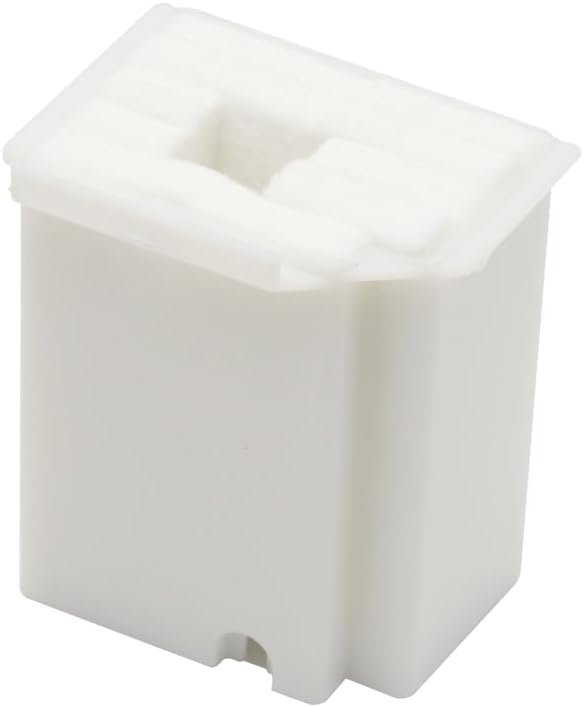
Figure 2: Top view of the maintenance box, showing its compact design.
- Remove Cover Screw: Use a suitable screwdriver to carefully remove the screw holding the maintenance box cover in place. Keep the screw in a safe location.
- Open and Remove Cover: Gently open the side cover of the printer and pull it out to reveal the maintenance box compartment.
- Unscrew Maintenance Box: There may be another screw securing the maintenance box itself. Remove this screw if present.
- Extract Old Maintenance Box: Pull the old maintenance box out slightly and then completely remove it from the printer. Be careful as it may contain absorbed ink.

Figure 3: Side view of the maintenance box, highlighting its shape for proper fit.
- Prepare New Maintenance Box: Unpack the new buyink Maintenance Box from its protective packaging.
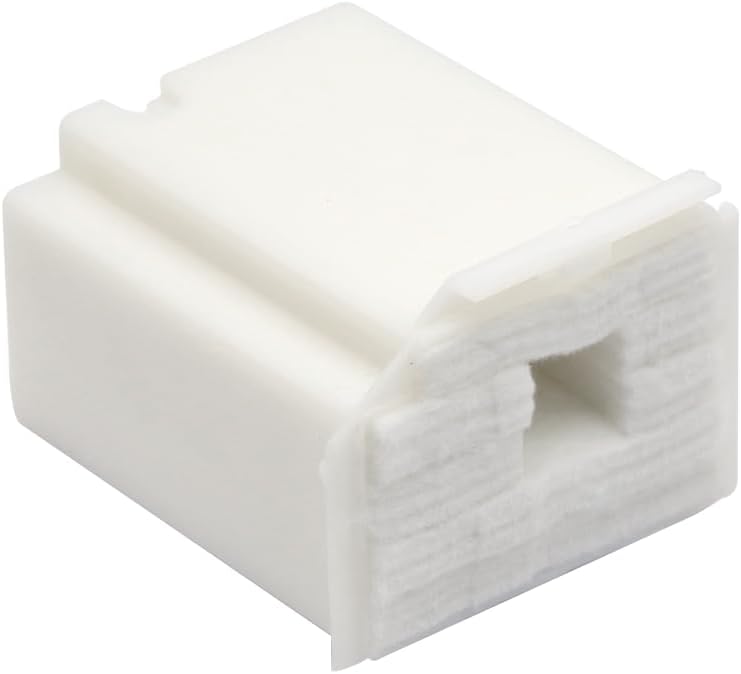
Figure 4: Detailed view of the absorbent sponge material inside the maintenance box.
- Insert New Maintenance Box: Carefully slide the new maintenance box into the compartment until it is fully seated.
- Secure New Maintenance Box: If you removed a screw from the maintenance box itself, re-insert and tighten it to fasten the new box.
- Replace Cover: Re-attach the side cover of the printer, ensuring it snaps or slides into place correctly.
- Secure Cover Screw: Re-insert and tighten the screw that holds the side cover to finish the installation.
- Power On Printer: Plug your printer back in and turn it on. The printer should now recognize the new maintenance box.
5. Maintenance and Disposal
The maintenance box is designed to collect waste ink and will eventually become full. Your printer will typically notify you when the maintenance box needs to be replaced. It is not designed to be emptied or reused. Dispose of the old maintenance box according to local environmental regulations for electronic waste or ink-containing components.
6. Product Specifications
| Brand | buyink |
| Model Name | L3110 |
| Product Dimensions | 6 x 3 x 4 inches |
| Item Weight | 2.11 ounces |
| Special Feature | Waste Ink Absorption |
| Compatible Devices | Epson L1110, L3100, L3110, L3150, L3160, L3101, L3151, L3158, L3165, L3166, ET2710, ET2712, ET2714, ET2715, ET2720, ET4700 Series Printers |
| Date First Available | April 26, 2018 |
7. Troubleshooting
If you encounter issues after replacing the maintenance box, consider the following:
- Printer Error Message: If the printer still displays a "Maintenance Box Full" or similar error, ensure the new box is correctly seated and the cover is securely closed. Some printers may require a reset procedure, which can usually be found in your printer's specific user manual.
- Physical Fit Issues: Double-check that the maintenance box model matches your printer's requirements. Refer to the compatibility list in this manual.
- Ink Leaks: If leaks occur, immediately power off the printer and remove the box. Ensure the maintenance box is inserted correctly and not damaged.
8. Warranty and Support
For warranty information or technical support regarding your buyink Maintenance Box, please refer to the contact information provided by your retailer or visit the official buyink website. Keep your purchase receipt as proof of purchase.
Ask a question about this manual
Ask about setup, troubleshooting, compatibility, parts, safety, or missing instructions. Manuals+ will review the question and use this page’s manual context to help answer it.