
Introduction
Thank you for choosing the PETLIBRO 5L Automatic Pet Feeder with 1080P Camera. This device is designed to provide convenient and reliable feeding for your pets, ensuring they receive their meals on schedule while allowing you to monitor and interact with them remotely. This manual provides essential information for setting up, operating, and maintaining your feeder.

The PETLIBRO 5L Automatic Pet Feeder offers a range of features including a 1080p HD camera, night vision, two-way audio, remote feeding, in-app monitoring, and easy cleanup.
Safety Instructions
- Read all instructions carefully before using the feeder.
- This appliance is for indoor use only.
- Do not immerse the main unit in water or other liquids.
- Keep the feeder away from direct sunlight and heat sources.
- Ensure the power cord is not damaged and is placed where pets cannot chew on it.
- Use only the original power adapter provided with the feeder.
- Always supervise children around the feeder.
- Only use dry pet food with a diameter between 2-15mm.
Package Contents
Verify that all components are present in the package:
- PETLIBRO Automatic Pet Feeder (Main Unit)
- Stainless Steel Food Bowl
- Power Adapter
- User Manual
- Desiccant Bag (may be pre-installed)
Product Overview
Familiarize yourself with the different parts of your PETLIBRO Automatic Pet Feeder.

The main unit of the feeder, featuring the food hopper, dispensing mechanism, 1080P camera, and control panel. A cat is shown eating from the stainless steel bowl, with a smartphone displaying the live camera feed.
- Food Hopper: Stores dry pet food.
- Lid with Twist-Lock: Secures the food hopper and keeps food fresh.
- Control Panel: Buttons for manual feeding and settings.
- 1080P HD Camera: For live monitoring and recording.
- Infrared Sensor: Detects low food levels and blockages.
- Speaker & Microphone: For two-way audio communication.
- Food Outlet: Where food is dispensed into the bowl.
- Stainless Steel Bowl: Removable for easy cleaning.
- Power Port: For connecting the AC adapter.
- Battery Compartment: For backup batteries (not included).
Setup
1. Unpacking and Assembly
- Remove all components from the packaging.
- Place the main feeder unit on a flat, stable surface.
- Insert the stainless steel bowl into the designated slot at the base of the feeder.
2. Power Supply
- Connect the power adapter to the feeder's power port and plug it into a wall outlet.
- For power outage protection, install 3 D-cell alkaline batteries (not included) into the battery compartment at the bottom of the feeder. This ensures continuous operation during power interruptions.
3. Filling the Food Hopper
- Open the Twist-Lock lid on top of the feeder.
- Pour dry pet food into the hopper. Ensure the food size is between 2-15mm.
- Close the lid securely by twisting it until it locks.
4. App Installation and Wi-Fi Connection
- Download the PETLIBRO app from the App Store (iOS) or Google Play Store (Android).
- Create an account and log in.
- Follow the in-app instructions to add your feeder. Ensure your smartphone is connected to a 2.4GHz or 5GHz Wi-Fi network. The feeder supports both for a more stable connection.
- The app will guide you through connecting the feeder to your home Wi-Fi network.
5. Camera Setup
- Once connected to Wi-Fi, the 1080P camera will automatically activate.
- For video recording, insert a Micro SD card (up to 256GB, not included) into the designated slot, usually located near the camera or at the bottom of the unit.
Operating Instructions
1. Manual Feeding
- Press the manual feed button on the feeder's control panel to dispense one portion of food instantly.
- Alternatively, use the 'Feed Now' option in the PETLIBRO app for immediate dispensing.
2. Scheduling Meals via App
The PETLIBRO app allows you to customize your pet's feeding schedule.

The PETLIBRO app provides an intuitive interface to set custom feeding times and amounts, and to review feeding logs.
- Open the PETLIBRO app and select your feeder.
- Navigate to the 'Feeding Schedule' section.
- Set up to 10 meals per day. For each meal, specify the time and the number of portions (1-50 portions per meal).
- Save your schedule. The feeder will automatically dispense food at the programmed times.
- You can view feeding logs within the app to track your pet's meal history.
3. Two-Way Audio & Voice Recording
Communicate with your pet remotely using the two-way audio feature.

The feeder allows two-way audio communication, enabling you to speak to your pet and hear their responses through the app.
- Live Communication: In the app's live view, tap the microphone icon to speak to your pet. Your voice will be played through the feeder's speaker.
- Voice Recording: Record a personalized voice message (up to 10 seconds) in the app. This message can be set to play at meal times (0-5 times per meal). A new recording will overwrite any previous one.
4. Monitoring with 1080P Camera and Night Vision
The integrated camera allows you to keep an eye on your pet at all times.

The 1080P camera provides clear vision, even at night, allowing you to monitor your pet's meals with high-definition infrared night vision.
- Access the live camera feed through the PETLIBRO app to view your pet in real-time.
- The 145° wide-angle lens provides a broad view of the feeding area.
- Infrared night vision ensures clear visibility even in dark conditions.
- Videos can be stored on a Micro SD card (up to 256GB, not included).
5. Smart Alerts and Notifications
- Motion and Sound Detection: The feeder automatically records pet activity and saves video clips (SD card required). You will receive notifications on your phone for detected motion or sounds.
- Low Food Level Alert: The infrared sensor monitors the food level in the hopper. You will receive an alert on your phone when the food supply is low, prompting you to refill.
- Blockage Detection: The sensor also detects potential food blockages in the dispensing mechanism and will send an alert if an issue occurs.
- Wi-Fi Disconnection Alert: If the feeder loses its Wi-Fi connection, you will be notified via the app.
Maintenance
1. Cleaning the Feeder
Regular cleaning ensures hygiene and proper functioning of the feeder.
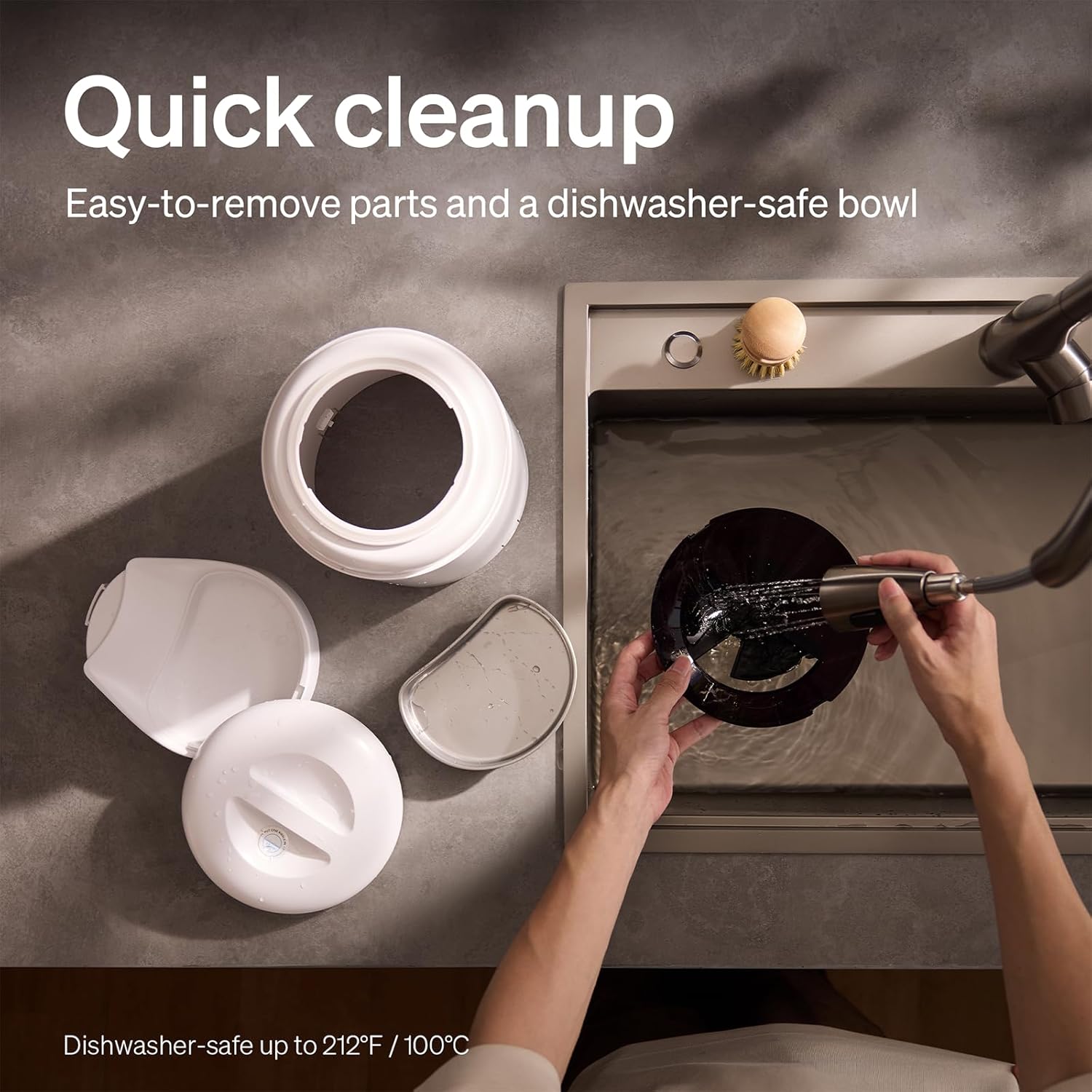
The feeder is designed for quick cleanup with easy-to-remove parts and a dishwasher-safe bowl.
- Disconnect Power: Always unplug the feeder before cleaning.
- Remove Food: Empty any remaining food from the hopper.
- Disassemble: Remove the food bowl, lid, and food hopper.
- Washable Parts: The stainless steel bowl and food hopper are dishwasher-safe (up to 100°C / 212°F) or can be hand-washed with mild soap and water.
- Main Unit: Wipe the main unit with a soft, damp cloth. Do not immerse it in water.
- Dry Thoroughly: Ensure all parts are completely dry before reassembling and refilling with food.
2. Desiccant Replacement
- The desiccant bag helps keep the food fresh. It is recommended to replace it every 15 days.
- Locate the desiccant compartment, usually under the lid.
- Remove the old desiccant bag and insert a new one.
Troubleshooting
| Problem | Possible Cause | Solution |
|---|---|---|
| Feeder not dispensing food. | Food blockage; empty hopper; dispensing mechanism issue. | Check for food blockages and clear them. Refill hopper if empty. Ensure food size is appropriate (2-15mm). |
| Wi-Fi disconnection. | Weak Wi-Fi signal; router issues; incorrect password. | Ensure feeder is within Wi-Fi range. Restart your router. Reconnect the feeder to Wi-Fi via the app, verifying the password. |
| Camera not working or frequently disconnecting. | Poor Wi-Fi connection; app glitch; SD card issue. | Check Wi-Fi stability. Restart the feeder and the app. Ensure the SD card is properly inserted and not full. Consider a system reset if issues persist. |
| App shows "status unknown" or feeding errors. | Wi-Fi disconnection; app synchronization issue. | Verify Wi-Fi connection. Close and reopen the app. Restart the feeder. |
| Voice recording not playing. | No recording saved; volume too low; incorrect schedule. | Ensure a voice message is recorded and saved in the app. Check the playback settings for meal times. |
Specifications
| Feature | Detail |
|---|---|
| Model Number | AF203 |
| Dimensions (L x W x H) | 12 x 10 x 27 cm |
| Weight | 2.15 kg |
| Material | Stainless Steel (bowl) |
| Capacity | 5 Liters |
| Target Species | Cat, Dog |
| Recommended Uses | Automatic indoor dog/cat feeding |
| Special Features | 1080P Camera, Smart App, Two-way Audio |
| Color | White |
| Connectivity Technology | Wi-Fi (2.4GHz & 5GHz) |
| Operation Mode | Automatic |
| Care Instructions | Dishwasher safe (bowl) |
| Batteries Required | No (for primary operation), Yes (for backup, 3 D-cell, not included) |
Warranty & Support
PETLIBRO products come with a standard manufacturer's warranty. For detailed warranty information, please refer to the warranty card included in your package or visit the official PETLIBRO website.
If you encounter any issues or have questions regarding your PETLIBRO Automatic Pet Feeder, please contact PETLIBRO customer support through the following channels:
- Email: Refer to your product packaging or the PETLIBRO website for the latest support email address.
- Website: Visit the official PETLIBRO website for FAQs, troubleshooting guides, and contact forms.
- In-App Support: The PETLIBRO app may offer a support section for direct assistance.
Please have your model number (AF203) and purchase information ready when contacting support.


