
1. Introduction
Thank you for choosing the UIOOQ P1-6L Automatic Pet Feeder. This device is designed to provide a convenient and reliable feeding solution for your pets, ensuring they receive meals on a consistent schedule. Please read this manual thoroughly before operating the feeder to ensure proper setup and usage.
2. Product Overview
Key Features:
- 6-Liter Food Capacity: Suitable for cats and small to medium-sized dogs.
- WiFi App Control: Schedule up to 10 meals per day with up to 12 portions per meal via a smartphone application.
- 10-Second Voice Recorder: Record a personalized message to call your pet at meal times.
- Dual Power Supply: Operates with an AC adapter and features battery backup for power outages.
- Anti-Clogging Design: Motor rotation mechanism helps prevent food blockages.
- Transparent Food Container: Allows for easy monitoring of food levels.
Components:
- Food Storage Container with Lid
- Feeder Base with Control Panel
- Food Bowl
- Power Adapter
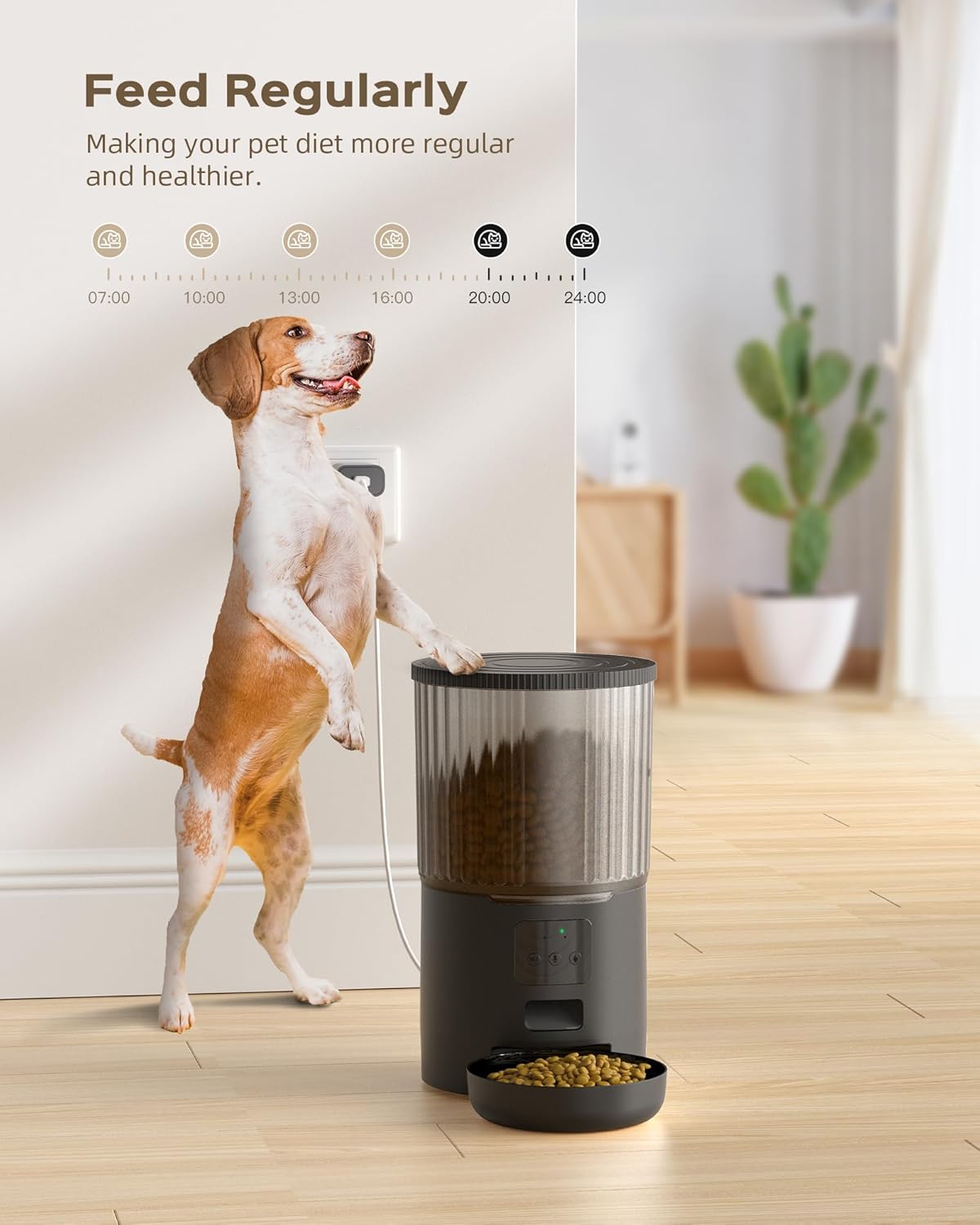
Figure 2.1: UIOOQ P1-6L Automatic Pet Feeder. This image shows the feeder's overall design and highlights the concept of regular feeding schedules.
3. Setup
3.1 Unpacking and Assembly
- Remove all components from the packaging.
- Attach the food storage container to the feeder base, ensuring it is securely locked in place.
- Place the food bowl in front of the dispenser outlet on the base.
3.2 Power Supply
- AC Power: Connect the power adapter to the feeder's power port and plug it into a wall outlet.
- Battery Backup (Optional): For emergency power during outages, insert three D-cell batteries (not included) into the battery compartment located at the bottom of the feeder. Ensure correct polarity.
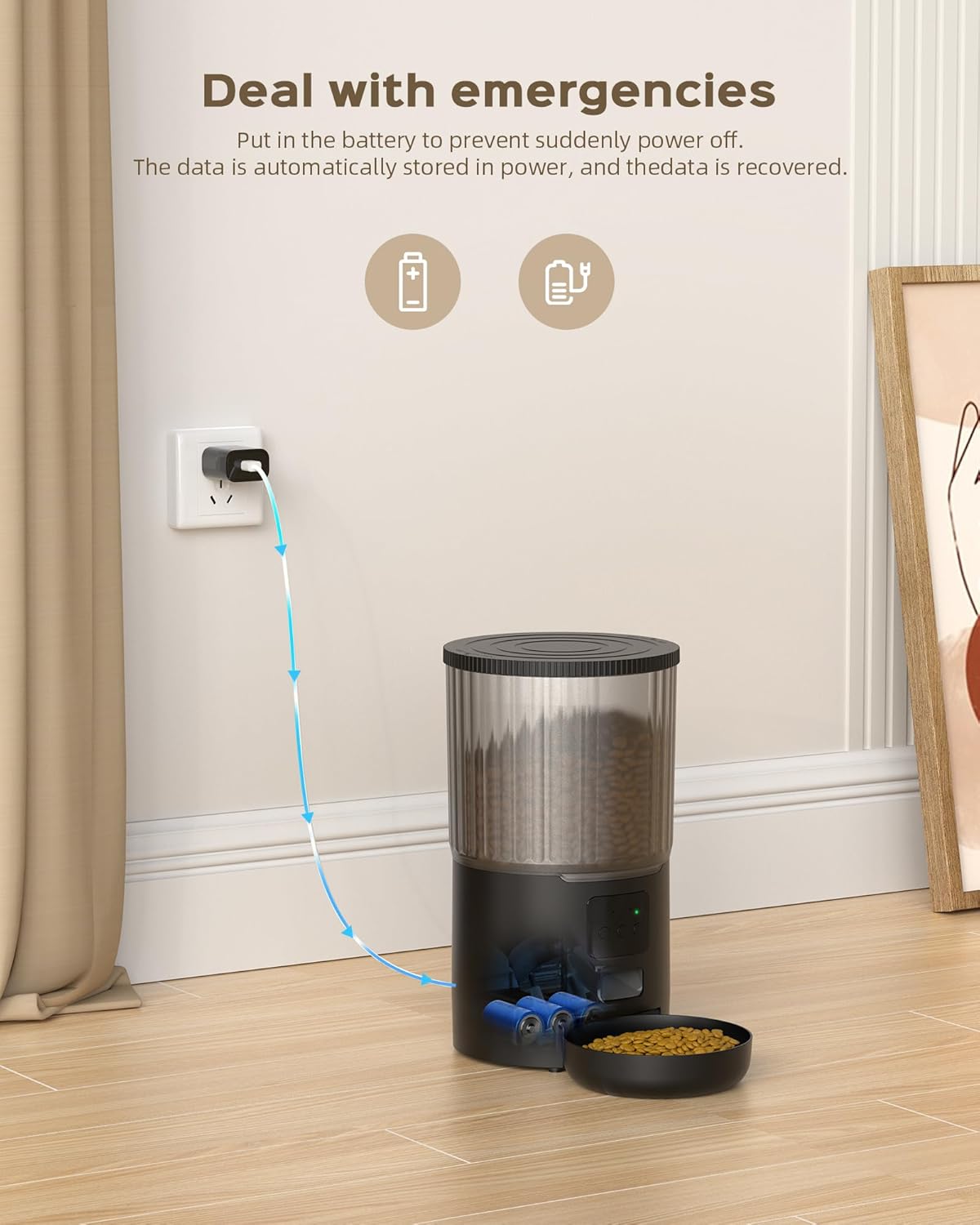
Figure 3.1: Power connection and battery backup. This image illustrates how to connect the AC adapter and install batteries for emergency power.
3.3 App Download and Device Pairing
- Download the companion app from your smartphone's app store (search for "UIOOQ Pet Feeder" or refer to the QR code in the quick start guide).
- Register an account and log in.
- Ensure your smartphone is connected to a 2.4GHz WiFi network. Note: The feeder does not support 5GHz WiFi networks.
- Follow the in-app instructions to add your device. This typically involves pressing and holding a button on the feeder to enter pairing mode, then confirming the connection in the app.
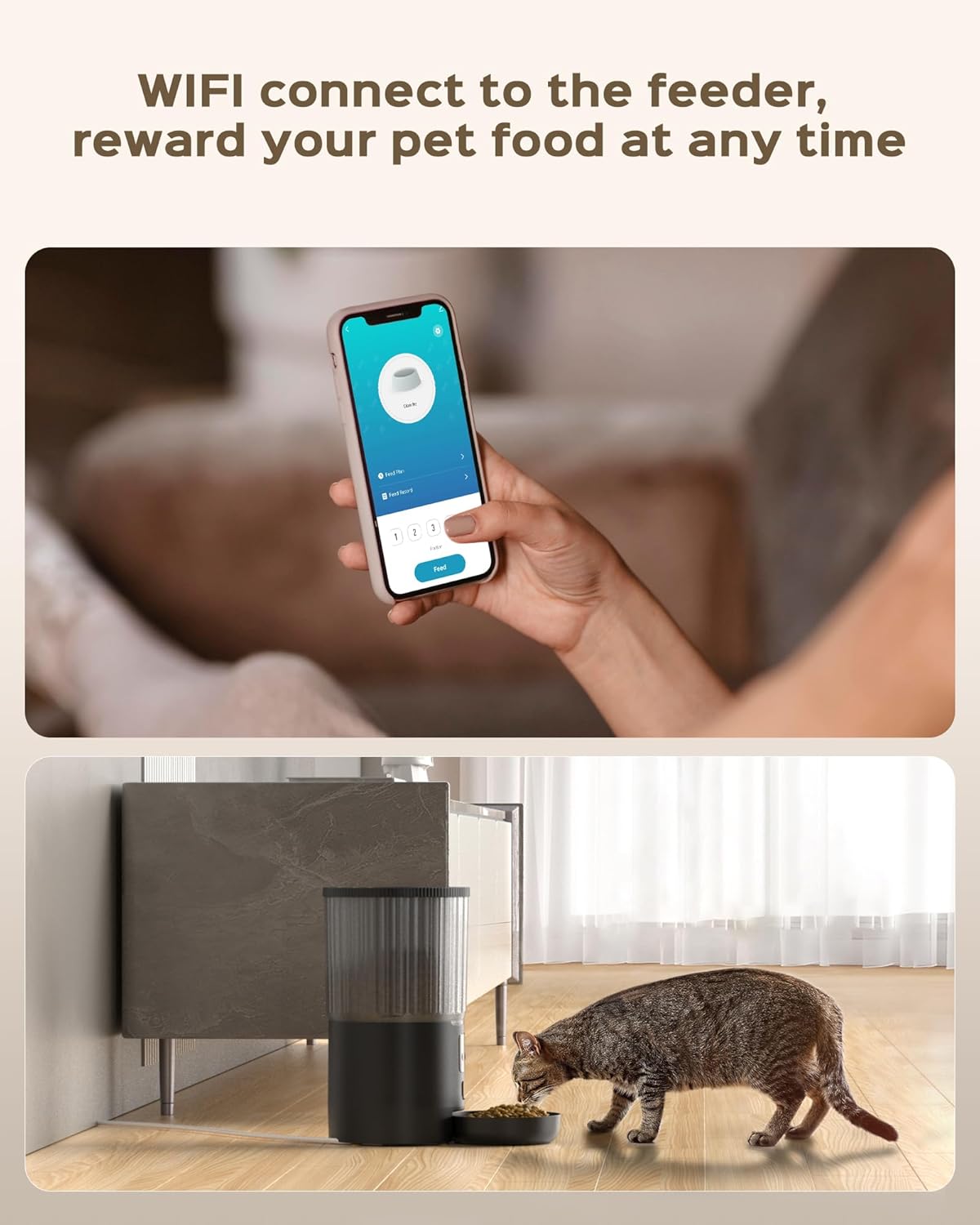
Figure 3.2: App interface for WiFi connection and control. This image demonstrates the app's ability to connect to the feeder and manage feeding.
4. Operating Instructions
4.1 Filling the Feeder
- Open the lid of the food storage container.
- Pour dry pet food into the container. Ensure the kibble size is between 2-10mm (0.1-0.4 inches) to prevent blockages.
- Close the lid securely.
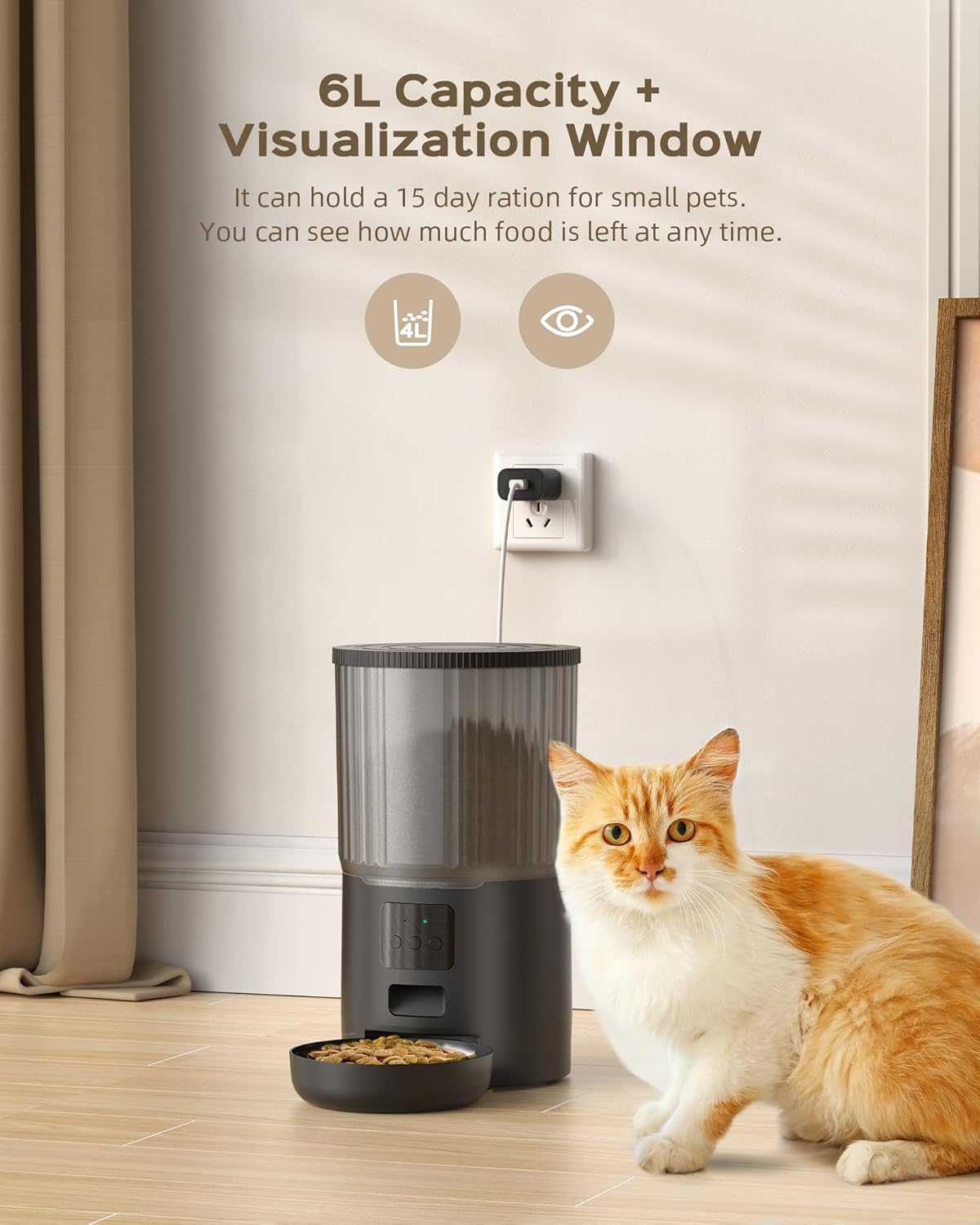
Figure 4.1: 6L capacity and visualization window. This image highlights the feeder's large capacity and the transparent window for monitoring food levels.
4.2 Setting Up Feeding Schedule (App Control)
- Open the UIOOQ Pet Feeder app on your smartphone.
- Navigate to the 'Schedule' or 'Meal Plan' section.
- Add new feeding times, specifying the hour and minute for each meal.
- Select the number of portions for each meal (up to 12 portions). One portion typically corresponds to a specific amount of kibble.
- Save your schedule. The feeder will automatically dispense food at the programmed times.
4.3 Voice Recording
- In the app, find the 'Voice Record' or 'Sound' setting.
- Press the record button and speak your message (up to 10 seconds).
- Save the recording. This message will play automatically before each scheduled meal.
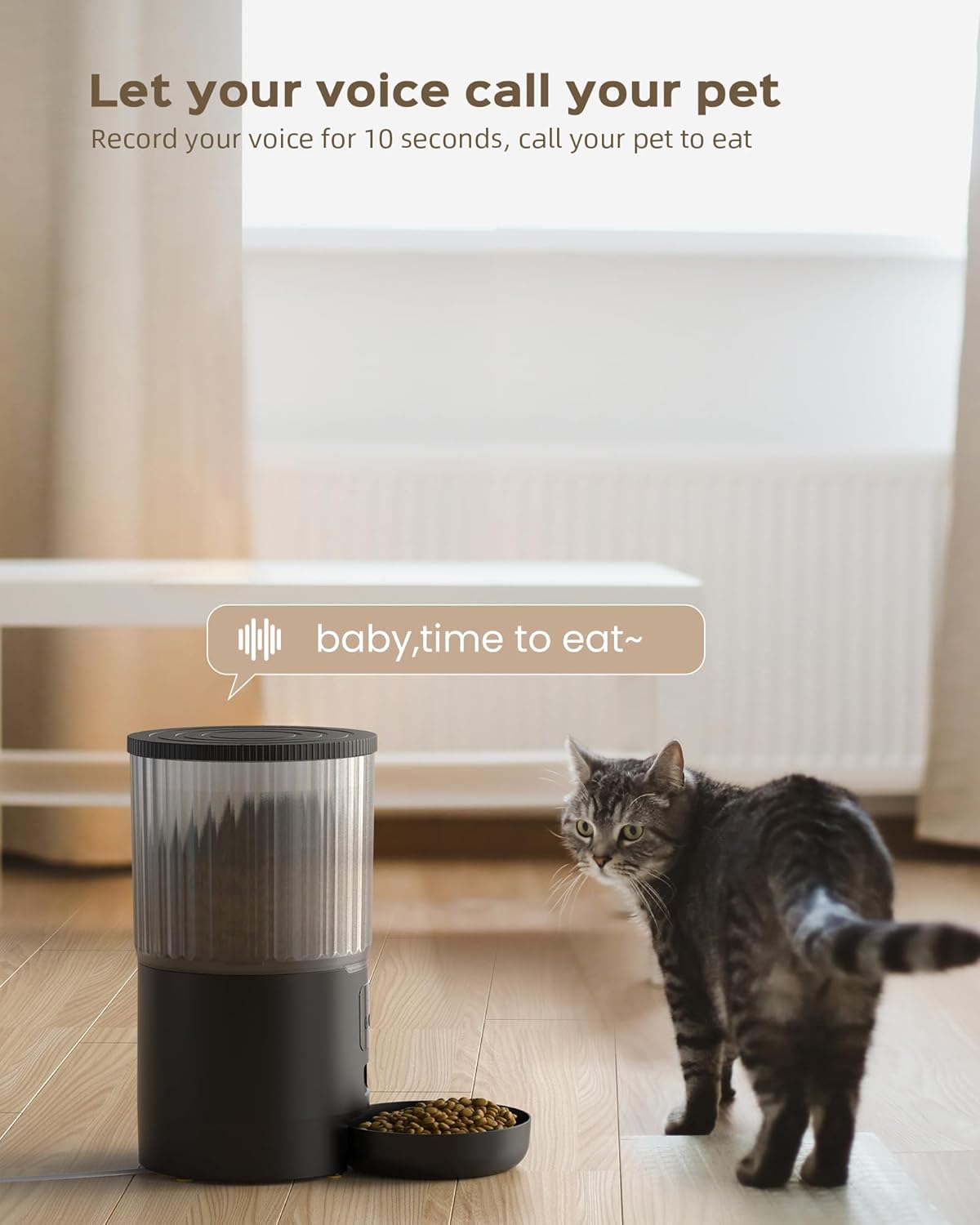
Figure 4.2: Voice recording feature. This image illustrates how the recorded voice message calls your pet to eat.
4.4 Manual Feeding
- Via App: On the app's main screen, locate the 'Feed Now' or 'Manual Feed' option. Select the desired number of portions and confirm to dispense food immediately.
- Via Feeder Button: Press the manual feed button on the feeder's control panel to dispense one portion of food instantly.
5. Maintenance
5.1 Cleaning
- Unplug the feeder and remove any remaining food.
- Disassemble the food bowl and food storage container from the base.
- Wash the food bowl and container with mild soap and water. Rinse thoroughly.
- Wipe the feeder base with a damp cloth. Do not immerse the base in water.
- Ensure all parts are completely dry before reassembling and refilling with food.
5.2 Desiccant Pack (If Applicable)
Some models may include a desiccant pack holder under the lid to keep food fresh. Replace the desiccant pack periodically (e.g., every 1-2 months) to maintain optimal food freshness.
6. Troubleshooting
Feeder Not Dispensing Food:
- Check Power: Ensure the feeder is plugged in or that batteries are correctly installed and not depleted.
- Food Level: Verify there is sufficient food in the container.
- Clogging: Check the dispenser outlet and the internal mechanism for any food blockages. Ensure kibble size is within the recommended 2-10mm range.
- Schedule: Confirm the feeding schedule is correctly set in the app.
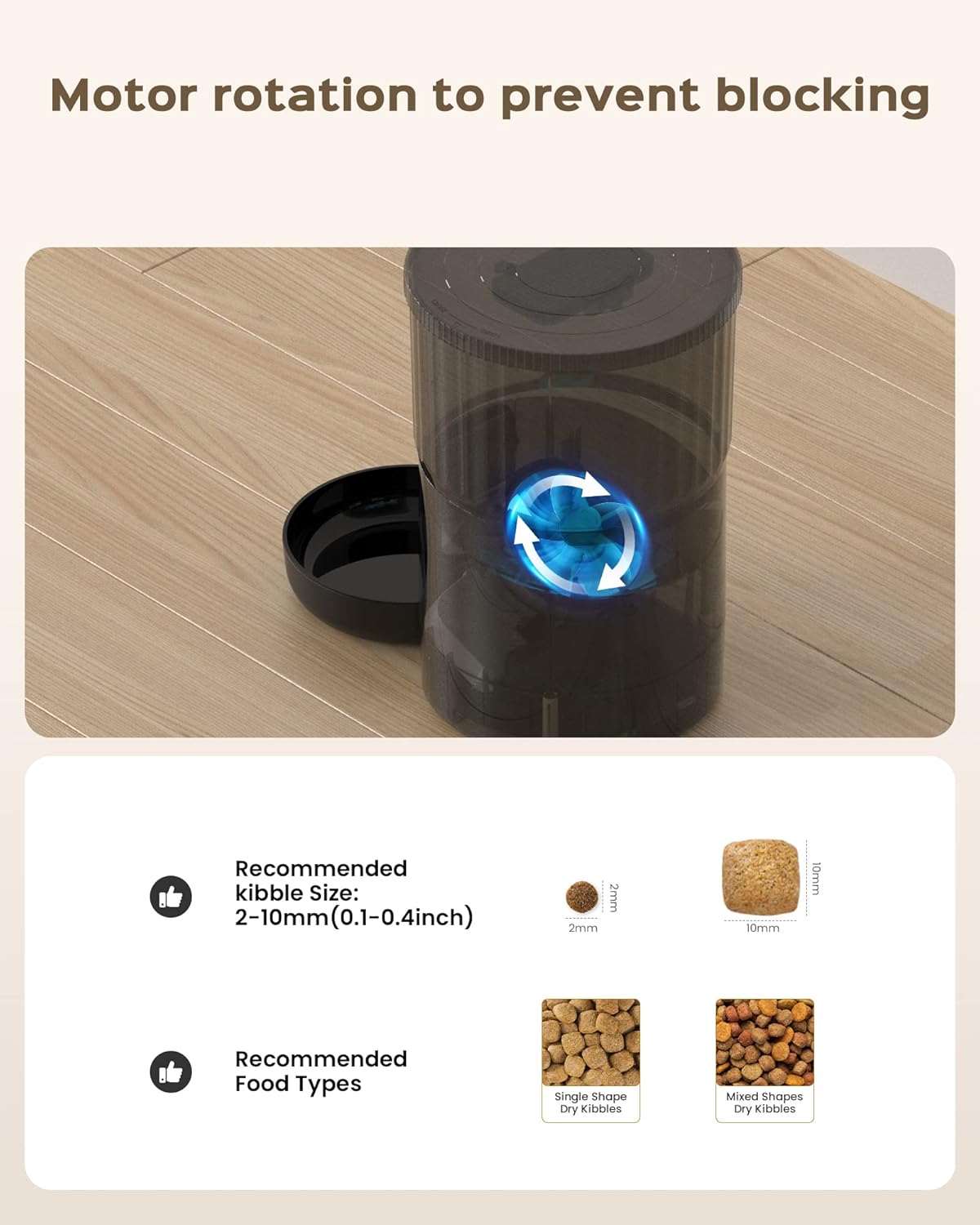
Figure 6.1: Anti-clogging motor and recommended kibble sizes. This image illustrates the internal mechanism designed to prevent food blockages and specifies suitable kibble dimensions.
WiFi Connection Issues:
- 2.4GHz WiFi: Ensure your router is broadcasting a 2.4GHz network and your phone is connected to it during pairing. The feeder does not support 5GHz WiFi.
- Router Distance: Move the feeder closer to your WiFi router.
- Reset Feeder: Refer to the app or quick start guide for instructions on how to reset the feeder's WiFi connection and attempt pairing again.
Voice Recording Not Playing:
- Recording Saved: Confirm that the voice recording was successfully saved in the app.
- Volume: Ensure the feeder's volume is not set to minimum (if adjustable via app).
7. Specifications
| Model | P1-6L |
| Capacity | 6 Liters |
| Dimensions | 12 x 20 x 18 cm |
| Weight | 1.25 kg |
| Power Source | AC Adapter (included), 3 x D-cell Batteries (not included) |
| Connectivity | 2.4GHz WiFi (IEEE 802.11b/g/n) |
| Recommended Kibble Size | 2-10 mm (0.1-0.4 inches) |
| Voice Recording Length | 10 seconds |
8. Warranty and Support
This product comes with a standard manufacturer's warranty. For detailed warranty information, please refer to the warranty card included in your product packaging or contact UIOOQ customer support. If you encounter any issues or have questions regarding your UIOOQ P1-6L Automatic Pet Feeder, please contact our customer service team for assistance.


