
Billboard Chroma
Billboard Chroma Wireless Speaker User Manual
Model: Chroma
Introduction
Thank you for choosing the Billboard Chroma Wireless Speaker. This manual provides essential information for the safe and efficient operation of your new speaker. The Chroma speaker is designed to deliver powerful audio with dynamic RGB lighting, making it perfect for various environments. Its water-resistant design ensures durability for outdoor and travel use.
Safety Information
Please read all safety instructions carefully before using the product. Keep this manual for future reference.
- Do not expose the speaker to extreme temperatures, direct sunlight, or high humidity.
- Avoid dropping or subjecting the speaker to strong impacts.
- Do not disassemble, repair, or modify the speaker yourself. This will void the warranty and may cause damage.
- Keep the speaker away from medical devices, as it contains magnets.
- Use only the provided power cable for charging.
- The speaker is IPX5 water-resistant, meaning it can withstand water jets. Do not submerge the speaker in water. Ensure the charging port cover is securely closed before exposure to water.
- Clean the speaker with a soft, dry cloth. Do not use abrasive cleaners or solvents.
Package Contents
Ensure all items are present in the package:
- Billboard Chroma Wireless Speaker
- Power Cable (Charging Cable)
- User Manual (This document)

Image: The retail box of the Billboard Chroma speaker, showing the speaker and its key features on the packaging.
Product Overview
Familiarize yourself with the components of your Billboard Chroma speaker.
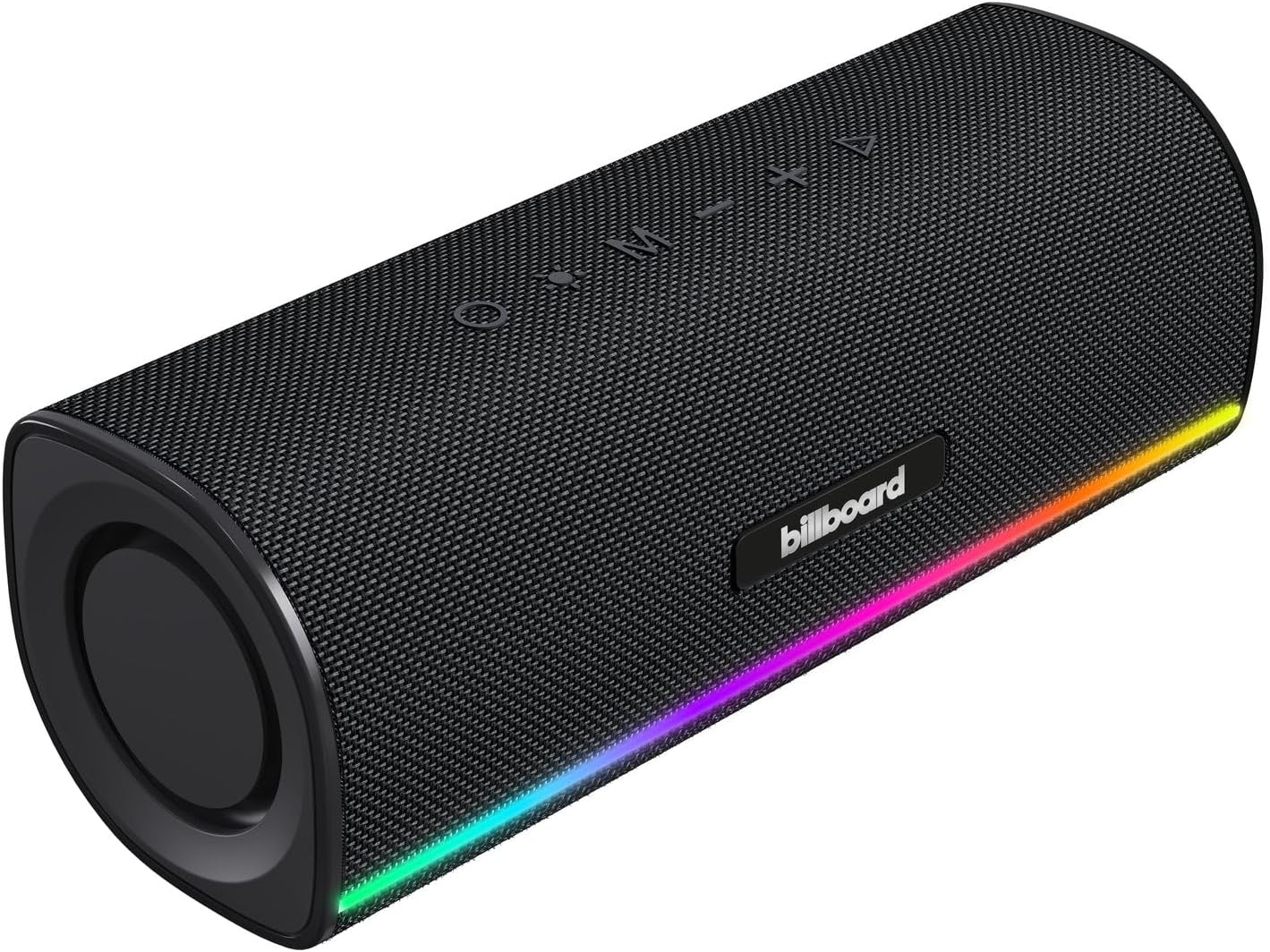
Image: A front-angled view of the Billboard Chroma wireless speaker, showcasing its black fabric finish and the vibrant RGB LED light strip along the bottom edge. Control buttons are visible on the top surface.

Image: A direct front view of the Billboard Chroma speaker, highlighting the full length of the RGB light strip and the Billboard logo.
Controls and Ports:
- Power Button: Turns the speaker on/off.
- Volume Up (+): Increases volume.
- Volume Down (-): Decreases volume.
- Play/Pause Button: Controls music playback.
- Mode/Light Button: Changes RGB light modes or switches input modes.
- Charging Port: For connecting the power cable. (Typically located under a protective flap for water resistance).
Setup
1. Charging the Speaker:
- Locate the charging port on the speaker, usually protected by a rubber flap.
- Connect the provided power cable to the speaker's charging port.
- Connect the other end of the power cable to a compatible USB power adapter (not included) or a computer's USB port.
- The LED indicator will show charging status (e.g., solid red while charging, off when fully charged).
- A full charge provides up to 4 hours of playback time.
2. Bluetooth Pairing:
- Ensure the speaker is fully charged.
- Press and hold the Power Button to turn on the speaker. The speaker will enter Bluetooth pairing mode, indicated by a flashing LED light.
- On your device (smartphone, tablet, laptop), enable Bluetooth.
- Search for available Bluetooth devices. Select "Billboard Chroma" from the list.
- Once paired, the LED indicator will stop flashing and remain solid, and you may hear an audible confirmation.
- The speaker will automatically connect to the last paired device when turned on, if that device's Bluetooth is active and within range.
Operating Instructions
Power On/Off:
- To turn on: Press and hold the Power Button until the LED indicator lights up.
- To turn off: Press and hold the Power Button again until the LED indicator turns off.
Music Playback:
- Play/Pause: Press the Play/Pause Button once to play or pause music.
- Volume Up: Press the Volume Up (+) Button to increase volume.
- Volume Down: Press the Volume Down (-) Button to decrease volume.
- Next Track: Press and hold the Volume Up (+) Button (or double-press, depending on model).
- Previous Track: Press and hold the Volume Down (-) Button (or double-press, depending on model).
RGB Lighting Control:
- Press the Mode/Light Button to cycle through different RGB lighting modes.
- Some modes may react to the music beat.
- Press and hold the Mode/Light Button to turn the RGB lights off or on.

Image: The Billboard Chroma speaker set against a vibrant, colorful background, emphasizing its RGB lighting feature.
Water Resistance (IPX5):
- The Billboard Chroma speaker is rated IPX5, meaning it is protected against low-pressure water jets from any direction.
- This makes it suitable for use near pools, at the beach, or in light rain.
- Important: Ensure the rubber flap covering the charging port is securely sealed before exposing the speaker to water. Do not submerge the speaker in water.

Image: The Billboard Chroma speaker with an icon indicating its IPX5 water resistance, suggesting its durability against water splashes.
Maintenance
- Cleaning: Wipe the speaker with a soft, dry, lint-free cloth. For stubborn dirt, slightly dampen the cloth with water. Do not use harsh chemicals, cleaning solvents, or strong detergents.
- Storage: When not in use for extended periods, store the speaker in a cool, dry place, away from direct sunlight and extreme temperatures.
- Battery Care: To prolong battery life, avoid fully discharging the battery frequently. Charge the speaker regularly, even if not in use, to maintain battery health.
Troubleshooting
| Problem | Possible Cause | Solution |
|---|---|---|
| Speaker does not turn on. | Low battery. | Charge the speaker fully using the provided power cable. |
| No sound. | Volume too low; Device not paired; Speaker not connected. | Increase volume on both speaker and connected device. Re-pair the Bluetooth device. Ensure Bluetooth is enabled on your device. |
| Bluetooth connection unstable. | Device too far from speaker; Obstructions; Interference. | Move device closer to the speaker. Remove any obstructions between devices. Avoid using near other wireless devices. |
| RGB lights not working. | Lights turned off; Malfunction. | Press the Mode/Light Button to cycle through modes or turn lights on. If problem persists, contact support. |
Specifications
| Feature | Detail |
|---|---|
| Model Name | Chroma |
| Brand | Billboard |
| Dimensions (L x W x H) | 24 cm x 8 cm x 10 cm |
| Battery Life | Up to 4 hours |
| Power Source | Battery (1 Lithium Polymer) |
| Water Resistance Rating | IPX5 (Resistant to water jets) |
| Special Features | RGB Light Up |
| Included Components | Power Cable |
| Recommended Uses | Smartphones, Tablets, Computers, Music Players, Outdoor & Travel |
| Compatible Devices | Smartphone, Tablet, Laptop, Television |
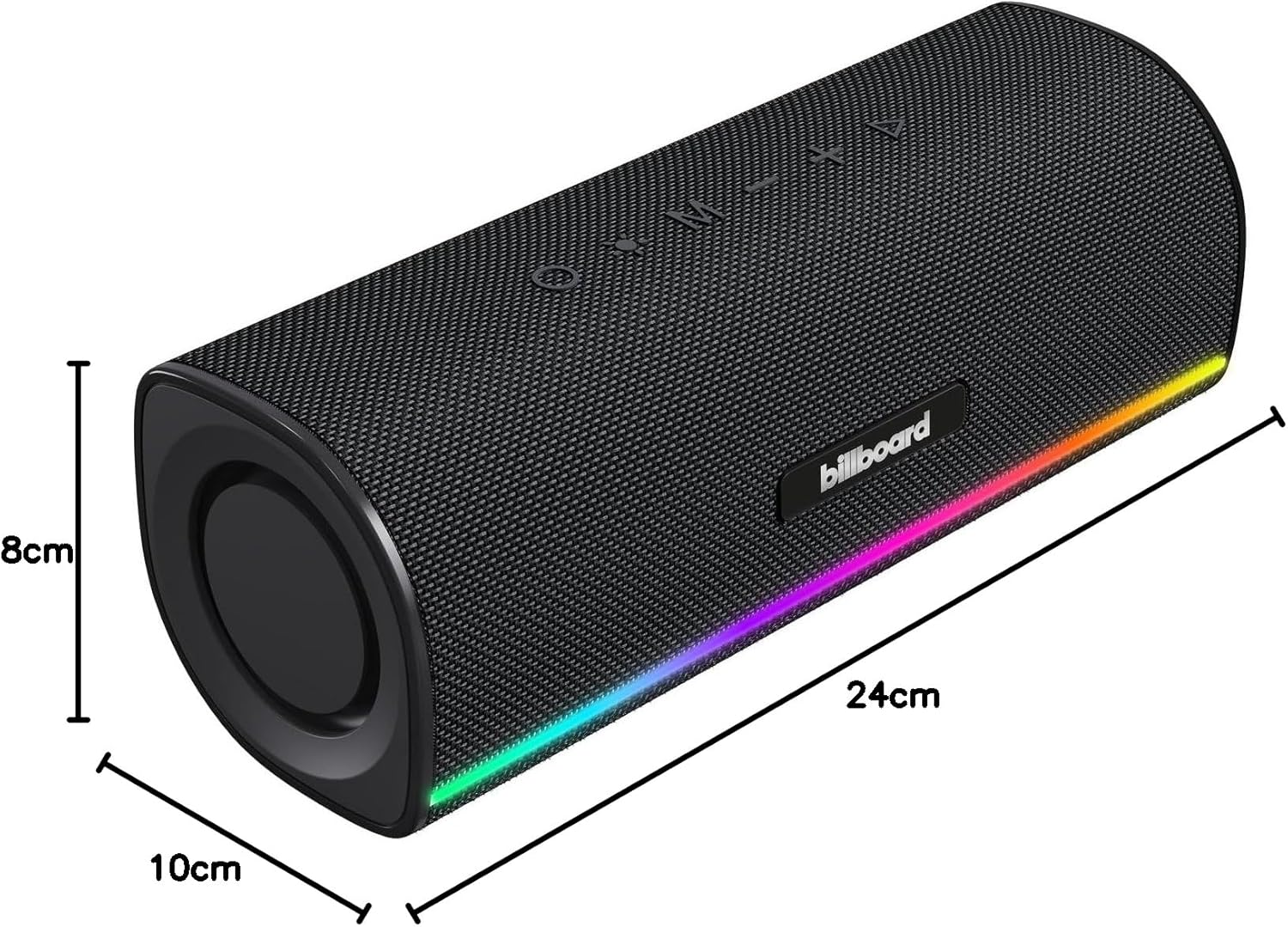
Image: The Billboard Chroma speaker shown with its dimensions clearly labeled: 24cm length, 8cm width, and 10cm height.
Warranty and Support
Billboard products are manufactured by Stuffactory. For warranty information and technical support, please refer to the warranty card included with your product or visit the official Billboard or Stuffactory website for contact details.
Additional protection plans may be available for purchase through authorized retailers. Please consult your point of purchase for details on extended warranties or accidental damage protection.
Related Documents - Chroma
 |
Govee H61C3 Neon Rope Light Quick Start Guide Quick start guide for the Govee H61C3 RGBIC Neon Rope Lights, providing instructions on unboxing, installation, and setup for gaming desks. |
 |
HVIERO T10 W5W COB LED Bulb: Product Manual and Specifications Comprehensive product manual for HVIERO T10 W5W COB LED bulbs. Features include a durable silica gel casing, shock-proof, waterproof, and moisture-proof design. Offers 360° illumination with 300 lumens and a 5W power consumption. Compatible with DC 9-16V systems via a standard T10/W5W interface. Ideal for automotive interior and exterior lighting applications, with a working life of 20,000 hours. Available in multiple colors. |
 |
Razer Chroma 앱 마스터 가이드 Razer Chroma 앱의 기능, Chroma Studio, Chroma Visualizer, Chroma Connect, Sensa HD Haptics, 설정 및 법적 고지에 대한 포괄적인 안내서입니다. |
 |
Razer Chroma Application User Manual - Features and Settings A comprehensive guide to the Razer Chroma application, detailing its features, modules like Chroma Studio, Visualizer, Connect, and Sensa HD Haptics, along with settings and legal information for customizing RGB lighting and haptic feedback on Razer devices. |
 |
Razer Chroma App Master Guide: Customize Your RGB Lighting Comprehensive guide to the Razer Chroma App, covering Chroma Studio, Chroma Visualizer, Chroma Connect, and Sensa HD Haptics for advanced RGB lighting and haptic feedback customization on Razer devices. |
 |
Razer Cynosa Chroma Master Guide: Setup, Features, and Software Configuration Comprehensive user manual for the Razer Cynosa Chroma gaming keyboard. Learn about its features, system requirements, installation of Razer Synapse 3, customization options, lighting effects, macro programming, safety guidelines, and more. |
Ask a question about this manual
Ask about setup, troubleshooting, compatibility, parts, safety, or missing instructions. Manuals+ will review the question and use this page’s manual context to help answer it.