
BAISHUN CJX-C051-US
Thermal Mini Printer with RGB Light - User Manual
Model: CJX-C051-US
Introduction
This user manual provides comprehensive instructions for the operation and maintenance of your BAISHUN Thermal Mini Printer with RGB Light. This portable, inkless printer is designed for convenience, allowing you to print photos, labels, messages, and more directly from your mobile device. Its compact size and RGB lighting feature make it a versatile tool for various personal and creative uses.
What's in the Box
- 1 x Mini Thermal Printer
- 9 rolls of thermal paper (3 rolls of sticker paper + 5 rolls of thermal paper, 1 roll pre-installed in printer)
- USB Charging Cable
- User Manual

Image: The BAISHUN Thermal Mini Printer shown with various types of thermal paper rolls and examples of printed content, including QR codes, shopping lists, and drawings.
Setup Guide
1. Download the App
To operate the printer, you need to download the "Fun Print" application. It is available on both the Apple App Store for iOS devices and Google Play Store for Android devices.

Image: A visual guide illustrating the four main setup steps: downloading the "Fun Print" app, long-pressing the power button to turn on the printer, loading thermal paper, and initiating printing from the app.
2. Power On and Connect via Bluetooth
- Ensure the printer is charged.
- Long press the power button on the printer to turn it on. The RGB light will illuminate.
- Open the "Fun Print" app on your smartphone or tablet.
- Within the app, navigate to the connection settings and select your printer from the available Bluetooth devices. The printer should connect automatically or after a simple pairing process.
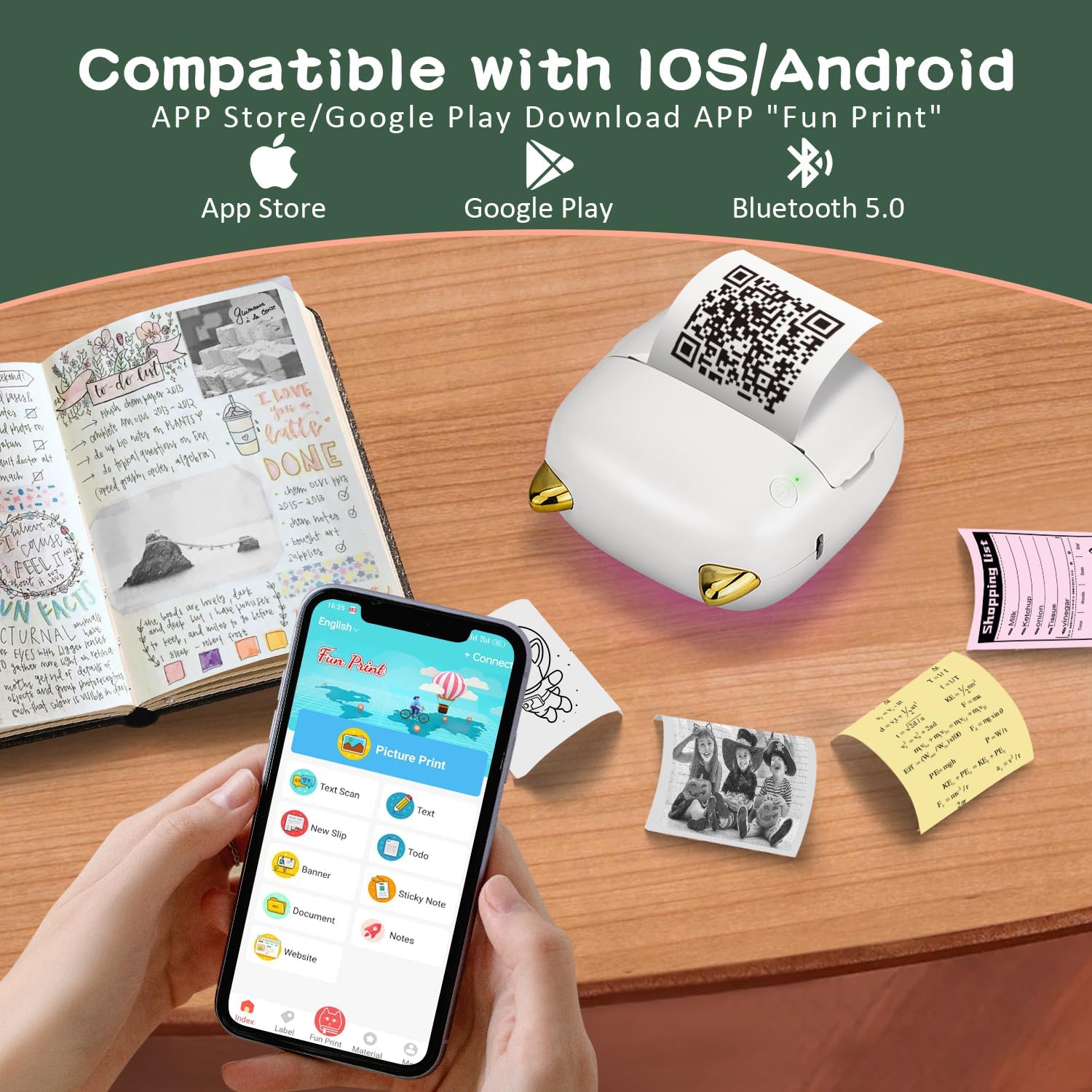
Image: The mini printer positioned next to a smartphone displaying the "Fun Print" app, indicating its compatibility with iOS and Android devices via Bluetooth 5.0.
3. Load Thermal Paper
Open the printer's paper compartment. Take a roll of thermal paper (57mm x 30mm) and insert it into the compartment, ensuring the paper feeds out smoothly. Close the compartment securely. To avoid paper jams, ensure the paper roll is wrapped tightly before insertion.

Image: A selection of thermal paper rolls, including plain white, colored, and sticker paper, compatible with the printer.
Operating Instructions
Once connected and paper is loaded, you can begin printing. The "Fun Print" app offers various functions:
- Image Printing: Print photos directly from your phone's gallery.
- Text Scan: Convert scanned text into printable content.
- To-Do List: Create and print daily tasks or shopping lists.
- Study Notes: Print notes, diagrams, or educational materials.
- Labels Printing: Design and print custom labels for organization.
- QR Code: Generate and print QR codes.
- Sticky Note: Create and print quick reminders.
- Web Page Printing: Print content directly from web pages.

Image: A collage demonstrating the versatile applications of the mini printer, such as printing images, to-do lists, study notes, labels, QR codes, and sticky notes.
RGB Light Functionality
The printer features 7 different colors of RGB LED lights, providing a visually appealing experience. These lights can be adjusted or cycled through via the companion app, adding a personalized touch to your device.

Image: A display of the mini printer showcasing its seven adjustable LED colors, including Pink, Yellow, Purple, Dark Blue, Blue, Teal, and Verdant, highlighting its aesthetic feature.
Maintenance
Battery Care
The printer is equipped with a built-in 1200 mAh battery. For optimal battery life, charge the device using the provided USB cable and a 5V charger. Avoid overcharging or completely draining the battery frequently. A full charge provides approximately one week of standby time.

Image: The mini printer alongside an icon representing its 1200mAh battery, emphasizing its long standby time of one week on a full charge.
Cleaning and Storage
Wipe the exterior of the printer with a soft, dry cloth. Do not use liquid cleaners or abrasive materials. Store the printer in a cool, dry place away from direct sunlight and extreme temperatures.
Troubleshooting
| Problem | Possible Cause | Solution |
|---|---|---|
| Printer does not turn on. | Low battery or power issue. | Charge the printer using the provided USB cable. Ensure the charging indicator light is on. |
| Cannot connect via Bluetooth. | Bluetooth is off on device, printer is not in pairing mode, or interference. | Ensure Bluetooth is enabled on your mobile device. Restart both the printer and your device. Try pairing again through the "Fun Print" app. Move closer to the printer. |
| Poor print quality or blank prints. | Incorrect paper loading, low battery, or faulty thermal paper. | Ensure thermal paper is loaded correctly with the printable side facing the print head. Check battery level. Try a different roll of thermal paper. |
| Paper jam. | Paper not inserted tightly or foreign object. | Turn off the printer, carefully open the paper compartment, remove any jammed paper, and re-insert the paper roll tightly. |
Specifications
| Feature | Detail |
|---|---|
| Model Number | CJX-C051-US |
| Connectivity Technology | Bluetooth |
| Printing Technology | Inkless Thermal Printing |
| Maximum Print Resolution | 200 DPI |
| Compatible Devices | iOS & Android Smartphones/Tablets |
| Maximum Media Size | 57mm x 30mm (Thermal Paper) |
| Battery Capacity | 1200 mAh Lithium Ion |
| Product Dimensions | 3.15 x 3.15 x 1.38 inches |
| Item Weight | 14.4 ounces |
| Special Features | Wireless, Portable, Compact, RGB Light |

Image: A diagram illustrating the compact dimensions of the mini printer, showing its width, length, and height measurements.
Warranty and Support
For warranty information and technical support, please refer to the contact details provided on the product packaging or visit the official BAISHUN website. Keep your purchase receipt for warranty claims.