
Introduction
Thank you for choosing the GOOJODOQ Backlit Keyboard Case. This manual provides detailed instructions for setting up, operating, and maintaining your new keyboard case, designed specifically for the Samsung Galaxy Tab A8 10.5" (models SM-X200, SM-X205, SM-X207). Please read this manual thoroughly before use to ensure optimal performance and longevity of your device.

Image: The GOOJODOQ Backlit Keyboard Case in blue, shown with a Samsung Galaxy Tab A8 inserted, displaying a colorful screen. The case is open, revealing the keyboard and the tablet in a stand position. The back of the case is also visible.
Compatibility
This keyboard case is exclusively compatible with the following Samsung Galaxy Tab A8 10.5" models:
- Samsung Galaxy Tab A8 10.5" (SM-X200)
- Samsung Galaxy Tab A8 10.5" (SM-X205)
- Samsung Galaxy Tab A8 10.5" (SM-X207)
Please verify your tablet's model number before use. This case is NOT compatible with Samsung Tab A7 10.4" (2020/2022) or other tablet models.

Image: A visual guide showing the compatible Samsung Galaxy Tab A8 10.5" model (SM-X200/X205/X207) with a green checkmark and an incompatible Samsung Tab A7 10.4" model with a red cross, highlighting the screen sizes.
Product Features
- Integrated Keyboard: Features an Italian QWERTY layout with 78 buttons and 104 keys, providing a comfortable typing experience.
- Backlit Keys: Customizable backlighting with 6 color combinations and single-color options for typing in low-light conditions.
- Precision Cutouts: Ensures full access to all ports, buttons, and the camera of your Samsung Galaxy Tab A8.
- Multiple Viewing Angles: The anti-slip lining supports various viewing angles for typing, watching, or drawing.
- Built-in Pen Holder: A convenient slot inside the cover to store your stylus (pen not included).
- Protective Case: Durable case protects your tablet from scratches, drops, and daily wear.

Image: A close-up of the GOOJODOQ keyboard, highlighting its Italian QWERTY layout and the vibrant backlighting. Below, smaller images show different backlight color options.
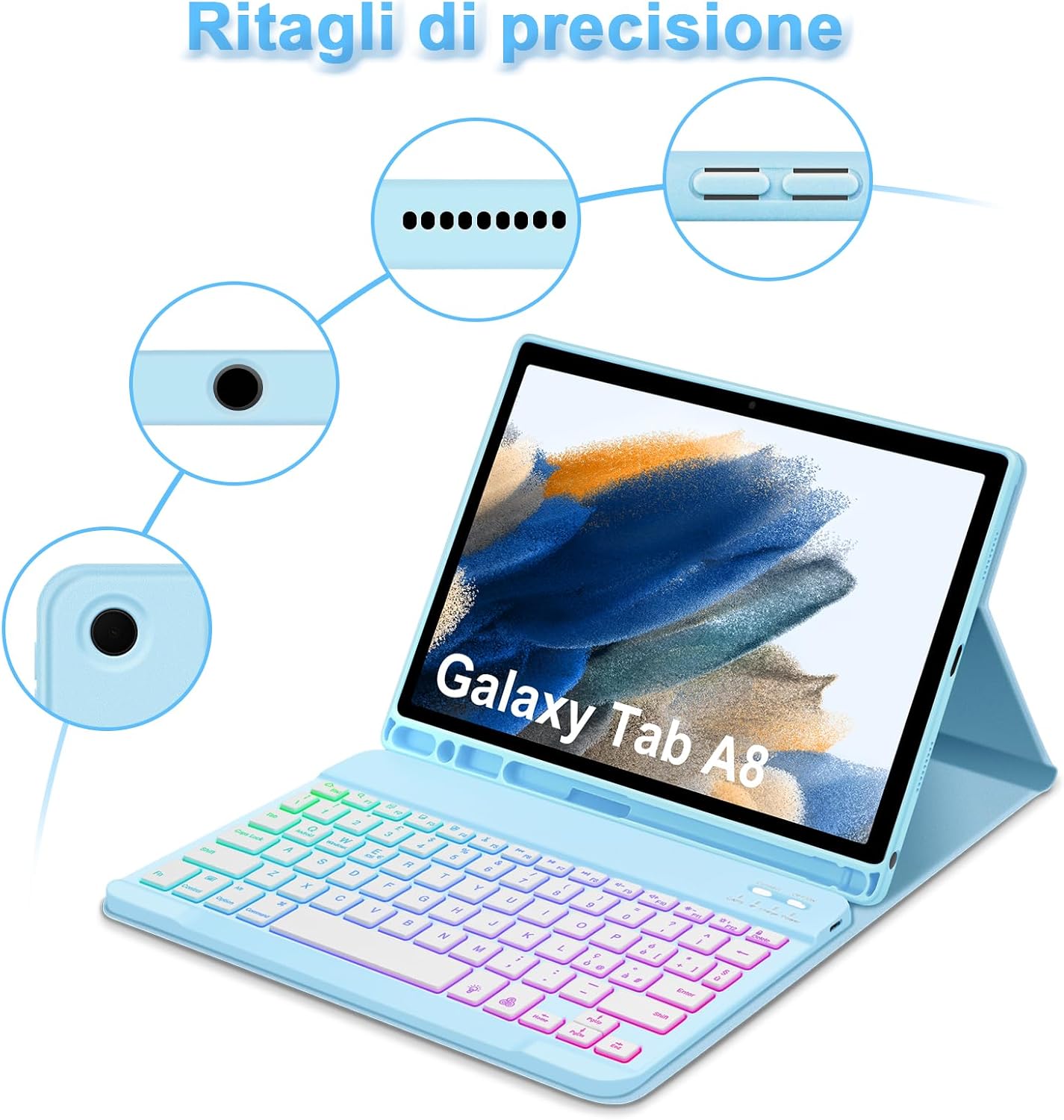
Image: An illustration showing the GOOJODOQ keyboard case with highlighted areas indicating precise cutouts for the tablet's camera, speakers, charging port, and buttons.

Image: A side view of the GOOJODOQ keyboard case with a tablet, demonstrating how the anti-slip lining allows for multiple stable viewing angles.

Image: A close-up view of the GOOJODOQ keyboard case's interior, showing the integrated slot designed to hold a stylus pen securely.
Setup and Pairing
1. Charging the Keyboard
Before first use, fully charge the keyboard. Connect the provided USB charging cable to the keyboard's charging port and a USB power source (e.g., computer, wall adapter). The charging indicator light will show the charging status.
2. Inserting Your Tablet
- Gently align your Samsung Galaxy Tab A8 with the case.
- Press the tablet firmly into the case, ensuring all edges are securely seated and the cutouts align with the tablet's ports and buttons.
3. Bluetooth Pairing
- Turn on the keyboard by sliding the "ON/OFF" switch to the "ON" position. The indicator light will briefly flash.
- Press the "Connect" button on the keyboard. The Bluetooth indicator light will start blinking, indicating it's in pairing mode.
- On your Samsung Galaxy Tab A8, go to Settings > Connected devices > Bluetooth.
- Turn on Bluetooth and search for available devices.
- Select "Bluetooth Keyboard" (or similar name) from the list of found devices.
- If prompted, enter the pairing code displayed on your tablet using the keyboard, then press Enter.
- Once paired, the Bluetooth indicator light on the keyboard will stop blinking and remain solid, or turn off, indicating a successful connection.
Operating Instructions
Keyboard Functions
- Function Keys (F1-F12): Many keys have dual functions. To use the secondary function (e.g., media controls, volume), press and hold the Fn key simultaneously with the desired function key.
- Backlight Control:
- Press the Light Bulb key (usually near the top right) to turn the backlight ON/OFF.
- Press the RGB key (or similar, often next to the light bulb key) to cycle through different backlight colors or color combinations.
- Operating System Switching: The keyboard may have dedicated keys or key combinations (e.g., Fn + Android, Fn + Windows, Fn + iOS) to optimize key mapping for different operating systems. Ensure the correct mode is selected for your tablet.
Using the Case as a Stand
The case features an anti-slip lining that allows you to adjust your tablet to various viewing angles. Simply fold the case cover back and position the tablet in the desired groove for stable support.

Image: A collage showing the GOOJODOQ keyboard case in use. One image shows the case with a tablet on a desk, another shows a person holding the closed case, and a third shows hands typing on the backlit keyboard.
Maintenance and Care
- Cleaning: Use a soft, damp cloth to wipe the surface of the case and keys. Do not use harsh chemicals or abrasive cleaners.
- Storage: When not in use for extended periods, turn off the keyboard to conserve battery life. Store in a cool, dry place away from direct sunlight and extreme temperatures.
- Avoid Liquids: Keep the keyboard away from liquids to prevent damage to electronic components.
- Handle with Care: Avoid dropping the case or applying excessive force to the keys.
Troubleshooting
- Keyboard not connecting via Bluetooth:
- Ensure the keyboard is turned ON and fully charged.
- Make sure Bluetooth is enabled on your tablet.
- Press the "Connect" button on the keyboard to enter pairing mode.
- Forget the device on your tablet's Bluetooth settings and try pairing again.
- Restart both your tablet and the keyboard.
- Keys are not responding:
- Check if the keyboard is properly connected to your tablet via Bluetooth.
- Ensure the keyboard battery is not low. Charge if necessary.
- Try restarting the keyboard and tablet.
- Backlight not working:
- Press the Light Bulb key to toggle the backlight ON/OFF.
- Ensure the keyboard has sufficient battery charge.
Specifications
| Brand | GOOJODOQ |
| Model Number | SM-X200/X205/X207 |
| Color | Blue |
| Keyboard Layout | Italian QWERTY |
| Number of Keys | 104 |
| Number of Buttons | 78 |
| Battery Type | 1 Lithium-ion (included) |
| Connectivity | Bluetooth |
Warranty and Support
For warranty information and customer support, please refer to the documentation included with your purchase or contact GOOJODOQ customer service directly through their official website or the retailer where the product was purchased. Please have your model number (SM-X200/X205/X207) and purchase details ready when contacting support.