
FH X15 Pro
FH Onikuma X15 Pro RGB Wired Gaming Headset User Manual
Model: X15 Pro
Introduction
This manual provides detailed instructions for the setup, operation, and maintenance of your FH Onikuma X15 Pro RGB Wired Gaming Headset. Please read this manual thoroughly before using the product to ensure optimal performance and longevity.
The FH Onikuma X15 Pro is a high-performance wired gaming headset designed for immersive audio experiences across various platforms including PC, PS4, and PS5. It features dynamic RGB lighting, virtual surround sound capabilities, and a high-definition omnidirectional microphone.

Image: The FH Onikuma X15 Pro RGB Wired Gaming Headset, showcasing its design and RGB lighting.
Product Features
- Professional Gaming Headset: Adaptive head beam, RGB light, stereo surround full earmuffs, HD mic, light weight.
- Dynamic RGB Light: Ambilight breathing gradient light for a cool gaming experience.
- Virtual Surround Sound: Precise positioning for a shocking gaming experience.
- Omnidirectional HD Microphone: Flexible noise cancelling HD microphone for smooth communication.
- Full Breathable and Comfortable Earmuffs: Cool gel earmuffs ensure long-term wearing comfort, large earmuffs are designed for excellent sound isolation.
Package Contents
Upon opening the package, please verify that all the following items are included:
- FH Onikuma X15 Pro Gaming Headset (x1)
- User Manual (x1)
- Microphone Sponge Cover (x1)
- 1-to-2 Transfer Cable (x1)

Image: Contents of the FH Onikuma X15 Pro package, including the headset, cables, and manual.
Product Specifications
| Specification | Value |
|---|---|
| Speaker Diameter | 50mm |
| Impedance | 32Ω ±15% |
| Sensitivity | 116dB ±3dB |
| Frequency Response | 20-20000Hz |
| Microphone Sensitivity | -36dB ±3dB |
| Microphone Impedance | 2.2kΩ |
| Directivity | Omni-directional |
| LED Working Voltage | DC5V ±5% |
| Working Current | Below 100mA |
| Headset Interface | USB (for LED light) + 3.5mm Stereo Audio and Mic Plug |
| Connectivity Technology | Wired |
| Noise Control | Active Noise Cancellation |
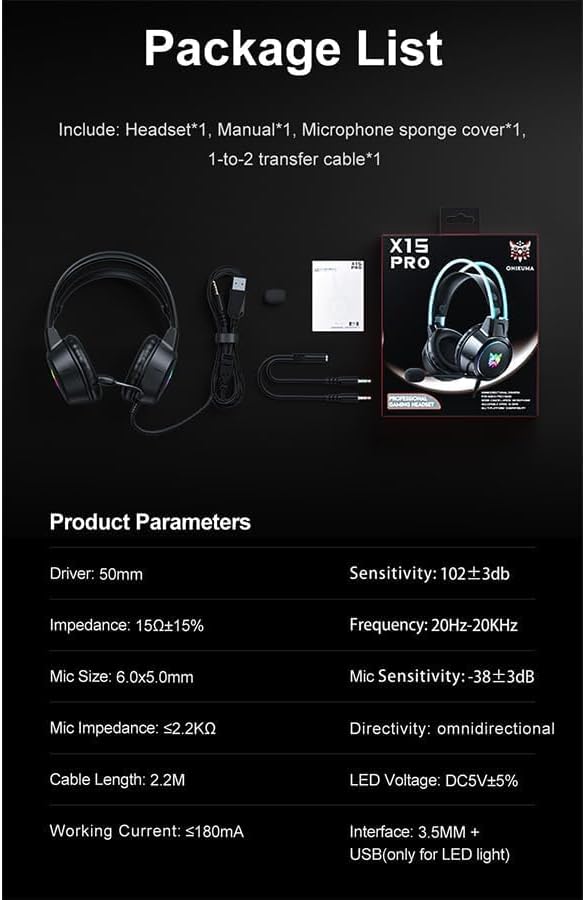
Image: A visual representation of the product parameters and package list for the X15 Pro headset.
Setup Instructions
- Connect the Headset:
The FH Onikuma X15 Pro headset uses a dual connection system: a 3.5mm audio jack for sound and microphone, and a USB connector for the RGB LED lighting.
- For audio and microphone functionality, plug the 3.5mm jack into the corresponding audio port on your PC, PS4, PS5 controller, or other compatible device.
- To enable the RGB lighting, plug the USB connector into an available USB port on your device. The LED lights will illuminate automatically. Unplug the USB connector to turn off the lights.
- If your device has separate audio and microphone ports (e.g., some PCs), use the included 1-to-2 transfer cable to split the 3.5mm jack into separate audio-out and mic-in plugs.
- Adjust Microphone Position:
The omnidirectional microphone is flexible. Adjust its position for optimal voice pickup, typically near the corner of your mouth. Ensure the microphone sponge cover is in place to reduce plosive sounds.

Image: Close-up of the flexible omnidirectional HD microphone with noise cancellation feature.
- Headset Fit Adjustment:
Adjust the adaptive head beam to comfortably fit your head. The earmuffs are designed to fully enclose your ears for optimal sound isolation and comfort during extended use.
Operating Instructions
- Audio Control:
The headset features an in-line volume control wheel, typically located on the cable. Rotate the wheel to increase or decrease the audio volume. There may also be a microphone mute switch on the same control unit.
- Microphone Usage:
Ensure the microphone is enabled in your device's sound settings. For clear communication, speak directly into the microphone. Use the mute switch on the cable to quickly mute or unmute your microphone as needed.
- RGB Lighting:
The RGB lighting is powered via the USB connection. It will automatically display dynamic breathing gradient effects when connected. There are no user-adjustable settings for the lighting patterns on the headset itself.

Image: The FH Onikuma X15 Pro headset showcasing its dynamic RGB lighting on the earcups and headband.
- Virtual Surround Sound:
The headset provides virtual surround sound. For optimal experience, ensure your device's audio settings are configured for stereo output, and any virtual surround sound software on your PC is properly set up if applicable.

Image: An illustration emphasizing the virtual surround sound capability of the FH Onikuma X15 Pro headset.
Maintenance
- Cleaning: Use a soft, dry cloth to wipe down the headset. For earmuffs, a slightly damp cloth can be used, but ensure no moisture enters the speaker grilles. Do not use harsh chemicals or abrasive cleaners.
- Storage: Store the headset in a cool, dry place away from direct sunlight and extreme temperatures. Avoid tangling the cables.
- Cable Care: Do not pull on the cables forcefully when disconnecting. Always grasp the plug itself. Avoid sharp bends or kinks in the cable to prevent internal damage.
- Microphone Sponge Cover: Periodically check the microphone sponge cover for wear and tear. Replace if necessary to maintain optimal microphone performance.
Troubleshooting
| Problem | Possible Cause | Solution |
|---|---|---|
| No sound from headset |
|
|
| Microphone not working |
|
|
| RGB lights not on |
|
|
Warranty and Support
This product is covered by a manufacturer's warranty. For specific warranty terms and conditions, please refer to the warranty card included in your package or contact the retailer where you purchased the product.
For technical support or further assistance, please contact FH customer service through their official website or the contact information provided with your purchase documentation.
Related documentsX15 Pro

Ask a question about this manual
Ask about setup, troubleshooting, compatibility, parts, safety, or missing instructions. Manuals+ will review the question and use this page’s manual context to help answer it.