1. Introduction
The Zyxel VMG3625-T50B is a Dual Band Wireless AC/N VDSL2 Combo WAN Gigabit Gateway designed to provide high-speed internet access and robust wireless connectivity for home and small office environments. This device integrates a VDSL2 modem, a Gigabit Ethernet WAN port, and an AC1200 dual-band Wi-Fi router into a single unit, offering versatile connectivity options and advanced networking features.
This manual provides instructions for the proper installation, configuration, operation, and maintenance of your Zyxel VMG3625-T50B gateway.
2. Safety Information
- Power Supply: Use only the power adapter provided with the device. Using an unauthorized power adapter may damage the device and void the warranty.
- Ventilation: Ensure proper ventilation around the device. Do not block ventilation openings. Avoid placing the device in enclosed spaces or on soft surfaces that may obstruct airflow.
- Placement: Place the device on a stable, flat surface away from direct sunlight, heat sources, and moisture. Keep it away from strong electromagnetic fields.
- Cleaning: Disconnect the power adapter before cleaning. Use a soft, dry cloth. Do not use liquid or aerosol cleaners.
- Servicing: Do not attempt to service the device yourself. Refer all servicing to qualified personnel.
3. Package Contents
Verify that your package contains the following items:
- Zyxel VMG3625-T50B Wireless IAD
- Power Adapter
- Ethernet Cable
- Quick Start Guide
4. Hardware Overview
Familiarize yourself with the ports, buttons, and LED indicators on your VMG3625-T50B gateway.
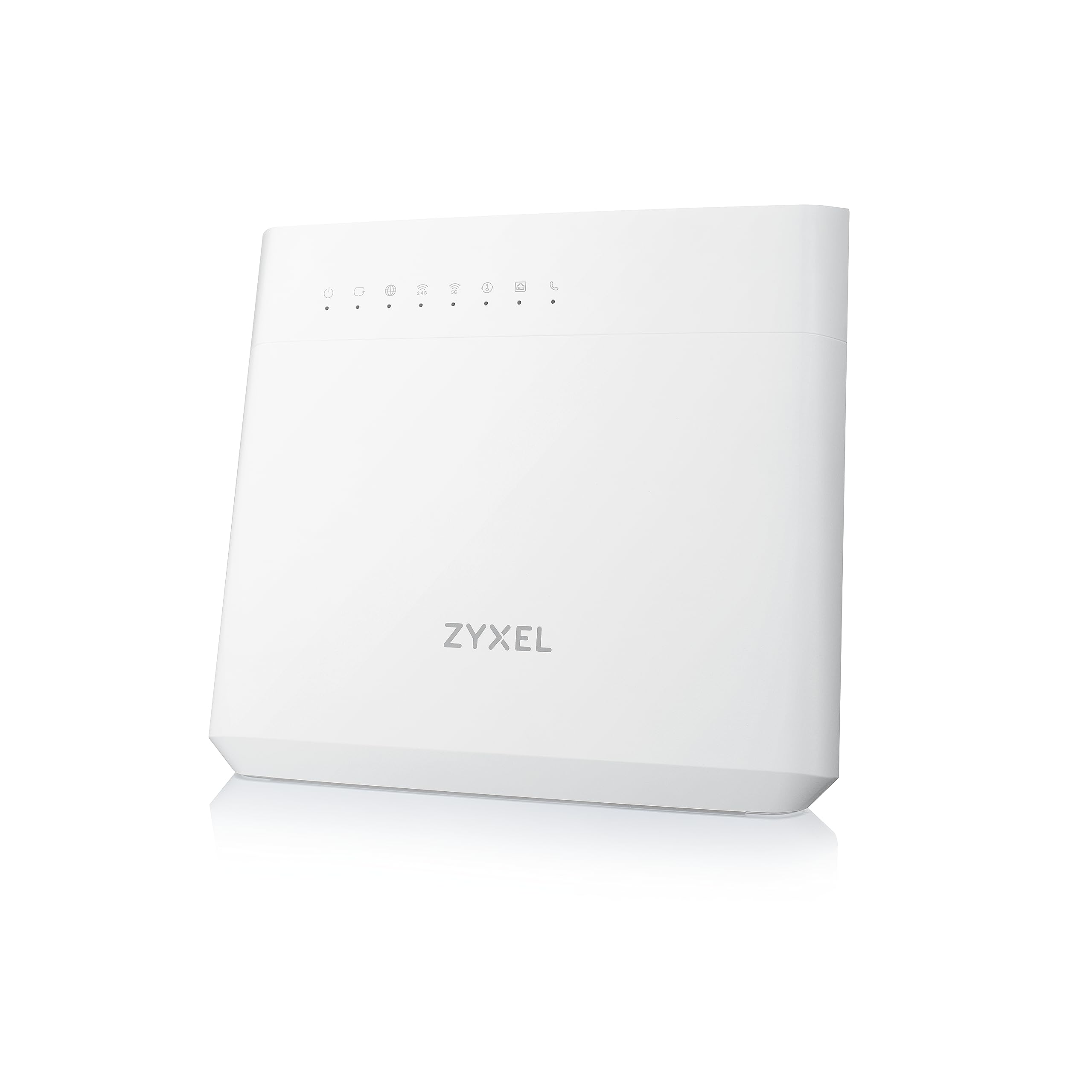
An image of the Zyxel VMG3625-T50B gateway, typically black, showing its compact design suitable for home or office environments.
Front Panel LEDs
- Power: Indicates power status. (Solid Green: On, Off: Off)
- Internet: Indicates internet connection status. (Solid Green: Connected, Blinking: Data transfer, Red: Disconnected)
- DSL: Indicates VDSL2 connection status. (Solid Green: Connected, Blinking: Syncing, Off: Disconnected)
- WAN: Indicates Ethernet WAN connection status. (Solid Green: Connected, Blinking: Data transfer, Off: Disconnected)
- WLAN 2.4G/5G: Indicates wireless network status. (Solid Green: On, Blinking: Data transfer, Off: Off)
- USB: Indicates USB device status. (Solid Green: Device connected, Blinking: Data transfer, Off: No device)
Rear Panel Ports and Buttons
- DSL Port: Connects to the VDSL2 line from your service provider.
- WAN Port (Gigabit Ethernet): Connects to an external modem or directly to an Ethernet service.
- LAN Ports (4x Gigabit Ethernet): Connects to wired devices such as computers, gaming consoles, or network storage.
- USB 2.0 Port: Connects to USB storage devices for file sharing.
- Reset Button: Used to restore factory default settings. Press and hold for 10 seconds while the device is powered on.
- WLAN On/Off Button: Toggles the wireless function.
- Power Connector: Connects to the provided power adapter.
- Power On/Off Button: Turns the device on or off.
5. Setup
5.1 Physical Connection
- Connect to VDSL2 Line: Connect one end of a phone cable to the DSL port on the VMG3625-T50B and the other end to your wall VDSL2 socket. If using a splitter, connect to the modem port of the splitter.
- Connect to Ethernet WAN (Optional): If your internet service uses an Ethernet connection instead of VDSL2, connect an Ethernet cable from your service provider's modem or wall socket to the WAN port on the VMG3625-T50B.
- Connect Wired Devices: Connect Ethernet cables from your computers or other network devices to the LAN ports on the VMG3625-T50B.
- Connect Power: Connect the provided power adapter to the Power connector on the VMG3625-T50B and then plug it into a power outlet. Press the Power On/Off button to turn on the device.
Allow a few minutes for the device to boot up and establish connections. Observe the front panel LEDs for connection status.
5.2 Initial Configuration (Web GUI)
- Access the Web GUI: Open a web browser on a computer connected to the VMG3625-T50B (either via Ethernet or Wi-Fi). In the address bar, type
http://192.168.1.1(default IP address) and press Enter. - Login: Enter the default username and password. These are typically found on a label on the bottom or back of the device. It is recommended to change the default login credentials for security purposes during the initial setup wizard.
- Follow Setup Wizard: The device may present a setup wizard to guide you through basic internet and wireless settings. Follow the on-screen instructions.
5.3 Wireless Network Setup
During the initial setup or via the Web GUI, you can configure your wireless network settings:
- SSID (Network Name): Change the default Wi-Fi network name for both 2.4 GHz and 5 GHz bands to something easily recognizable.
- Password (Security Key): Set a strong, unique password for your Wi-Fi networks. WPA2-PSK (AES) is the recommended security type.
- Guest Wi-Fi: Consider enabling a separate guest Wi-Fi network for visitors to keep your main network secure.
6. Operating
6.1 Basic Internet Access
Once configured, your devices should be able to connect to the internet via the VMG3625-T50B. Verify the Internet LED on the front panel is solid green.
6.2 Advanced Features
- USB File Sharing: Connect a USB storage device to the USB 2.0 port. You can configure file sharing settings through the Web GUI to access files from network-connected devices.
- Quality of Service (QoS): The VMG3625-T50B supports QoS, allowing you to prioritize network traffic for specific applications or devices. This ensures critical applications like video conferencing or online gaming receive sufficient bandwidth. Configure QoS settings in the Web GUI.
- Firewall: The device includes a NAT safety wall with SPI (Stateful Packet Inspection) and DoS (Denial of Service) protection to enhance network security. These features are typically enabled by default.
7. Maintenance
7.1 Firmware Updates
Periodically check the Zyxel support website for firmware updates. Firmware updates can improve performance, add new features, and address security vulnerabilities. Download the latest firmware and follow the instructions in the Web GUI for updating.
7.2 Backup and Restore Configuration
It is recommended to back up your device's configuration settings regularly. This allows you to restore your settings quickly in case of a factory reset or other issues. The backup/restore function is available in the Web GUI.
7.3 Factory Reset
If you encounter persistent issues or forget your login credentials, you can perform a factory reset. To do this, press and hold the Reset button on the rear panel for approximately 10 seconds while the device is powered on. The device will restart with all settings restored to their factory defaults.
7.4 Cleaning
Ensure the device is powered off and unplugged before cleaning. Use a soft, dry cloth to wipe the exterior. Do not use liquid or abrasive cleaners.
8. Troubleshooting
8.1 No Internet Connection
- Check Cables: Ensure all cables (DSL, WAN, Ethernet) are securely connected.
- Check LEDs: Verify that the Power, DSL/WAN, and Internet LEDs are solid green. If the DSL LED is blinking, the device is trying to sync with the VDSL2 line. If the Internet LED is red, there is no internet connection.
- Restart Device: Power cycle the VMG3625-T50B by unplugging the power adapter, waiting 30 seconds, and plugging it back in.
- Contact ISP: If the issue persists, contact your Internet Service Provider (ISP) to check for service outages or line issues.
8.2 Wi-Fi Not Connecting or Slow
- Check WLAN LED: Ensure the WLAN 2.4G/5G LEDs are solid green. If off, press the WLAN On/Off button.
- Verify Password: Double-check that you are entering the correct Wi-Fi password.
- Signal Strength: Move closer to the gateway to check if signal strength is an issue. Obstacles like walls and large appliances can interfere with Wi-Fi signals.
- Channel Interference: In the Web GUI, try changing the Wi-Fi channel for both 2.4 GHz and 5 GHz bands to a less congested one.
8.3 Cannot Access Web GUI
- IP Address: Ensure your computer is configured to obtain an IP address automatically (DHCP).
- Default IP: Confirm you are using the correct default IP address (
http://192.168.1.1). - Firewall/Antivirus: Temporarily disable any firewall or antivirus software on your computer that might be blocking access.
- Factory Reset: If you have forgotten the login credentials, perform a factory reset (see Section 7.3).
9. Specifications
| Brand | ZYXEL |
| Model Name | VMG3625-T50B |
| Connectivity Technology | Wi-Fi |
| Wireless Standard | 802.11ac |
| Frequency Band Class | Dual-Band (2.4 GHz, 5 GHz) |
| Data Transfer Rate | 867 Mbps (5 GHz), 300 Mbps (2.4 GHz) - AC1200 total |
| Number of Ports | 4x Gigabit LAN, 1x Gigabit WAN, 1x DSL, 1x USB 2.0 |
| Special Features | QoS, USB File Sharing, Firewall (SPI, DoS) |
| Operating System | ZyNOS |
| Compatible Devices | Compatible with All Devices |
| Dimensions (L x W x H) | 29 x 23.4 x 4.2 cm |
| Weight | 690 g |
10. Warranty and Support
For warranty information and technical support, please refer to the warranty card included in your product package or visit the official Zyxel website. The website typically provides FAQs, driver downloads, and contact information for customer support.
Zyxel Official Website: www.zyxel.com


