
Introduction
Thank you for choosing the Xtrike Me GW-610 Gaming Mouse. This manual provides detailed instructions for setting up, operating, and maintaining your new gaming mouse. The GW-610 offers both wired and 2.4G wireless connectivity, customizable RGB lighting, and a high-precision optical sensor with adjustable DPI settings, designed for an enhanced gaming experience.
Package Contents
- Xtrike Me GW-610 Gaming Mouse
- USB Type-C to USB-A Cable (1.5m)
- 2.4G USB Receiver (usually stored inside the mouse)
- User Manual (this document)
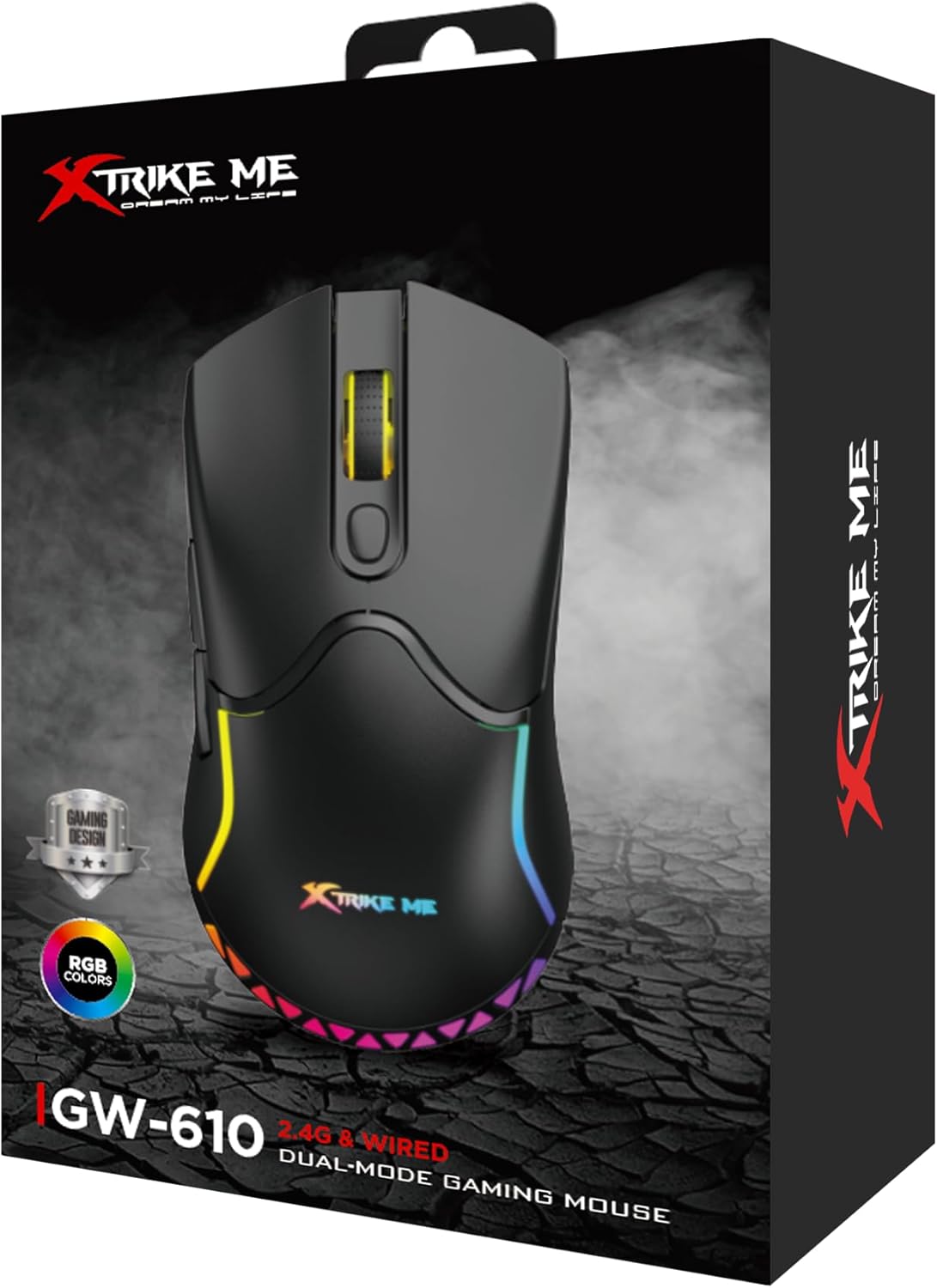
Image: The retail packaging box for the Xtrike Me GW-610 Gaming Mouse, showing the mouse and its key features.
Setup Instructions
1. Wired Connection
- Connect the USB Type-C end of the provided cable to the mouse.
- Connect the USB-A end of the cable to an available USB port on your computer.
- The mouse will be automatically detected and ready for use.
2. Wireless (2.4G) Connection
- Locate the 2.4G USB receiver, usually stored in a compartment on the underside of the mouse.
- Remove the receiver and plug it into an available USB port on your computer.
- Turn on the mouse using the power switch located on the underside.
- The mouse will automatically connect to the receiver.
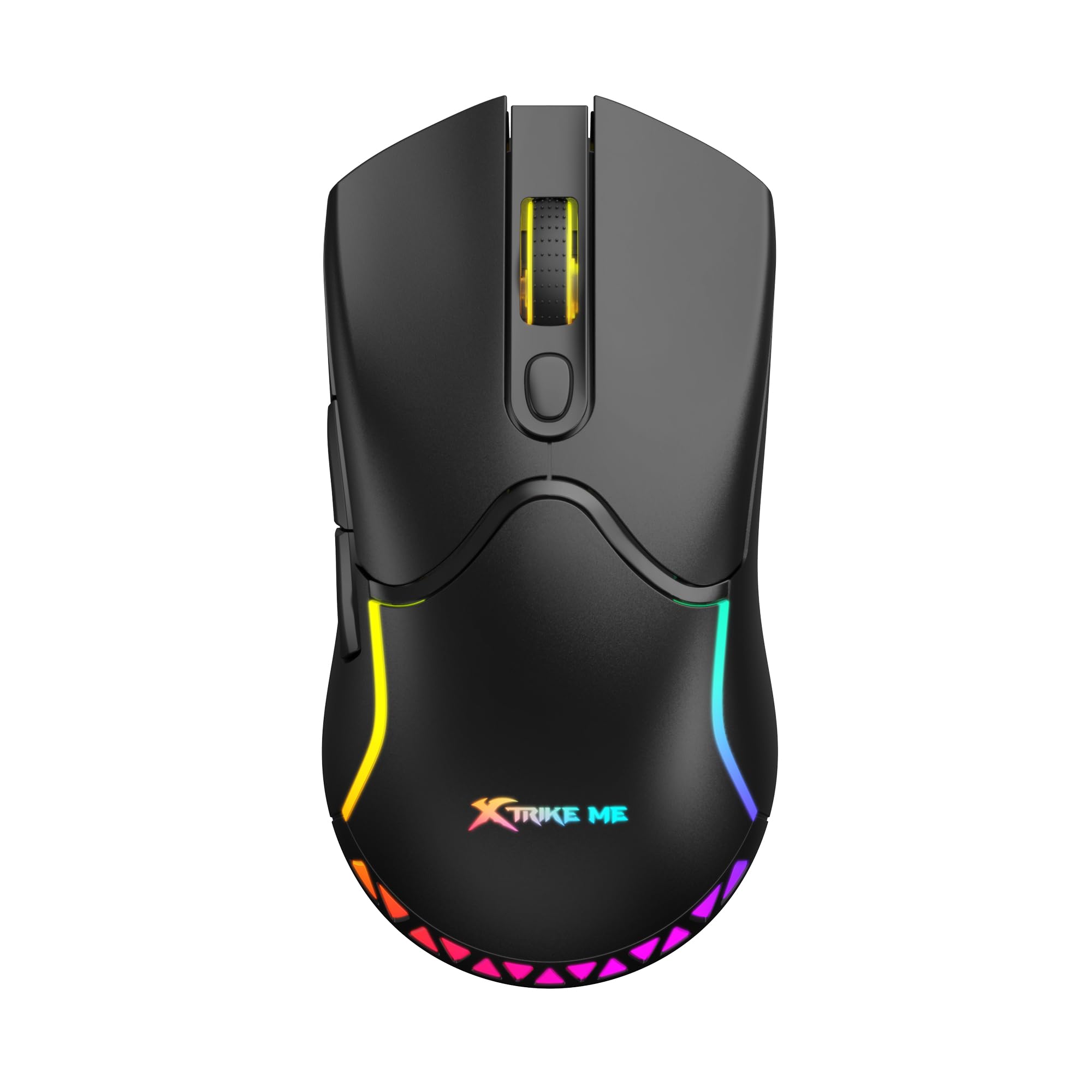
Image: Top view of the Xtrike Me GW-610 Gaming Mouse, showcasing its ergonomic design and RGB lighting.
Operating Instructions
Button Functions (7 Buttons)
- Left Click Button: Standard primary click function.
- Right Click Button: Standard secondary click function.
- Scroll Wheel: Scrolls up/down, and acts as a middle click button.
- DPI Cycle Button: Changes the mouse sensitivity (DPI) through preset levels.
- Forward Button: Navigates forward in web browsers or file explorers.
- Backward Button: Navigates backward in web browsers or file explorers.
- RGB Lighting Control Button: (Specific function may vary, often cycles through lighting modes or turns lights on/off. Refer to software if available for full customization.)

Image: Angled view of the Xtrike Me GW-610 Gaming Mouse, highlighting the side buttons and ergonomic shape.
DPI Adjustment
Press the DPI cycle button (usually located behind the scroll wheel) to switch between the following sensitivity levels:
- 800 DPI
- 1600 DPI (Default)
- 2400 DPI
- 3200 DPI
- 4800 DPI
- 8000 DPI
Each DPI level may be indicated by a change in the mouse's LED color or a brief flash.
RGB Lighting Control
The mouse features multi-color RGB lighting effects. Use the dedicated RGB lighting control button (if present, or a combination of buttons) to cycle through different lighting modes or to turn the lighting on/off. The lighting effects include a flowing light pattern.

Image: Side view of the Xtrike Me GW-610 Gaming Mouse, showing the illuminated RGB strip along its body.
Charging the Mouse
When using the mouse in wireless mode, it is powered by a built-in 500mAh lithium-ion battery. To charge the mouse:
- Connect the USB Type-C end of the provided cable to the mouse.
- Connect the USB-A end of the cable to a powered USB port on your computer or a USB wall adapter.
- The charging indicator (if present) will show the charging status.
- A full charge takes approximately 3 hours.
The mouse can be used in wired mode while charging. A full charge provides approximately 20 hours of use with RGB lighting on, or 100 hours with RGB lighting off.
Maintenance
- Cleaning: Use a soft, dry cloth to clean the mouse. For stubborn dirt, a slightly damp cloth can be used, ensuring no liquid enters the mouse. Do not use harsh chemicals or abrasive cleaners.
- Storage: Store the mouse in a cool, dry place away from direct sunlight and extreme temperatures.
- Cable Care: Avoid bending or twisting the USB cable excessively to prevent damage.
Troubleshooting
| Issue | Possible Solution |
|---|---|
| Mouse not responding (Wired) |
|
| Mouse not responding (Wireless) |
|
| DPI not changing |
|
| RGB lighting not working |
|
Specifications
| Brand | Xtrike Me |
| Model Number | XT-GW-610 |
| Sensor Type | Optical |
| Number of Buttons | 7 |
| Connectivity | 2.4G Wireless, Wired (Type-C) |
| Operating Distance (Wireless) | 10 meters |
| DPI Settings | 800-1600-2400-3200-4800-8000 (Default: 1600) |
| Switch Rating | 3 million clicks |
| Poll Rate | 500Hz |
| Battery Type | Lithium-ion |
| Battery Capacity | 500mAh |
| Usage Time (Lights On) | 20 hours |
| Usage Time (Lights Off) | 100 hours |
| Charging Time | 3 hours |
| Operating Voltage (Wired) | 5V/300mA (with charging) |
| Operating Voltage (Wireless) | 3.7V/≤35mA |
| Backlight | RGB |
| Interface | Type-C |
| Cable Length | 1.5 meters |
| Dimensions | 127 x 66 x 39 mm |
| Weight | 90 grams |
| OS Support | Windows 7 or newer |
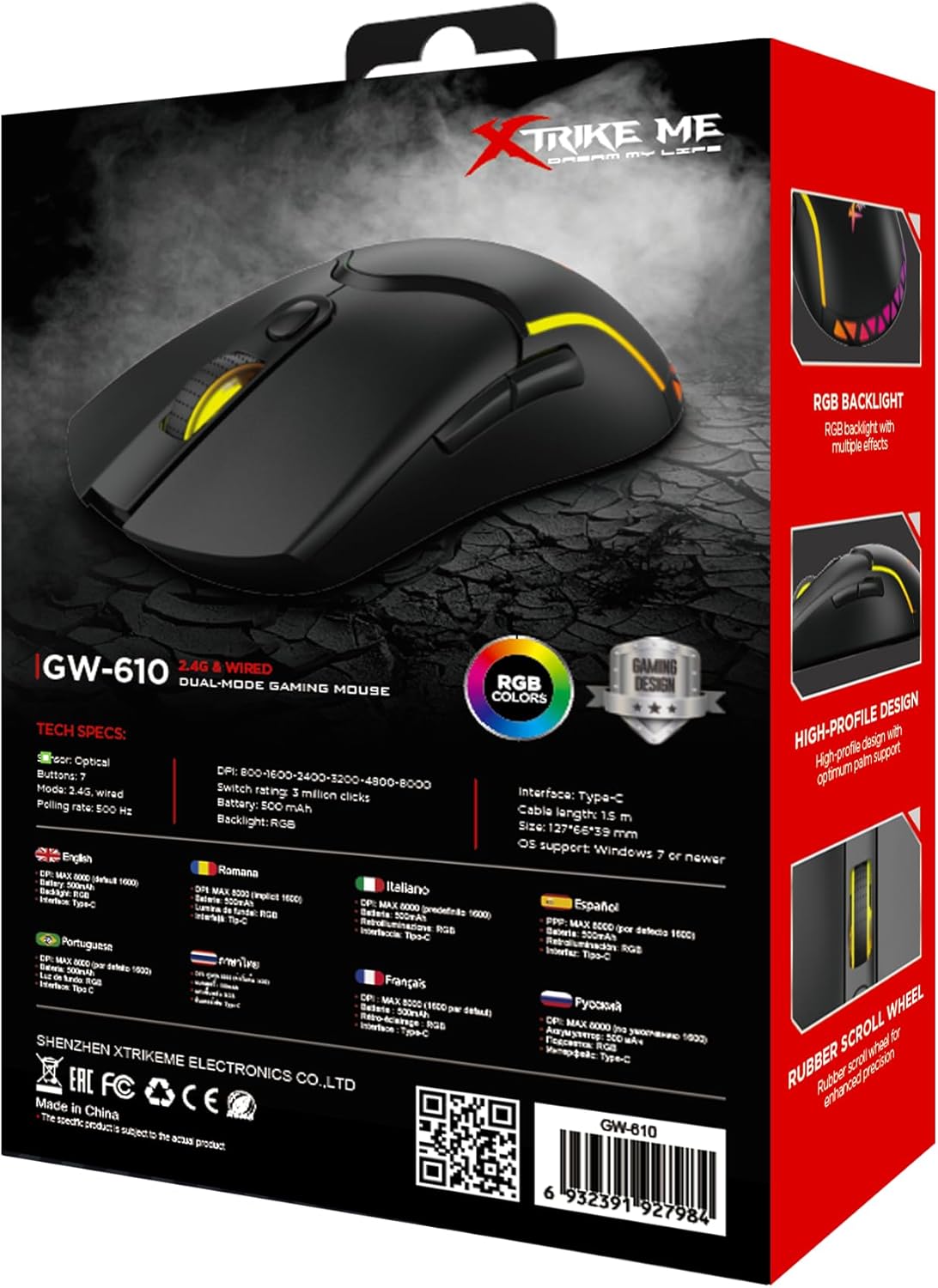
Image: The back of the Xtrike Me GW-610 Gaming Mouse box, displaying detailed technical specifications in multiple languages.
Warranty and Support
The Xtrike Me GW-610 Gaming Mouse comes with a standard manufacturer's warranty. For specific warranty terms and conditions, please refer to the warranty card included with your product or visit the official Xtrike Me website.
For technical support, troubleshooting assistance, or to inquire about replacement parts, please contact Xtrike Me customer service or visit their official website: