Introduction
This manual provides detailed instructions for the XTRIKE ME GW-121 Wireless Gaming Mouse. It covers essential information regarding product features, setup, operation, maintenance, and troubleshooting to ensure optimal performance and longevity of your device. Please read this manual thoroughly before using the mouse.
Product Overview
The XTRIKE ME GW-121 is a versatile wireless gaming mouse designed for comfort and performance. It features a lightweight, ambidextrous design with customizable DPI settings and dynamic RGB lighting.
Key Features:
- 7-Color Lighting Effect: Dynamic RGB lighting with light flow, enhancing the gaming experience.
- Dual Wireless Modes: Seamlessly switch between 2.4 GHz wireless and Bluetooth connectivity for versatile use.
- Adjustable DPI: Instant DPI adjustment with a dedicated button, offering settings of 1000, 1600, 2400, and 3200 DPI for precise aiming.
- 6 Programmable Buttons: Includes standard left/right click, scroll wheel, DPI button, and two side buttons.
- Long-lasting Battery: Built-in 500 mAh rechargeable battery providing up to 15 hours of usage.
- Wide Compatibility: Supports Windows, Mac, and Android operating systems.
Component Identification:
Familiarize yourself with the different parts of your XTRIKE ME GW-121 mouse:

Figure 1: Top view of the XTRIKE ME GW-121 Wireless Gaming Mouse. This image displays the mouse from a direct overhead perspective, highlighting its vibrant blue and purple gradient finish, the honeycomb cutouts on the palm rest, the scroll wheel, and the DPI adjustment button.

Figure 2: Angled top view of the XTRIKE ME GW-121 Wireless Gaming Mouse. This perspective showcases the mouse's ergonomic contour, the subtle glow from the internal lighting through the honeycomb perforations, and the textured scroll wheel.
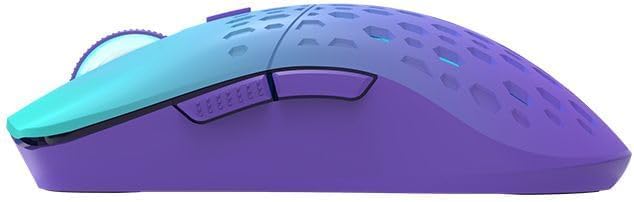
Figure 3: Left side view of the XTRIKE ME GW-121 Wireless Gaming Mouse. This image highlights the two conveniently placed side buttons, typically used for forward and backward navigation in web browsers or in-game actions, and the smooth purple finish of the mouse's body.

Figure 4: Right side view of the XTRIKE ME GW-121 Wireless Gaming Mouse. This view emphasizes the symmetrical, ambidextrous design of the mouse, making it comfortable for both left and right-handed users, and the smooth, unadorned surface on this side.
- Left Click Button: Standard primary mouse button.
- Right Click Button: Standard secondary mouse button.
- Scroll Wheel: For vertical scrolling and can also function as a middle click button.
- DPI Button: Cycles through DPI settings (1000/1600/2400/3200).
- Side Buttons (x2): Customizable buttons, often used for forward/backward navigation.
- Optical Sensor: Located on the underside, for tracking movement.
- Wireless Mode Switch: On the underside, to switch between 2.4GHz, Bluetooth, and Off modes.
- Type-C Charging Port: Located at the front of the mouse for charging.
- USB Receiver Storage: Compartment on the underside for the 2.4GHz USB receiver.
Setup
1. Initial Charging:
Before first use, it is recommended to fully charge the mouse. Connect the provided Type-C cable to the mouse's charging port and the other end to a USB power source (e.g., computer USB port, USB wall adapter). The charging indicator light will show the charging status. A full charge takes approximately 2.5 hours.
2. Connecting the Mouse:
The XTRIKE ME GW-121 mouse offers two wireless connection methods:
2.1. 2.4 GHz Wireless Connection:
- Locate the USB receiver stored in the compartment on the underside of the mouse.
- Plug the USB receiver into an available USB port on your computer.
- Slide the wireless mode switch on the underside of the mouse to the "2.4G" position.
- The mouse should automatically connect to your computer. No additional drivers are typically required.
2.2. Bluetooth Connection:
- Slide the wireless mode switch on the underside of the mouse to the "BT" (Bluetooth) position.
- The mouse's indicator light will start blinking, indicating it is in pairing mode.
- On your computer or device, open Bluetooth settings.
- Search for new devices and select "XTRIKE ME GW-121" (or similar name) from the list of available devices.
- Follow any on-screen prompts to complete the pairing process. The indicator light on the mouse will become solid when successfully connected.
Note: Ensure your device has Bluetooth functionality for this connection method.
Operating Instructions
1. Power On/Off:
Use the wireless mode switch on the underside of the mouse to turn it On (2.4G or BT mode) or Off.
2. Adjusting DPI:
Press the DPI button located behind the scroll wheel to cycle through the available DPI settings: 1000, 1600, 2400, and 3200 DPI. Each press will change the sensitivity, allowing you to quickly adapt to different tasks or gaming scenarios.
3. Using Side Buttons:
The two side buttons are typically configured as "Forward" and "Backward" for web browsing. In many games, these buttons can be customized for specific in-game actions through the game's settings.
4. Lighting Effects:
The mouse features a dynamic 7-color lighting effect. The lighting will automatically cycle through colors and patterns. There is no specific button to change lighting modes on this model; the effect is continuous.
Maintenance
1. Cleaning:
- Ensure the mouse is turned off before cleaning.
- Use a soft, dry, lint-free cloth to wipe the surface of the mouse.
- For stubborn dirt, slightly dampen the cloth with water or a mild, non-abrasive cleaner. Avoid excessive moisture.
- Use a cotton swab or compressed air to clean around the scroll wheel and sensor area.
- Do not use harsh chemicals, abrasive pads, or solvents.
2. Battery Care:
- To prolong battery life, avoid fully discharging the mouse frequently.
- Charge the mouse when the battery indicator suggests low power.
- If storing the mouse for an extended period, charge it to about 50% and turn it off. Recharge every few months to prevent deep discharge.
- Use only the provided Type-C cable or a certified equivalent for charging.
Troubleshooting
| Problem | Possible Cause | Solution |
|---|---|---|
| Mouse not responding. | Low battery; Incorrect connection mode; USB receiver not plugged in (2.4G); Bluetooth not paired. | Charge the mouse. Ensure the mode switch is set correctly (2.4G or BT). Re-insert the USB receiver. Re-pair via Bluetooth. |
| Lag or intermittent connection. | Interference; Distance from receiver/device; Low battery. | Move closer to the receiver/device. Ensure no large metal objects are between the mouse and receiver. Charge the mouse. Try a different USB port. |
| DPI button not changing sensitivity. | Software conflict; Button malfunction. | Restart your computer. Ensure no conflicting mouse software is running. If the issue persists, contact support. |
| Lighting not working. | Mouse is off; Battery is critically low. | Turn the mouse on. Charge the mouse fully. |
If you encounter issues not listed here or if the suggested solutions do not resolve the problem, please refer to the support section or contact customer service.
Specifications
| Feature | Detail |
|---|---|
| Sensor Type | Optical |
| Number of Buttons | 6 |
| Wireless Technology | 2.4 GHz, Bluetooth |
| Transmission Distance | Up to 10 meters (33 feet) |
| Switch Rating | 3 million clicks |
| DPI Settings | 1000 / 1600 / 2400 / 3200 DPI |
| Battery Type | Rechargeable Lithium-ion |
| Battery Capacity | 3.7V - 500 mAh |
| Charging Time | Approx. 2.5 hours |
| Usage Time | Approx. 15 hours |
| Polling Rate | 125 Hz |
| Cable Type | Type-C |
| Cable Length | 50 cm (19.7 inches) |
| Dimensions (L x W x H) | 126 × 66 × 37 mm (4.96 × 2.60 × 1.46 inches) |
| Weight | 78 grams (2.75 oz) |
| OS Support | Windows, Mac, Android |
Warranty and Support
Specific warranty information for the XTRIKE ME GW-121 Wireless Gaming Mouse is typically provided with your purchase documentation or on the product packaging. Please retain your proof of purchase for warranty claims.
For technical support, troubleshooting assistance beyond what is covered in this manual, or warranty inquiries, please contact the retailer or XTRIKE ME customer service through their official website or contact channels. Contact information is usually available on the product packaging or the brand's official online presence.