
1. Introduction
Thank you for purchasing the Generic BK-3001 Wireless Bluetooth Keyboard. This ultrathin 78-key keyboard is designed for seamless connectivity with various devices, including iPads, iPhones, and other compatible computers and tablets. It utilizes Bluetooth 3.0 technology for a stable and long-distance connection. Please read this manual carefully to ensure proper setup and operation of your new keyboard.
2. Package Contents
- 1 x Generic BK-3001 Wireless Bluetooth Keyboard
- 1 x User Manual
3. Product Overview
The BK-3001 keyboard features a compact design with 78 keys, including function keys and media controls. Its ultrathin profile makes it highly portable and suitable for various environments.

Image: Top-down view of the BK-3001 Wireless Bluetooth Keyboard, showcasing its 78-key layout and compact design.
4. Setup
4.1 Battery Installation
- Locate the battery compartment on the underside of the keyboard.
- Slide open the battery compartment cover.
- Insert two (2) AAA batteries (not included) into the compartment, ensuring correct polarity (+/-).
- Close the battery compartment cover securely.

Image: Close-up view of the battery compartment on the underside of the BK-3001 Wireless Bluetooth Keyboard, showing where to insert AAA batteries.
4.2 Pairing with Devices
- Turn on the keyboard by sliding the ON/OFF switch to the 'ON' position. The power indicator light may briefly illuminate.
- Press the 'CONNECT' button located near the ON/OFF switch. The Bluetooth indicator light will start blinking, indicating the keyboard is in pairing mode.
- On your device (iPad, iPhone, computer, tablet), go to the Bluetooth settings.
- Ensure Bluetooth is enabled on your device.
- Search for available Bluetooth devices. You should see "Bluetooth Keyboard" or a similar name appear in the list.
- Select the keyboard from the list to initiate the pairing process.
- If prompted, enter the displayed pairing code on the keyboard and press Enter.
- Once successfully paired, the Bluetooth indicator light on the keyboard will stop blinking and turn off, or remain solid, depending on the model. Your keyboard is now ready for use.

Image: Close-up view of the power switch (OFF/ON) and the Bluetooth connect button on the back of the BK-3001 Wireless Bluetooth Keyboard.
5. Operating Instructions
After successful pairing, your keyboard will function as a standard input device. You can use it for typing, navigating, and executing commands on your connected device.
5.1 Function Keys
The keyboard includes a row of function keys (F1-F12) that may have secondary functions (e.g., media controls, volume, brightness) when pressed in combination with the 'Fn' key. Refer to your device's operating system for specific key mappings.
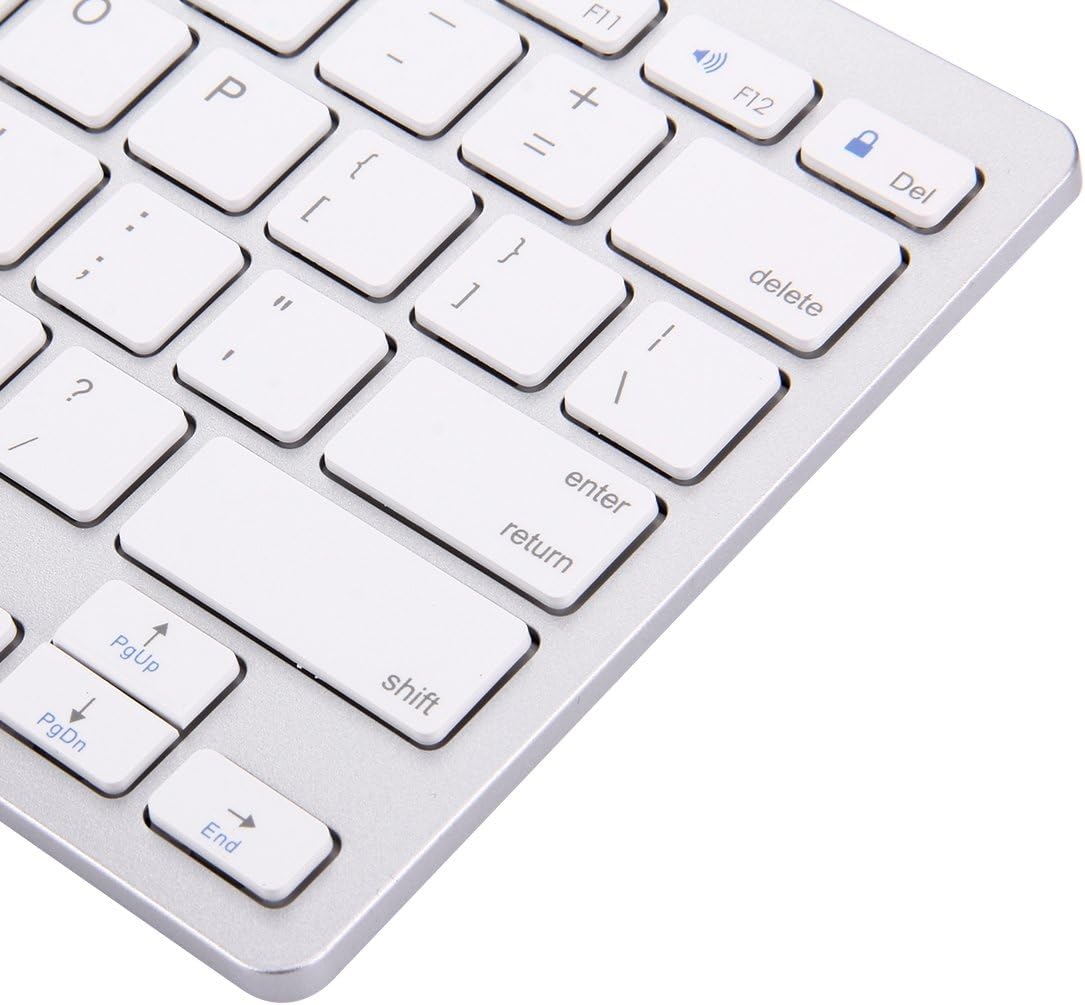
Image: Close-up of the right-hand side keys on the BK-3001 Wireless Bluetooth Keyboard, showing the Enter, Shift, Page Up, Page Down, and End keys.
5.2 Compatibility
The keyboard is compatible with devices supporting Bluetooth 3.0, including but not limited to:
- iPad (all generations with Bluetooth support)
- iPhone (all models with Bluetooth support)
- Android tablets and smartphones
- Windows computers and laptops
- Mac computers and laptops
6. Maintenance
6.1 Cleaning
To clean your keyboard, gently wipe the surface with a soft, dry, lint-free cloth. For stubborn dirt, slightly dampen the cloth with water or a mild, non-abrasive cleaning solution. Avoid excessive moisture and do not immerse the keyboard in liquid. The keyboard features a waterproof design, offering protection against minor spills, but it is not fully submersible.
6.2 Storage
When not in use for extended periods, turn off the keyboard to conserve battery life. Store the keyboard in a cool, dry place away from direct sunlight and extreme temperatures.
7. Troubleshooting
7.1 Keyboard Not Connecting/Pairing
- Ensure the keyboard is turned ON and has fresh batteries.
- Make sure Bluetooth is enabled on your device.
- Press the 'CONNECT' button on the keyboard to enter pairing mode.
- Move the keyboard closer to your device (within 10 meters).
- Forget/remove the keyboard from your device's Bluetooth list and try pairing again.
- Restart both the keyboard (turn off and on) and your device.
7.2 Keys Not Responding
- Check battery level and replace if necessary.
- Ensure the keyboard is properly connected to your device.
- Try reconnecting the Bluetooth connection.
- Clean any debris that might be under the keys.
7.3 Lag or Delayed Response
- Ensure there are no strong interferences (e.g., Wi-Fi routers, other Bluetooth devices) nearby.
- Move closer to your device.
- Check battery level.
8. Specifications
| Feature | Description |
|---|---|
| Model | BK-3001 |
| Connectivity Technology | Bluetooth 3.0 |
| Number of Keys | 78 Keys |
| Operating Distance | Up to 10 meters (33 feet) |
| Power Source | 2 x AAA Batteries (not included) |
| Compatible Devices | Laptop, Tablet, iPhone, iPad, Android devices |
| Special Features | Ultrathin, Wireless, Waterproof, Ergonomic |
| Item Weight | 380 Grams |
| Manufacturer Part Number | luqin 1 |
9. Warranty Information
This product comes with a standard manufacturer's warranty. Please refer to the product packaging or your point of purchase for specific warranty terms and conditions. Keep your proof of purchase for any warranty claims.
10. Customer Support
If you encounter any issues or have questions not covered in this manual, please contact the seller or manufacturer for assistance. Provide your product model number (BK-3001) and a detailed description of the issue when seeking support.


