
Introduction
Thank you for choosing the Diyeeni Portable Vintage Radio Speaker. This device combines a classic retro design with modern functionality, offering AM/FM/SW radio reception, Bluetooth connectivity, and multiple playback modes. Its portable and lightweight design makes it ideal for both indoor and outdoor use. Please read this manual carefully to ensure proper operation and to maximize your enjoyment of this product.
Safety Information
- Do not expose the device to rain, moisture, or extreme temperatures.
- Avoid dropping or subjecting the device to strong impacts.
- Do not disassemble or attempt to repair the device yourself. Refer all servicing to qualified personnel.
- Keep the device away from strong magnetic fields.
- Use only the provided charging cable and battery, or compatible replacements.
- Ensure proper ventilation when operating the device.
Package Contents
Please check the package for the following items:
- 1 x Portable Vintage Radio Speaker (Model RXBT628)
- 1 x Matching Rechargeable Battery
- 1 x USB Charging Cable
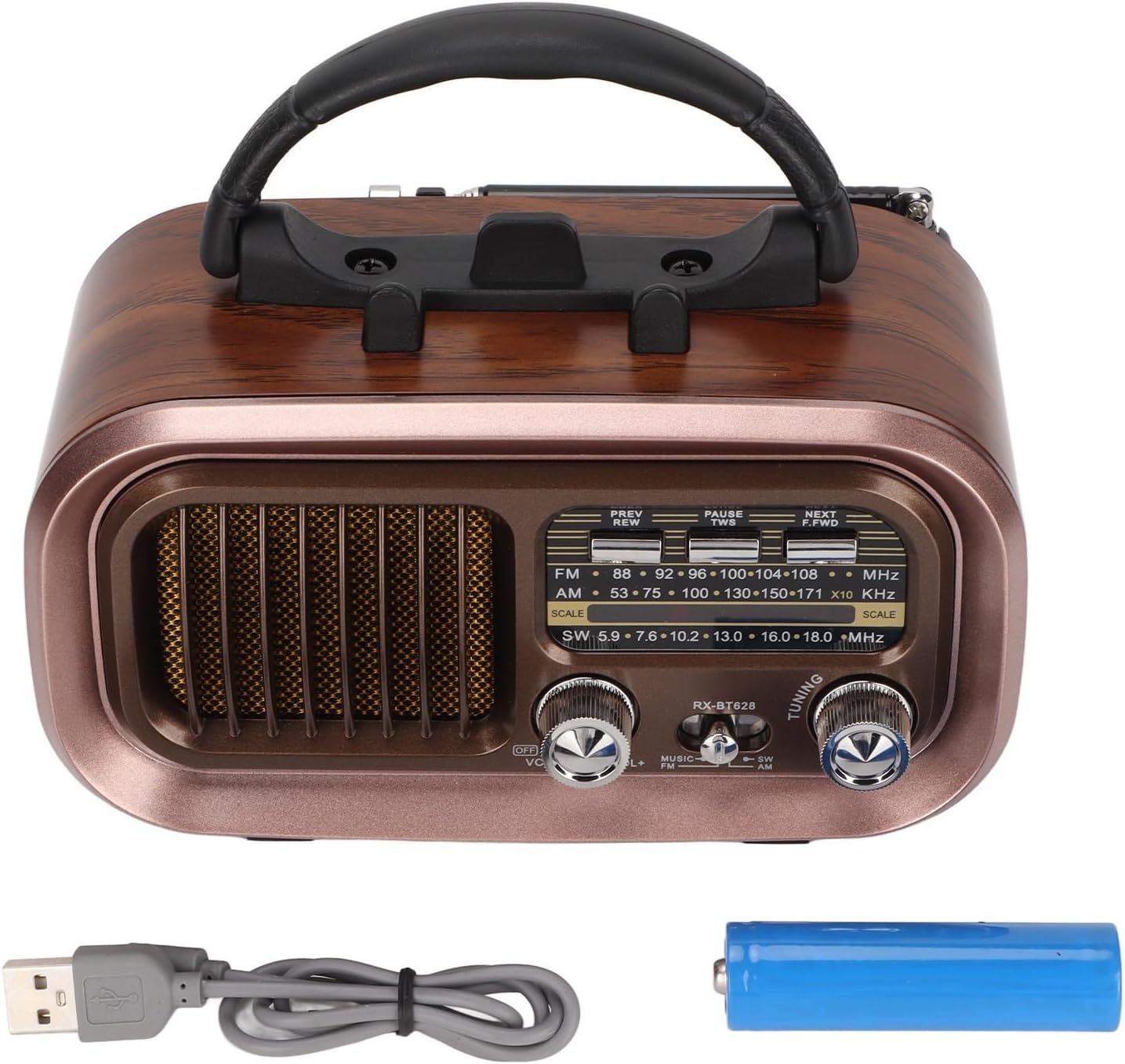
Image: The Diyeeni Portable Vintage Radio Speaker shown with its included rechargeable battery and USB charging cable.
Product Layout and Controls

Image: Front view of the radio speaker, highlighting the main controls and display area.
- Antenna: Extendable telescopic antenna for improved radio reception.
- Handle: Integrated handle for easy portability.
- PREV/REW Button: Short press for previous track (Bluetooth/USB/TF), long press for rewind.
- PAUSE/TWS Button: Play/Pause (Bluetooth/USB/TF). Long press for TWS pairing (Bluetooth mode).
- NEXT/F.FWD Button: Short press for next track (Bluetooth/USB/TF), long press for fast forward.
- Frequency Display: Analog display for radio frequencies.
- OFF/VOL Knob: Power On/Off and Volume control. Rotate to adjust volume.
- MUSIC/SW/AM/FM Switch: Selects between Bluetooth/USB/TF (MUSIC) mode and radio bands (SW, AM, FM).
- TUNING Knob: Rotate to tune into radio stations.

Image: Side panel of the radio speaker, showing the USB port, TF card slot, power indicator, charge indicator, and DC 5V input port.
- USB Port: For USB flash drive playback.
- TF Card Slot: For TF (Micro SD) card playback.
- POWER Indicator: Lights up when the device is powered on.
- CHARGE Indicator: Lights up during charging.
- DC 5V IN Port: Micro USB port for charging the internal battery.
Setup
1. Battery Installation
The radio speaker uses a rechargeable battery. Before first use, ensure the battery is correctly installed.
- Locate the battery compartment on the back of the unit.
- Slide the battery compartment cover open.
- Insert the provided rechargeable battery, ensuring the polarity (+/-) matches the diagram inside the compartment.
- Close the battery compartment cover securely.

Image: Rear view of the radio speaker, showing the battery compartment cover and specifications label.
2. Charging the Battery
Before initial use, fully charge the battery for optimal performance.
- Connect the small end of the USB charging cable to the DC 5V IN port on the side of the radio.
- Connect the larger end of the USB charging cable to a standard USB power adapter (not included) or a computer USB port.
- The CHARGE indicator light will illuminate, indicating that the battery is charging.
- Once fully charged, the CHARGE indicator light may change color or turn off (refer to specific model behavior). Disconnect the charging cable.
Operating Instructions
1. Power On/Off and Volume Control
- To power on the device, rotate the OFF/VOL knob clockwise until you hear a click and the POWER indicator lights up.
- Continue rotating the OFF/VOL knob clockwise to increase the volume, and counter-clockwise to decrease it.
- To power off, rotate the OFF/VOL knob counter-clockwise until you hear a click and the POWER indicator turns off.
2. Mode Selection
Use the MUSIC/SW/AM/FM switch to select the desired operating mode:
- FM: For FM radio reception.
- AM: For AM radio reception.
- SW: For Shortwave radio reception.
- MUSIC: For Bluetooth, USB, or TF card playback. The device will automatically detect and switch to the available source (Bluetooth, then USB, then TF).
3. Radio Operation (AM/FM/SW)
- Extend the telescopic antenna for better reception, especially for FM and SW bands.
- Set the MUSIC/SW/AM/FM switch to the desired radio band (FM, AM, or SW).
- Slowly rotate the TUNING knob to scan for radio stations. The frequency display will indicate the approximate frequency.
- Adjust the antenna position for optimal signal clarity.
4. Bluetooth Pairing
- Set the MUSIC/SW/AM/FM switch to MUSIC mode. The device will enter Bluetooth pairing mode, indicated by an audible prompt.
- On your mobile device (smartphone, tablet, etc.), enable Bluetooth and search for available devices.
- Select "RXBT628" (or similar name) from the list of found devices to pair.
- Once paired, you will hear a confirmation sound, and you can now play audio from your device through the speaker.
- Use the PREV/REW, PAUSE/TWS, and NEXT/F.FWD buttons to control playback.
5. USB/TF Card Playback
- Ensure your USB flash drive or TF (Micro SD) card contains audio files in MP3, WMA, or WAV format.
- Set the MUSIC/SW/AM/FM switch to MUSIC mode.
- Insert the USB flash drive into the USB port or the TF card into the TF card slot. The device will automatically detect and begin playing audio.
- Use the PREV/REW, PAUSE/TWS, and NEXT/F.FWD buttons to control playback.
Maintenance
- Cleaning: Wipe the exterior of the device with a soft, dry cloth. Do not use abrasive cleaners or solvents.
- Storage: When not in use for extended periods, store the device in a cool, dry place, away from direct sunlight and extreme temperatures.
- Battery Care: If the device will not be used for a long time, it is recommended to charge the battery periodically to maintain its lifespan.
Troubleshooting
| Problem | Possible Cause | Solution |
|---|---|---|
| No power | Battery is depleted or not installed correctly. | Charge the battery. Ensure the battery is inserted with correct polarity. |
| Poor radio reception | Antenna not extended, weak signal, or interference. | Fully extend the telescopic antenna. Adjust the antenna position. Try moving to a different location. |
| Bluetooth not pairing | Device not in pairing mode, or too far from the speaker. | Ensure the speaker is in MUSIC mode. Make sure Bluetooth is enabled on your mobile device. Keep devices within 10 meters (33 feet). |
| USB/TF card not playing | Incorrect file format, card not inserted properly, or damaged card. | Ensure audio files are MP3, WMA, or WAV. Reinsert the USB drive/TF card. Try a different USB drive/TF card. |
| No sound | Volume too low, or device muted. | Increase the volume using the OFF/VOL knob. Check if the connected Bluetooth device's volume is also up. |
Specifications
| Feature | Specification |
|---|---|
| Model Number | RXBT628 |
| Brand | Diyeeni |
| Color | Black (Retro Style) |
| Connectivity Technology | Bluetooth |
| Tuner Technology | AM, FM, SW (3-Band) |
| Power Source | Battery Powered (Rechargeable) |
| Material | Plastic |
| Hardware Interface | USB |
| Compatible Devices | Smartphone, Tablet, Laptop |
| Playback Modes | Bluetooth, USB, TF Card (MP3, WMA, WAV formats) |
| Special Features | Lightweight, Portable, External Antenna |
Warranty and Support
This product comes with a standard manufacturer's warranty. For specific warranty details, please refer to the documentation provided with your purchase or contact Diyeeni customer support. If you encounter any issues not covered in this manual, please reach out to the retailer or manufacturer for assistance.
For further support, please visit the official Diyeeni store or contact their customer service channels.