
1. Important Safety Information
Please read this manual thoroughly before installation and operation. Improper installation or use may cause damage to the product or vehicle, and could lead to accidents. It is highly recommended to have this unit installed by a qualified professional.
- Always disconnect the vehicle's battery before performing any electrical work.
- Do not operate the device in a manner that distracts you from driving.
- Ensure all wiring is properly insulated and secured to prevent short circuits or interference.
- Only use accessories and parts specified by the manufacturer.
2. Product Overview
The XISEDO L-K189 Android Car Stereo is a 9-inch in-dash head unit designed to upgrade the infotainment system in Dodge RAM ProMaster City vehicles from 2015 to 2022. It features an IPS touchscreen, Android 10.0 operating system, built-in GPS navigation, Apple Carplay, and Android Auto compatibility.
2.1. Package Contents
Please verify that all the following components are included in your package:
- XISEDO Android Head Unit
- Power Harness
- RCA Cable
- CAM Cable (integrated Wifi & Bluetooth antenna)
- USB Cable 1
- USB Cable 2
- GPS Antenna
- External Microphone
- Installation Tools
- User Manual

Figure 2.1: Included Components (Rear camera is optional and may not be included in all packages)
3. Installation Guide
Before proceeding with installation, confirm that your vehicle's dashboard console matches the 'Before Installation' image provided below. Professional installation is strongly recommended to ensure correct wiring and functionality.
3.1. Pre-Installation Check
Ensure the vehicle's ignition is off and the battery is disconnected before starting any work.

Figure 3.1: Dashboard Before and After Installation
3.2. Installation Steps
- Remove Original Unit: Carefully remove the existing factory radio unit from the dashboard. Refer to your vehicle's service manual for specific instructions on panel removal.
- Connect Wiring Harness: Connect the provided power harness, RCA cables, USB cables, CAM cable, GPS antenna, and external microphone to the corresponding ports on the new head unit. Ensure all connections are secure.
- Mount Head Unit: Carefully slide the new head unit into the dashboard opening. Secure it using the appropriate mounting brackets and screws.
- Reconnect Battery & Test: Reconnect the vehicle's battery. Turn on the ignition and power on the head unit. Test all functions, including audio, GPS, Bluetooth, and steering wheel controls.
- Reassemble Dashboard: Once all functions are verified, reassemble the dashboard panels.
4. Basic Operation
The XISEDO L-K189 operates on Android 10.0, offering a user-friendly interface similar to a tablet. All functions are accessed via the 9-inch IPS touchscreen.
4.1. User Interface (UI) Overview
The home screen provides quick access to frequently used applications such as Navigation, Bluetooth, Music, Radio, and Settings. Swipe left or right to access additional app pages.

Figure 4.1: Main User Interface Screen

Figure 4.2: Additional User Interface Screens
4.2. Apple Carplay & Android Auto
The unit supports both Apple Carplay and Android Auto via the pre-installed Zlink application. Connect your smartphone using a USB cable or Bluetooth for seamless integration of your phone's features, including navigation, music, and calls.

Figure 4.3: Apple Carplay and Android Auto Interface
Video 4.1: Quick Overview of Carplay/Android Auto Connectivity
5. Key Features
5.1. GPS Navigation
The head unit includes a built-in GPS module and supports various online navigation applications such as Google Maps and Waze. You can also download offline maps for navigation without an internet connection. The GPS antenna ensures accurate and reliable positioning.
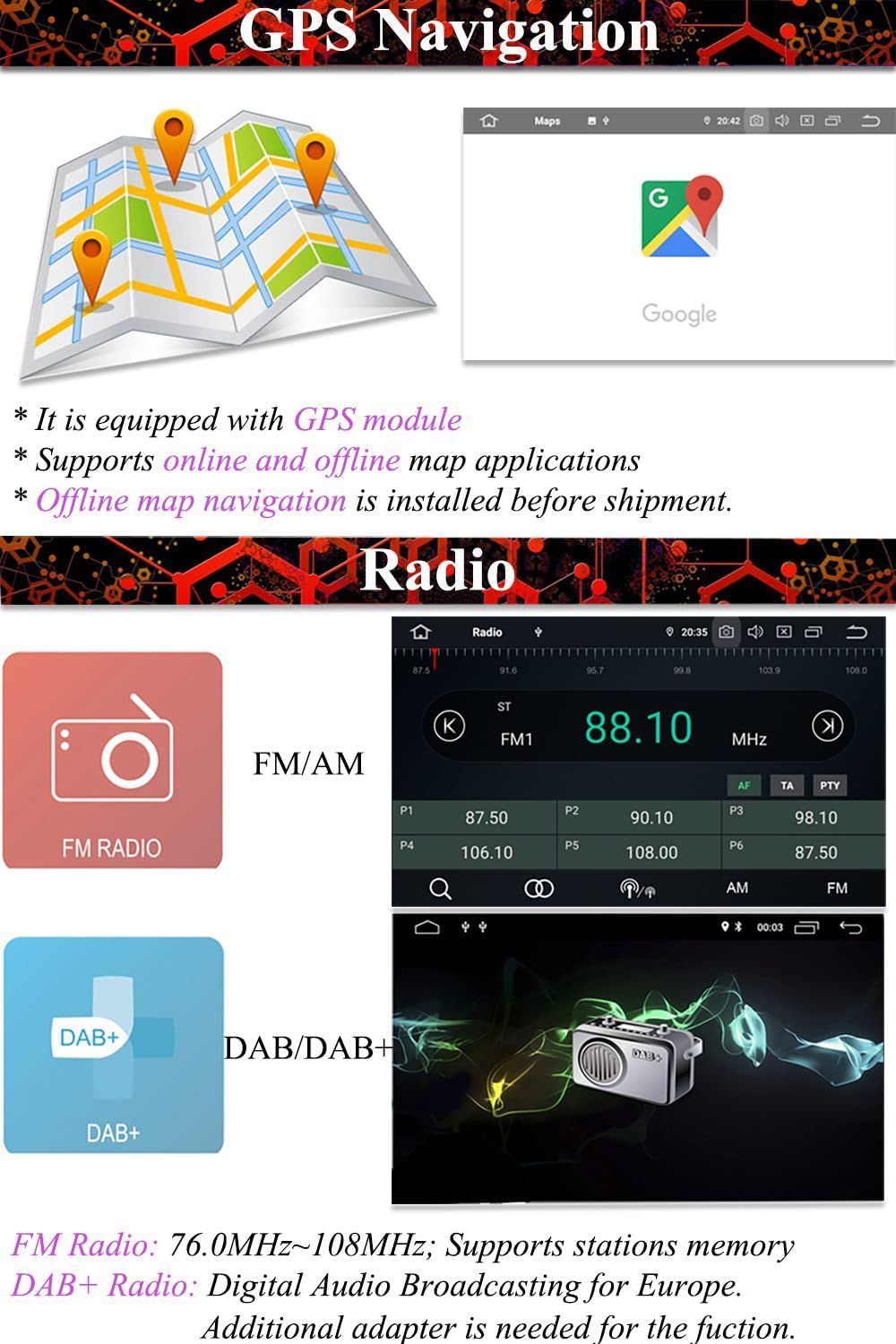
Figure 5.1: GPS Navigation Interface
5.2. Radio Functions
Enjoy your favorite stations with the integrated FM/AM radio tuner. The unit allows you to save preferred stations for quick access. DAB+ (Digital Audio Broadcasting) is supported with an additional adapter (sold separately).
5.3. Steering Wheel Control
Maintain focus on the road by controlling essential functions directly from your vehicle's steering wheel. The unit supports learning your car's steering wheel buttons for volume, track changes, and mode selection.
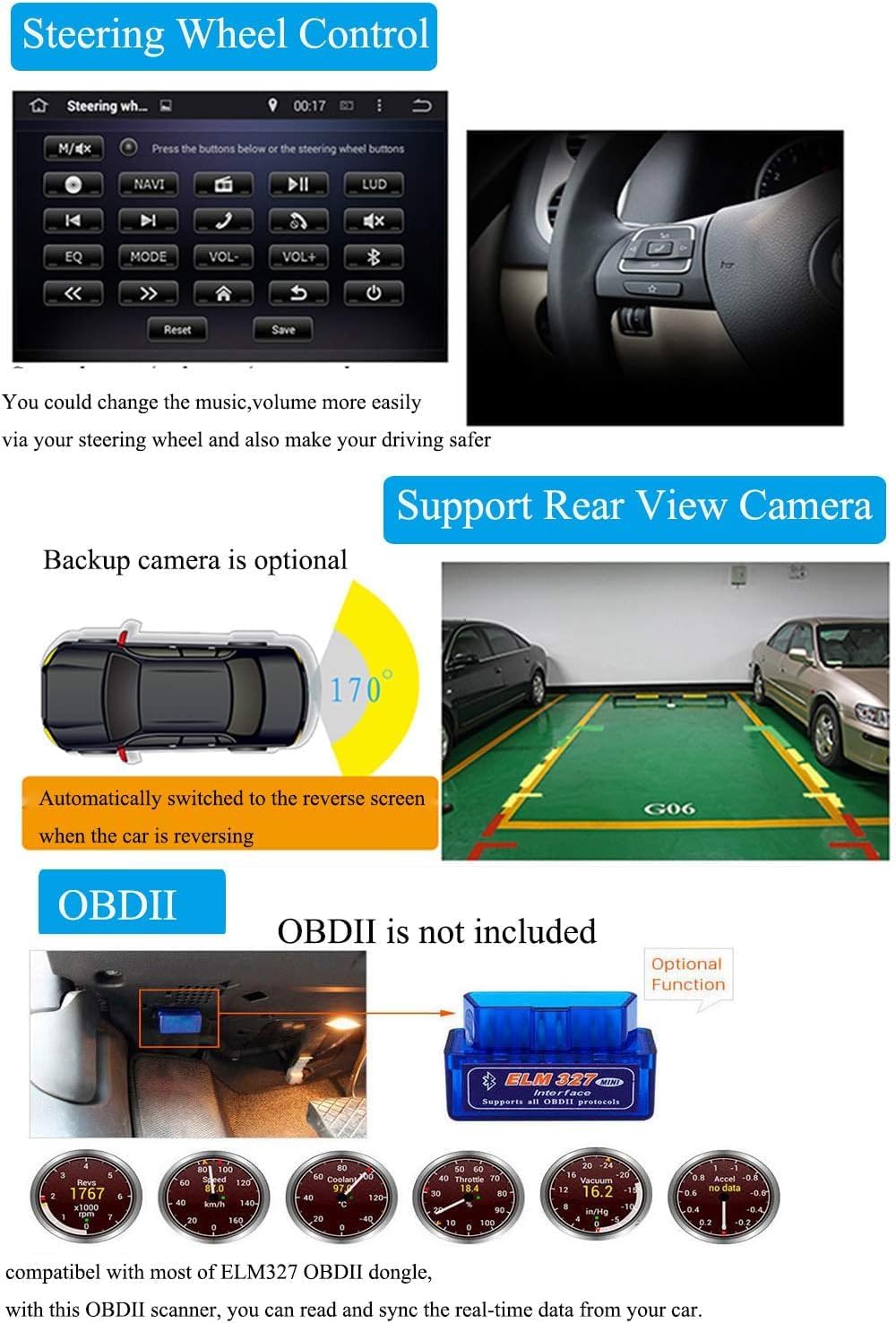
Figure 5.2: Steering Wheel Control Setup and Backup Camera View
5.4. Backup Camera Support
Enhance parking safety with backup camera support. When the vehicle is shifted into reverse, the unit automatically displays the rear view (backup camera sold separately).
5.5. OBD2 Functions
Monitor real-time vehicle data by connecting an ELM327 OBD2 dongle (sold separately). This allows you to view engine parameters, diagnostic trouble codes, and other vehicle information directly on the head unit.
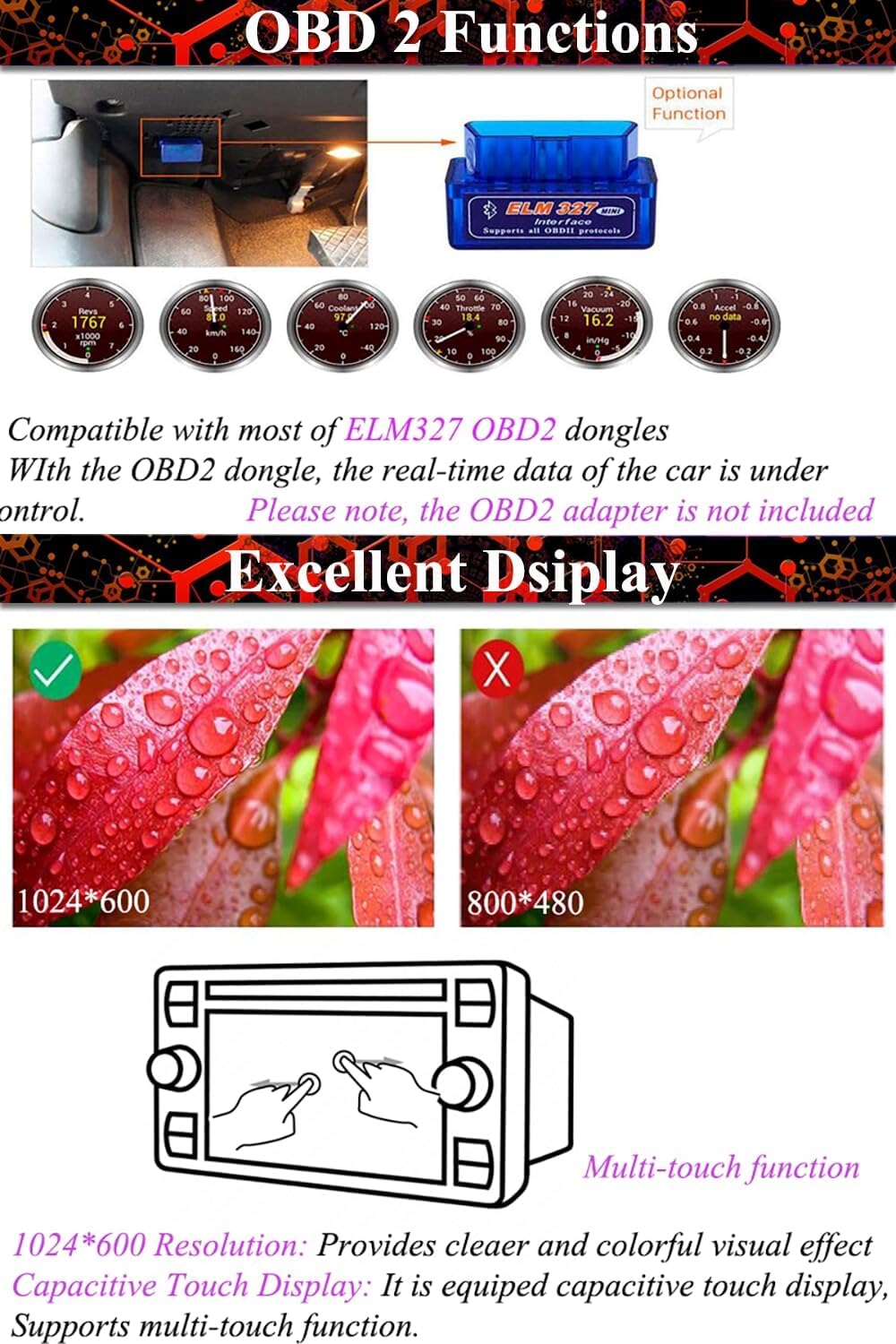
Figure 5.3: OBD2 Data Display and Display Resolution Comparison
5.6. Display Features
The 9-inch IPS capacitive touchscreen provides a clear and vibrant visual experience with a resolution of 1024x600 pixels. It supports multi-touch gestures for intuitive control.
Video 5.1: Detailed Feature Demonstration
6. Specifications
| Feature | Detail |
|---|---|
| Operating System | Android 10.0 |
| CPU | 4 Core |
| RAM | 2GB |
| ROM | 32GB |
| Screen Size | 9 Inches |
| Resolution | 1024*600 |
| Display Type | IPS Capacitive Touchscreen |
| Connectivity | Bluetooth, USB, Wi-Fi |
| Radio Tuner | FM/AM (DAB+ optional) |
| GPS | Built-in, supports online/offline maps |
| Car Integration | Apple Carplay, Android Auto (via Zlink) |
| Video Decoder | 1080P |
| Item Weight | 3.52 pounds |
| Product Dimensions | 7.08 x 3.93 x 18.11 inches |
| Model Number | L-K189 |
7. Troubleshooting
If you encounter any issues with your XISEDO L-K189 car stereo, please refer to the following common troubleshooting steps:
- No Power:
Check all power cable connections. Ensure the vehicle's ignition is on. Verify the vehicle's fuse box for any blown fuses related to the radio or accessory power. - No Sound:
Confirm that the volume is not muted or set to a very low level. Check speaker wire connections. Ensure the correct audio source (e.g., FM, Bluetooth, USB) is selected. - GPS Signal Loss or Inaccuracy:
Ensure the GPS antenna is properly installed and positioned with a clear view of the sky, away from metal obstructions. Try restarting the unit. - Touchscreen Unresponsive:
Perform a soft reset by pressing the reset button (if available) or by turning the vehicle off and on. If the issue persists, a factory reset may be required (refer to the Settings menu). - Bluetooth Connection Issues:
Ensure Bluetooth is enabled on both the head unit and your mobile device. Delete any previous pairings on both devices and attempt to reconnect. Ensure your device is within range. - Carplay/Android Auto Not Connecting:
Ensure your phone's operating system is up to date. Try a different USB cable. Verify that the Zlink application is running and properly configured.
For issues not covered here, or if troubleshooting steps do not resolve the problem, please contact customer support.
8. Warranty and Support
The XISEDO L-K189 Android Car Stereo is covered by a standard manufacturer's warranty. For specific warranty terms, duration, and claim procedures, please refer to the documentation provided with your purchase or visit the official XISEDO website.
Customer Support:
For technical assistance, installation questions, or any other inquiries, please contact XISEDO customer support. Contact details can typically be found on your purchase platform (e.g., Amazon seller page) or the manufacturer's official website.
9. Legal and Compliance
Users are responsible for ensuring that the installation and use of this product comply with all applicable local, state, and federal laws and regulations, particularly those pertaining to vehicle modifications, in-car entertainment systems, and driver distraction. XISEDO is not responsible for any violations or damages resulting from improper use or non-compliance with laws.