
Introduction
Thank you for choosing the Uiosmuph G11 Wireless Mouse. This manual provides detailed instructions for setting up, operating, maintaining, and troubleshooting your new wireless mouse. Please read this manual carefully to ensure optimal performance and longevity of your device.
Key Features
- USB A and USB C Connection: Designed with both USB A and USB C receivers for versatile plug-and-play connectivity without additional drivers.
- USB C Rechargeable: Features a built-in rechargeable battery, eliminating the need for disposable batteries. Charges via the included Type C cable.
- Battery Indicator: A visible battery indicator at the bottom of the mouse helps monitor battery level, ensuring timely recharging.
- Slim and Portable: Lightweight and compact design makes it ideal for travel and easy storage in laptop bags.
- Wide Compatibility: Compatible with Windows 7/8/10/XP, Vista, Mac OS, and suitable for USB and USB C port devices such as Laptops, Desktops, Macbooks, iMacs, and Chromebooks.
- Silent and Ambidextrous: Equipped with noiseless left and right buttons to prevent disturbance in quiet environments. Its symmetrical design accommodates both left and right-handed users.
What's in the Box
- 1 x Uiosmuph G11 Wireless Mouse
- 1 x USB-A & USB-C 2-in-1 Receiver
- 1 x USB Type-C Charging Cable
- 1 x User Manual
Setup
Connecting the Mouse
The Uiosmuph G11 Wireless Mouse offers dual connectivity options for convenience:
- Locate the 2-in-1 USB-A & USB-C receiver. This receiver is typically stored in a compartment on the underside of the mouse.
- Plug the appropriate end of the receiver (USB-A or USB-C) into an available port on your computer, laptop, or other compatible device.
- Turn on the mouse using the ON/OFF switch located on its underside. The mouse should automatically connect to your device. No additional drivers are required.

Initial Charge
Before first use, it is recommended to fully charge your Uiosmuph G11 Wireless Mouse. This ensures optimal battery performance.
- Connect the included USB Type-C charging cable to the charging port on the mouse.
- Plug the other end of the cable into a USB power source (e.g., computer USB port, wall adapter).
- The mouse's battery indicator lights will illuminate during charging. A full charge typically takes about 2 hours, after which the light will turn off or indicate full charge.

Operating Instructions
Power On/Off
To turn the mouse on or off, use the physical switch located on the underside of the device. Slide the switch to the 'ON' position to activate the mouse and to 'OFF' to conserve battery when not in use.
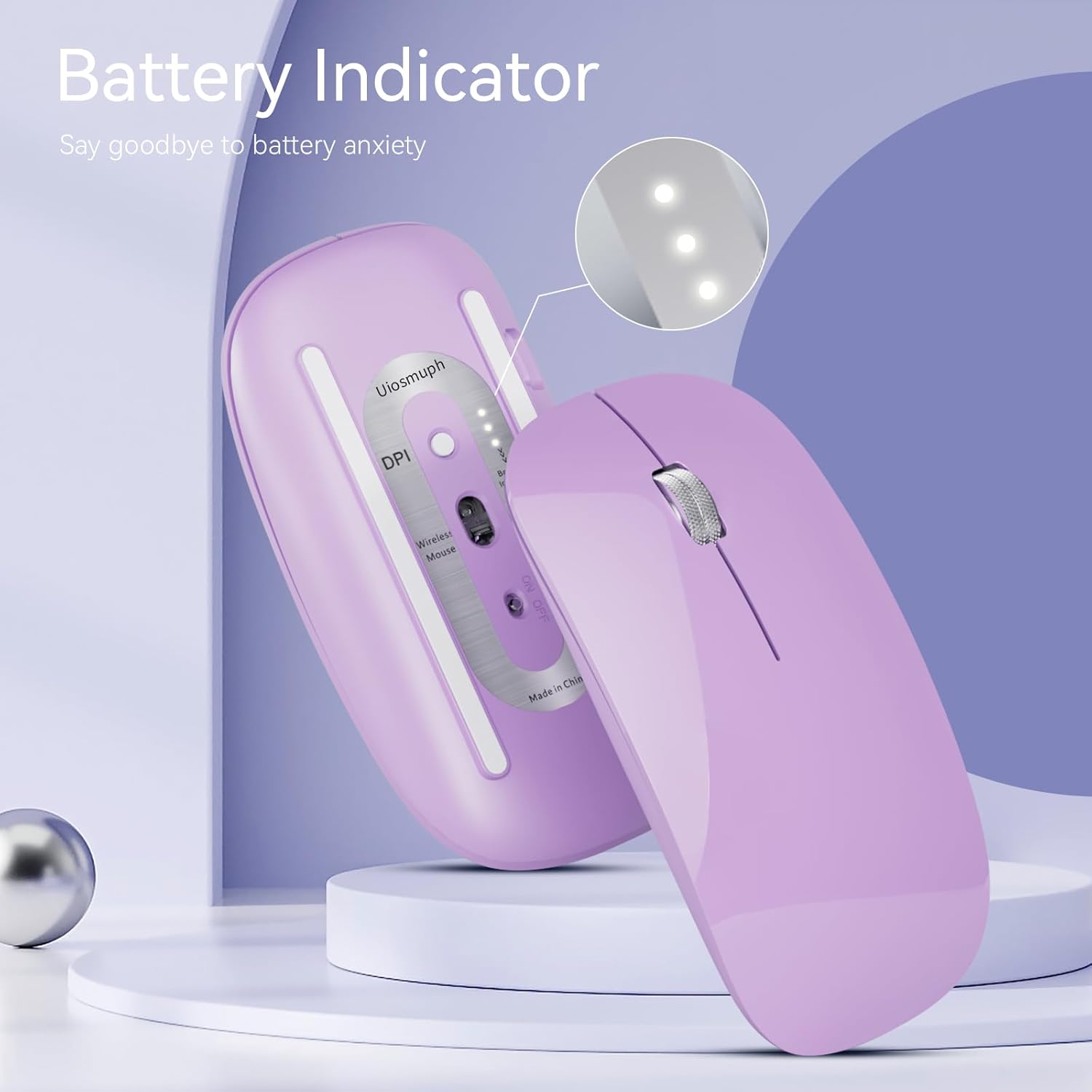
Adjusting DPI Sensitivity
The mouse features 3 adjustable DPI levels (1000/1200/1600 DPI) to suit your preference for cursor speed and precision. To change the DPI setting, press the 'DPI' button located on the underside of the mouse. Each press will cycle through the available sensitivity levels.

Silent Click Feature
The left and right buttons of the Uiosmuph G11 Wireless Mouse are designed for noiseless operation. This feature ensures a quiet working environment, making it suitable for offices, libraries, or late-night use without disturbing others.

Charging the Mouse
The Uiosmuph G11 Wireless Mouse is equipped with a built-in rechargeable battery. To charge:
- Connect the provided USB Type-C charging cable to the mouse's charging port.
- Connect the other end of the cable to a standard USB power source.
- The battery indicator lights on the underside of the mouse will show the charging status. When fully charged, the lights will indicate a full battery or turn off.
- The mouse can be used while charging.
Maintenance
- Cleaning: Use a soft, dry cloth to clean the mouse. Avoid using harsh chemicals or abrasive materials.
- Storage: Store the mouse in a cool, dry place when not in use. Its slim design allows for easy storage in laptop bags.
- Battery Care: To prolong battery life, avoid fully discharging the mouse frequently. Charge it when the battery indicator shows low power.
Troubleshooting
- Mouse not connecting: Ensure the USB receiver is securely plugged into your device's USB port. Turn the mouse off and then on again. Try plugging the receiver into a different USB port.
- Mouse not charging: Verify that the USB-C charging cable is properly connected to both the mouse and the power source. Try a different USB port or charging adapter. Check if the charging indicator lights up.
- Erratic cursor movement: Clean the optical sensor on the underside of the mouse. Ensure you are using the mouse on a suitable surface (a mouse pad is recommended). Adjust the DPI settings to a lower sensitivity if the cursor is too fast.
- Short battery life: Ensure the mouse is fully charged before use. Turn off the mouse when not in use to conserve battery.
Specifications
| Feature | Detail |
|---|---|
| Product Dimensions | 4.52 x 2.36 x 0.1 inches |
| Item Weight | 2.29 ounces |
| Connectivity Technology | USB (2.4GHz Wireless) |
| Movement Detection Technology | Optical |
| Special Features | Lightweight, Portable, Rechargeable, Soundless, Wireless |
| DPI Levels | 1000/1200/1600 (Adjustable) |
| Battery | 1 Product Specific rechargeable battery |
Official Product Video
Warranty and Support
Uiosmuph products are designed for reliability and performance. For any questions, technical support, or warranty claims, please refer to the contact information provided with your product packaging or visit the official Uiosmuph website. Please retain your proof of purchase for warranty purposes.