
Introduction
This manual provides comprehensive instructions for the setup, operation, maintenance, and troubleshooting of your MOLGRIA SKYLOONG GK68 68-Key RGB Backlit Gaming Keyboard. Please read this manual thoroughly before using the product to ensure proper functionality and to maximize your user experience.
Package Contents
Upon unpacking, please verify that all the following items are included:
- MOLGRIA SKYLOONG GK68 68-Key RGB Backlit Gaming Keyboard
- Keycap Puller
- USB to Type-C Cable

Image: The MOLGRIA SKYLOONG GK68 keyboard, along with the included keycap puller and USB-C cable.
Features
- 68-Key Layout: Compact design with essential keys for gaming and productivity.
- RGB Backlighting: Customizable RGB lighting with multiple effects and colors.
- Side Transparent Pudding Keycaps: Enhances RGB lighting visibility and provides a unique aesthetic.
- Hot-Swappable Red Optical Switches: Allows for easy replacement of switches without soldering, offering customization for different typing preferences.
- Type-C Wired Connection: Ensures a stable and low-latency connection.
- Programmable Knob: A dedicated knob for volume adjustment, with additional programmable functions.
- Dual System Compatibility: Fully programmable for both Windows and Mac OS.


Image: Detail of the hot-swappable optical switches and the transparent pudding keycaps.
Setup Guide
- Connect the Keyboard: Insert the Type-C end of the provided cable into the keyboard's Type-C port. Connect the USB-A end to an available USB port on your computer (Windows PC or Mac).
- Driver Installation: The keyboard is plug-and-play for basic functionality. For advanced customization and programming, download the dedicated driver software from the official MOLGRIA website. The software is available for both Windows and Mac OS.
- Initial Test: Open a text editor or browser and test all keys to ensure they are functioning correctly.

Image: The programmable software interface for both Windows and Mac operating systems.
Operating Instructions
1. Basic Keyboard Functions
The GK68 functions as a standard 68-key keyboard. All alphanumeric keys, modifiers (Shift, Ctrl, Alt, Fn), and navigation keys (arrows, Home, End, PgUp, PgDn) operate as expected. The Fn key is used in combination with other keys to access secondary functions, typically indicated by icons or alternative legends on the keycaps.
2. RGB Lighting Control
The keyboard features dynamic RGB backlighting. You can cycle through various lighting modes and adjust brightness/speed using specific key combinations. Refer to the keyboard's keycap legends or the software for detailed instructions on lighting customization.
- Changing Lighting Modes: Typically, Fn + \ | (backslash/pipe key) cycles through different RGB effects.
- Adjusting Brightness: Use Fn + ↑ (Up Arrow) to increase brightness and Fn + ↓ (Down Arrow) to decrease brightness.
- Adjusting Speed/Direction: Use Fn + ← (Left Arrow) and Fn + → (Right Arrow) to adjust the speed or direction of certain lighting effects.
Video: Demonstration of the MOLGRIA GK68 keyboard's RGB lighting effects and keycap design.
3. Knob Functionality
The dedicated knob located on the top right of the keyboard serves multiple purposes:
- Default Function: By default, rotating the knob adjusts the system volume. Pressing the knob typically mutes/unmutes audio.
- Programmable Functions: The knob's functions can be customized using the MOLGRIA driver software. You can assign it to control zoom, scroll, or other specific actions for your workflow or gaming needs.

Image: The multi-function knob, highlighting its default volume control and programmable capabilities.
4. Software Programming
The MOLGRIA GK68 keyboard is fully programmable via its dedicated software, compatible with both Windows and Mac OS. This software allows you to:
- Remap almost all keys to specific functions.
- Create and assign macros.
- Customize RGB lighting effects, colors, and patterns.
- Adjust the functionality of the programmable knob.
Download the latest software version from the official MOLGRIA support page for optimal performance and access to all features.
Maintenance
- Cleaning: Regularly clean the keyboard with a soft, dry cloth. For deeper cleaning, use a keycap puller to remove keycaps and compressed air to clear debris from between switches. Avoid using harsh chemicals or excessive moisture.
- Keycap Replacement: The pudding keycaps can be removed using the provided keycap puller. Gently pull upwards on the keycap until it detaches. When replacing, align the keycap with the switch stem and press down firmly until it clicks into place.
- Switch Replacement: The GK68 features hot-swappable optical switches. To replace a switch, first remove the keycap. Then, use a switch puller (not included, but compatible with optical switches) to gently pry the switch from its socket. Align the new optical switch with the pins and press it firmly into the socket until it is seated correctly. Note: Only optical switches are compatible; mechanical switches are not supported.
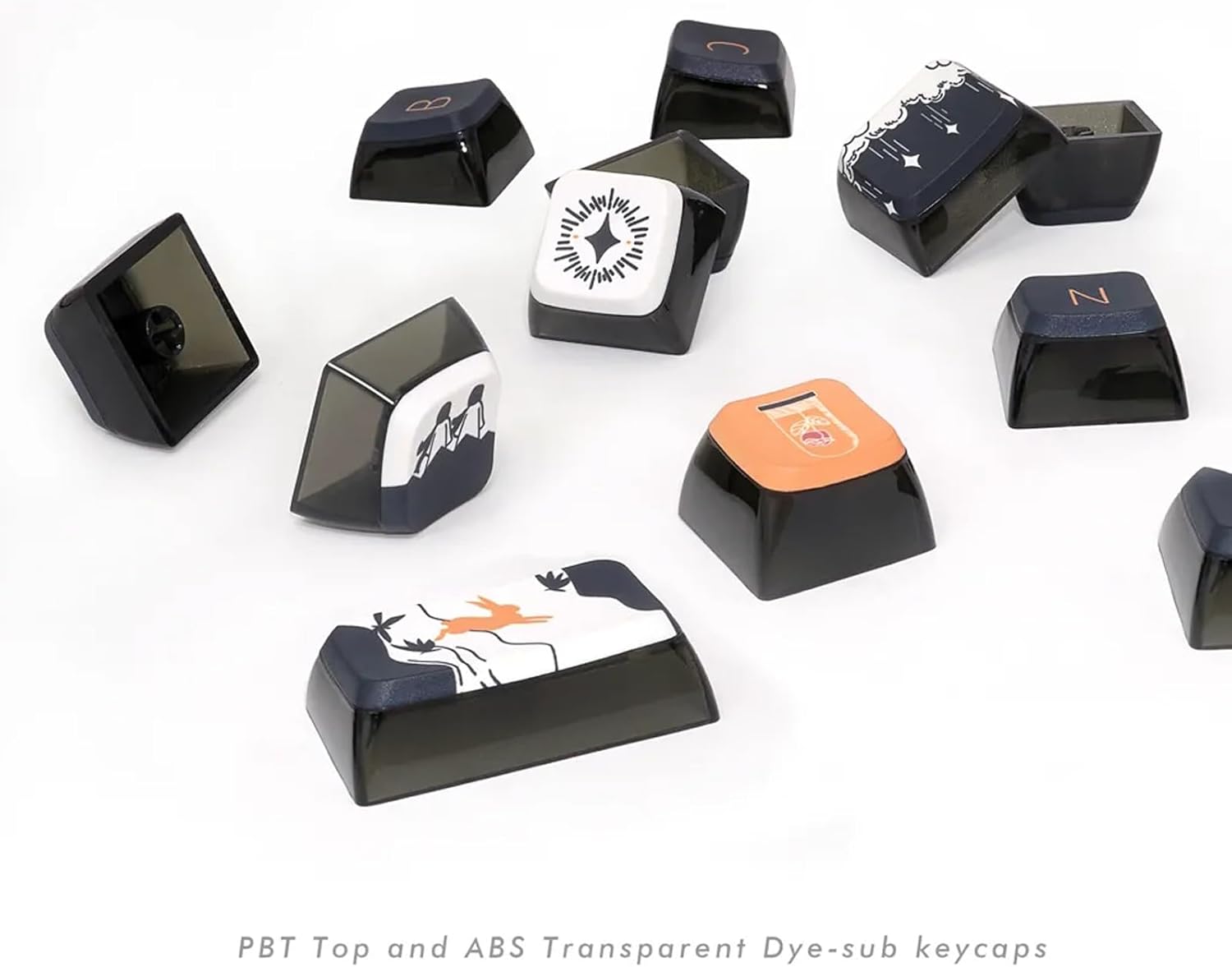
Image: Hot-swappable optical switches, illustrating the ease of replacement. Note that only optical switches are compatible.
Troubleshooting
- Keyboard not responding:
- Ensure the USB-C cable is securely connected to both the keyboard and the computer.
- Try connecting the keyboard to a different USB port on your computer.
- Test the keyboard on another computer to rule out system-specific issues.
- Restart your computer.
- RGB lighting not working or incorrect:
- Verify that the keyboard is properly connected and powered.
- Cycle through lighting modes using the Fn + \ | key combination.
- Adjust brightness using Fn + ↑/↓.
- If using custom profiles, ensure the MOLGRIA software is running and the correct profile is active.
- Specific keys not working:
- Remove the keycap and inspect the optical switch for any visible damage or debris.
- If you have spare optical switches, try replacing the faulty switch.
- Ensure the keycap is properly seated on the switch.
- Knob not adjusting volume:
- Check if the knob's function has been remapped in the MOLGRIA software. Reset to default if necessary.
- Ensure the keyboard is recognized by your operating system.
Specifications
| Feature | Detail |
|---|---|
| Model Number | GK68 |
| Brand | MOLGRIA |
| Layout | 68 Keys |
| Switch Type | Hot-Swappable Red Optical Switches |
| Keycaps | 4-Side Transparent ASA Profile Pudding Keycaps (PBT Top and ABS Transparent Dye-sub) |
| Backlighting | RGB |
| Connectivity | Type-C Wired |
| Compatible Devices | Windows PC, Mac OS |
| Item Weight | 2.2 pounds |
| Package Dimensions | 13.74 x 5.78 x 1.81 inches |
| Manufacturer | Skyloong |
Warranty and Support
For warranty information, technical support, or any inquiries regarding your MOLGRIA SKYLOONG GK68 keyboard, please contact MOLGRIA customer service through their official website or the retailer where the product was purchased. Keep your purchase receipt as proof of purchase for warranty claims.