
A.JAZZ AJ139 G Pro
A.JAZZ AJ139 G Pro Wireless Gaming Mouse User Manual
Model: AJ139 G Pro
1. Introduction
Thank you for choosing the A.JAZZ AJ139 G Pro Wireless Gaming Mouse. This manual provides detailed instructions for setting up, operating, maintaining, and troubleshooting your new gaming mouse. Designed for high performance, the AJ139 G Pro features an ultra-lightweight 59g design, dual-mode connectivity (wired/2.4Ghz wireless), a PixArt PAW3395 optical sensor with up to 26000 DPI, and 6 programmable buttons. Its ergonomic, symmetrical design ensures comfort for extended use.
2. Package Contents
Before you begin, please ensure all items are present in the package:
- 1 x A.JAZZ AJ139 G Pro Wireless Gaming Mouse
- 1 x 2.4G USB Receiver
- 1 x Type-C to USB Adapter
- 1 x 1.5m USB-C Pro Cable (for wired mode and charging)
- 1 x Set of PTFE Feet (replacement)
- 1 x User Manual (this document)

Image: Contents of the AJ139 G Pro package, showing the mouse, 2.4G receiver, Type-C to USB adapter, USB-C cable, and an extra set of PTFE feet.
3. Product Overview
Familiarize yourself with the components and key features of your A.JAZZ AJ139 G Pro Wireless Gaming Mouse.

Image: Labeled diagram of the AJ139 G Pro mouse, highlighting key features such as the DPI button, RGB indicator, side buttons, USB-C port, and the location of the 2.4G receiver storage.
Key Features:
- Ultra-lightweight Design: Weighing approximately 59g for agile movement.
- Dual-Mode Connectivity: Seamlessly switch between 2.4Ghz wireless and wired (USB-C) modes.
- High-Performance Sensor: Equipped with PixArt PAW3395 optical sensor, offering up to 26000 DPI.
- Programmable Buttons: 6 customizable buttons for personalized control.
- Ergonomic & Symmetrical: Designed for comfort and suitable for various grip styles (fingertip, claw, palm).
- Long Battery Life: Up to 40 hours of continuous use on a single charge.
- Durable Switches: HUANUO micro switches and Kailh encoder for up to 80 million clicks.
4. Setup
4.1 Charging the Mouse
Before first use, it is recommended to fully charge the mouse. Connect the supplied USB-C Pro Cable to the mouse's front port and the other end to a USB port on your computer or a USB wall adapter. The RGB DPI indicator light will show charging status.
4.2 Wireless Connection (2.4Ghz)
- Locate the 2.4G USB receiver stored in the bottom slot of the mouse.
- Plug the USB receiver into an available USB port on your computer. For optimal signal, use the provided Type-C to USB adapter to bring the receiver closer to the mouse if needed.
- Turn on the mouse using the ON/OFF switch located on the bottom of the mouse.
- The mouse will automatically connect to the receiver.

Image: Demonstrates dual-mode connectivity, showing the mouse connected via USB-C cable for wired use/charging, and the 2.4G USB receiver with its Type-C adapter for wireless connection.
4.3 Wired Connection
To use the mouse in wired mode, simply connect the USB-C Pro Cable from the mouse to your computer's USB port. The mouse will automatically switch to wired mode and begin charging simultaneously.
5. Operating Instructions
5.1 DPI Adjustment
The mouse comes with 6 default adjustable DPI levels. Press the DPI button (located behind the scroll wheel) to cycle through the preset DPI settings. The RGB DPI indicator light will change color to indicate the current DPI level:
- 400 DPI
- 800 DPI
- 1200 DPI
- 1600 DPI
- 2400 DPI
- 3200 DPI
For custom DPI settings (100 to 26000 DPI) and other advanced configurations, please use the dedicated mouse driver software.
5.2 Programmable Buttons
The AJ139 G Pro features 6 programmable buttons. These buttons can be customized using the mouse driver software to assign macros, key functions, or multimedia controls. Refer to the software section for more details.

Image: The mouse driver software interface, illustrating options for DPI adjustment, button remapping, and macro creation.
5.3 Power Saving Mode
To conserve battery, the mouse will automatically enter sleep mode if there is no operation for 5 or 15 minutes. To wake the mouse, simply move it or press any button.
6. Driver Software Installation and Use
The A.JAZZ AJ139 G Pro mouse driver software allows for advanced customization of DPI, polling rate, button functions, and macro settings. The software is compatible with Windows Vista/XP/7/8/10/11 and Mac systems.
- Download the latest driver software from the official A.JAZZ website (refer to product packaging or manufacturer's website for download link).
- Install the software by following the on-screen instructions.
- Once installed, launch the application.
- Within the software, you can:
- Adjust DPI from 100 to 26000.
- Change polling rate (125Hz, 250Hz, 500Hz, 1000Hz).
- Redefine mouse button functions.
- Set up macro modes.
- Check battery level.
- Customize RGB lighting effects (if applicable).
7. Maintenance
7.1 Cleaning
To maintain optimal performance, regularly clean your mouse. Use a soft, dry cloth to wipe the surface. For stubborn dirt, a slightly damp cloth can be used, ensuring no liquid enters the mouse. Avoid harsh chemicals or abrasive materials.
7.2 PTFE Feet Replacement
The mouse is equipped with low-friction PTFE feet for smooth gliding. If the feet show signs of wear, replace them with the spare set provided in the package. Carefully peel off the old feet and apply the new ones, ensuring they are properly aligned.
8. Troubleshooting
| Problem | Possible Cause | Solution |
|---|---|---|
| Mouse not responding (Wireless) | Low battery; Receiver not plugged in; Mouse not turned on; Interference. | Charge the mouse; Ensure receiver is securely plugged into a USB port; Turn on the mouse via the ON/OFF switch; Try a different USB port; Reduce distance between mouse and receiver; Avoid other 2.4Ghz devices. |
| Mouse not responding (Wired) | Cable not properly connected; Faulty USB port. | Ensure USB-C cable is securely connected to both mouse and computer; Try a different USB port on your computer. |
| DPI indicator light not changing | DPI button not pressed correctly; Software issue. | Press the DPI button firmly; Reinstall mouse driver software. |
| Mouse movement is erratic or laggy | Dirty optical sensor; Unsuitable mouse pad surface; Low battery; Wireless interference. | Clean the optical sensor with a soft cloth; Use a clean, uniform mouse pad; Charge the mouse; Move receiver closer or try a different USB port. |
| Buttons not responding or double-clicking | Software issue; Hardware defect. | Reinstall mouse driver software; If problem persists, contact customer support. |
9. Specifications
| Feature | Detail |
|---|---|
| Model | AJ139 G Pro |
| Connectivity | 2.4Ghz Wireless, USB-C Wired |
| Sensor | PixArt PAW3395 Optical Sensor |
| DPI Range | 100 - 26000 DPI (Adjustable) |
| IPS | 650 IPS |
| Acceleration | 50 G |
| Polling Rate | 125Hz, 250Hz, 500Hz, 1000Hz |
| Buttons | 6 Programmable Buttons |
| Switches | HUANUO Micro, Kailh Encoder (80 Million Clicks) |
| Battery Capacity | 300mAh Rechargeable |
| Battery Life | Approx. 40 hours (continuous use) |
| Weight | Approx. 59g (2.08 oz) |
| Dimensions (L*W*H) | 125.4 x 63.3 x 38.2 mm (4.92 x 2.49 x 1.49 inches) |
| Compatibility | Windows Vista/XP/7/8/10/11, Mac OS |
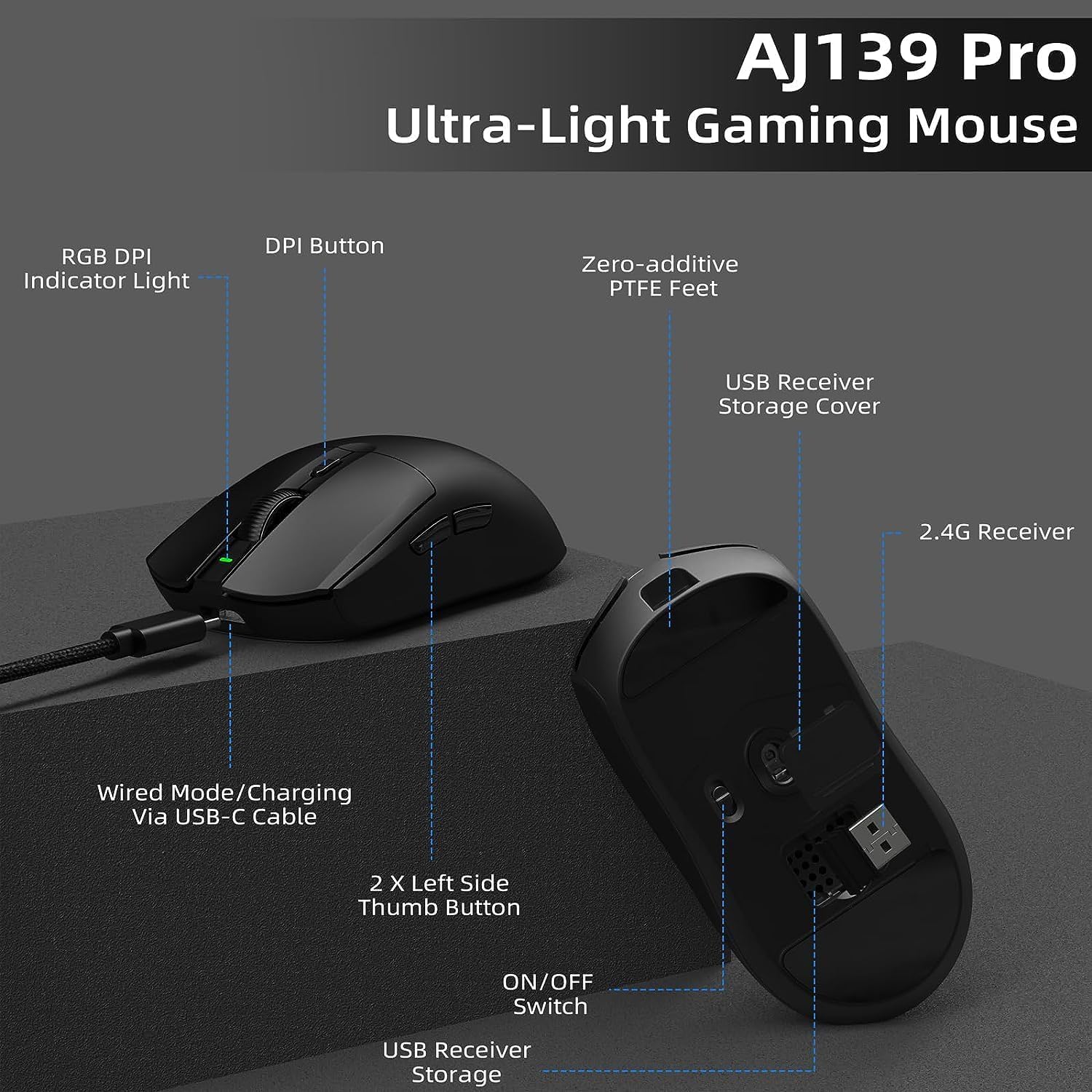
Image: Diagram illustrating the precise dimensions of the AJ139 G Pro mouse.
10. Warranty and Support
A.JAZZ products come with a standard manufacturer's warranty. For warranty details, technical support, or any inquiries regarding your AJ139 G Pro Wireless Gaming Mouse, please refer to the official A.JAZZ website or contact their customer service directly. Keep your purchase receipt for warranty claims.
Official Website: A.JAZZ Official Store on Amazon
Ask a question about this manual
Ask about setup, troubleshooting, compatibility, parts, safety, or missing instructions. Manuals+ will review the question and use this page’s manual context to help answer it.