
1. Introduction
The JIUSHARK JF100RS is a high-performance CPU air cooler designed to provide efficient thermal management for your processor. It features advanced heat pipe technology and a PWM-controlled fan with customizable ARGB lighting, ensuring optimal cooling and aesthetic appeal for your system. This manual provides detailed instructions for installation, operation, and maintenance.
2. Product Features
- Enhanced Compatibility: Supports a wide range of CPU sockets including Intel LGA 1700/1200/115X and AMD AM5/AM4, featuring an improved, user-friendly installation method.
- High-Performance Cooling: Equipped with 4 x 6mm nickel-plated copper heat pipes for superior heat transfer. The CNC mirror-processed base ensures excellent contact with the CPU, supporting up to 220W TDP.
- Quiet Operation: The 100mm PWM fan utilizes dynamic hydraulic bearings, reducing noise levels to ≤ 29.8dBA while ensuring a long lifespan. Each fan blade undergoes dynamic balance adjustments for minimal vibration.
- Customizable ARGB Lighting: The 10cm fan features 16.8 million independent LED lamp beads, offering vibrant and customizable ARGB lighting effects. Supports motherboard PWM speed adjustment for fan control and ARGB synchronization.
- Premium Design: The cooler's top cover features a brushed panel with high-gloss CNC chamfering, providing a durable, delicate, and fingerprint-resistant finish.
- Tool-Free Fan Mounting: The radiator's design allows for direct fan mounting without obstructing screws, simplifying the assembly process.
3. Specifications
| Feature | Specification |
|---|---|
| Model Number | JF100RS |
| Heat Pipes | 4 x 6mm Nickel-Plated Copper |
| Fan Dimensions | 100 x 100 x 25 mm |
| Fan Speed | 800 - 2300 RPM ± 10% |
| Noise Level | ≤ 29.8 dBA |
| Airflow | 26.18 - 47.54 CFM |
| TDP Support | Up to 220W |
| Power Connector | 4-pin PWM |
| ARGB Connector | Standard 3-pin ARGB |
| Compatible Sockets | Intel LGA 1700/1200/115X, AMD AM5/AM4 |
| Product Dimensions | 100L x 100W x 131H mm (approx.) |
Note: Specifications are subject to change without prior notice.
4. Installation Guide
Before beginning installation, ensure your system is powered off and unplugged. Refer to your motherboard manual for specific socket information.
4.1. Unpacking and Component Check
- Carefully unpack all components from the box.
- Verify that all parts listed in the product packaging are present.
4.2. Prepare Motherboard
- For Intel sockets, install the appropriate backplate (if provided) behind the motherboard. For AMD sockets, utilize the existing stock backplate.
- Secure the mounting standoffs to the motherboard according to your CPU socket type (Intel or AMD).
- Apply a thin, even layer of thermal paste to the center of your CPU's integrated heat spreader (IHS).
4.3. Mount the Cooler
- Carefully align the cooler's base with the CPU and the mounting standoffs.
- Gently place the cooler onto the CPU, ensuring even pressure.
- Secure the cooler to the mounting standoffs using the provided screws or clips. Tighten screws in a diagonal pattern until snug, but do not overtighten.
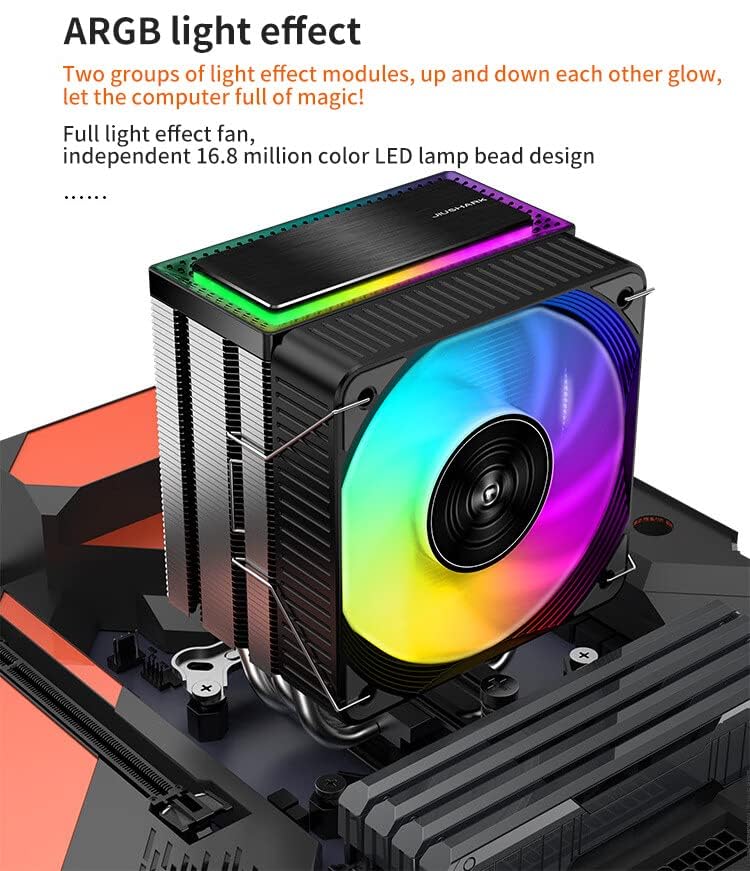
Image: The JIUSHARK JF100RS CPU Air Cooler installed, highlighting its ARGB lighting effects.
4.4. Connect Fan and ARGB Cables
- Connect the 4-pin PWM fan cable from the cooler to the CPU_FAN header on your motherboard.
- Connect the 3-pin ARGB cable from the cooler to a compatible 5V ARGB header on your motherboard. Ensure correct pin alignment to prevent damage.
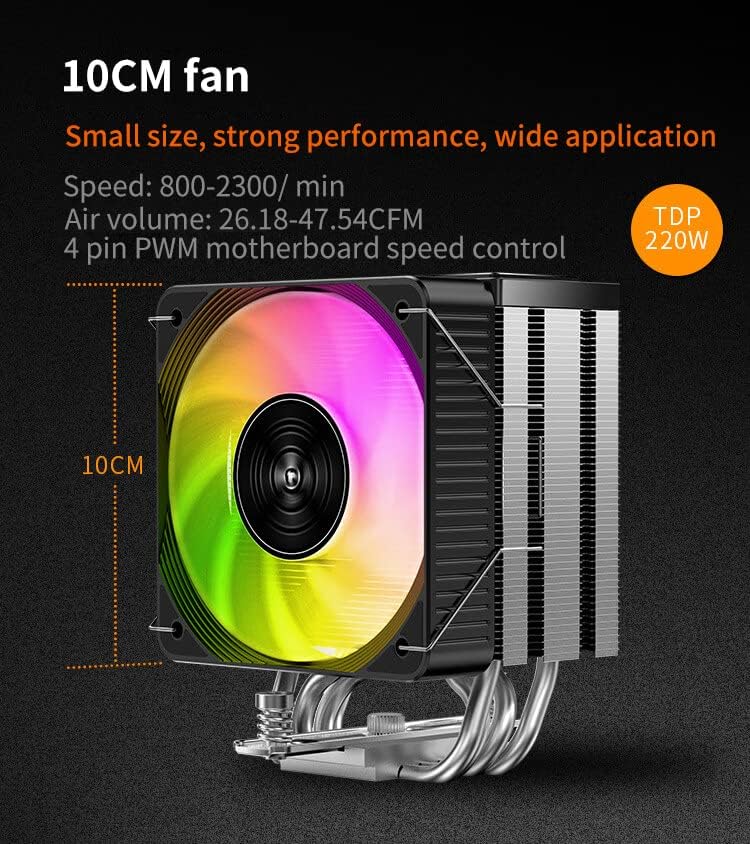
Image: Detailed view of the 10cm fan, indicating its size and key performance metrics.
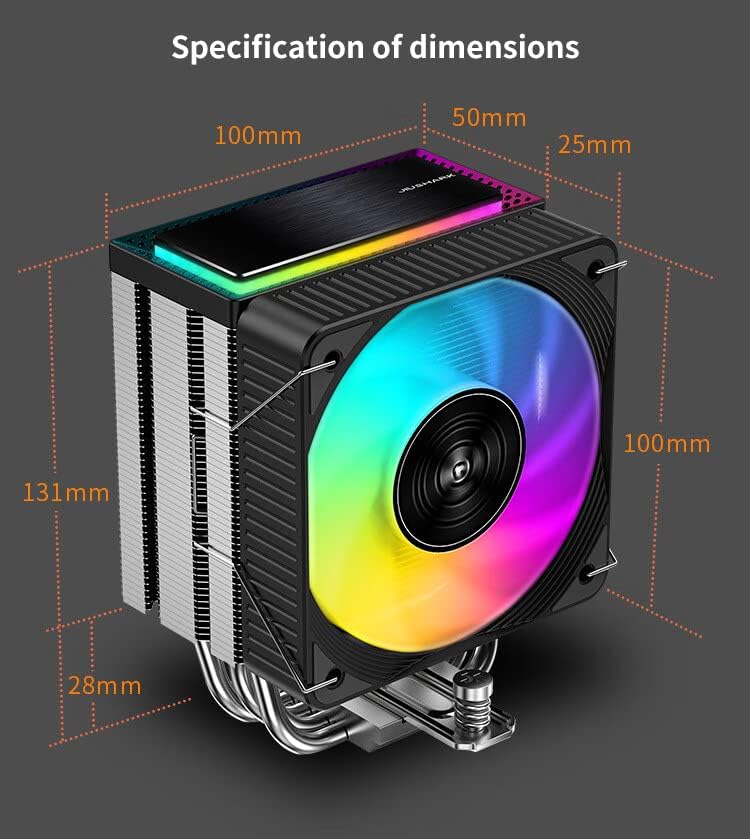
Image: Dimensional specifications of the JIUSHARK JF100RS CPU Air Cooler.
5. Operating Instructions
5.1. Fan Speed Control (PWM)
The JF100RS fan supports Pulse Width Modulation (PWM) control. This allows your motherboard to dynamically adjust the fan speed (800-2300 RPM ± 10%) based on CPU temperature, optimizing for either quiet operation or maximum cooling performance. You can configure fan curves through your motherboard's BIOS/UEFI settings or dedicated software.
5.2. ARGB Lighting Control
The integrated ARGB lighting can be controlled using your motherboard's ARGB synchronization software (e.g., ASUS Aura Sync, MSI Mystic Light Sync, Gigabyte RGB Fusion, ASRock Polychrome Sync). Connect the 3-pin ARGB cable to the appropriate header on your motherboard. This software allows you to customize colors, effects, and synchronize lighting with other compatible components.
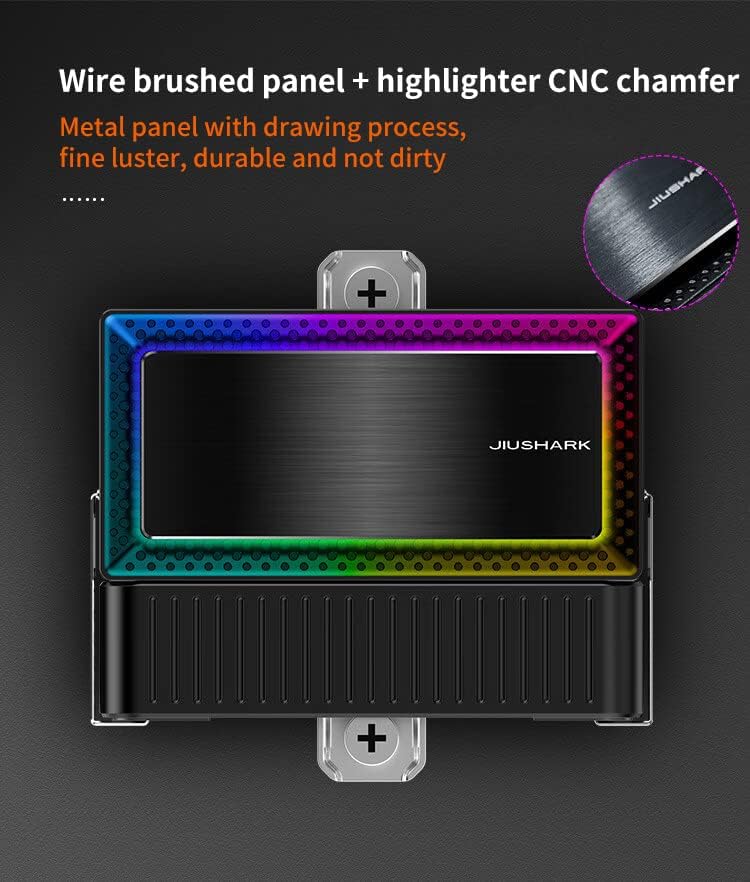
Image: The brushed top panel of the cooler, featuring integrated ARGB lighting.
6. Maintenance
Regular maintenance ensures optimal performance and longevity of your CPU cooler.
- Dust Removal: Periodically clean the heatsink fins and fan blades using compressed air or a soft brush to remove accumulated dust. Ensure the fan is not spinning during cleaning.
- Thermal Paste: It is recommended to reapply thermal paste every 2-3 years, or if the cooler is removed and reinstalled. Clean off old thermal paste thoroughly before applying new paste.
- Cable Management: Ensure all cables are neatly routed and not interfering with fan operation or airflow.
7. Troubleshooting
- High CPU Temperatures:
- Check if the cooler is securely mounted and making proper contact with the CPU.
- Verify that thermal paste was applied correctly and is not dried out.
- Ensure the fan is spinning and not obstructed.
- Check fan speed settings in BIOS/UEFI or software.
- Fan Not Spinning:
- Confirm the 4-pin PWM cable is securely connected to the CPU_FAN header.
- Check BIOS/UEFI settings to ensure the CPU_FAN header is enabled and configured correctly.
- ARGB Lighting Not Working:
- Ensure the 3-pin ARGB cable is correctly connected to a 5V ARGB header on the motherboard. Avoid connecting to 12V RGB headers as this can cause damage.
- Verify that your motherboard's ARGB software is installed and configured.
- Check for any loose connections.
8. Warranty and Support
For specific warranty terms, conditions, and support information regarding your JIUSHARK JF100RS CPU Air Cooler, please refer to the official JIUSHARK website or contact your product retailer. Keep your proof of purchase for warranty claims.