
1. Introduction
This manual provides detailed instructions for the installation, operation, and maintenance of your TUNICHX C01W Monochrome LED Strip Controller. This device allows for versatile control of single-color LED strips through 2.4 GHz Wi-Fi, Bluetooth, compatible RF remotes, and voice commands via Alexa and Google Home Assistant. Please read this manual thoroughly before use to ensure proper functionality and safety.
2. Safety Information
- Ensure the input voltage of the power supply matches the controller's requirements (DC12V-24V). Connecting a higher voltage will damage the controller.
- Verify correct polarity (cathode and anode) when connecting the power supply and LED strip.
- Do not attempt to dismantle or modify the controller. This may cause fire, electric shock, or void the warranty.
- Operate the device within the specified temperature range of -20°C to 60°C. Avoid direct sunlight, high humidity, and high-temperature environments.
- Keep the controller away from metal objects and strong magnetic fields to prevent interference with control distance.
- For device loads up to 15A, ensure wire diameter is at least 1.5mm².
- If the device load exceeds 10A, the connecting cable from the DC port to the LED strip must be shorter than 40cm.
- Install the device in an area with adequate heat dissipation.
3. Product Overview
Key Features
- Multiple Control Methods: Compatible with 2.4GHz RF Remotes (LM007, LM087, WR02RF, RC01RF, RC01RFB), Tuya Smart / Smart Life APP (2.4GHz Wi-Fi), and voice control via Amazon Alexa and Google Home Assistant. All methods can be used concurrently.
- Comprehensive Functionality: Supports brightness dimming, group control, multi-zone control, voice commands, timer settings, countdown on/off, biorhythm, Tap-to-Run automation, scene customization, sleep/wakeup plans, do not disturb mode, and device sharing.
- PWM LED Type Compatibility: Designed for monochrome (single color) LED strips, LED strings, and LED bulbs without an IC chip (V+ V- two-wire configuration), including types like FCOB 5630, 2835, 3528, 5630, 5730, 5050, 3014.
- Signal Auto-Transmitting and Auto-Synchronization: Extends remote control distance by relaying signals between controllers within a 30-meter range. Allows multiple controllers to synchronize dynamic modes and speeds when controlled by the same remote.
Package Contents
1 x TUNICHX C01W Monochrome LED Strip Controller
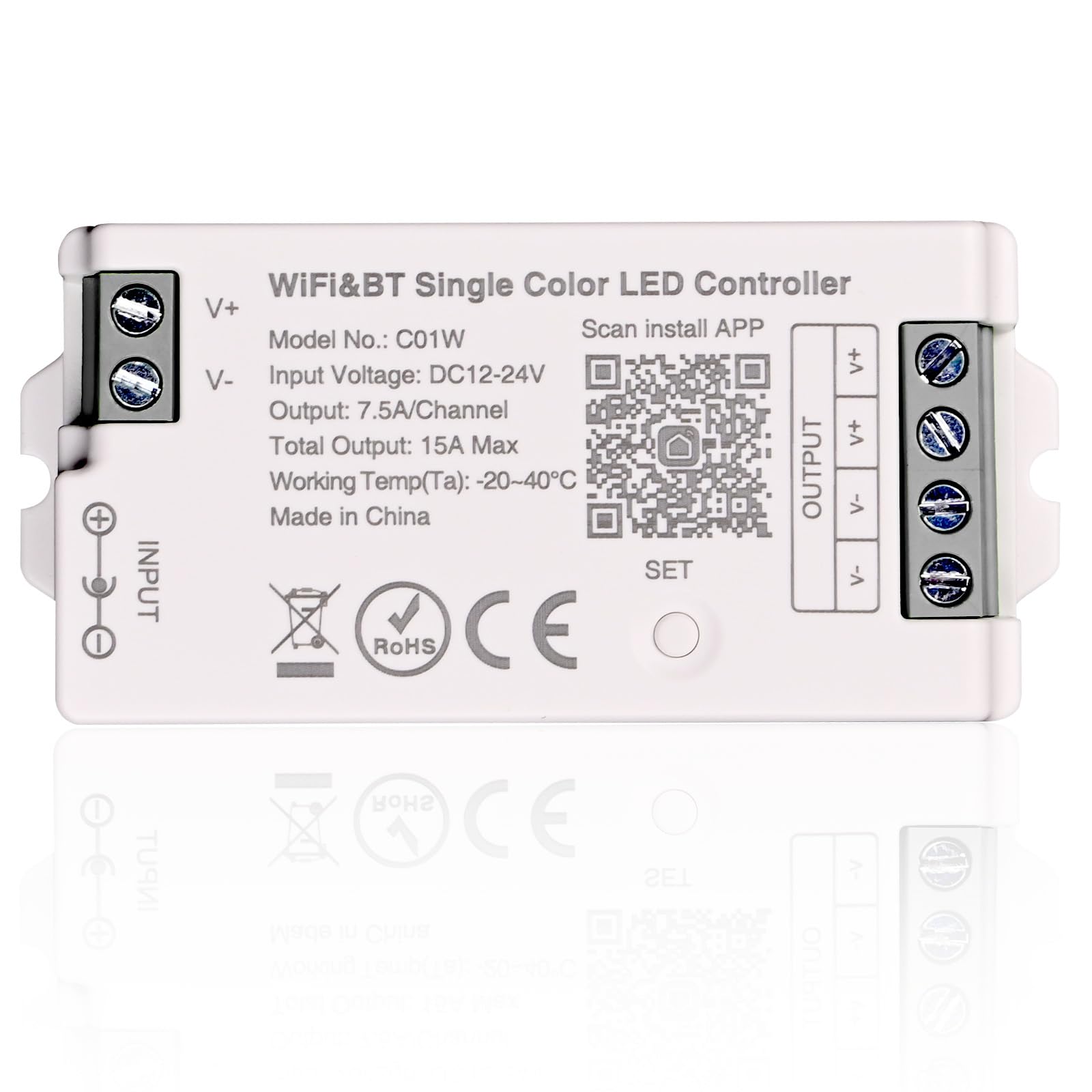
Front view of the TUNICHX C01W controller, showing input/output terminals, model number, QR code for app installation, and compatibility logos for Tuya, Smart Life, Google Assistant, and Amazon Alexa.
4. Specifications
| Model No. | C01W |
| Input Voltage | DC12V-24V |
| Output Type | Single Color (Monochrome) |
| Output Channels | 1 Channel |
| Output Current | <7.5A/Channel, Max 15A Total |
| Output Power | 12V <180W, 24V <360W |
| Connection Mode | Common Anode |
| Static Power Consumption | <1W |
| Operating Temperature | -20°C to 60°C |
| Control Methods | RF Remote, Wi-Fi (Tuya Smart/Smart Life App), Bluetooth, Voice (Alexa, Google Home) |
| Dimensions (L x W x H) | 2.93 in x 1.40 in x 0.64 in |

Close-up image of the controller highlighting its dimensions (2.93in x 1.40in x 0.64in), the DC12V/DC24V power input options (barrel jack or screw terminals), and the LED strip output terminals.
5. Setup
5.1 Wiring Diagram
Follow the diagram below to correctly connect your power supply and LED strip to the controller. Ensure all connections are secure and polarity is correct.
- Connect your DC12V-24V power supply to the INPUT terminals (V+ and V-) or the DC power jack on the controller.
- Connect your monochrome LED strip to the OUTPUT terminals (V+ and V-) on the controller.

A comprehensive wiring diagram showing how to connect various types of LED strips to their respective TUNICHX controllers. For the C01W, refer to the 'Single Color LED Strip' section.
5.2 App Installation and Pairing
- Download the Tuya Smart or Smart Life app from your smartphone's app store (Google Play Store for Android, Apple App Store for iOS). You can also scan the QR code on the controller for direct download.
- Register or log in to your account within the app.
- Power on the TUNICHX C01W controller.
- Press the SET button on the controller. The indicator light will begin to flash, indicating it is in pairing mode.
- In the app, tap 'Add Device' or the '+' icon. The app should automatically discover the controller. If not, manually select 'Lighting' > 'Light Source (Wi-Fi)'.
- Follow the on-screen prompts to connect the controller to your 2.4 GHz Wi-Fi network. Ensure your smartphone is connected to the same 2.4 GHz Wi-Fi network during pairing.
- Once connected, you can rename the device for easier control.
Note: If your Wi-Fi router is unavailable, the controller supports Bluetooth connection as a backup control method.
5.3 RF Remote Pairing (Optional)
The C01W controller is compatible with various 2.4GHz RF remotes such as LM007, LM087, WR02RF, RC01RF, and RC01RFB. Refer to your specific RF remote's manual for pairing instructions. Typically, this involves linking the remote to the controller within a short distance after the controller is powered on.
6. Operating Instructions
6.1 App Control (Tuya Smart / Smart Life)
After successful pairing, use the Tuya Smart or Smart Life app to control your LED strip:
- Brightness Adjustment: Use the slider in the app interface to dim or brighten your monochrome LED strip.
- Group Control: Create groups of multiple controllers to manage several LED strips simultaneously.
- Multi-Zone Control: Assign controllers to different zones for independent control.
- Timer Settings: Schedule specific times for the lights to turn on or off.
- Countdown: Set a countdown for the lights to switch on or off.
- Scene Customization: Create and save custom lighting scenes for different moods or activities.
- Device Sharing: Share control of the device with other users through the app.

An image demonstrating the group control feature, where a single smartphone app can manage multiple LED lighting zones simultaneously.

An image illustrating the remote control capability via smartphone app, allowing users to manage lighting from any location with internet access.
6.2 Voice Control (Amazon Alexa / Google Home Assistant)
Integrate your TUNICHX C01W controller with Amazon Alexa or Google Home Assistant for convenient voice control:
- Ensure your controller is successfully paired with the Tuya Smart or Smart Life app.
- Open the Alexa or Google Home app on your smartphone.
- Enable the 'Tuya Smart' or 'Smart Life' skill/service.
- Link your Tuya Smart/Smart Life account with Alexa/Google Home.
- Discover devices. Your LED controller should appear.
- Use voice commands such as:
- "Alexa, turn [light name] on/off"
- "Alexa, set [light name] to 50%"
- "Google, dim [light name]"
- "Google, brighten [light name]"

An example of voice control in a living room setting, showing users interacting with Alexa and Google Home to turn lights on and adjust brightness.

An image highlighting the compatibility with third-party voice assistants like Amazon Alexa and Google Home for convenient light control.
6.3 RF Remote Control
If you have paired a compatible 2.4GHz RF remote, you can use it to control the dimming and other functions of your LED strip. Refer to your remote's specific instructions for button functions.
6.4 Signal Transmission and Auto-Synchronization
The controller features signal auto-transmitting, allowing one controller to relay signals from an RF remote to another controller within a 30-meter range. This effectively extends the remote control distance indefinitely as long as controllers are within range of each other and belong to the same group. The auto-synchronization function ensures that multiple controllers, even if started at different times, can operate synchronously with the same dynamic mode and speed when controlled by a single remote.

Illustration of the signal auto-transmitting and auto-sync functions, where one remote can control multiple controllers in sequence, extending the control range.
7. Maintenance
- Keep the controller clean and free from dust. Use a soft, dry cloth for cleaning.
- Avoid exposing the controller to water or other liquids.
- Store the device in a cool, dry place when not in use for extended periods.
- Regularly check all wiring connections to ensure they remain secure.
8. Troubleshooting
| Problem | Possible Cause | Solution |
|---|---|---|
| LED strip does not light up. | No power to controller; incorrect wiring; faulty LED strip. | Check power supply connection and ensure it's plugged in. Verify input/output wiring polarity. Test LED strip with another power source if possible. |
| Cannot connect to Wi-Fi/App. | Incorrect Wi-Fi password; 5GHz Wi-Fi network; controller not in pairing mode; network interference. | Ensure correct 2.4 GHz Wi-Fi password. Confirm your router supports 2.4 GHz. Put controller into pairing mode (press SET button). Move controller closer to router. Disable other Wi-Fi devices temporarily. |
| Remote control not working. | Remote not paired; remote battery low; interference. | Pair the remote with the controller as per remote's instructions. Replace remote battery. Reduce interference from other 2.4GHz devices. |
| Voice control not responding. | App not linked to voice assistant; incorrect device name; internet connectivity issues. | Verify Tuya Smart/Smart Life skill is enabled and linked in Alexa/Google Home app. Check device name in app and use it in commands. Ensure stable internet connection for both controller and voice assistant device. |
9. Warranty and Support
Specific warranty details are not provided in this manual. For warranty information or technical support, please refer to the product packaging or contact TUNICHX customer service through the retailer where the product was purchased.


