1. Introduction
The Rosonway 10-Port Powered USB 3.2/USB C Hub (Model RSH-A10QPD) is designed to expand your device's connectivity, offering a versatile solution for data transfer and charging. This hybrid hub instantly adds 3 USB 3.2 ports, 4 USB 3.0 ports, and 3 fast charging ports to your laptop, desktop, gaming console, or other compatible devices. It features a durable aluminum housing and individual on/off switches for each data port, ensuring efficient power management and stable performance.
Video: Overview of the Rosonway 10-Port Powered USB 3.2/USB C Hub 60W, showcasing its features and design.
2. Setup
Follow these steps to set up your Rosonway USB Hub:
- Connect the Power Adapter: Plug the provided 60W (12V/5A) power adapter into the DC 12V/5A input port on the hub, then connect it to a wall outlet. This ensures stable power for all connected devices and high-speed data transfer.
- Connect to Your Device: Use the integrated 3.3 ft USB Type-C long cable to connect the hub to a compatible USB-C or Thunderbolt 3 port on your laptop, desktop, or other host device. The hub is plug-and-play, requiring no additional drivers for most operating systems.
- Connect Peripherals: Once the hub is powered and connected to your host device, you can begin connecting your USB devices (e.g., external hard drives, keyboards, mice, cameras, smartphones) to the available data and charging ports.

Image: An overview of the Rosonway 10-Port USB Hub, highlighting its 10-in-1 functionality with different port types and power input.
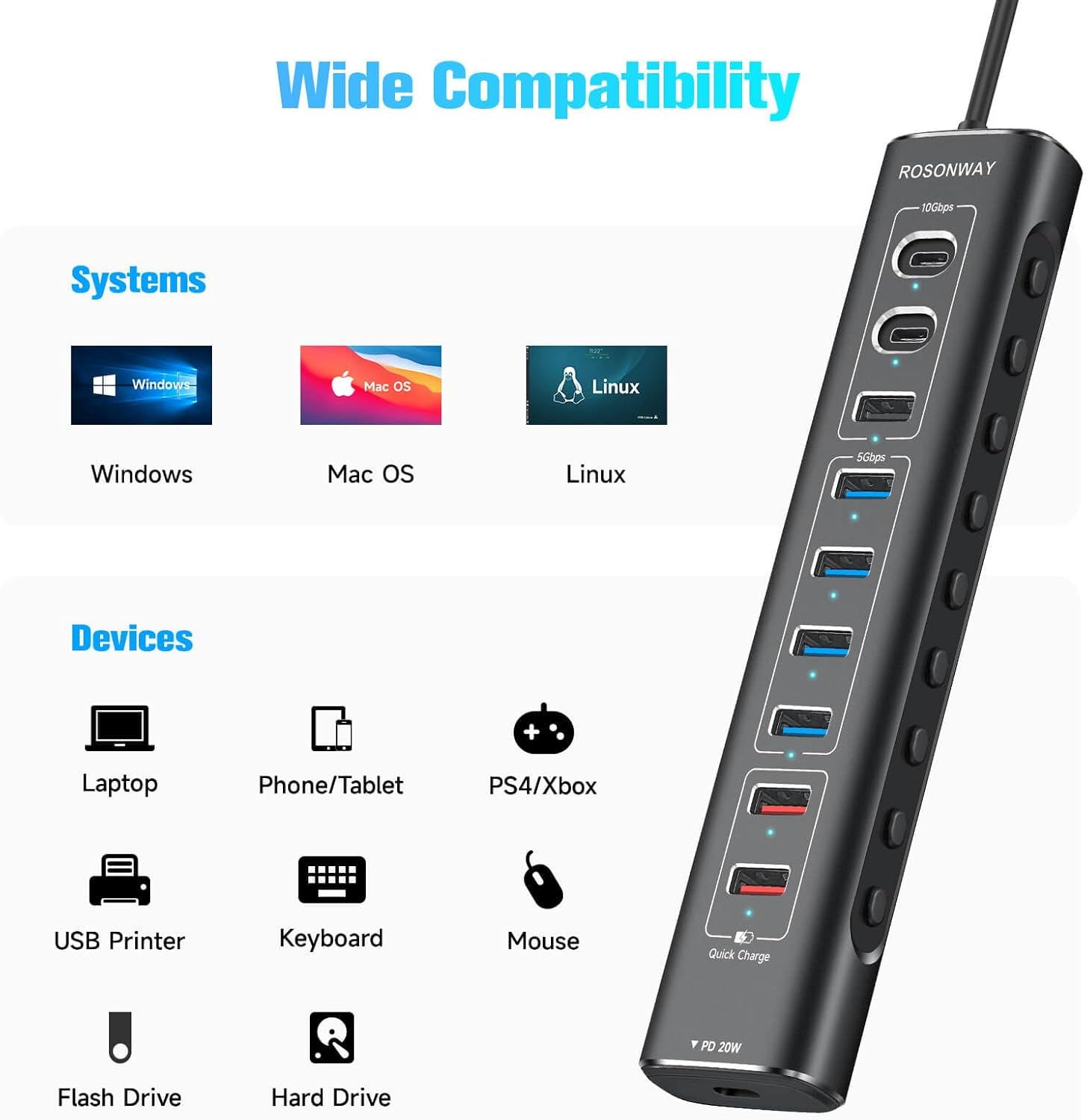
Image: The Rosonway USB Hub connected to a laptop, demonstrating the 3.3 ft USB-C long cable for flexible placement.
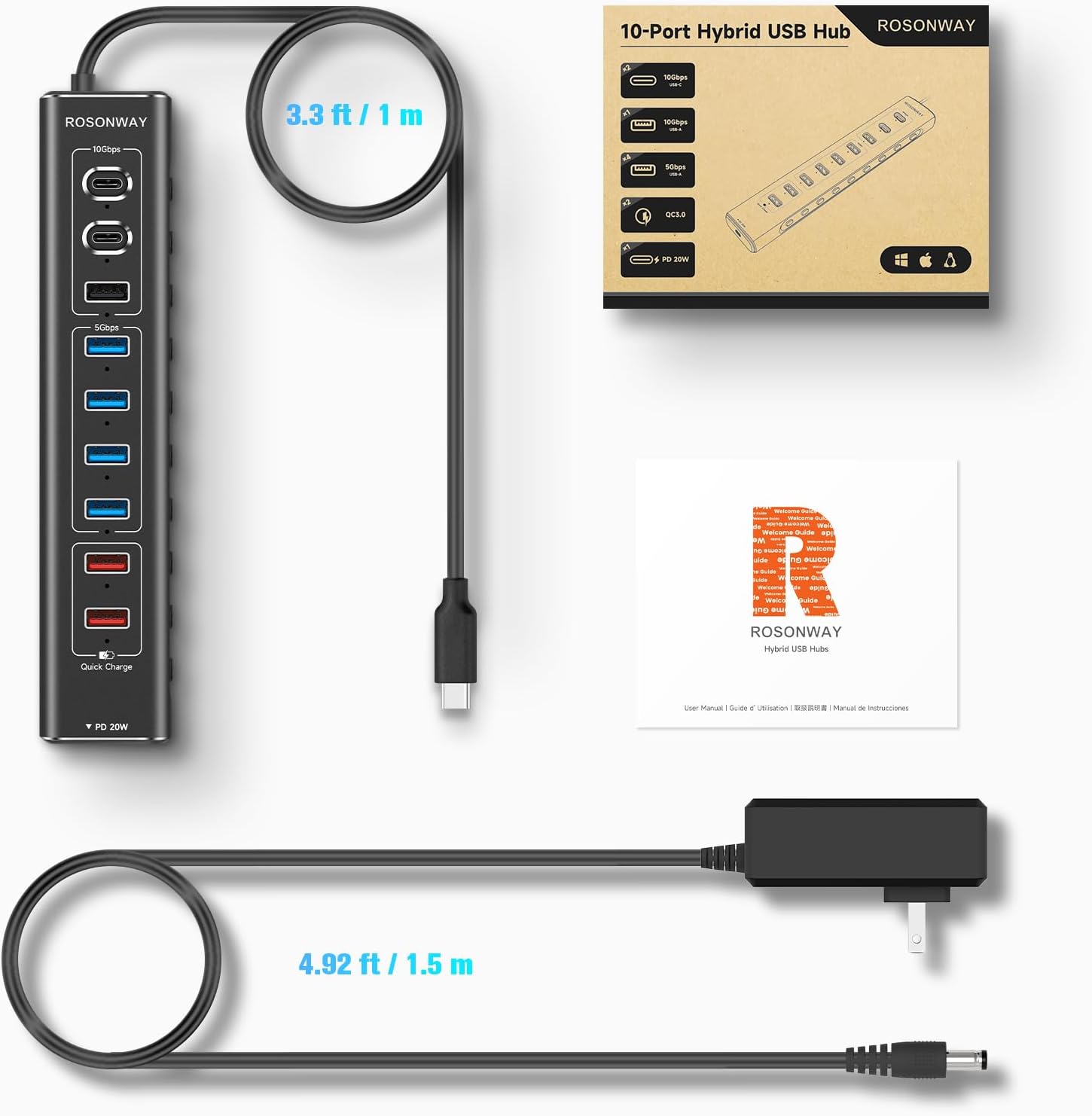
Image: A close-up view of the DC 12V/5A power adapter connection, emphasizing overcurrent and overvoltage protection for stable transmission and heat dissipation.
3. Operating Instructions
The Rosonway USB Hub is designed for ease of use with individual controls for each data port:
- Individual On/Off Switches: Each super-speed USB data port features an individual On/Off switch with an LED indicator.
- Power Status: The LED indicator shows the power status of each port.
- Activating/Deactivating Ports: To activate a port, lightly press its corresponding button. To deactivate a port, press and hold the button for two seconds. This allows you to manage power to individual devices without unplugging the entire hub.
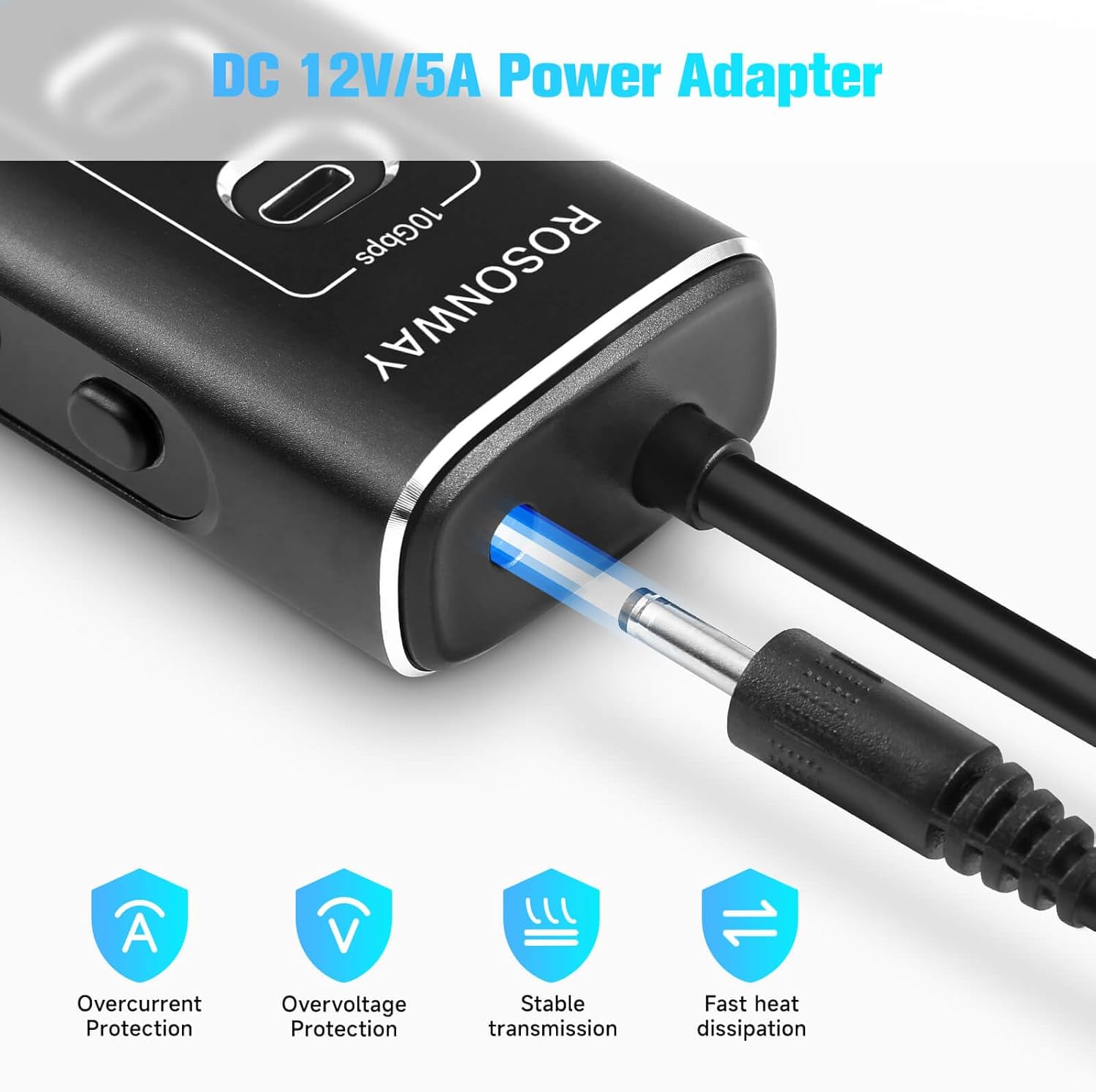
Image: The Rosonway USB Hub highlighting the individual On/Off switches and LED indicators for each port, along with an anti-slip mat.
4. Data Transfer
Experience blazing-fast data transfer speeds with the Rosonway USB Hub:
- USB 3.2 Ports: The hub includes 1 USB-A 3.2 port and 2 USB-C 3.2 ports, all supporting data transfer speeds of up to 10Gbps. This allows for rapid transfer of large files, HD photos, and videos in seconds.
- USB 3.0 Ports: Four USB-A 3.0 ports provide data transfer speeds of up to 5Gbps, suitable for a wide range of peripherals and everyday file transfers.

Image: The Rosonway USB Hub facilitating fast data transfer between a laptop and an external hard drive, showing speeds up to 10Gbps and 5Gbps.

Image: A visual representation of the SuperSpeed Data Transfer capabilities, detailing 10Gbps for USB-C 3.2 and USB-A 3.2, and 5Gbps for USB-A 3.0.
5. Charging Capabilities
The hub offers dedicated charging ports to power your mobile devices:
- USB-C PD Port: One 20W USB-C Power Delivery (PD) port is available for fast charging compatible devices like tablets and smartphones.
- USB-A Fast Charging Ports: Two USB-A fast charging ports provide up to 2.4A output, suitable for charging various devices such as phones, cameras, and speakers.
- 60W Power Adapter: The included 60W (12V/5A) power supply ensures sufficient power for simultaneous data transfer and charging across all ports.
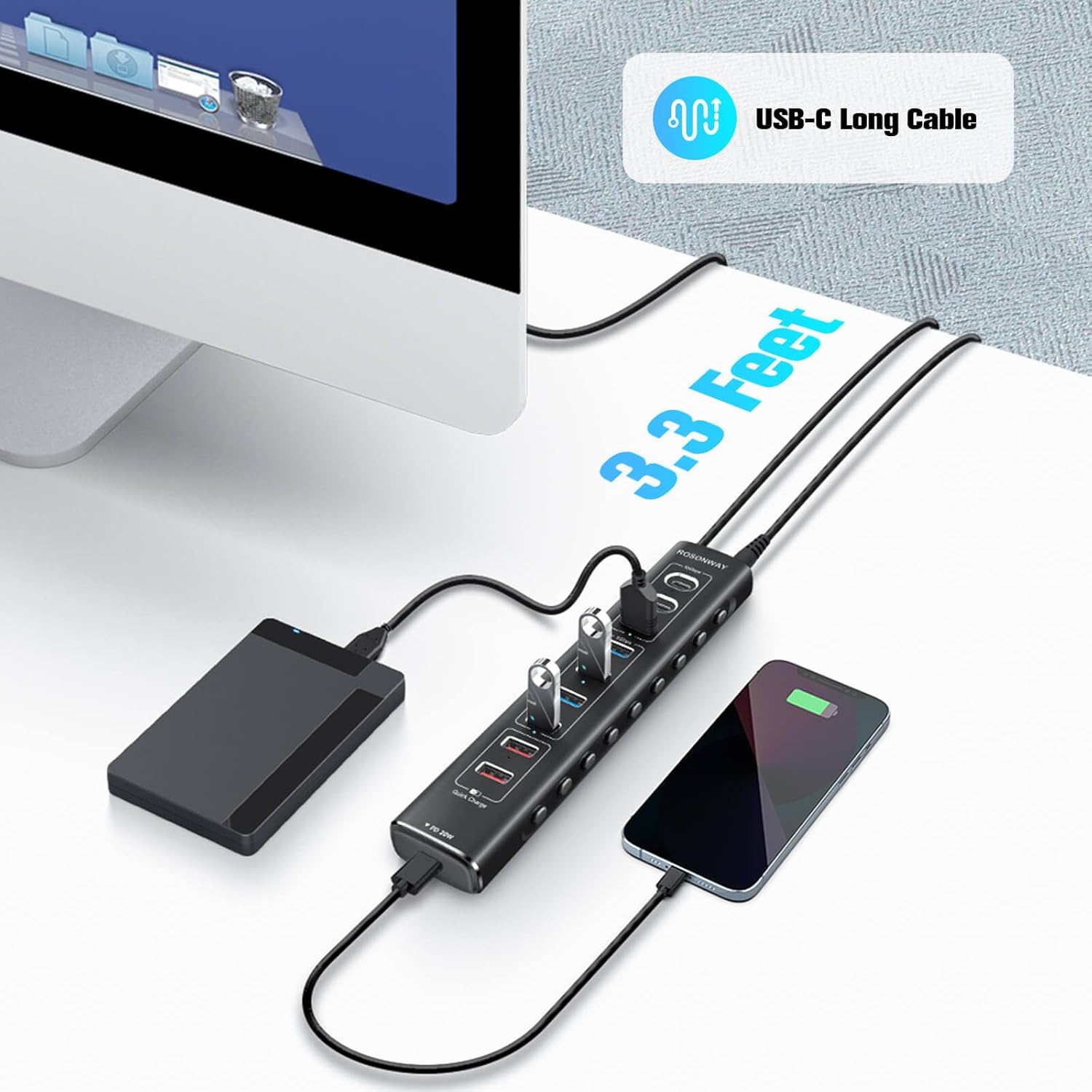
Image: The Rosonway USB Hub connected to a power outlet and charging multiple devices, illustrating its 3 fast charging ports and the 60W power adapter.
6. Compatibility
The Rosonway USB Hub offers broad compatibility with various operating systems and devices:
- Operating Systems: Compatible with Windows 11, 10, 8.1, 8, 7, Mac OS X, and Linux.
- Host Devices: Works with USB-C/Thunderbolt 3 enabled devices such as M1 Mac mini, MacBook, iMac, XPS, Surface Pro, laptops, and PCs.
- Peripherals: Supports a wide range of USB devices including gaming consoles, smartphones, tablets, USB printers, keyboards, mice, and flash drives.
Image: A visual guide to the wide compatibility of the Rosonway USB Hub, listing supported operating systems and various devices.
7. Maintenance
To ensure the longevity and optimal performance of your Rosonway USB Hub, follow these maintenance guidelines:
- Cleaning: Regularly wipe the hub with a soft, dry cloth to remove dust and debris. Avoid using liquid cleaners or abrasive materials.
- Storage: When not in use, store the hub in a cool, dry place away from direct sunlight and extreme temperatures.
- Cable Management: Avoid sharp bends or kinks in the USB-C cable and power adapter cable to prevent internal damage.
- Ventilation: Ensure the hub has adequate ventilation to prevent overheating, especially during prolonged use with multiple devices.
8. Troubleshooting
If you encounter issues with your Rosonway USB Hub, try the following troubleshooting steps:
- No Power/LED Indicators Off:
- Ensure the 60W power adapter is securely plugged into both the hub and a working wall outlet.
- Check if the individual port switches are activated (lightly press the button).
- Device Not Recognized:
- Verify that the hub's main USB-C cable is securely connected to your computer's USB-C/Thunderbolt 3 port.
- Try connecting the device directly to your computer to confirm it's functioning correctly.
- Ensure the individual port switch for the connected device is turned on.
- Restart your computer and reconnect the hub.
- Slow Data Transfer:
- Ensure you are using the correct ports for high-speed devices (USB 3.2 for 10Gbps, USB 3.0 for 5Gbps).
- Confirm the 60W power adapter is connected, as insufficient power can affect transfer speeds.
- Avoid connecting too many power-hungry devices simultaneously if experiencing slowdowns.
- Charging Issues:
- Check if your device supports the charging standards (20W PD for USB-C, 2.4A for USB-A fast charging).
- Ensure the charging cable is functional and properly connected.
9. Specifications
| Model Number | RSH-A10QPD |
| Ports | 3x USB 3.2 (2C + 1A), 4x USB 3.0 Data, 1x USB-C PD, 2x USB-A Fast Charging |
| Data Transfer Speed | Up to 10Gbps (USB 3.2), Up to 5Gbps (USB 3.0) |
| Charging Output | 20W USB-C PD, 2.4A USB-A Fast Charging |
| Power Adapter | 60W (12V/5A) |
| Cable Length | 3.3 ft USB Type-C |
| Material | Aluminum Housing |
| Special Features | Individual On/Off Switches, LED Indicators, Built-in Surge Protector, Overvoltage/Overcurrent Protection |
10. Warranty and Support
Rosonway provides the following warranty and support for your product:
- Limited Warranty: A 2-year limited warranty is included.
- Extended Warranty: Register your product to receive an additional 6 months of extended warranty.
- Technical Support: Lifetime technical support is available for all Rosonway products.
- Contact: For support or warranty claims, please visit the official Rosonway website or contact their customer service.