
1. Introduction and Overview
This manual provides essential information for setting up, operating, and maintaining your Gezoon 14-inch Laptop, Model D-1420. This device is designed for everyday tasks, including work, study, and entertainment, offering a balance of performance and portability.
Key features include a pre-installed Windows 11 Pro operating system, an Intel Celeron N4020C processor, 8GB of RAM, and a 256GB SSD for efficient performance and storage.

Figure 1: Gezoon 14-inch Laptop with key specifications displayed on screen.
2. What's in the Box
Upon unboxing your Gezoon 14-inch Laptop, please ensure all the following items are present:
- Gezoon 14-inch Laptop (Model D-1420)
- Power Adapter
- User Manual
- Warranty Card

Figure 2: All items included in the Gezoon 14-inch Laptop package.
Unboxing Video
Video 1: An unboxing demonstration of the Gezoon laptop, showcasing the packaging and included accessories.
3. Product Features and Hardware Overview
3.1 Design and Portability
The Gezoon D-1420 laptop features a slim and lightweight design, weighing only 2.86 lbs (1.3 kg) and measuring 0.74 inches (1.88 cm) thick. Its 180-degree opening capability allows for flexible viewing angles.

Figure 3: The slim and lightweight profile of the Gezoon laptop.
3.2 Display
Experience clear visuals on the 14.1-inch Full HD (1920 x 1080 pixels) display. The 16:9 aspect ratio is suitable for various tasks, from browsing documents to watching videos.
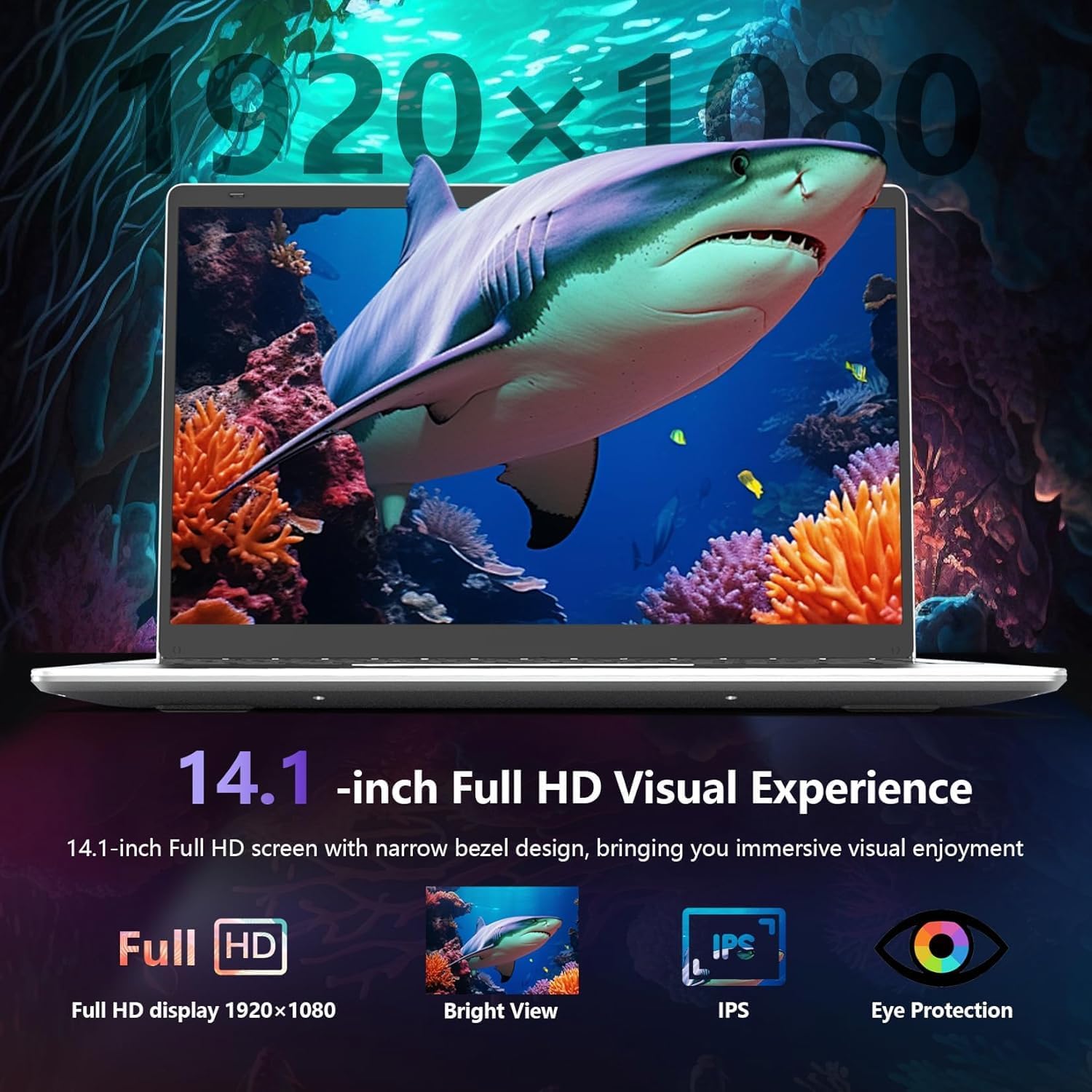
Figure 4: The 14.1-inch Full HD display of the laptop.
3.3 Processor and Graphics
Powered by an Intel Celeron N4020C processor with speeds up to 2.8GHz, the laptop handles daily computing tasks efficiently. Integrated Intel UHD Graphics 600 provides adequate visual performance.
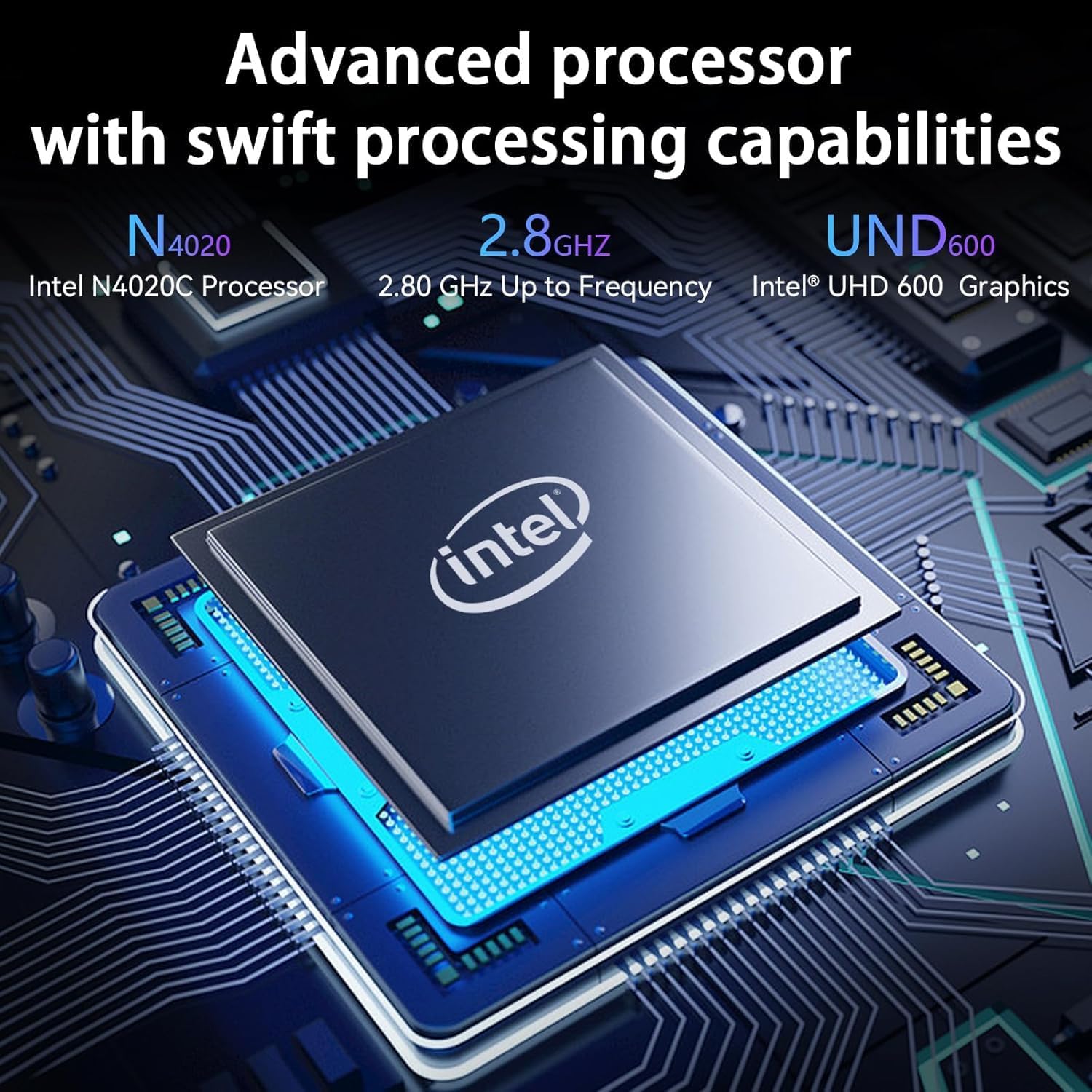
Figure 5: The Intel Celeron N4020C processor.
3.4 Memory and Storage
The laptop comes with 8GB of LPDDR4 RAM and a 256GB SSD, offering sufficient capacity for multitasking and storing important files.

Figure 6: Ample RAM and SSD storage capacity.
3.5 Connectivity and Ports
The laptop is equipped with a variety of ports for versatile connectivity:
- 2x USB 3.0 Type-A ports
- 1x Type-C port
- 1x HDMI 1.4 port
- 1x 3.5mm Combo Audio Jack
- 1x DC power port
- 1x TF card slot (supports up to 512GB expansion)
- Wi-Fi 6 (802.11ac) for wireless connectivity

Figure 7: Multifunctional interface with various ports.
3.6 Keyboard and Touchpad
The laptop features a full-size keyboard and a large trackpad for comfortable and efficient input.

Figure 8: Full-size keyboard and large trackpad.
3.7 Battery
Equipped with a 7.6V 5000mAh (38 WH) battery, the laptop provides approximately 6-8 hours of battery life, suitable for on-the-go use.

Figure 9: Battery capacity and estimated battery life.
4. Setup
Follow these steps for the initial setup of your Gezoon 14-inch Laptop:
- Charge the Laptop: Connect the power adapter to the DC port on the laptop and plug it into a power outlet. Allow the laptop to charge for at least 30 minutes before first use.
- Power On: Open the laptop lid and press the power button located on the top right of the keyboard.
- Windows 11 Pro Setup: Follow the on-screen instructions to complete the Windows 11 Pro setup. This will include selecting your region, language, connecting to a Wi-Fi network, and creating a user account.
- Updates: After initial setup, it is recommended to check for and install any available Windows updates to ensure optimal performance and security.
Startup Process Video
Video 2: A demonstration of the laptop's startup process, showing the time it takes to reach the initial setup screen.
5. Operating Instructions
This section covers basic operation of your Gezoon laptop.
5.1 Keyboard and Touchpad Usage
- Keyboard: The full-size keyboard provides a comfortable typing experience. Familiarize yourself with the function keys (Fn) for quick access to settings like volume, brightness, and Wi-Fi.
- Touchpad: The large trackpad supports multi-touch gestures for navigation. Refer to Windows 11 settings for customizing touchpad gestures.
5.2 Connecting Peripherals
Utilize the various ports to connect external devices:
- USB Devices: Plug USB drives, mice, or keyboards into the USB 3.0 Type-A ports.
- External Display: Connect an external monitor or TV using the HDMI 1.4 port.
- Headphones/Microphone: Use the 3.5mm combo audio jack for headphones or an external microphone.
- Memory Cards: Insert a TF card into the dedicated slot for expanded storage.
6. Maintenance
Proper maintenance ensures the longevity and optimal performance of your laptop.
- Cleaning: Use a soft, lint-free cloth to clean the screen and exterior. Avoid harsh chemicals.
- Battery Care: To prolong battery life, avoid fully discharging the battery frequently. Store the laptop in a cool, dry place.
- Software Updates: Regularly check for and install operating system and driver updates to maintain security and performance.
- Ventilation: Ensure the laptop's vents are not obstructed to prevent overheating.
7. Troubleshooting
This section addresses common issues you might encounter with your Gezoon laptop.
7.1 Laptop Not Charging
If your laptop is not charging, consider the following steps:
- Check the power adapter and cable for any visible damage.
- Try using a different power outlet.
- If possible, use another compatible power adapter to see if the laptop charges and powers on.
- Perform a power reset by pressing and holding the power button for 20-30 seconds to drain any residual power, then reconnect the power adapter and try to power on.
7.2 Touchpad Not Working
If the touchpad is unresponsive, try these solutions:
- Press the Fn + ESC keys simultaneously to unlock the touchpad.
- Restart the laptop.
- Check Device Manager in Windows for any touchpad driver issues. Reinstall or update drivers if necessary.
7.3 Slow Startup or Performance Issues
For slow startup or general performance issues:
- Ensure all Windows updates are installed.
- Close unnecessary background applications.
- Run a disk cleanup and defragmentation (for HDD, not necessary for SSD).
- Consider booting into Safe Mode to determine if a software or driver issue is causing the problem.
Troubleshooting Guides Videos
Video 3: Troubleshooting guide for common laptop issues, including charging problems.
Video 4: Additional troubleshooting tips for laptop performance and functionality.
8. Specifications
| Feature | Specification |
|---|---|
| Brand | Gezoon |
| Model Name | D-1420 |
| Operating System | Windows 11 Pro |
| Screen Size | 14.1 Inches |
| Screen Resolution | 1920 x 1080 pixels (Full HD) |
| Processor | Intel Celeron N4020C (up to 2.8 GHz) |
| RAM | 8 GB LPDDR4 |
| Hard Drive | 256 GB SSD (NVMe) |
| Graphics Coprocessor | Intel UHD Graphics 600 |
| Wireless Type | 802.11ac (Wi-Fi 6) |
| USB 3.0 Ports | 2 |
| Other Ports | 1x Type-C, 1x HDMI 1.4, 1x 3.5mm Combo Audio Jack, 1x DC port, 1x TF card slot |
| Item Weight | 2.86 pounds (1.3 kg) |
| Product Dimensions | 12.8 x 8.26 x 0.74 inches (32.5 x 21 x 1.88 cm) |
| Color | Gray |
| Battery | 1 P76 battery (included), 7.6V 5000mAh, 38 WH |
9. Warranty and Support
Gezoon offers a 365-day after-sales support to ensure a worry-free experience with your laptop. Our customer service team is committed to responding to your inquiries within 12 hours and providing quick and effective solutions.
If you have any questions or encounter issues not covered in this manual, please do not hesitate to reach out to us. Contact information can be found on the warranty card included in your product package.

Figure 10: Gezoon customer service commitment.
