
1. Introduction
The Meentek W1 is a versatile 2.4GHz wireless remote control that integrates the functions of an air mouse, keyboard, and infrared remote. Designed for ease of use, it provides intuitive control for various smart devices, including Android TV Boxes, Personal Computers (PCs), Smart TVs, Projectors, and Home Theater Personal Computers (HTPCs). This manual provides detailed instructions for setup, operation, maintenance, and troubleshooting to ensure optimal performance of your device.
2. Package Contents
Please check the package for the following items:
- Meentek W1 Air Remote Keyboard Mouse
- USB Receiver Dongle
- Micro-USB Charging Cable
- User Manual (this document)

Image: The Meentek W1 Air Remote Keyboard Mouse, showing both the front (remote) and back (keyboard) sides, alongside the compact USB receiver dongle.
3. Setup Instructions
3.1 Charging the Remote
Before initial use, ensure the remote is fully charged. Connect the Micro-USB charging cable to the remote and a power source (e.g., computer USB port, USB wall adapter). The LED indicator will show charging status.
3.2 Connecting the USB Receiver
The Meentek W1 operates on a 2.4GHz wireless connection. To connect it to your device:
- Locate an available USB port on your target device (e.g., Android TV Box, PC, Smart TV).
- Insert the USB receiver dongle into the USB port.
- The device should automatically recognize the remote. No additional drivers are typically required for most compatible systems.

Image: A hand inserting the USB receiver dongle into a USB port on a device, illustrating the plug-and-play connection.
3.3 Compatibility
The Meentek W1 is compatible with systems including Windows, Android, MAC OS, and Linux. It is suitable for use with Android TV Boxes, PCs, Smart TVs, Projectors, and HTPCs. Note: This remote is not compatible with Amazon Fire TV Stick, Samsung TVs, Sony TVs, or LG TVs.
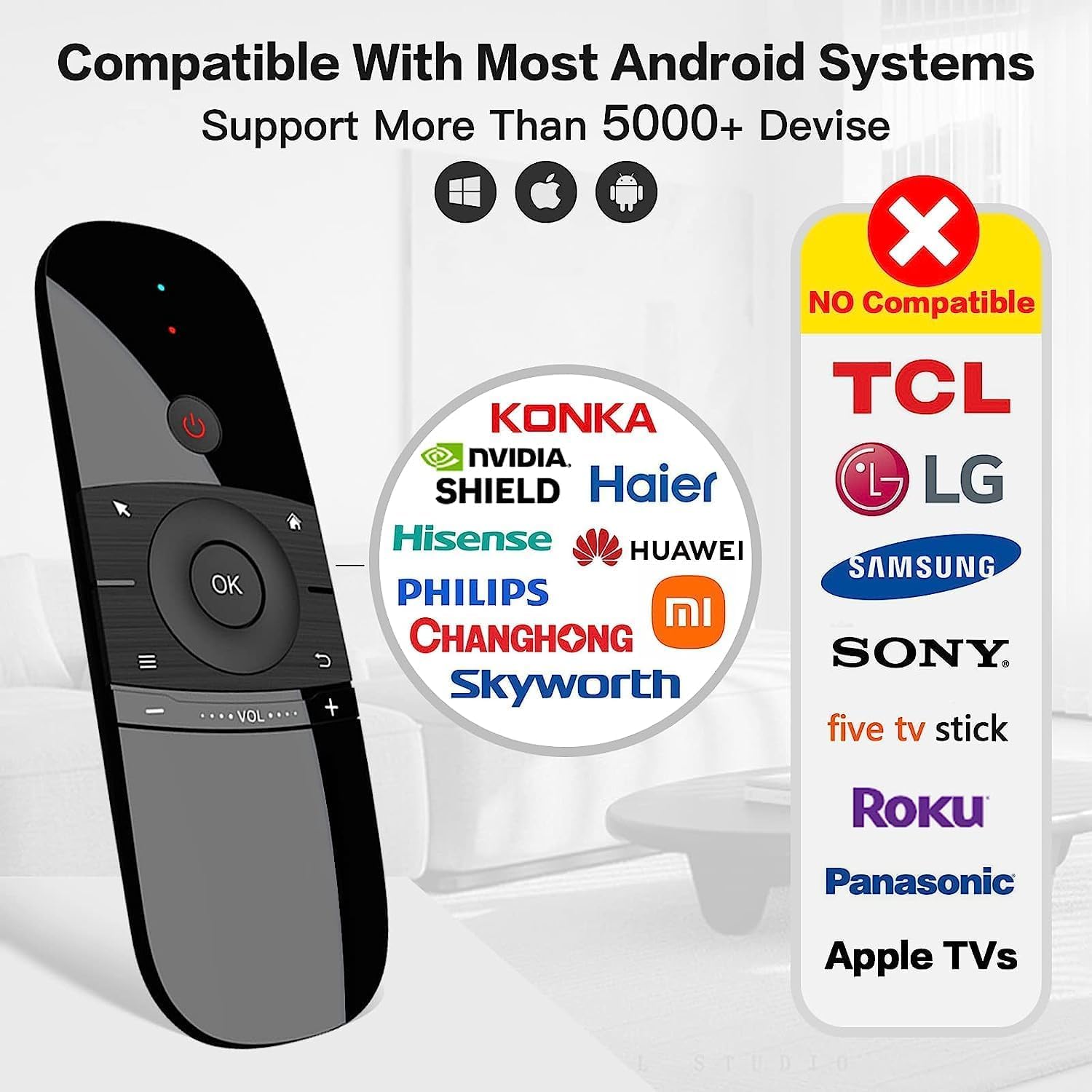
Image: A visual representation of device compatibility, highlighting various brands and device types that are supported or not supported by the remote.
4. Operating Instructions
4.1 Air Mouse Function
The remote features a 6-Axis Gyro Sensor for precise air mouse control. To activate and use the air mouse:
- Press the Cursor Locking button (often depicted as a mouse cursor icon) to enable the air mouse function.
- Move the remote in the air to control the cursor on your screen.
- Press the OK button to click or select items.
- Press the Cursor Locking button again to disable the air mouse and use the directional pad.

Image: A user demonstrating the 6-Axis Gyro Sensor functionality, moving the remote to navigate on a television screen.

Image: The remote being held and used as an air mouse, with a blurred background suggesting a meeting or presentation environment.
4.2 Keyboard Function
The reverse side of the remote features a full QWERTY keyboard for convenient text input.
- Simply flip the remote to access the keyboard.
- Type as you would on a standard keyboard.
- The keyboard is ideal for searching, entering passwords, and other text-based tasks.

Image: A user holding the remote, utilizing its integrated QWERTY keyboard to type on a computer monitor displaying a search engine.
4.3 IR Learning Function
The Meentek W1 remote supports infrared (IR) learning, allowing it to mimic functions from your original TV remote, such as the power button. This feature enables you to consolidate control of multiple devices into one remote.
- Enter Learning Mode: Press and hold the Power key and the OK key simultaneously on the W1 remote. Release both buttons when the blue light remains on.
- Initiate Learning: Click the Power button on the W1 remote. The blue light will start flashing, indicating it's ready to learn.
- Align Remotes: Place your original TV remote head-to-head with the W1 remote, ensuring they are on a horizontal line and close to each other.
- Transmit Signal: Press the button on your original TV remote that you wish the W1 to learn (e.g., the Power button). The W1's blue light will flash rapidly, then remain solid, indicating successful learning.
- Learn Other Buttons (Optional): To learn additional buttons, repeat steps 2-4 for each desired button.
- Exit Learning Mode: Press any button other than the Power button on the W1 remote to exit learning mode. The blue light will turn off.
It is crucial to maintain the horizontal alignment between the two remotes during the learning process for successful programming.
Video: This video demonstrates the infrared learning function of the Meentek W1 air mouse, showing how to program buttons from an existing remote control.
4.4 Auto Sleep and Wake-up
To conserve battery life, the remote will automatically enter sleep mode after 15 seconds of inactivity. The blue LED light will turn off. To wake the remote, simply press any key.
5. Maintenance
5.1 Cleaning
Wipe the remote with a soft, dry cloth. Avoid using liquid cleaners or abrasive materials, as they may damage the surface or internal components.
5.2 Battery Information
The Meentek W1 uses a built-in Lithium-Ion battery. Recharge the remote when the battery is low to ensure continuous operation. Do not attempt to replace the battery yourself.
6. Troubleshooting
If you encounter issues with your Meentek W1 remote, please refer to the following common solutions:
- Remote Not Responding:
- Ensure the remote is charged.
- Verify the USB receiver dongle is securely plugged into your device.
- Try plugging the USB receiver into a different USB port.
- Restart your host device (e.g., TV Box, PC).
- Air Mouse Cursor Drifting or Inaccurate:
- Recalibration: If the air mouse cursor is misaligned, press the Cursor Locking button to disable the pointing feature. Point the remote directly at the center of your screen where the cursor should be, then press the Cursor Locking button again to re-enable. This should recalibrate the sensor.
- Ensure there are no strong magnetic fields or electronic interference nearby.
- Keyboard Input Issues:
- Ensure the remote is held steadily when typing.
- Check for any obstructions between the remote and the USB receiver.
- If input lags or misses cues, try moving closer to the USB receiver.
- IR Learning Not Working:
- Ensure the original remote has fresh batteries.
- Confirm the W1 remote is in IR learning mode (blue light solid, then flashing after pressing the W1 button to learn).
- Maintain close, head-to-head alignment between the two remotes during the learning process.
- Some original remotes may use different IR frequencies or protocols that are not compatible with the W1's learning function.
- Incompatibility with Specific Devices:
- As noted in the compatibility section, the remote is not designed to work with Amazon Fire TV Stick, Samsung, Sony, or LG TVs. This is a product limitation, not a defect.
7. Specifications
| Feature | Detail |
|---|---|
| Brand | Meentek |
| Model Name | W1-AirMouse |
| Connectivity Technology | 2.4GHz Wireless |
| Special Feature | Portable, Air Mouse, Keyboard, IR Learning |
| Color | Black |
| Maximum Range | 10 Meters (approx. 30 feet) |
| Controller Type | Button Control |
| Button Quantity | 35 |
| Battery Type | 1 Lithium Ion battery (included) |
| Item Weight | 87 Grams |
| Item Dimensions (L x W x H) | 4.72" x 1.58" x 1" |
| Compatible Devices | Android TV Box, PC, Smart TV, Projector, HTPC |
8. Warranty and Support
For warranty information or technical support, please refer to the product packaging or contact the seller directly through the platform where the product was purchased. Keep your purchase receipt for warranty claims.