
podofo RM
Podofo Android 13 Car Stereo User Manual
Model: RM
1. Introduction
This manual provides comprehensive instructions for the installation, operation, and maintenance of your Podofo Android 13 Wireless Apple Carplay Car Stereo. This double din car radio is designed specifically for KIA Forte models from 2009 to 2017, featuring a 9-inch touchscreen, Android Auto, Bluetooth, GPS, Mirror Link, FM&RDS radio, and a backup camera.
Please read this manual thoroughly before installation and use to ensure proper functionality and safety.
2. Product Overview and Compatibility
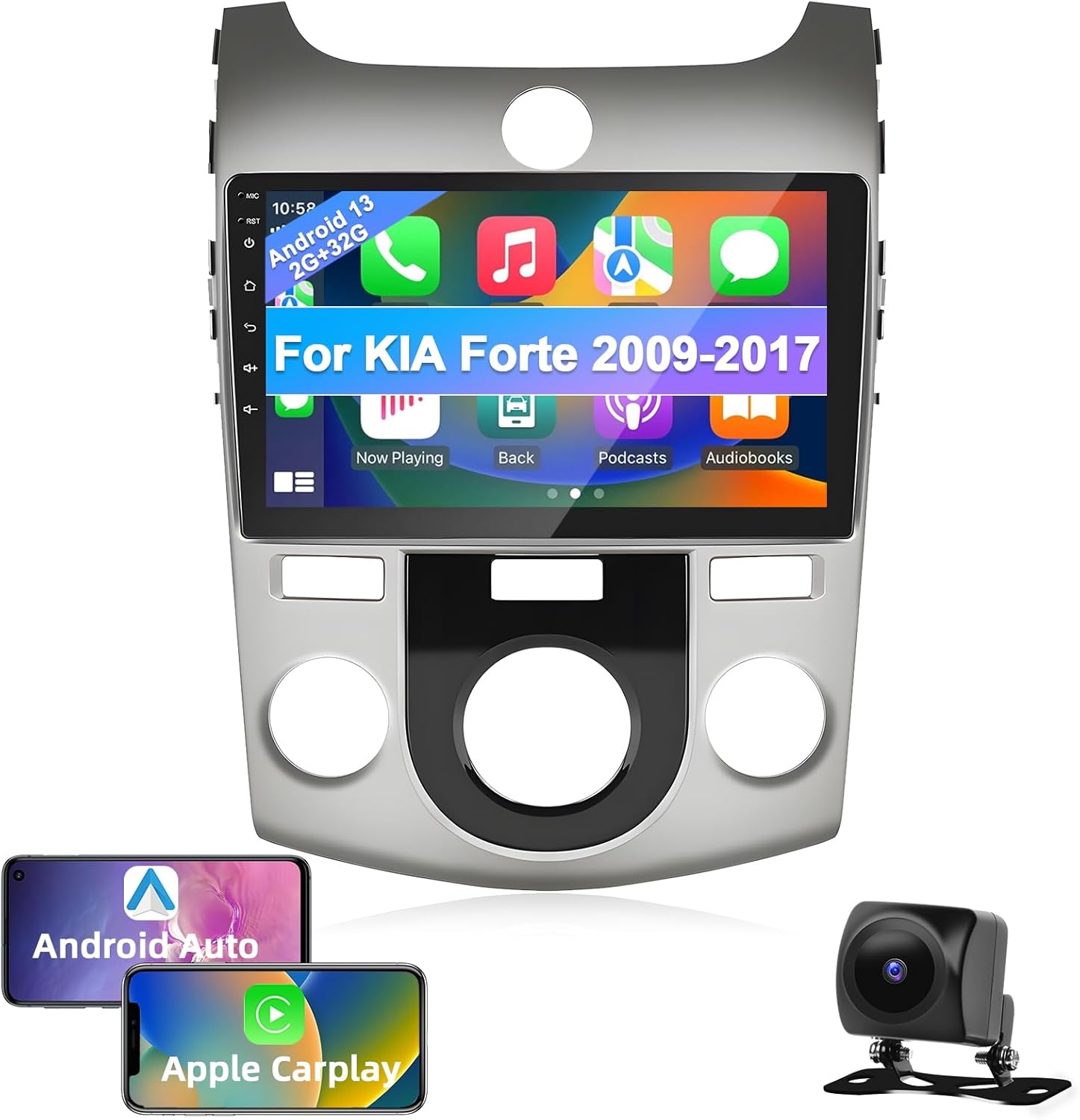
Image: The Podofo Android 13 Car Stereo unit, featuring a 9-inch display integrated into a silver trim panel, designed for KIA Forte 2009-2017 models. Also shown are icons for Android Auto and Apple CarPlay, and a backup camera.
The Podofo Car Stereo is equipped with the latest Android 13.0 system, a 9-inch capacitive 2.5D HD touchscreen, 4-core processor, and 2GB RAM with 32GB internal storage. It is specifically designed to fit KIA Forte vehicles manufactured between 2009 and 2017.

Image: A comparison showing the car's dashboard before and after the installation of the Podofo car stereo, highlighting the seamless integration and larger screen.
Important Compatibility Note: Before purchasing and installing, please verify the year, size, and shape of your vehicle's center console. If unsure, consult with a professional or contact Podofo customer support with a picture of your center console.

Image: A diagram illustrating different KIA Forte center console models, indicating which specific model (Model 1) is compatible with this stereo unit.
3. Key Features
- Wireless/Wired Apple CarPlay & Android Auto: Seamlessly integrate your smartphone for navigation, calls, messages, and music.
- Bluetooth 4.2 & Steering Wheel Control (SWC): Enjoy hands-free calling, music streaming, and convenient control via your vehicle's steering wheel buttons.
- Wi-Fi & Mirror Link: Connect to Wi-Fi for online content and mirror your smartphone screen directly onto the stereo display.
- AHD Reversing Camera Support: Enhance parking safety with clear rear view display, even in low light or adverse weather conditions.
- FM/RDS Radio: Access 18 preset stations with RDS functionality for station information.
- 26 Built-in UI Desktop Themes: Customize your interface with a variety of pre-installed themes.
4. Installation Guide
4.1 Included Components
Before beginning installation, ensure all components are present:

Image: A visual representation of the stereo unit's dimensions (245mm x 315mm) and the various included accessories: Power Cable, USB Cable, Installation Tool, Rear Camera, AHD camera, GPS Antenna, and RCA Cable.
- Main Stereo Unit
- Power Cable
- USB Cable
- Installation Tool
- Rear Camera (if included in package)
- AHD Camera (if included in package)
- GPS Antenna
- RCA Cable
- User Manual (this document)
4.2 Basic Wiring Connections
Refer to the following diagrams for essential wiring connections. Professional installation is recommended.

Image: A detailed diagram showing the various input/output ports on the back of the stereo unit, including connections for power, RCA cables, USB, camera input, and GPS antenna.
4.3 Backup Camera Wiring
To enable the AHD reversing camera function, connect the camera as follows:

Image: A clear diagram illustrating how to connect the backup camera. It shows connecting the red cable to the positive pole of the car's reversing light and the black cable to the negative pole. The other two red extension cables are not needed.
- Red Cable: Connect to the positive pole of the car's reversing light cable.
- Black Cable: Connect to the negative pole of the car's reversing light cable (GND).
- The two additional red extension cables (if present) are typically not required for standard installation.
5. Operating Instructions
5.1 Wireless Apple CarPlay & Android Auto
Connect your compatible iPhone or Android smartphone wirelessly or via USB to access navigation, communication, and entertainment apps directly on the stereo screen. Voice control is supported for hands-free operation.

Image: The car stereo display showing the Apple CarPlay and Android Auto interfaces, with icons for various compatible applications and a smartphone demonstrating wireless connectivity.
5.2 Bluetooth Connectivity
Pair your mobile phone via Bluetooth 4.2 for hands-free calling, audio streaming, and automatic phonebook synchronization. Adjust EQ settings to customize your audio experience.

Image: The car stereo display showing the Bluetooth connection screen, with options for hands-free calls and music playback, alongside a smartphone connected via Bluetooth.
5.3 Wi-Fi & Mirror Link
Connect the stereo to a Wi-Fi network or mobile hotspot to access online content such as Google Maps, YouTube, and other streaming services. Mirror Link allows you to project your smartphone screen onto the stereo for a larger display.

Image: A collage demonstrating four key features: Wi-Fi connectivity with social media apps, Mirror Link showing a phone screen mirrored, Steering Wheel Control buttons, and the Bluetooth pairing interface.
5.4 FM/RDS Radio
Tune into your favorite FM radio stations. The Radio Data System (RDS) displays additional information such as station name, program type, and current time where available.

Image: The car stereo display showing the FM radio interface with frequency tuning and preset station options, along with a visual equalizer.
5.5 Navigation
The unit supports both online and offline navigation. Use online maps via Wi-Fi or download offline maps from the Play Store for navigation without an internet connection.

Image: Two screenshots of the car stereo display, one showing an online navigation map with real-time traffic and points of interest, and the other showing an offline navigation route with turn-by-turn directions.
5.6 Steering Wheel Control (SWC) Learning
After installation, you may need to configure your vehicle's steering wheel controls. Navigate to "Settings" -> "Factory Setup" and enter password "1234" to access "Party Control Learning" (or similar setting) to map your steering wheel buttons.

Image: The car stereo display showing the steering wheel control learning interface, with a diagram indicating where to connect the SWC wires and a note about the setup process.
5.7 Split Screen Functionality
The stereo supports split-screen mode, allowing you to run two applications simultaneously, such as navigation and music playback.

Image: The car stereo display showing the split-screen feature, with a navigation app on one side and a video playback app on the other, demonstrating multitasking capabilities.
5.8 UI Desktop Themes
Personalize your stereo's interface by choosing from 26 different built-in UI desktop themes. These can be switched freely without an internet connection.

Image: A collage showcasing several different user interface desktop themes available on the Podofo car stereo, demonstrating the variety of visual styles users can choose from.
6. Maintenance
To ensure the longevity and optimal performance of your Podofo car stereo, follow these maintenance guidelines:
- Cleaning: Use a soft, dry cloth to clean the touchscreen and unit exterior. For stubborn smudges, slightly dampen the cloth with water. Avoid using harsh chemicals, abrasive cleaners, or solvents.
- Temperature: Avoid exposing the unit to extreme temperatures, both hot and cold, for extended periods.
- Ventilation: Ensure the unit's ventilation areas are not blocked to prevent overheating.
- Software Updates: Periodically check for and install any available software or firmware updates to improve performance and add new features.
7. Troubleshooting
If you encounter issues with your Podofo car stereo, refer to the following common problems and solutions:
| Problem | Possible Solution |
|---|---|
| No Power | Check power cable connections. Ensure vehicle's ignition is on. Check vehicle's fuse box. |
| No Sound | Check speaker wiring. Verify volume level. Ensure audio source is selected correctly. |
| Bluetooth Not Connecting | Ensure Bluetooth is enabled on both the stereo and your phone. Delete previous pairings and re-pair. Restart both devices. |
| GPS Signal Lost/Inaccurate | Ensure GPS antenna is properly connected and has a clear view of the sky. Move vehicle to an open area. |
| Backup Camera Not Displaying | Check camera wiring, especially the reverse trigger wire. Ensure camera is powered. Verify camera input settings on the stereo. |
| Steering Wheel Controls Not Working | Perform SWC learning process as described in Section 5.6. Check SWC wiring connections. |
For persistent issues or problems not listed here, please contact Podofo customer support.
8. Specifications
| Feature | Detail |
|---|---|
| Brand | podofo |
| Model Name | RM |
| Operating System | Android 13.0 |
| Memory | 2GB RAM + 32GB ROM |
| Display Size | 9 Inches |
| Display Type | Capacitive 2.5D HD Touchscreen |
| Connectivity Technology | Bluetooth 4.2, Wi-Fi |
| Special Features | Wireless Apple CarPlay, Android Auto, Mirror Link, FM/RDS Radio, AHD Reversing Camera Support, 26 UI Themes, Split Screen |
| Map Type Support | North America, Worldwide (Online/Offline) |
| Audio Output Mode | Stereo |
| Mounting Type | Dashboard Mount, Panel Mount |
| Item Weight | 3.28 pounds |
| Package Dimensions | 14.13 x 11.14 x 4.09 inches |
9. Warranty and Support
Your Podofo Car Stereo comes with a 2-Year Warranty from the date of purchase, covering manufacturing defects and malfunctions under normal use.
Podofo is committed to providing friendly and professional customer service and technical support. If you have any questions, require assistance with installation, operation, or troubleshooting, please do not hesitate to contact our professional technical team. We aim to reply to all inquiries within 24 hours.
For support, please refer to the contact information provided with your product packaging or visit the official Podofo website.
Ask a question about this manual
Ask about setup, troubleshooting, compatibility, parts, safety, or missing instructions. Manuals+ will review the question and use this page’s manual context to help answer it.