
1. Introduction
This manual provides detailed instructions for the installation, operation, and maintenance of your Easegain E27-3MP 3MP Light Bulb Security Camera. Please read this manual thoroughly before using the product to ensure proper function and safety. This camera is designed for both indoor and outdoor surveillance, offering 360-degree coverage, motion detection, and intelligent night vision.
2. Safety Information
- Ensure the power supply is off before installation or maintenance.
- Install the camera in a stable E27 bulb base.
- Do not expose the camera to extreme temperatures, humidity, or direct water immersion.
- Keep the device out of reach of children.
- Use only authorized accessories and power adapters.
3. Package Contents
- Easegain E27-3MP Light Bulb Security Camera
- User Manual
- Mounting Accessories (if applicable)
4. Product Overview
The Easegain E27-3MP camera integrates a 3MP HD camera with a standard E27 light bulb form factor, allowing for easy installation into existing light sockets. It features a rotating lens for 360-degree coverage, infrared and color night vision, two-way audio, and motion detection capabilities.

Image: Front view of the Easegain E27-3MP Light Bulb Security Camera, highlighting its pan and tilt capabilities for 360-degree coverage.
5. Setup
5.1. Installation
- Ensure the power to the E27 light socket is turned off.
- Screw the Easegain E27-3MP camera into a standard E27 bulb base.
- Turn on the power to the light socket. The camera will power on and initiate its startup sequence.

Image: A close-up of the Easegain E27-3MP camera being screwed into a standard E27 light bulb socket.
5.2. App Download and Wi-Fi Connection
- Download the companion app (e.g., YCC365 Plus) from your mobile device's app store (iOS or Android).
- Register for an account and log in.
- Tap the '+' icon to add a new device. Select 'Intelligent Camera' or similar option.
- Follow the on-screen prompts to connect the camera to your 2.4GHz or 5GHz Wi-Fi network. You will typically input your Wi-Fi password and then scan a QR code generated by the app with the camera's lens.
- Once connected, the app will confirm 'Addition success!' and prompt you to name the device (e.g., 'Living Room', 'Shop').
Video: Demonstrates the process of connecting the Easegain E27-3MP camera to the mobile application via QR code scanning for Wi-Fi setup.
6. Operating the Camera
6.1. Live View and Pan/Tilt Control
After successful setup, you can access the live video feed from your camera through the app. Use the on-screen controls to pan (horizontal rotation) and tilt (vertical movement) the camera lens to achieve a 360-degree view without blind spots.

Image: Illustrates the 360-degree smart camera functionality and app controls for viewing.
6.2. Night Vision Modes
The camera supports intelligent night vision, offering both ordinary infrared night vision and full-color night vision. You can switch between these modes via the app settings to suit your monitoring needs.

Image: A side-by-side comparison showing the clarity of full-color night vision versus infrared night vision.
6.3. Motion Detection and Alerts
Equipped with a highly sensitive motion sensor, the camera can detect moving objects. When motion is detected, it will record the event and send real-time alerts to your mobile application. You can also set custom activity zones to focus on specific areas.
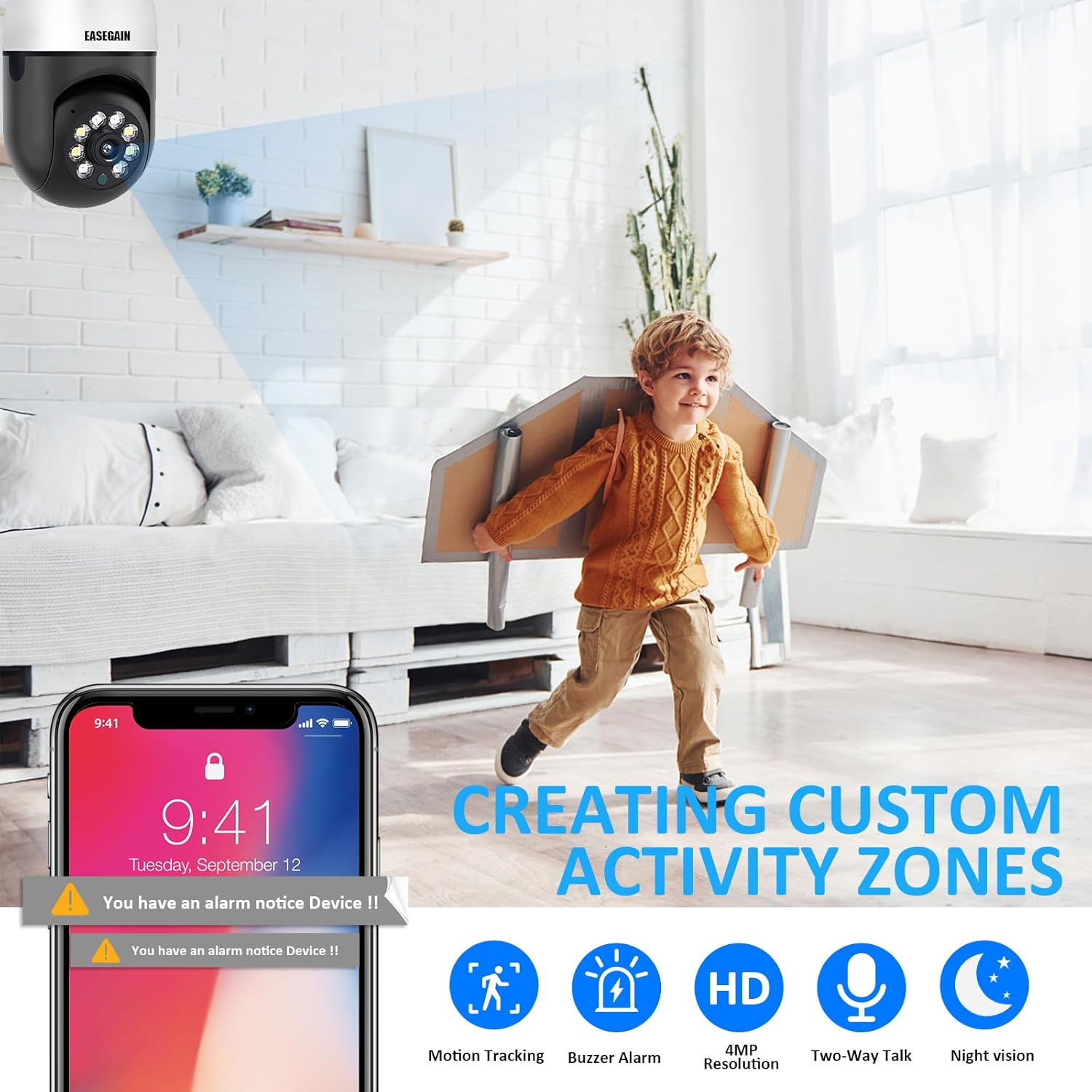
Image: Depicts the camera's motion detection feature, showing an alert notification on a smartphone and the concept of creating custom activity zones.
6.4. Two-Way Audio
The camera features a built-in microphone and speaker, enabling two-way communication. You can listen to the environment around the camera and speak through the camera using the app.
6.5. Recording and Storage
The camera supports cloud storage for recorded footage. Additionally, it can record to a local SD card (not included). Ensure a compatible SD card is inserted for local storage options.
7. Maintenance
7.1. Cleaning
To maintain optimal image quality, regularly clean the camera lens with a soft, dry cloth. Do not use harsh chemicals or abrasive materials.
7.2. Firmware Updates
Periodically check the app for available firmware updates. Keeping your camera's firmware up-to-date ensures optimal performance, security, and access to new features.
8. Troubleshooting
- Camera not connecting to Wi-Fi: Ensure your Wi-Fi network is 2.4GHz or 5GHz and the password is correct. Place the camera within range of your router.
- No video feed: Check the camera's power supply and Wi-Fi connection. Restart the camera and the app.
- Motion alerts not received: Verify app notification settings are enabled on your phone and within the camera's app settings.
- Poor image quality: Clean the camera lens. Ensure adequate lighting for optimal night vision performance.
9. Specifications
| Feature | Specification |
|---|---|
| Model Number | E27-3MP |
| Video Capture Resolution | 3MP (2K) |
| Connectivity Technology | Wi-Fi (2.4GHz & 5GHz) |
| Power Source | E27 Bulb Base |
| Mounting Type | Ceiling Mount |
| Special Feature | 360-degree Pan/Tilt, Motion Detection, Night Vision |
| Indoor/Outdoor Usage | Indoor, Outdoor |
| Control Method | App |
| Item Weight | 1.06 pounds |
10. Warranty and Support
Easegain provides a three-month warranty for this product. For technical support, troubleshooting assistance, or any questions regarding your camera, please contact our customer service. We offer 24-hour fast response technical support to ensure your satisfaction.