
1. Introduction
This manual provides detailed instructions for the setup, operation, and maintenance of your iClever BK50 Compact Bluetooth Keyboard. Please read this manual thoroughly before using the product to ensure optimal performance and longevity.
2. What's in the Box
- iClever BK50 Bluetooth Keyboard
- USB Cable
- User Manual
3. Product Overview
Familiarize yourself with the layout and key features of your iClever BK50 keyboard.

Image: The iClever BK50 Compact Bluetooth Keyboard, showcasing its full layout.
Key Features:
- Compact 78-key Layout: Designed for portability without sacrificing essential keys.
- Scissor-Switch Keys: Provides a quiet and comfortable typing experience.
- Multi-Device Connectivity: Connects to up to 3 Bluetooth devices simultaneously.
- Universal Compatibility: Supports iOS/macOS, Android, and Windows operating systems.
- USB-C Rechargeable Battery: Built-in 180 mAh battery for extended use.
4. Setup Instructions
4.1 Charging the Keyboard
Before initial use, fully charge your iClever BK50 keyboard.
- Locate the USB-C charging port on the side of the keyboard.
- Connect the provided USB-C cable to the keyboard and the other end to a USB power source (e.g., computer, wall adapter).
- The charging indicator light will illuminate. Once fully charged (approximately 2 hours), the light will change or turn off.
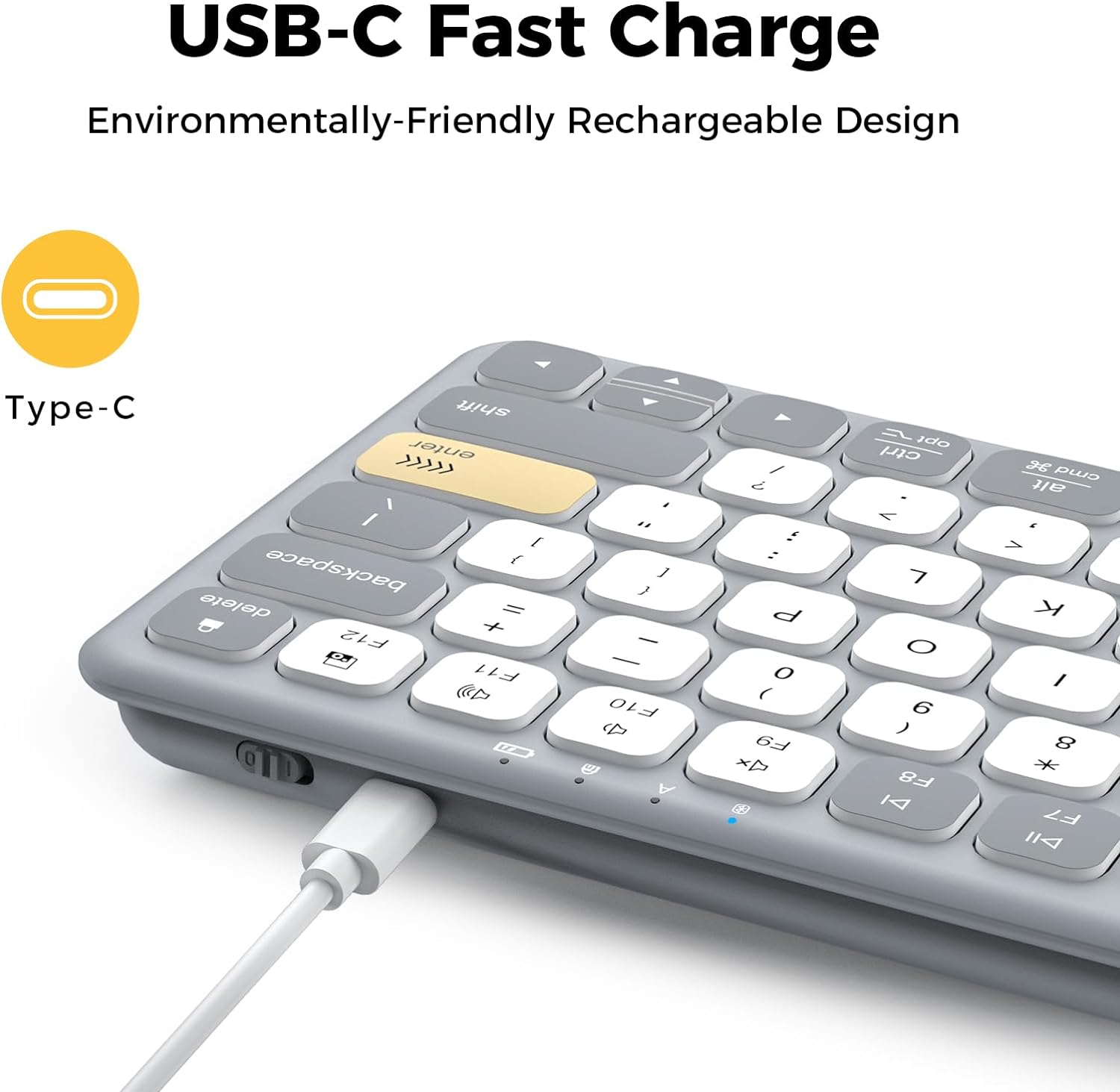
Image: Close-up of the iClever BK50 keyboard's USB-C charging port with a cable connected, illustrating the charging process.
A full charge provides up to a month of use, depending on usage patterns.
4.2 Pairing with Devices
The iClever BK50 keyboard can connect to up to three Bluetooth devices simultaneously.
- Turn on the keyboard using the power switch located on the side.
- Press and hold the Fn key, then press one of the Bluetooth channel keys (Q, W, or E) for 3-5 seconds until the corresponding indicator light flashes rapidly. This indicates the keyboard is in pairing mode.
- On your device (tablet, iPad, iPhone, Windows PC, Android device), navigate to its Bluetooth settings.
- Search for available Bluetooth devices and select "iClever BK50" from the list.
- If prompted, enter the pairing code displayed on your device using the iClever BK50 keyboard and press Enter.
- Once connected, the indicator light for the selected channel will stop flashing and remain solid for a few seconds before turning off.

Image: The iClever BK50 keyboard shown connected to a laptop, tablet, and smartphone, demonstrating its multi-device pairing capability.

Image: The iClever BK50 keyboard displayed with icons representing iOS/macOS, Android, and Windows, indicating its broad operating system compatibility.
5. Operating Instructions
5.1 Power On/Off
- To turn on the keyboard, slide the power switch to the 'ON' position.
- To turn off the keyboard, slide the power switch to the 'OFF' position.
5.2 Switching Between Devices
Once paired with multiple devices, you can switch between them instantly:
- Press Fn + Q to switch to Device 1.
- Press Fn + W to switch to Device 2.
- Press Fn + E to switch to Device 3.
5.3 Function Keys and Media Controls
The top row of keys (F1-F12) on the iClever BK50 keyboard serves dual functions. By default, they may act as standard function keys or media control keys, depending on your operating system and settings.
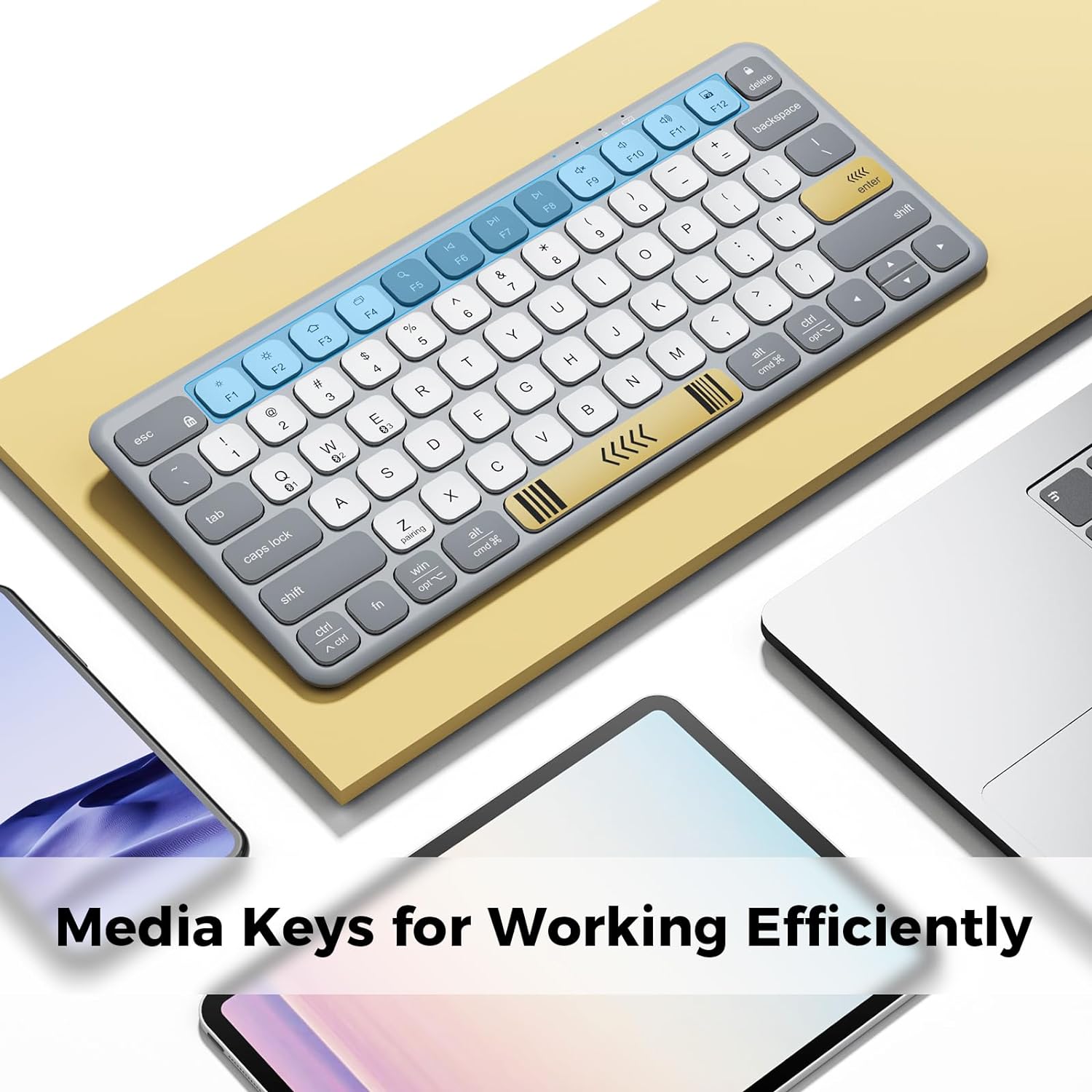
Image: The iClever BK50 keyboard with the F-keys highlighted, indicating their role as media control keys for efficient operation.
- To access the secondary function (e.g., media controls, brightness, volume), press the Fn key simultaneously with the desired F-key.
- The keyboard automatically detects and adapts to your device's operating system, mapping keys to a familiar layout and enabling OS-specific shortcuts.
5.4 Typing Experience
The iClever BK50 features scissor-switch keys designed for a quiet and comfortable typing experience, similar to a laptop keyboard.

Image: A close-up view of the iClever BK50 keyboard, emphasizing its laptop-style keys and comfortable, silent typing design.

Image: A person's hands typing on the iClever BK50 keyboard, demonstrating its use in a typical work setting.
6. Maintenance
Proper care ensures the longevity and performance of your keyboard.
- Cleaning: Use a soft, lint-free cloth slightly dampened with water or a mild cleaning solution to wipe the surface of the keyboard. Avoid excessive moisture. Do not spray cleaners directly onto the keyboard.
- Dust Removal: Use compressed air to remove dust and debris from between the keys.
- Storage: When not in use for extended periods, store the keyboard in a cool, dry place. Avoid extreme temperatures and direct sunlight.
- Battery Care: To maintain battery health, avoid fully discharging the keyboard frequently. Recharge it when the low battery indicator appears.
7. Troubleshooting
If you encounter issues with your iClever BK50 keyboard, refer to the following common solutions:
7.1 Keyboard Not Connecting/Pairing
- Ensure Keyboard is On: Verify the power switch is in the 'ON' position.
- Check Battery: Ensure the keyboard has sufficient charge. Recharge if necessary.
- Re-enter Pairing Mode: Press and hold Fn + Q/W/E for 3-5 seconds until the indicator flashes.
- Device Bluetooth: Make sure Bluetooth is enabled on your device and it's discoverable.
- Forget Device: If previously paired, try 'forgetting' or 'removing' the keyboard from your device's Bluetooth list and then re-pair.
- Restart Devices: Restart both the keyboard and your connecting device.
7.2 Missed Keystrokes or Lag
- Distance: Ensure the keyboard is within the effective range of your Bluetooth device (typically up to 10 meters).
- Interference: Move away from other wireless devices or strong electromagnetic fields that might cause interference.
- Battery Level: Low battery can affect performance. Charge the keyboard.
- Reconnection Latency: After the keyboard enters auto-sleep mode (30 minutes of inactivity), there might be a slight delay when reconnecting. Ensure all keystrokes register after the connection is re-established.
7.3 Battery Drains Quickly
- Usage: Heavy usage, especially continuous typing, will consume battery faster.
- Charging Cycle: Ensure the keyboard is fully charged each time.
- Auto-Sleep: The keyboard has a 30-minute auto-sleep feature to conserve power. Ensure it's activating when idle.
8. Specifications
| Feature | Detail |
|---|---|
| Product Dimensions | 11.73 x 5.16 x 0.83 inches |
| Item Weight | 15.5 ounces |
| Connectivity Technology | Bluetooth 5.1 (wireless only, no USB receiver, no wired mode) |
| Compatible Devices | Windows PC (Win 8 +), macOS 10.15 +, iPadOS 13 +, iOS 13 +, Android 8 +, ChromeOS laptops/tablets |
| Battery | USB-C rechargeable 180 mAh battery (approx. 2h charge) |
| Special Features | ≤ 50dB quiet keys, 30min auto-sleep, 3-device switch |
| Keyboard Description | Compact 78-key Bluetooth Keyboard, Non-Backlit, US QWERTY |
9. Warranty and Support
iClever products are designed for reliability and performance. For information regarding warranty coverage, please refer to the warranty card included with your product or visit the official iClever website.
If you require technical assistance or have questions not covered in this manual, please contact iClever customer support through their official channels. Details can typically be found on the iClever website or on the product packaging.


