
OCS-1778E2BEA94999CB7252C4F516D0424C
Occus K11 Bluetooth Radio Alarm Clock Speaker User Manual
Model: K11 (OCS-1778E2BEA94999CB7252C4F516D0424C) | Brand: Generic
Product Overview
The Occus K11 is a versatile digital alarm clock speaker designed for home use, featuring Bluetooth 4.2 connectivity, an LED display, FM radio, and two USB charging ports. It also includes a hands-free calling function and a mirror LED display.
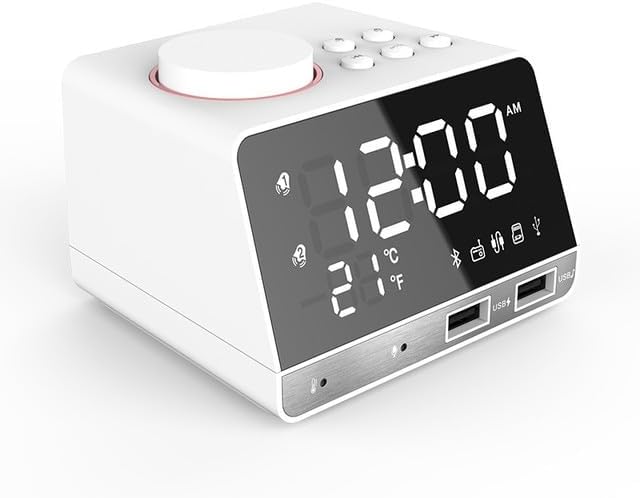
Image: Front view of the white Occus K11 Bluetooth Radio Alarm Clock Speaker, showing the digital time display, temperature, and various icons for Bluetooth, alarm, and USB ports.

Image: Two Occus K11 units, one white and one black, displayed side-by-side, highlighting the available color options.
Setup Guide
Package Contents
Please ensure all items are present in the package:
- Occus K11 Alarm Clock Speaker
- Power Adapter (EU Type for this model)
- User Manual (this document)
Power Connection
To power on the device:
- Locate the power input port on the back or side of the Occus K11.
- Connect the provided power adapter to the device.
- Plug the power adapter into a standard electrical outlet. The display should illuminate.
Initial Time Setting
Upon first power-on or after a power interruption, you may need to set the current time. Refer to the "Time and Alarm Settings" section for detailed instructions.
Operating Instructions
Basic Controls
The Occus K11 features a large rotary button and several smaller buttons on the top panel for various functions. Familiarize yourself with these controls:
- Large Rotary Button: Typically used for volume control, navigating menus, and confirming selections. Pressing it may activate snooze or confirm settings.
- Smaller Buttons: These buttons control functions such as mode selection (FM, Bluetooth), alarm settings, play/pause, track skipping, and hands-free call management. Specific functions are detailed below.
Time and Alarm Settings
The device supports smart dual alarms. You can set alarms with a buzzer, FM radio, or TF card music as the alarm source.

Image: Diagram illustrating the smart dual alarm clock features, including alarm source modes (FM radio, buzzer, Micro SD) and how to turn off the alarm.
- Setting Time: Press the "Time Set" button (if available, or refer to specific button labels on your device) to enter time setting mode. Use the rotary button or arrow buttons to adjust hours and minutes. Press the "Time Set" button again to confirm.
- Setting Alarm: Press the "Alarm Set" button. Select Alarm 1 or Alarm 2. Adjust the alarm time using the rotary button or arrow buttons. Choose your desired alarm source (Buzzer, FM, or TF card music). Confirm the settings.
- Snooze Function: When the alarm sounds, press the large rotary button to activate the snooze function. The alarm will sound again after 5 minutes.
- Turning Off Alarm: Long press the "Alarm Set" button or a dedicated "Alarm Off" button to deactivate the alarm mode.
FM Radio Function
To use the built-in FM radio:
- Press the "Mode" button until "FM" mode is displayed.
- Use the rotary button or dedicated tuning buttons to scan for radio stations.
- Adjust the volume using the rotary button.
Bluetooth Connectivity
Pair your mobile device with the Occus K11 for audio streaming:
- Press the "Mode" button until "Bluetooth" mode is displayed (indicated by a Bluetooth icon on the screen).
- On your mobile device, enable Bluetooth and search for available devices.
- Select "Occus K11" (or similar name) from the list of devices.
- Once paired, you can play audio from your device through the speaker.
USB Charging Ports
The Occus K11 is equipped with two USB ports for charging your external devices.
- Connect your device's USB charging cable to one of the USB ports on the front of the alarm clock.
- Ensure the alarm clock is powered on for charging to occur.
Hands-Free Calling
When connected via Bluetooth, you can use the Occus K11 for hands-free calls:
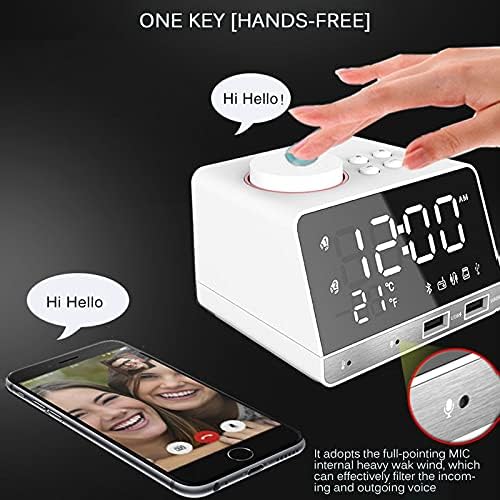
Image: Illustration of the one-key hands-free calling feature, showing a hand pressing the top button and a phone displaying a video call, with a magnified view of the built-in microphone.
- When a call comes in, press the dedicated "Call" button (often the large rotary button or a specific phone icon button) to answer.
- The built-in microphone will pick up your voice, and the speaker will output the caller's voice.
- Press the "Call" button again to end the call.
Display Brightness Adjustment
Adjust the LED display brightness to suit your preference, especially for nighttime use.
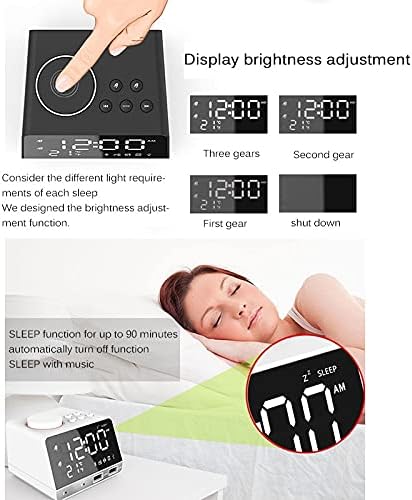
Image: Visual representation of the display brightness adjustment settings (three gears, second gear, first gear, and shut down) and the sleep function with a sleeping person and the clock displaying "SLEEP".
- Locate the "Dimmer" or "Brightness" button.
- Press it repeatedly to cycle through different brightness levels (e.g., Three gears, Second gear, First gear, Shut down).
Sleep Function
The sleep function allows the device to automatically turn off after a set period, useful for falling asleep to music.
- Activate the sleep function by pressing the "Sleep" button (if available).
- Cycle through the available sleep timer durations (e.g., up to 90 minutes). The device will automatically turn off after the selected time.
Mirror LED Display
The front LED display surface can also function as a mirror.

Image: A person applying lipstick, reflected in the mirror-like surface of the Occus K11's LED display, demonstrating its dual functionality.
- This feature is integrated into the display design.
- When the display is off or at its lowest brightness setting, the reflective surface becomes more prominent.
Maintenance
Cleaning
- Disconnect the power adapter before cleaning.
- Use a soft, dry cloth to wipe the exterior of the device.
- For stubborn marks, slightly dampen the cloth with water. Avoid using abrasive cleaners, solvents, or strong chemicals, as they may damage the surface.
- Do not immerse the device in water or expose it to excessive moisture.
Storage
- Store the device in a cool, dry place away from direct sunlight and extreme temperatures.
- If storing for an extended period, disconnect it from power.
Troubleshooting
| Problem | Possible Cause | Solution |
|---|---|---|
| Device does not power on. | Power adapter not connected or faulty outlet. | Ensure the power adapter is securely plugged into the device and a working electrical outlet. Try a different outlet. |
| Bluetooth not connecting. | Device not in pairing mode; mobile device Bluetooth off; too far from device. | Ensure the alarm clock is in Bluetooth pairing mode. Turn off and on Bluetooth on your mobile device. Move closer to the alarm clock. |
| Alarm does not sound. | Alarm not set correctly; volume too low; alarm turned off. | Verify alarm time and source settings. Increase alarm volume. Ensure alarm mode is active. |
| Radio reception is poor. | Weak signal; interference. | Adjust the position of the device. Extend any built-in antenna if available. Move away from other electronic devices that may cause interference. |
Specifications
| Feature | Detail |
|---|---|
| Brand | Generic |
| Model Number | OCS-1778E2BEA94999CB7252C4F516D0424C (K11) |
| Colour | White EU Type |
| Material | Plastic |
| Style | Digital |
| Power Source | Corded Electric |
| Display Style | Digital |
| Mounting Type | Tabletop |
| Special Features | Radio, Bluetooth 4.2, 2 USB Charging Ports, Hands-Free Calling, Mirror LED Display, Snooze, Sleep Function |
| Batteries Included | No |
| Origin | Mainland China |
Warranty and Support
For warranty information and customer support, please refer to the documentation provided at the time of purchase or contact the seller directly. As this product is listed under the "Generic" brand, specific warranty terms may vary by retailer or region.
Please retain your proof of purchase for any warranty claims.
Ask a question about this manual
Ask about setup, troubleshooting, compatibility, parts, safety, or missing instructions. Manuals+ will review the question and use this page’s manual context to help answer it.