
VBESTLIFE VBESTLIFEr24ads6x8k
VBESTLIFE HD Robot Security Camera User Manual
Model: VBESTLIFEr24ads6x8k
Brand: VBESTLIFE
Introduction
The VBESTLIFE HD Robot Security Camera is an advanced indoor surveillance device designed for comprehensive home monitoring. Featuring a unique robot design, this camera offers remote monitoring capabilities, two-way voice communication, motion detection, and loop recording, making it ideal for keeping an eye on pets, children, or general home security. Its smart features ensure you stay connected and informed about your indoor environment.

Figure 1: VBESTLIFE HD Robot Security Camera in a home setting.
Product Features
- Motion Detection and Tracking: The camera is equipped with motion detection functionality that can identify and track movements of subjects within its field of view, providing real-time alerts and recordings.
- Two-Way Voice Communication: Built-in speaker and noise reduction microphone enable clear two-way voice calls, allowing you to communicate with individuals or pets in the monitored area without delay.
- Remote Monitoring: Supports remote viewing via a dedicated application on Android and iOS devices. Users can view real-time video feeds and authorize multiple users to access the camera feed.
- Loop Recording: The camera supports continuous loop recording, ensuring that surveillance footage is always captured. Older footage is automatically overwritten when the memory card is full.
- Expandable Storage: Supports a memory storage card up to 256GB (not included), allowing for local video storage and playback even without an internet connection.
- Smart Night Vision: Equipped with 4Pcs 3528 patch 940nm night vision lights for effective monitoring in low-light conditions, with a range of approximately 5-8 meters.
- Wireless Connectivity: Utilizes 2.4G WiFi for wireless connection, offering flexibility in placement.
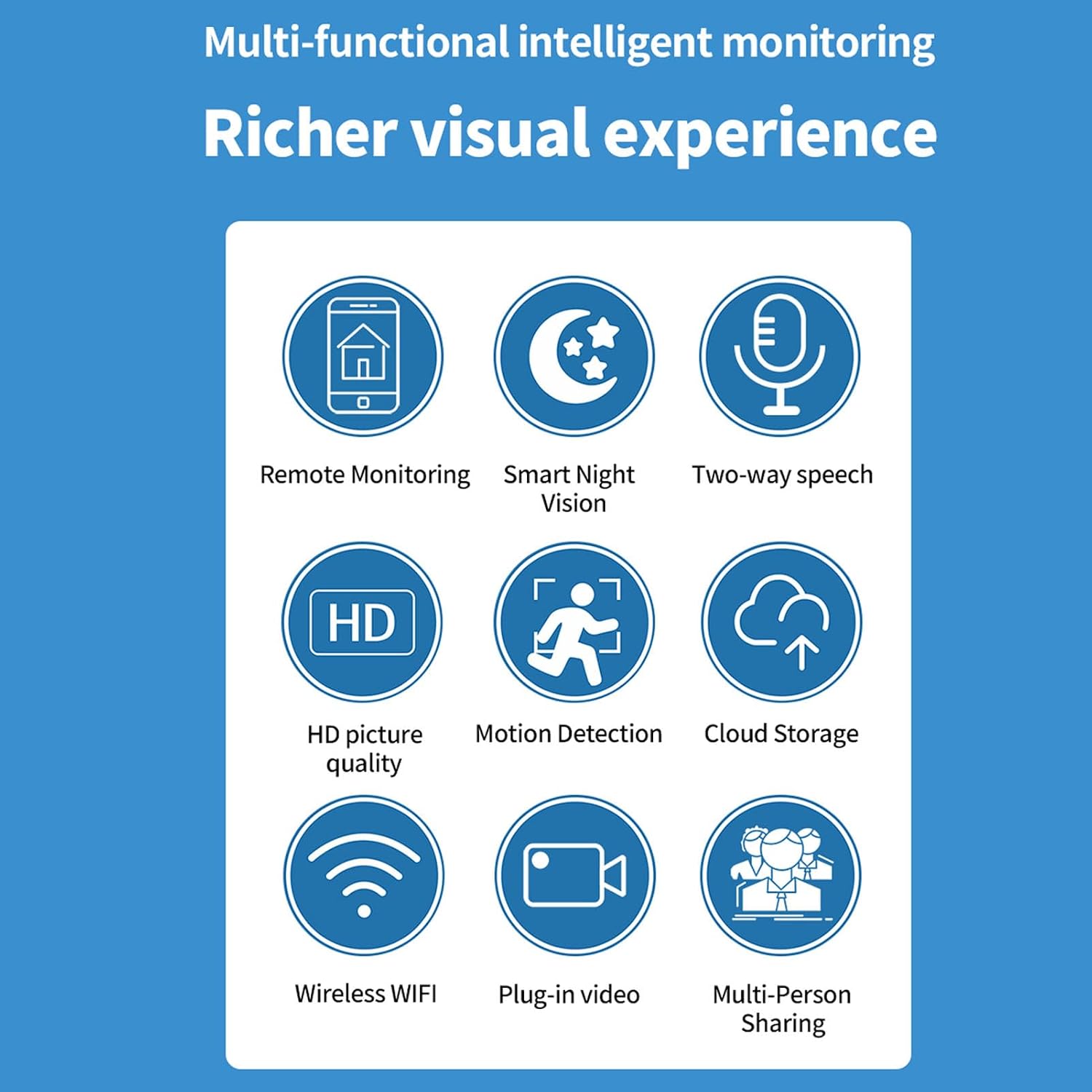
Figure 2: Overview of the camera's multi-functional intelligent monitoring features.
Package Contents
Please check the package contents upon unboxing to ensure all items are present and in good condition.
- 1 x VBESTLIFE HD Robot Security Camera
- 1 x USB Power Cable (Micro USB)
- 1 x User Manual (this document)
- (Memory card not included)

Figure 3: Camera and its power cable.
Setup Guide
1. Powering On the Camera
- Connect the provided USB power cable to the Micro USB port on the back of the camera.
- Plug the other end of the USB cable into a 5V, 1A USB power adapter (not included) and then into a wall outlet.
- The camera will power on and initiate its startup sequence. Wait for the indicator light to show it's ready for pairing (refer to the camera's indicator light guide in the app for specific states).
2. App Installation and Account Creation
- Download the dedicated player application for the camera from your smartphone's app store (compatible with Android and iOS). Search for "VBESTLIFE Camera App" or refer to the QR code on the product packaging if available.
- Install the application on your smartphone.
- Open the app and follow the on-screen instructions to create a new user account or log in if you already have one.
3. Pairing the Camera with the App
- Ensure your smartphone is connected to a 2.4GHz Wi-Fi network. The camera only supports 2.4GHz Wi-Fi.
- In the app, tap on "Add Device" or the "+" icon.
- Select the camera model from the list (if prompted).
- Follow the app's instructions to connect the camera. This typically involves scanning a QR code displayed on your phone with the camera's lens, or entering your Wi-Fi password into the app to generate a sound wave for the camera to pick up.
- Once connected, the camera's indicator light will change, and you will see the camera feed in the app.

Figure 4: Multi-platform monitoring setup.
Operating Instructions
1. Live View and Remote Monitoring
- Open the dedicated app on your smartphone.
- Select the camera from your device list to access the live video feed.
- You can view real-time video from anywhere with an internet connection.
2. Two-Way Voice Communication
- While in live view, locate the microphone icon in the app interface.
- Press and hold the microphone icon to speak. Your voice will be transmitted through the camera's speaker.
- Release the icon to listen. The camera's built-in microphone will pick up sound from the monitored area.

Figure 5: Demonstrating two-way speech functionality.
3. Motion Detection and Alerts
- Navigate to the camera settings within the app.
- Locate the "Motion Detection" or "Alert Settings" option.
- Enable motion detection and configure sensitivity levels as desired.
- You can also set up push notifications to receive alerts on your smartphone when motion is detected.
4. Video Recording and Playback
- To enable continuous recording, ensure a compatible memory card (up to 256GB, not included) is inserted into the camera's memory card slot.
- The camera supports loop recording, automatically overwriting the oldest footage when the card is full.
- To view recorded footage, access the "Playback" or "History" section in the app. You can browse by date and time.
5. Sharing Access
- The app allows you to share camera access with family members or trusted individuals.
- Go to the camera settings and find the "Share Device" or "User Management" option.
- Follow the instructions to invite others to view the camera feed.

Figure 6: Sharing camera access with multiple users.
Maintenance
- Cleaning: Use a soft, dry cloth to clean the camera's exterior. Do not use liquid cleaners or abrasive materials.
- Lens Care: Gently wipe the camera lens with a microfiber cloth specifically designed for optics to avoid scratches.
- Firmware Updates: Regularly check the app for available firmware updates for your camera. Keeping the firmware updated ensures optimal performance and security.
- Placement: Place the camera on a stable, flat surface. Avoid placing it in direct sunlight, near heat sources, or in areas with high humidity.
Troubleshooting
| Problem | Possible Cause | Solution |
|---|---|---|
| Camera not powering on. | Power cable not connected properly; power adapter faulty; power outlet not working. | Ensure the USB cable is securely connected. Try a different USB power adapter (5V, 1A) and a different power outlet. |
| Cannot connect to Wi-Fi. | Incorrect Wi-Fi password; camera too far from router; only 5GHz Wi-Fi available; network interference. | Double-check Wi-Fi password. Move camera closer to the router. Ensure your router broadcasts a 2.4GHz network and your phone is connected to it during setup. Reduce interference from other devices. |
| Video feed is blurry or dark. | Protective film on lens; dirty lens; insufficient lighting; night vision not active. | Remove any protective film from the lens. Clean the lens gently with a microfiber cloth. Ensure adequate lighting or check if night vision is enabled and functioning in low light. |
| Two-way audio not working. | Microphone/speaker muted in app; network latency; app permissions. | Check if the microphone or speaker is muted in the app. Ensure a stable internet connection. Verify app permissions for microphone access on your phone. |
| Motion detection not triggering alerts. | Motion detection disabled; sensitivity too low; app notifications disabled. | Enable motion detection in app settings. Increase sensitivity. Check phone settings to ensure the app has permission to send notifications. |
Specifications
| Attribute | Detail |
|---|---|
| Model Name | VBESTLIFEr24ads6x8k |
| Effective Pixel | 1MP |
| Sensor Model | SC1346, JX6401D3L1, IRCUT |
| Lens Focal Length | 3.92mm |
| Lens Aperture | F2.4 |
| Video Capture Resolution | 1280 x 720 (720p) |
| Video Frame Rate | 15-20 FPS (Daytime, Night Vision, HD, Universal) |
| Encoding | H.264 |
| Video Angle (Diagonal) | 107° |
| Effective Night Vision Distance | Approx. 5-8 meters / 16.4-26.2ft |
| Number of Night Vision Lights | 4Pcs 3528 patch 940nm |
| Wireless Communication Technology | Wi-Fi (2.4G Fixed Frequency) |
| WiFi Connection Distance | ≥ 30 meters (open and unobstructed) |
| Point to Point Distance | ≥ 30 meters (open and unobstructed) |
| Loop Recording Function | Yes |
| Pickup Distance (Microphone) | Approx. 3-5 meters / 9.8-16.4ft |
| Speaker | 8Ω, 0.5W Speaker |
| USB Port | Micro USB |
| Charging Requirement (Rated Voltage Current) | 5V, 1A |
| Support System and Player | Dedicated Player (App for Android and iOS) |
| Memory Card Capacity | Up to 256GB (not included) |
| Operating Temperature | 5-40℃ |
| Operating Humidity | Relative 45%-85% |
| Item Weight | 4.6 ounces |
| Package Dimensions | 5 x 3.46 x 3.07 inches |
| Manufacturer | VBESTLIFE |
| Country of Origin | China |
Warranty and Support
For warranty information and technical support, please refer to the official VBESTLIFE website or contact their customer service directly. Details may be available on the product packaging or through the dedicated mobile application.
Manufacturer: VBESTLIFE
Model: VBESTLIFEr24ads6x8k
ASIN: B0CB1RZNJM
Ask a question about this manual
Ask about setup, troubleshooting, compatibility, parts, safety, or missing instructions. Manuals+ will review the question and use this page’s manual context to help answer it.