
SIXWIN B0CB16N1QZ
SIXWIN Canbus Module Instruction Manual
For 2016-2020 Honda Civic Android Car Radio Integration
1. Introduction
This manual provides detailed instructions for the installation and setup of the SIXWIN Canbus module (Model: B0CB16N1QZ), designed to integrate with an Android car radio in 2016-2020 Honda Civic vehicles. The Canbus module enables the retention of factory features such as the backup camera and steering wheel controls when upgrading to an aftermarket Android head unit.
Important Note:
This Canbus module (B0CB16N1QZ) is intended to be used in conjunction with a compatible wiring harness (e.g., B0CB14L5RV) and an Android car radio. Please ensure you have all necessary components before beginning installation.
2. Safety Information
- Always disconnect the vehicle's battery before performing any electrical work to prevent short circuits and electrical damage.
- If you are unsure about any step of the installation process, consult a qualified professional.
- Ensure all connections are secure to prevent intermittent operation or damage.
- Do not connect the power cord interface directly to the Canbus interface, as this can cause a short circuit.
3. Package Contents
Verify that all items are present in your package:
- SIXWIN Canbus Module (B0CB16N1QZ)
- Associated wiring (20-pin and 8-pin Canbus interfaces)

Image: The SIXWIN Canbus module, a compact black box with connectors, which is the primary component of this product.
Note: A compatible wiring harness (e.g., B0CB14L5RV) and Android car radio are sold separately.
4. Installation and Setup
4.1 Identifying Your Car's Compatibility
The SIXWIN Canbus module is designed for 2016-2020 Honda Civic models. To confirm compatibility and the need for this module and a harness, compare your car's center console with the images below.

Image: Examples of Honda Civic center consoles. If your car's center console resembles these, a harness and Canbus module are likely required for an Android head unit installation.
4.2 Wiring Connections Overview
The following diagram illustrates the general wiring connections for the Canbus module with an Android car radio and associated components.

Image: Comprehensive wiring diagram showing connections for the Canbus box, GPS antenna, USB cables, and various audio/video inputs (RCAM, CCD AVIN, AUX) to the Android head unit and the original car interface.
Critical Warning:
Do not connect the power cord interface directly to the Canbus interface. This can cause a short circuit. The Canbus module system involves both 20-pin and 8-pin interfaces that must be connected correctly.
4.3 Identifying Canbus Plugs on the Wiring Harness
Before connecting the Canbus box, familiarize yourself with the various plugs on your wiring harness. The Canbus module system involves specific 20-pin and 8-pin plugs for proper integration.

Image: A detailed view of the wiring harness, highlighting the 20-pin Canbus plug, 8-pin Canbus plug (labeled 'Connect to host'), and other connections such as the 16-pin power cable, parking brake, and key inputs.
4.4 Connecting the Canbus Box and Harness
Follow these steps to connect the Canbus box and integrate the harness:
Connect the 20-pin Canbus Plug to the Canbus Box: Locate the 20-pin CAN plug from your wiring harness. Insert this plug into the corresponding 20-pin socket on the Canbus box.
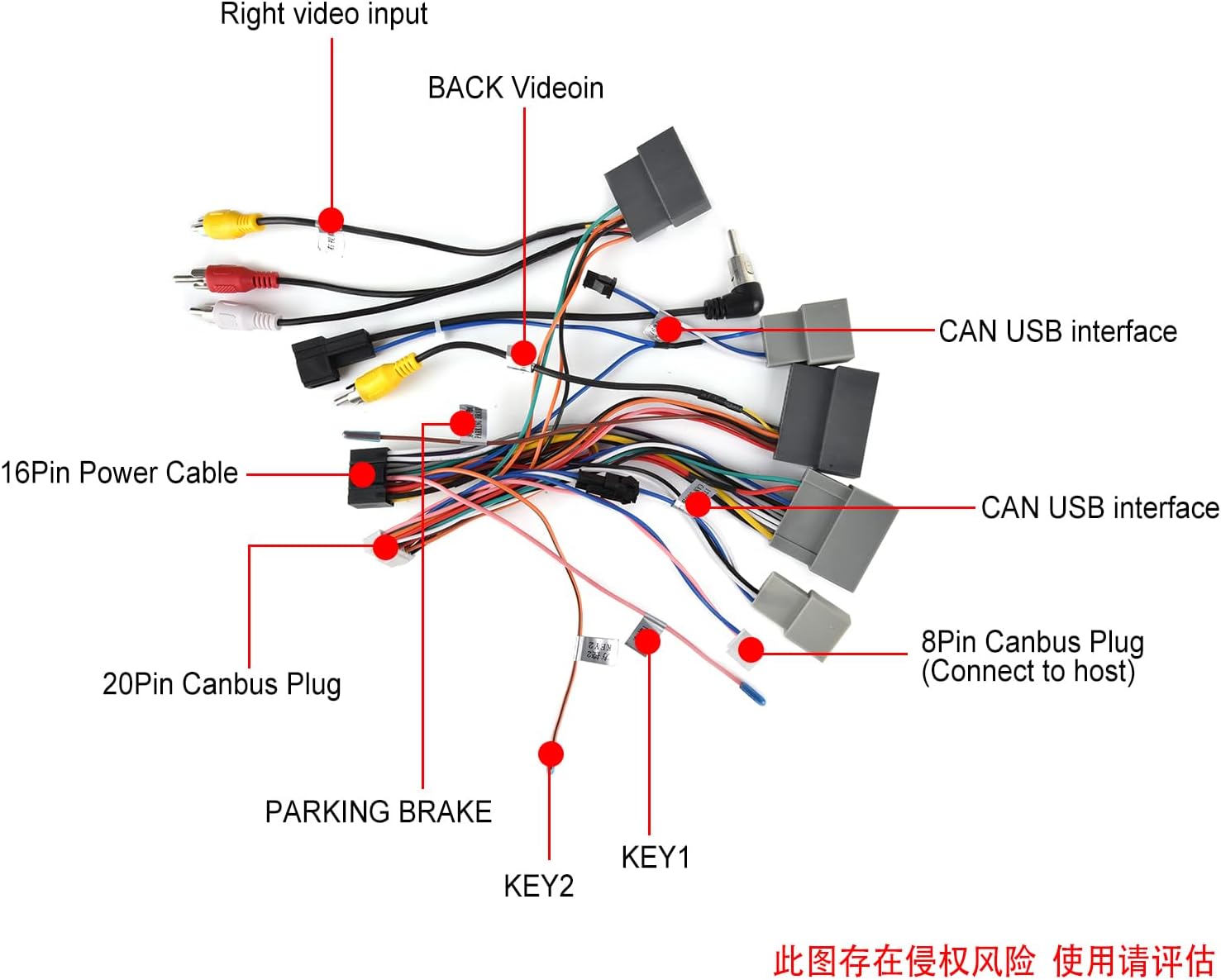
Image: A close-up view demonstrating how to connect the 20-pin CAN plug from the wiring harness into the 20-pin socket of the Canbus box.
Connect the 8-pin Canbus Plug to the Head Unit: Locate the 8-pin Canbus plug on your harness (labeled 'Connect to host' in the diagram). This plug connects directly to the Android head unit or its main harness to establish the Canbus communication link.
Ensure both the 20-pin and 8-pin connections are secure as they are essential for Canbus functionality.
4.5 Connecting Other Components
Ensure all other necessary components are connected to the main wiring harness and Android head unit:
- GPS Antenna: Connect the GPS antenna for navigation functionality.
- USB Cables: Connect the 4-pin and 6-pin USB cables for data transfer and charging.
- Video and Audio Interfaces: Connect RCAM (rear view video input), CCD AVIN, AUX L, and AUX R as needed for your specific setup.
- Original Car Interface: Connect the main harness to the corresponding interface of your original car wiring.
4.6 Initial Power-Up and Protocol Settings
After all physical connections are made, reconnect the vehicle's battery and power on the Android head unit.
- Navigate to the car settings on your Android head unit.
- Access the Factory settings (usually requires a password, commonly 8888).
- Go to Protocol settings.
- Select "raise" and then choose your specific car model (Honda Civic 2016-2020). This step is crucial for the Canbus to communicate correctly with your vehicle.
5. Operating Instructions
5.1 Steering Wheel Controls (SWC)
Once the Canbus protocol is correctly set, your factory steering wheel controls should automatically function with the Android head unit. If they do not, check the protocol settings again or consult the head unit's manual for SWC learning functions.
5.2 Backup Camera Functionality
If you are using the factory backup camera, ensure it is connected to the RCAM video input on the harness. After connecting, you may need to adjust settings within the Android head unit:
- Go to Car settings.
- Access Factory settings (password 8888).
- Navigate to Protocol parameter settings.
- Adjust "Reverse video clarity/format" or similar settings to match your camera's output (e.g., NTSC/PAL).
Note: One user reported that the backup camera worked with the yellow CCD AVIN connector instead of the labeled RCAM yellow RCA connector. If you experience issues, try connecting to the CCD AVIN.
6. Troubleshooting
| Problem | Possible Cause | Solution |
|---|---|---|
| No power to head unit / Short circuit | Incorrect wiring, especially connecting power to Canbus interface. Blown fuse. |
|
| Steering Wheel Controls not working | Incorrect Canbus protocol settings. Loose Canbus connection. |
|
| Backup camera shows "No Signal" or incorrect display | Incorrect video input connection. Incorrect camera format setting. |
|
| General functionality issues after installation | Loose connections, incorrect settings, incompatible components. |
|
7. Specifications
| Feature | Detail |
|---|---|
| Product Model | SIXWIN Canbus Module (ASIN: B0CB16N1QZ) |
| Compatibility | 2016-2020 Honda Civic (requires compatible Android car radio and wiring harness) |
| Function | Enables retention of factory backup camera and steering wheel controls with aftermarket Android head units. |
| Interfaces | 20-pin Canbus interface, 8-pin Canbus interface |
| Dimensions | 0.04 x 0.04 x 0.04 inches (approximate, based on product data) |
| Weight | 1.44 ounces (approximate, based on product data) |
8. Support and Warranty
For technical assistance, installation queries, or troubleshooting beyond this manual, please contact SIXWIN customer support.
Contact Information:
Email: sixwin_vip@163.com

Image: A customer support representative on the phone, indicating available assistance. Contact email is provided for support.
Information regarding product warranty can be obtained by contacting SIXWIN directly or referring to the product packaging.
Ask a question about this manual
Ask about setup, troubleshooting, compatibility, parts, safety, or missing instructions. Manuals+ will review the question and use this page’s manual context to help answer it.