
HTLNUZD FS SM001
Flysky FS SM001 Flight Simulator Controller User Manual
Model: FS SM001 | Brand: HTLNUZD
1. Introduction
The Flysky FS SM001 is an 8-channel flight simulator controller designed for use with various RC flight simulation software. It provides a realistic control experience for training with RC helicopters, fixed-wing aircraft, gliders, and drones. This manual provides essential information for setting up, operating, and maintaining your FS SM001 controller.
Package Contents
- 1x FS-SM001 Simulator Remote Control
- 1x User Manual
2. Product Specifications
| Parameter | Value |
|---|---|
| Input Voltage | 4~5.5V (USB 5V powered) |
| Connection Cable Length | 1.2 meters |
| Channels Supported | Up to 8 channels |
| Dimensions (L*W*H) | 166.8mm * 132.7mm * 66.3mm |
| Weight | Approximately 250g (7 ounces) |
| Available Colors | Black, Pink, Cyan |
| Compatible Operating Systems | Windows XP, WIN7, WIN8, WIN10, WIN11 (32-bit and 64-bit systems) |
| Compatible Simulation Software | PhoenixRC (2.0/3.0S/4.0M/5), FMS, DCL, DRL, UN, Liftoff, Tryp, Freerider, APD, Aerofly, Reflex XTR5.0, G3/G3.5/G4/G5/G6/G7 |
| Suitable Aircraft Types | Helicopters, Fixed-wing aircraft, Gliders, 3D aerobatic machines, Traversing machines (drones) |
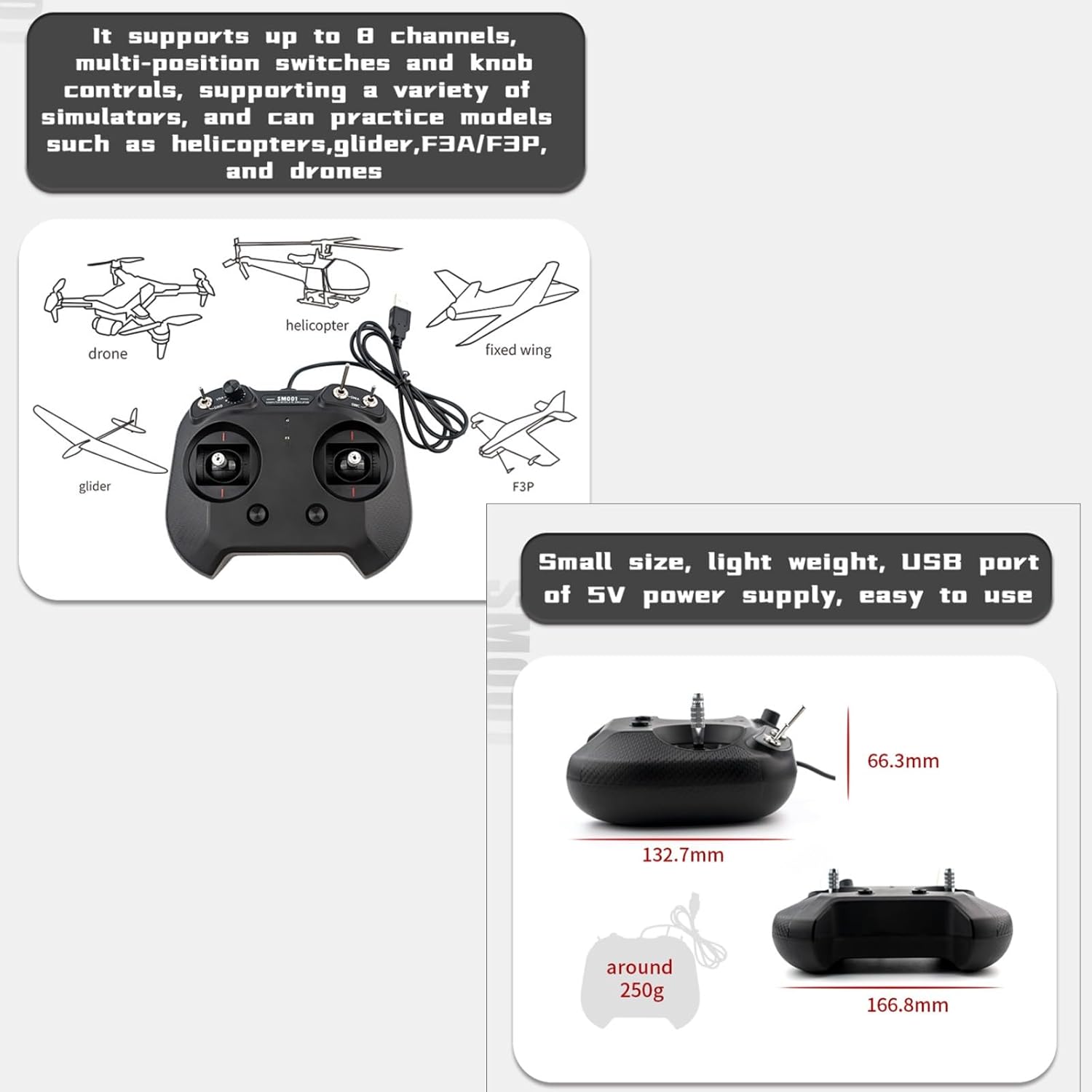
Image: The FS SM001 controller showing its dimensions (166.8mm length, 132.7mm width, 66.3mm height) and approximate weight (250g).
3. Setup Guide
3.1 Connecting the Controller
- Ensure your computer is powered on and running a compatible operating system (Windows XP, 7, 8, 10, or 11).
- Locate an available USB port on your computer.
- Connect the USB cable from the FS SM001 controller to the USB port on your computer. The controller is powered by USB 5V and does not require external power.
- Your computer should automatically detect the device. Driver installation may occur automatically.
3.2 Software Installation and Configuration
The FS SM001 controller is compatible with a wide range of flight simulation software. Follow the instructions provided with your chosen simulation software for installation and controller configuration.
- Install Simulation Software: Install your preferred flight simulator (e.g., PhoenixRC, FMS, Aerofly, Reflex XTR) on your computer.
- Launch Software: Open the flight simulation software.
- Controller Calibration: Navigate to the controller or joystick settings within the simulation software. You may need to calibrate the gimbals and assign channels to specific functions (e.g., throttle, aileron, elevator, rudder). Refer to your simulation software's manual for detailed calibration steps.
- Channel Assignment: The SM001 supports up to 8 channels. Ensure that the software recognizes all available channels and that multi-position switches, trim buttons, and knob controls are correctly mapped.

Image: The FS SM001 controller in black, connected via its USB cable, ready for use with a computer.
4. Operating the Controller
The FS SM001 controller is designed to mimic the feel of a real RC transmitter, providing precise control for flight simulation.
4.1 Controller Layout and Functions

Image: A detailed diagram of the FS SM001 controller, labeling key components such as the USB Cable, VRA Knob (CH6), SWB Switch (CH7), SWA Switch (CH5), SWC Switch (CH8), D1/D2 LEDs, Left Gimbal Assembly, Right Gimbal Assembly, Left Five-way Button Trim, and Right Five-way Button Trim. Note: SWB and SWC switches are for the 8-channel version.
- Gimbals: The primary control sticks for pitch, roll, yaw, and throttle. The classic I series stick assembly holder of FlySky is used to provide a realistic feel.
- Switches (SWA, SWB, SWC): Multi-position switches (CH5, CH7, CH8) for auxiliary functions, such as landing gear, flaps, or flight modes, depending on software configuration.
- Knob (VRA): A rotary knob (CH6) for proportional control of various functions.
- Trim Buttons: Five-way buttons for fine-tuning the neutral position of the gimbals.
- LED Indicators (D1, D2): Provide status feedback.
4.2 Throttle Mode Switching (Left/Right Hand)
The FS SM001 supports adjustable self-centering and allows for switching between left-hand and right-hand throttle modes. This configuration is typically done within your flight simulation software's controller settings.

Image: A visual representation illustrating the two throttle configurations: left-hand throttle switching and right-hand throttle switching, indicating the controller's adaptability for different user preferences.
4.3 Supported Aircraft and Simulation Types
The controller is versatile and can be used to practice with a variety of RC models:
- Helicopters: Practice collective pitch, cyclic, and tail rotor control.
- Fixed-wing Aircraft: Master aileron, elevator, rudder, and throttle control.
- Gliders: Learn thermal soaring and precise landing.
- 3D Aerobatic Machines: Practice advanced maneuvers.
- Drones (Traversing Machines): Improve FPV racing and freestyle skills.

Image: The FS SM001 controller depicted alongside illustrations of various RC aircraft types it supports, including a drone, helicopter, fixed-wing aircraft, glider, and F3P model.
5. Maintenance
- Cleaning: Use a soft, dry cloth to clean the surface of the controller. Avoid using harsh chemicals or abrasive materials.
- Storage: Store the controller in a cool, dry place away from direct sunlight and extreme temperatures.
- Handling: Handle the gimbals and switches with care to prevent damage. Avoid dropping the controller.
- Cable Care: Do not bend or crimp the USB cable excessively. Store it neatly when not in use.
6. Troubleshooting
6.1 Common Issues and Solutions
- Controller Not Detected:
- Ensure the USB cable is securely connected to both the controller and the computer.
- Try a different USB port on your computer.
- Restart your computer.
- Check Device Manager (Windows) to see if the device is listed or if there are any driver issues.
- Controls Not Responding in Software:
- Verify that the controller is selected as the input device within your flight simulation software's settings.
- Perform a controller calibration within the simulation software.
- Ensure the software is compatible with the FS SM001 controller.
- Incorrect Channel Mapping:
- Access the channel assignment or mapping settings in your simulation software.
- Re-assign the correct functions (e.g., throttle, aileron, elevator, rudder) to the corresponding controller channels.
7. Warranty and Support
Specific warranty information for the HTLNUZD FS SM001 controller is not provided in this manual. Please refer to the product packaging or the retailer's website for warranty details.
For technical support or further assistance, please contact the manufacturer HTLNUZD or your point of purchase.