
1. Introduction
This manual provides detailed instructions for the installation, operation, and maintenance of your ciciglow Wireless Security Camera. Please read this manual thoroughly before using the product to ensure proper function and safety.

Image: Front view of the ciciglow Wireless Security Camera, showing its dome-shaped body and lens array.
2. Product Overview
The ciciglow Wireless Security Camera is designed for home and office surveillance, offering 1080 HD video, Wi-Fi connectivity, two-way audio, motion detection, and intelligent night vision capabilities. Its flexible rotation allows for comprehensive area monitoring.
Key Features:
- 1080 HD Video: Provides clear and detailed surveillance footage.
- Two-Way Voice Intercom: Enables real-time communication through the camera.
- Flexible Rotation: Offers 350° horizontal and 90° vertical rotation for wide coverage.
- Motion Detection: Automatically tracks moving objects and records video.
- Intelligent Full Color Night Vision: Features smart white LED lights for clear night viewing, with options for infrared or full-color modes.
- Wi-Fi Connectivity: Easy integration into your existing wireless network.
- SD Card Storage: Supports local storage up to 128GB (SD card not included).

Image: Detailed diagram illustrating the various components of the camera, including the reset button, TF card slot, antenna, charging port, microphone, night vision lamps, 2MP HD lens, speaker, and photosensitive resistance.
Component Identification:
- Reset Button: Used to restore factory settings.
- TF Card Slot: For inserting a microSD card for local storage.
- Antenna: For Wi-Fi signal reception.
- Charging Port: Micro USB port for power input.
- Microphone: Captures audio for two-way communication and recording.
- Full Color Night Vision Lamp: Provides illumination for color night vision.
- Infrared Night Vision Lamp: Provides illumination for infrared night vision.
- 2MP HD Lens: Captures high-definition video.
- Speaker: Outputs audio for two-way communication.
- Photosensitive Resistance: Detects ambient light levels to switch between day and night modes.
3. Package Contents
Please check the package for the following items:
- ciciglow Wireless Security Camera (1 unit)
- USB Power Cable (1 unit)
- Mounting Screws (2 units)
- Wall Plugs (2 units)
- Reset Pin (1 unit)
- User Manual (This document)

Image: The ciciglow Wireless Security Camera shown alongside its included accessories: a USB power cable, mounting screws, wall plugs, and a reset pin.
4. Setup
4.1 Powering On the Camera
- Connect the provided USB power cable to the camera's charging port.
- Plug the other end of the USB cable into a compatible USB power adapter (not included) and then into a power outlet.
- The camera will power on and initiate its startup sequence.

Image: A close-up view of the camera's charging port, indicating where the USB power cable should be connected.
4.2 Inserting a MicroSD Card (Optional)
For local video storage, you can insert a microSD card (up to 128GB, not included).
- Locate the TF card slot on the camera (refer to the Product Overview diagram).
- Gently insert the microSD card into the slot with the gold contacts facing down until it clicks into place.
- To remove, press the card gently until it pops out.

Image: A close-up view of the camera's TF card slot, showing where a microSD card can be inserted for local storage.
4.3 App Installation and Wi-Fi Connection
The camera connects to your smartphone via a dedicated application. Please refer to the quick start guide or the app store for the specific app name and installation instructions. The camera supports Wi-Fi connectivity.
- Download and install the recommended surveillance app on your smartphone (Android or iOS).
- Register an account and log in.
- Follow the in-app instructions to add your camera. This typically involves scanning a QR code on the camera or connecting to a temporary Wi-Fi hotspot created by the camera.
- Ensure your smartphone is connected to a 2.4GHz Wi-Fi network during the setup process, as the camera primarily uses this frequency.

Image: Icons representing key camera features, including Wi-Fi connectivity and remote control via a smartphone app.
4.4 Mounting the Camera
The camera is designed for wall mounting. Choose a location that provides the desired viewing angle and is within range of your Wi-Fi network and a power outlet.
- Mark the positions for drilling using the camera's base as a template.
- Drill two holes at the marked positions.
- Insert the wall plugs into the drilled holes.
- Align the camera's base with the holes and secure it with the provided mounting screws.
- Adjust the camera's angle as needed after installation.
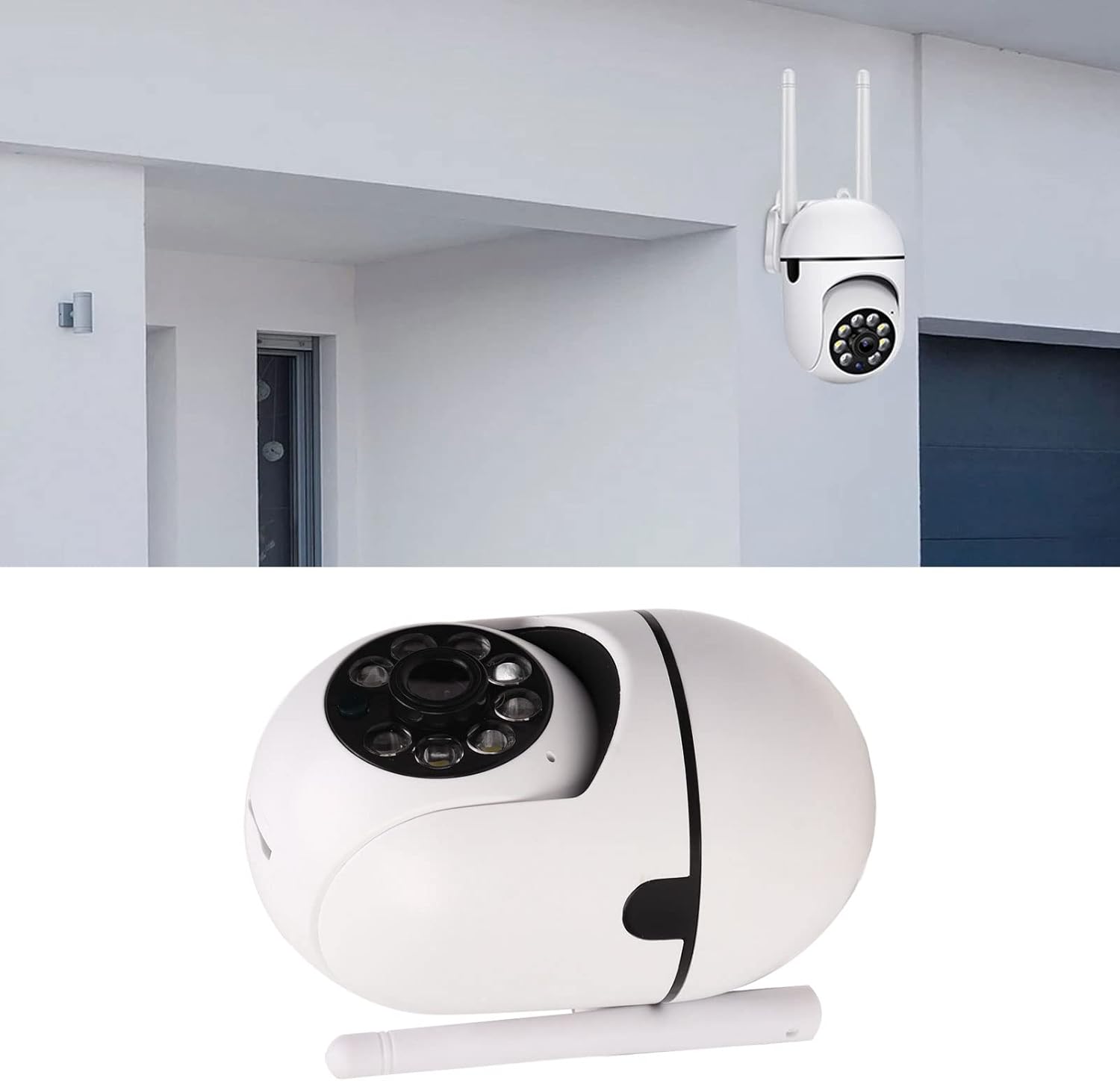
Image: The ciciglow Wireless Security Camera mounted on an exterior wall, demonstrating a typical installation scenario.
5. Operating Instructions
5.1 Live View and Remote Control
Once connected, you can access the live video feed and control the camera through the mobile application.
- Open the app and select your camera from the device list.
- The live video stream will appear.
- Use the on-screen controls to pan (350° horizontal) and tilt (90° vertical) the camera to adjust the viewing angle.

Image: A smartphone screen displaying the camera's live view, with arrows indicating the ability to remotely control the camera's 350° horizontal and 90° vertical rotation.
5.2 Two-Way Audio
The camera supports two-way voice intercom, allowing you to speak and listen through the camera.
- In the live view interface of the app, locate the microphone icon.
- Tap and hold the microphone icon to speak. Your voice will be transmitted through the camera's speaker.
- Release the icon to listen for responses through the camera's microphone.

Image: A visual representation of the two-way audio feature, showing a person speaking to someone at the door through the camera and a smartphone app interface with microphone and speaker indicators.
5.3 Motion Detection and Alerts
The camera can detect motion and send alerts to your smartphone.
- Enable motion detection in the camera settings within the app.
- Configure alert preferences, such as notification types and sensitivity levels.
- When motion is detected, the camera will automatically record video and send a notification to your phone.
- The camera can also intelligently follow the rotation of moving objects.

Image: A split image demonstrating both two-way audio (person speaking to a delivery driver) and motion detection (camera detecting an intruder at night with an alert icon).
5.4 Night Vision Modes
The camera offers intelligent full-color night vision and infrared night vision.
- The camera automatically switches between day and night modes based on ambient light.
- In low light conditions, the camera can activate infrared LEDs for black and white night vision.
- For full-color night vision, the camera utilizes smart white LED lights, which can be controlled remotely via the app or set to activate automatically when motion is detected ("light is on when people come, and off when people go").

Image: A comparison showing the difference between infrared night vision (monochrome) and full-color night vision (color) in a city street setting, highlighting the camera's ability to record in full color at night.
5.5 Video Recording and Playback
Recordings can be stored on a microSD card or via cloud storage (if offered by the app provider).
- Ensure a microSD card is inserted for local storage.
- Access recorded footage through the playback section of the mobile app.
- You can review historical events and download clips to your phone.

Image: An illustration showing the camera and a microSD card, indicating support for up to 128GB of local storage for video recordings.
6. Maintenance
- Cleaning: Use a soft, dry cloth to clean the camera lens and body. Avoid using harsh chemicals or abrasive materials.
- Firmware Updates: Regularly check the mobile application for available firmware updates to ensure optimal performance and security.
- Power Supply: Ensure the camera is connected to a stable power source.
- Network Stability: Maintain a strong and stable Wi-Fi connection for uninterrupted operation.
7. Troubleshooting
| Problem | Possible Cause | Solution |
|---|---|---|
| Camera offline/Cannot connect to Wi-Fi |
|
|
| No video recording |
|
|
| Poor image quality |
|
|
| Two-way audio not working |
|
|
8. Specifications
| Feature | Detail |
|---|---|
| Model Name | ciciglow4yd8bk7w5e |
| Brand | ciciglow |
| Video Capture Resolution | 1080p HD (Note: Some specifications may list 720p as a base resolution) |
| Connectivity Technology | Wireless (Wi-Fi) |
| Connectivity Protocol | Wi-Fi (2.4GHz) |
| Special Features | Motion Sensor, Night Vision (Infrared & Full Color), Two-Way Audio, Flexible Rotation (350° H, 90° V) |
| Power Source | Corded Electric |
| Voltage | 1 Volts (Input voltage for adapter, actual camera voltage may vary) |
| Wattage | 3 watts |
| Storage | MicroSD Card (up to 128GB, not included) |
| Mounting Type | Wall Mount |
| International Protection Rating | IP54 (Dust protected and splash resistant) |
| Item Weight | 8.1 ounces |
| Dimensions (Approx.) | Height: 17cm, Width: 7cm, Depth: 6.5cm (excluding antenna) |
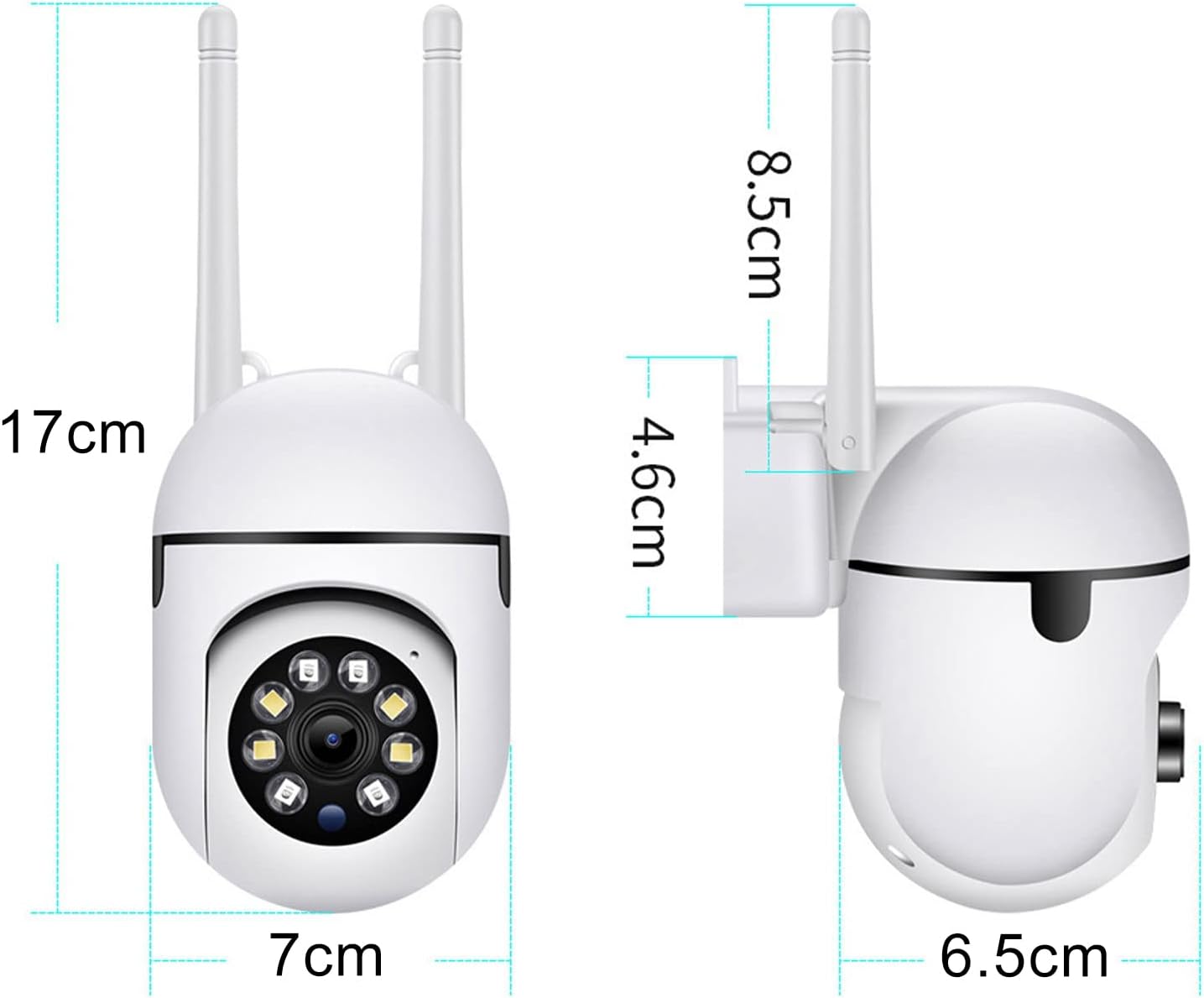
Image: Diagram illustrating the approximate dimensions of the ciciglow Wireless Security Camera in centimeters.
9. Warranty Information
Specific warranty details are typically provided with the product packaging or available on the manufacturer's official website. Please retain your proof of purchase for warranty claims. For any issues, contact customer support.
10. Support
For technical assistance, troubleshooting beyond this manual, or general inquiries, please refer to the contact information provided in your product packaging or visit the official ciciglow support website. Ensure you have your product model number (ciciglow4yd8bk7w5e) ready when contacting support.