
1. Product Overview
The JDDWIN Wireless Controller is designed for an enhanced gaming experience across multiple platforms. It features an ergonomic design, dual vibration, motion control, and NFC Amiibo functionality. This manual provides detailed instructions for setup, operation, and maintenance.

Image: Front view of the JDDWIN Wireless Controller in black, showcasing its buttons and ergonomic grips.

Image: Close-up views highlighting the controller's ergonomic design, non-slip material, comfortable hand feeling, and sensitive buttons.
2. Package Contents
- 1 x JDDWIN Wireless Controller
- 1 x 1.8m Data Cable (USB-C)
- 1 x User Manual (this document)
3. Compatibility
This wireless controller is compatible with the following platforms:
- Nintendo Switch
- Nintendo Switch Lite
- Nintendo Switch OLED
- PC (Windows)
- Steam Deck
- Tesla platforms

Image: Visual representation of the controller's compatibility with Nintendo Switch, Steam Deck, and PC platforms.
4. Setup and Connection
4.1 Initial Charging
Before first use, fully charge the controller. Connect the provided 1.8m USB-C data cable to the controller's charging port and the other end to a USB power source (e.g., Nintendo Switch dock, PC, or USB wall adapter). A full charge takes approximately 2.5 hours and provides about 12 hours of game time.

Image: Illustration showing the controller with a battery icon, indicating substantial battery life for extended play.
4.2 Pairing with Nintendo Switch
- From the Nintendo Switch HOME Menu, select "Controllers", then "Change Grip/Order".
- On the next screen, press and hold the Sync Button on the top of the JDDWIN controller for a few seconds until the player indicator lights begin to flash.
- Once paired, the player indicator light(s) will remain solid. The connection range is approximately 10 meters.
The controller uses Bluetooth V3.0 for a stable and anti-interference connection.
4.3 Pairing with PC/Steam Deck
For PC and Steam Deck, connect the controller via the provided USB-C cable for a wired connection, or follow the standard Bluetooth pairing procedure for your operating system. The controller supports X-Input on PC.
5. Operating Instructions
5.1 Wake-Up Function
Press the HOME button on the controller to wake up your Nintendo Switch console from sleep mode, provided the controller was previously paired.
5.2 Dual Vibration Adjustment
The controller features dual vibration motors with four adjustable intensity levels. Refer to the KeyLinker app (Section 5.5) for detailed instructions on adjusting vibration intensity, or consult your console's settings if applicable.

Image: Controller graphic highlighting dual vibration, gyroscope sensor, and accelerator turbo features for enhanced gaming.
5.3 Motion Control
The integrated gyroscope sensor enables precise motion control in compatible games, offering an immersive gaming experience.
5.4 NFC Amiibo Function
The controller supports NFC functionality for Amiibo figures. To use, place your Amiibo figure over the NFC touchpoint on the controller (typically located near the center or logo) during gameplay when prompted by the game.

Image: The JDDWIN controller displayed alongside various Nintendo Amiibo figures, illustrating its NFC compatibility.
5.5 KeyLinker App for Configuration
For advanced customization, download the KeyLinker app. This application allows users to adjust various parameters of the controller, including:
- Button remapping (Changekey)
- Joystick sensitivity
- Trigger response
- Motor vibration intensity
Modify settings within the app to suit your personal gaming preferences.
6. Maintenance and Care
6.1 Cleaning
Wipe the controller with a soft, dry cloth. Avoid using harsh chemicals or abrasive cleaners, as these can damage the surface and internal components.
6.2 Storage
Store the controller in a cool, dry place away from direct sunlight and extreme temperatures. When not in use for extended periods, ensure it is fully charged before storage and periodically recharge it to maintain battery health.
7. Troubleshooting
7.1 Controller Does Not Connect
- Ensure the controller is fully charged.
- Verify that the Nintendo Switch console is updated to the latest system software.
- Repeat the pairing process as described in Section 4.2.
- If connecting to PC, ensure Bluetooth is enabled and drivers are up to date, or try a wired connection.
- Reset the controller by inserting a thin object into the small reset hole (if present, usually on the back) for a few seconds.
7.2 Vibration is Too Strong/Weak
Adjust the vibration intensity using the KeyLinker app (Section 5.5) or through the console's controller settings menu.
7.3 Input Lag or Unresponsive Buttons
- Ensure the controller is within the 10-meter connection range of the console/device.
- Check for potential wireless interference from other devices.
- Re-pair the controller.
- If using a wired connection, try a different USB port or cable.
8. Specifications
| Model | Wireless Controller |
| Connectivity | Bluetooth V3.0, USB-C (wired) |
| Battery Capacity | 400mAh |
| Charging Time | Approx. 2.5 hours |
| Operating Time | Approx. 12 hours |
| Wireless Range | Up to 10 meters (33 feet) |
| Dimensions | 4.92 x 3.66 x 2.36 inches (12.5 x 9.3 x 6 cm) |
| Weight | 8.15 ounces (231 grams) |
| Manufacturer | JYS |
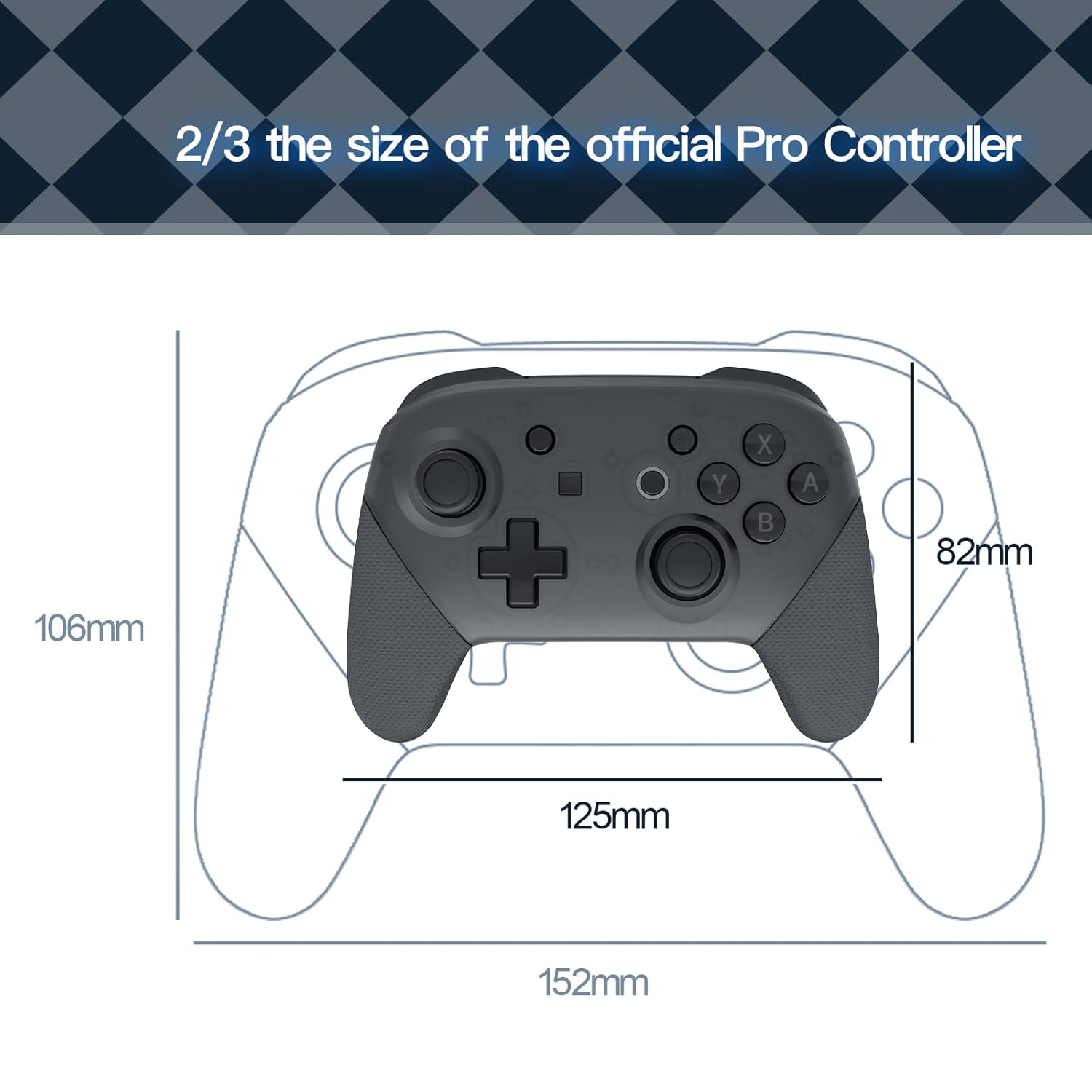
Image: Diagram illustrating the dimensions of the JDDWIN Wireless Controller (125mm x 82mm) in comparison to a standard Pro Controller (152mm x 106mm).
9. Support and Warranty
For any questions or assistance with your JDDWIN Wireless Controller, please contact our customer service team. Our services team is committed to helping you within 24 hours.
Please refer to your purchase documentation for specific warranty details. Generally, products are covered by a standard manufacturer's warranty against defects in materials and workmanship.