
1. Introduction
This user manual provides essential information for the installation, operation, and maintenance of your Palit GeForce RTX 4060 StormX 8GB graphics card. Please read this manual thoroughly before installing and using the product to ensure proper functionality and to prevent damage.
2. Package Contents
Verify that all items are present in your product package:
- Palit GeForce RTX 4060 8GB Storm X Graphics Card
- Quick Installation Guide (if included)
- Driver CD/DVD (if included, otherwise download latest drivers online)
3. Setup and Installation
3.1 Pre-Installation Checklist
- Ensure your power supply unit (PSU) meets the minimum wattage requirement (typically 550W or higher for an RTX 4060, check specific PSU recommendations).
- Confirm your motherboard has an available PCI Express x16 slot.
- Turn off your computer and disconnect the power cable before proceeding.
- Ground yourself to discharge any static electricity.
3.2 Hardware Installation
- Open your computer case.
- Locate an available PCI Express x16 slot on your motherboard.
- Remove any expansion slot covers that obstruct the installation.
- Carefully align the graphics card with the PCIe slot and press it firmly until it is securely seated. Ensure the retention clip locks into place.
- Secure the graphics card to the case with screws.
- Connect the required 8-pin PCIe power connector from your power supply to the graphics card.
- Close your computer case.

Figure 1: Front view of the Palit GeForce RTX 4060 StormX 8GB graphics card, showing the single fan cooling solution.
3.3 Driver Installation
- Connect your display cable (HDMI or DisplayPort) from the graphics card to your monitor.
- Power on your computer.
- Once the operating system loads, download the latest NVIDIA drivers for the GeForce RTX 4060 from the official NVIDIA website (www.nvidia.com/drivers).
- Follow the on-screen instructions to complete the driver installation. A system restart may be required.
4. Operating the Graphics Card
4.1 Display Connections
The Palit GeForce RTX 4060 StormX 8GB supports multiple display outputs. Connect your monitor(s) using the available ports:
- HDMI: For high-definition audio and video output.
- DisplayPort: For high-resolution and high-refresh-rate displays.
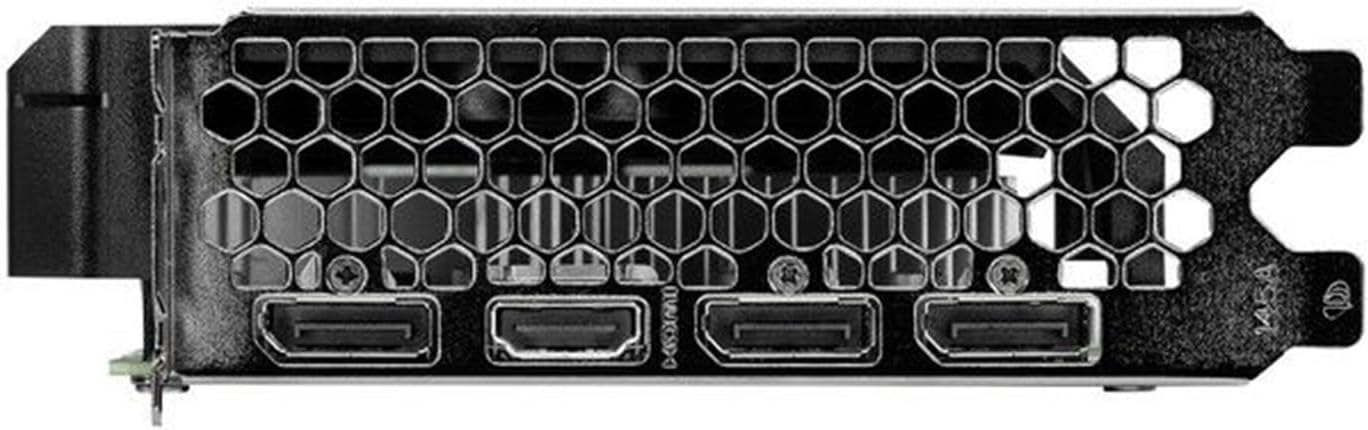
Figure 2: Rear I/O panel showing the HDMI and DisplayPort outputs.
4.2 Key Features
- NVIDIA G-SYNC: Enjoy smooth, tear-free gameplay at high refresh rates when paired with a compatible G-SYNC monitor.
- DLSS 3 & Ray Tracing: Experience enhanced visual fidelity and performance in supported games with NVIDIA's Deep Learning Super Sampling and real-time ray tracing technologies.
- 0dB Technology: The fan remains off during light workloads, ensuring silent operation. Fan activation occurs only under heavier loads to maintain optimal temperatures.
- ThunderMaster Utility: Palit's proprietary software allows you to monitor GPU status, adjust fan speeds, and manage overclocking settings for personalized performance. Download from the official Palit website.
- Mini-ITX Form Factor Support: With a compact length of 17cm, this card is suitable for small form factor PC builds, offering powerful performance in a space-saving design.
5. Maintenance
Regular maintenance helps ensure the longevity and optimal performance of your graphics card.
- Dust Removal: Periodically clean dust from the graphics card heatsink and fan using compressed air. Ensure the computer is powered off and unplugged before cleaning. Hold the fan blades gently to prevent over-spinning during cleaning.
- Driver Updates: Keep your graphics drivers updated by regularly checking the official NVIDIA website for the latest versions. Driver updates often include performance improvements, bug fixes, and support for new games.
- Temperature Monitoring: Use monitoring software (like Palit ThunderMaster or other third-party tools) to keep an eye on GPU temperatures, especially during heavy loads, to ensure it operates within safe limits.
6. Troubleshooting
If you encounter issues with your graphics card, refer to the following common troubleshooting steps:
- No Display Output:
- Ensure the display cable is securely connected to both the graphics card and the monitor.
- Verify the monitor is powered on and set to the correct input source.
- Check if the graphics card is properly seated in the PCIe slot and the 8-pin power connector is firmly attached.
- Try connecting to a different display output port on the card or a different monitor if available.
- Driver Issues:
- Perform a clean installation of the latest drivers from the NVIDIA website. Use the 'Custom' installation option and select 'Perform a clean installation'.
- If issues persist, try rolling back to a previous stable driver version.
- Poor Performance/Crashes:
- Ensure your system meets the minimum requirements for the applications or games you are running.
- Monitor GPU temperatures to rule out overheating.
- Check for background applications consuming system resources.
- Verify your power supply unit is sufficient and providing stable power.
- Fan Noise:
- Ensure no cables or obstructions are interfering with the fan blades.
- Clean any dust buildup on the fan and heatsink.
- Use the ThunderMaster utility to adjust fan curves if desired, but avoid setting fan speeds too low under load.
If these steps do not resolve your issue, please contact Palit customer support or your retailer for further assistance.
7. Specifications
| Feature | Specification |
|---|---|
| Graphics Processor | NVIDIA GeForce RTX 4060 |
| CUDA Cores | 3072 |
| Boost Clock | 2460 MHz |
| Memory Size | 8 GB GDDR6 |
| Memory Interface | 128-bit |
| Memory Speed | 17 Gbps |
| Bus Type | PCI Express 4.0 x16 |
| Display Outputs | 1x HDMI, 3x DisplayPort |
| Max Digital Resolution | 8K Ultra HD |
| Power Connector | 1x 8-pin |
| TDP | 115 W |
| Cooling | Active (Single Fan) |
| Dimensions (LxWxH) | 12.6 x 7.09 x 2.36 inches (approx. 320 x 180 x 60 mm) |
| Item Model Number | NE64060019P1-1070F |
8. Warranty and Support
Palit products are manufactured to the highest quality standards. This product is covered by a limited warranty provided by Palit or your retailer. Please refer to the warranty information provided with your purchase or visit the official Palit website for detailed terms and conditions.
For technical support, driver downloads, or further assistance, please visit the official Palit website at www.palit.com or contact your local retailer.


