1. Introduction
This manual provides comprehensive instructions for the setup, operation, and maintenance of your Womier M87 Pro Gaming Keyboard. Please read this manual thoroughly before using the product to ensure optimal performance and longevity.
2. Product Overview
The Womier M87 Pro is a 75% layout mechanical gaming keyboard designed for versatility and customization. It features an OLED display, a multi-function knob, tri-mode connectivity, hot-swappable switches, and advanced RGB lighting.
2.1 Key Features
- Smart OLED Color Display and Knob Design: The built-in OLED display provides intuitive status updates including custom GIF images, Caps Lock status, connection mode, WIN/MAC mode, and battery level. The mechanical knob allows quick adjustment of connection, system settings, backlight brightness/speed, RGB mode/color, volume, and language.
- 3-Mode Connection Wireless Keyboard: Supports USB-C wired, Bluetooth 5.1, and 2.4GHz wireless modes, easily switchable via key combinations or the knob.
- Unique Silencing Installation Design: Features triple absorption layers (EVA sound absorbing foam, IXPE switch pad, sponge case foam) and silencer foam under the space bar for improved acoustics and reduced vibration.
- Hot-Swappable Custom Keyboard: Allows for easy alteration of switches without soldering. Compatible with most 3-pin/5-pin switches.
- Ultimate Personalization RGB Keyboard: Offers 19 RGB backlight modes, 9 color selections, 5 brightness levels, and 5 speed levels. Lighting can be turned off to conserve power.
- Pro Software Customizable Keyboard: RGB backlight mode, macros, and GIF image display settings can be customized via the M87 Pro keyboard driver. Includes a 'Music Syncing' mode.
2.2 Product Components
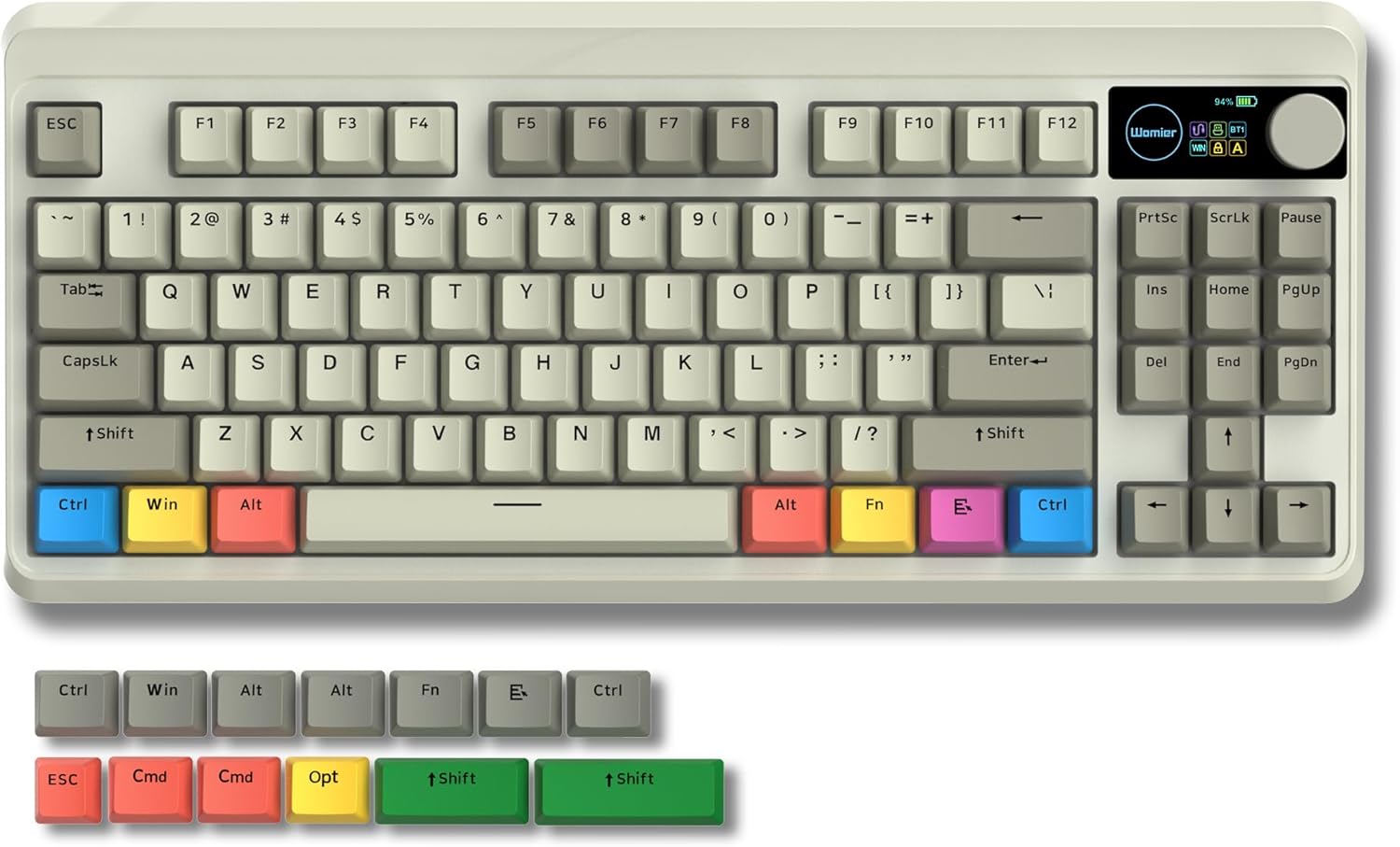
Figure 2.1: Womier M87 Pro Gaming Keyboard with included extra keycaps and key/switch puller.

Figure 2.2: Smart Multimedia Display & Knob Design, illustrating the various functions accessible via the OLED screen and knob.

Figure 2.3: Knob Adjustment Design, detailing steps for adjusting multimedia display and volume.

Figure 2.4: Built-in Triple Sound-absorbing Layer, illustrating the internal foam layers for improved acoustics.

Figure 2.5: Hot-Swappable Switches feature, demonstrating the ease of switch replacement.

Figure 2.6: Tri-Mode Connection, illustrating the keyboard's ability to connect via Bluetooth, 2.4GHz, and USB-C wired modes.
3. Setup
3.1 Package Contents
Before proceeding, ensure all items are present in the package:
- Womier M87 Pro Gaming Keyboard
- USB-C Cable
- Keycap Puller / Switch Puller (2-in-1 tool)
- Extra Keycaps (for Mac compatibility)
- User Manual (this document)
3.2 Connecting the Keyboard
The M87 Pro supports three connection modes:
3.2.1 USB-C Wired Mode
- Connect the provided USB-C cable to the keyboard's USB-C port.
- Connect the other end of the USB-C cable to an available USB port on your computer.
- The keyboard will be automatically recognized by your system.
3.2.2 2.4GHz Wireless Mode
- Locate the 2.4GHz USB receiver (dongle) usually stored in a compartment on the keyboard.
- Plug the USB receiver into an available USB port on your computer.
- Switch the keyboard to 2.4GHz mode using the mode switch or the knob on the keyboard. The OLED display will indicate the current connection mode.
- The keyboard should automatically connect to the receiver.
3.2.3 Bluetooth 5.1 Wireless Mode
- Switch the keyboard to Bluetooth mode using the mode switch or the knob.
- On your computer or device, enable Bluetooth and search for new devices.
- Select "Womier M87 Pro" (or similar name) from the list of available Bluetooth devices.
- Follow any on-screen prompts to complete the pairing process. The keyboard can store up to 3 Bluetooth profiles.
4. Operating Instructions
4.1 OLED Display and Knob Functions
The OLED display and multi-function knob provide quick access to various settings:
- Default Mode: Turn the knob to select sections on the OLED display (e.g., Connection, System, RGB settings). Press the knob to confirm selection.
- Volume Adjustment: Long press the FN key + knob to enter volume adjustment mode. Turn the knob to increase/decrease volume. Press the knob to mute/unmute. Long press FN + knob again to exit.
- GIF Image Display: The OLED display supports custom GIF images via the keyboard driver software.
4.2 RGB Backlight Control
The keyboard offers extensive RGB customization:
- Change Backlight Mode: Use the knob or specific key combinations (refer to keyboard layout or software).
- Change Backlight Color: Use the knob or specific key combinations.
- Adjust Brightness: Use the knob or FN + arrow keys (up/down).
- Adjust Speed: Use the knob or FN + arrow keys (left/right).
- Turn On/Off Backlight: Use the knob or specific key combination.

Figure 4.1: RGB Backlight Control via FN key combinations.
4.3 Software Customization
For advanced customization, download the M87 Pro keyboard driver software (Windows system only, works in wired mode):
- Customize RGB backlight modes and colors.
- Set up macros for single keystroke commands.
- Upload custom GIF images to the OLED display.
- Create custom profiles for different uses.
- Enable 'Music Syncing' mode for rhythmic lighting patterns.
Steps to use software:
- Connect the keyboard to your computer using the USB-C cable.
- Ensure the keyboard is switched to wired mode via the knob.
- Launch the M87 Pro driver software.

Figure 4.2: M87 Pro Software Customization Interface.
5. Maintenance
5.1 Cleaning the Keyboard
- Disconnect the keyboard from your computer before cleaning.
- Use a soft, lint-free cloth slightly dampened with water or a mild cleaning solution to wipe down the keycaps and chassis.
- For dust and debris between keycaps, use compressed air or a small brush.
- Avoid using harsh chemicals or abrasive materials.
5.2 Replacing Keycaps and Switches
The M87 Pro features hot-swappable switches, allowing for easy replacement without soldering.
- Removing Keycaps: Use the keycap puller tool to gently pull keycaps straight up.
- Removing Switches: Use the switch puller end of the tool. Align the prongs with the clips on the top and bottom of the switch, squeeze gently, and pull the switch straight up.
- Installing Switches: Align the pins of the new switch with the holes on the PCB. Gently push the switch down until it clicks into place. Ensure pins are straight to avoid bending.
- Installing Keycaps: Align the keycap with the switch stem and press down firmly until it is seated.
Note: Be careful not to bend the switch pins during installation. If a switch is difficult to insert, check pin alignment.
6. Troubleshooting
| Problem | Possible Cause | Solution |
|---|---|---|
| Keyboard not responding (wired) | Loose cable connection; incorrect mode; driver issue. | Ensure USB-C cable is securely connected. Check if the keyboard is in wired mode. Try a different USB port. Reinstall keyboard drivers if necessary. |
| Keyboard not connecting (wireless) | Low battery; incorrect mode; pairing issue; receiver interference. | Charge the keyboard. Ensure correct 2.4GHz or Bluetooth mode is selected. Re-pair the device. Move closer to the receiver/device. Avoid sources of interference. |
| RGB lighting not working/incorrect | RGB mode off; brightness too low; software conflict. | Check RGB settings via knob or FN key combinations. Increase brightness. Ensure software is up-to-date and not conflicting with other lighting software. |
| OLED display not working | Software issue; firmware issue. | Ensure keyboard software is installed and updated. Check for firmware updates for the keyboard. |
| Keys not registering or double-typing | Faulty switch; debris under keycap/switch. | Remove keycap and switch. Clean the area. Reinstall switch or replace with a new one if faulty. |
7. Specifications
| Feature | Detail |
|---|---|
| Model Number | M87 Pro |
| Connectivity | USB-C Wired, Bluetooth 5.1, 2.4GHz Wireless |
| Layout | 75% (87 Keys) |
| Switches | Hot-Swappable (3-pin/5-pin compatible) |
| Display | Smart OLED Color Display |
| Knob Functionality | Multimedia Control, System Settings, RGB Adjustment |
| Backlight | Full RGB (19 modes, 9 colors, 5 brightness, 5 speed) |
| Battery | 1 Lithium Polymer battery (included) |
| Material | Polybutylene Terephthalate (PBT Keycaps) |
| Dimensions | 15.59 x 7.95 x 2.72 inches (Package) |
| Weight | 0.03 ounces (Item) |
| Manufacturer | COSTOM |
8. Warranty and Support
COSTOM products are manufactured to high quality standards. For warranty information, please refer to the specific terms provided at the time of purchase or contact COSTOM customer support.
8.1 Customer Support
If you encounter any issues or have questions regarding your Womier M87 Pro keyboard, please contact COSTOM customer support through their official website or the platform where you purchased the product. Provide your model number (M87 Pro) and a detailed description of the issue for faster assistance.