
Introduction
This manual provides essential information for the safe and efficient operation of your Philips Multi-Region DVD Player. Please read these instructions thoroughly before using the device and retain them for future reference.
Safety Information
- Power Source: Ensure the power supply voltage matches the rating label on the back of the unit.
- Ventilation: Do not block ventilation openings. Allow adequate space around the player for proper airflow.
- Water and Moisture: Do not expose the player to rain or moisture. Do not place objects filled with liquids, such as vases, on the apparatus.
- Heat: Do not place the player near heat sources such as radiators, heat registers, stoves, or other apparatus (including amplifiers) that produce heat.
- Cleaning: Unplug the player from the wall outlet before cleaning. Use a dry cloth only.
- Servicing: Do not attempt to service this product yourself. Refer all servicing to qualified service personnel.
Package Contents
Verify that all items are present in the package:
- Philips Multi-Region DVD Player
- Remote Control
- RCA Cable (Red, White, Yellow)
- HDMI Cable
- User Manual (this document)

Image: The Philips DVD Player, its remote control, and the included RCA and HDMI cables.
Setup
1. Connecting to a TV (HDMI)
For optimal video and audio quality, connect the DVD player to your TV using the included HDMI cable.
- Connect one end of the HDMI cable to the HDMI OUT port on the back of the DVD player.
- Connect the other end of the HDMI cable to an available HDMI IN port on your television.
- Select the corresponding HDMI input on your TV using its remote control.
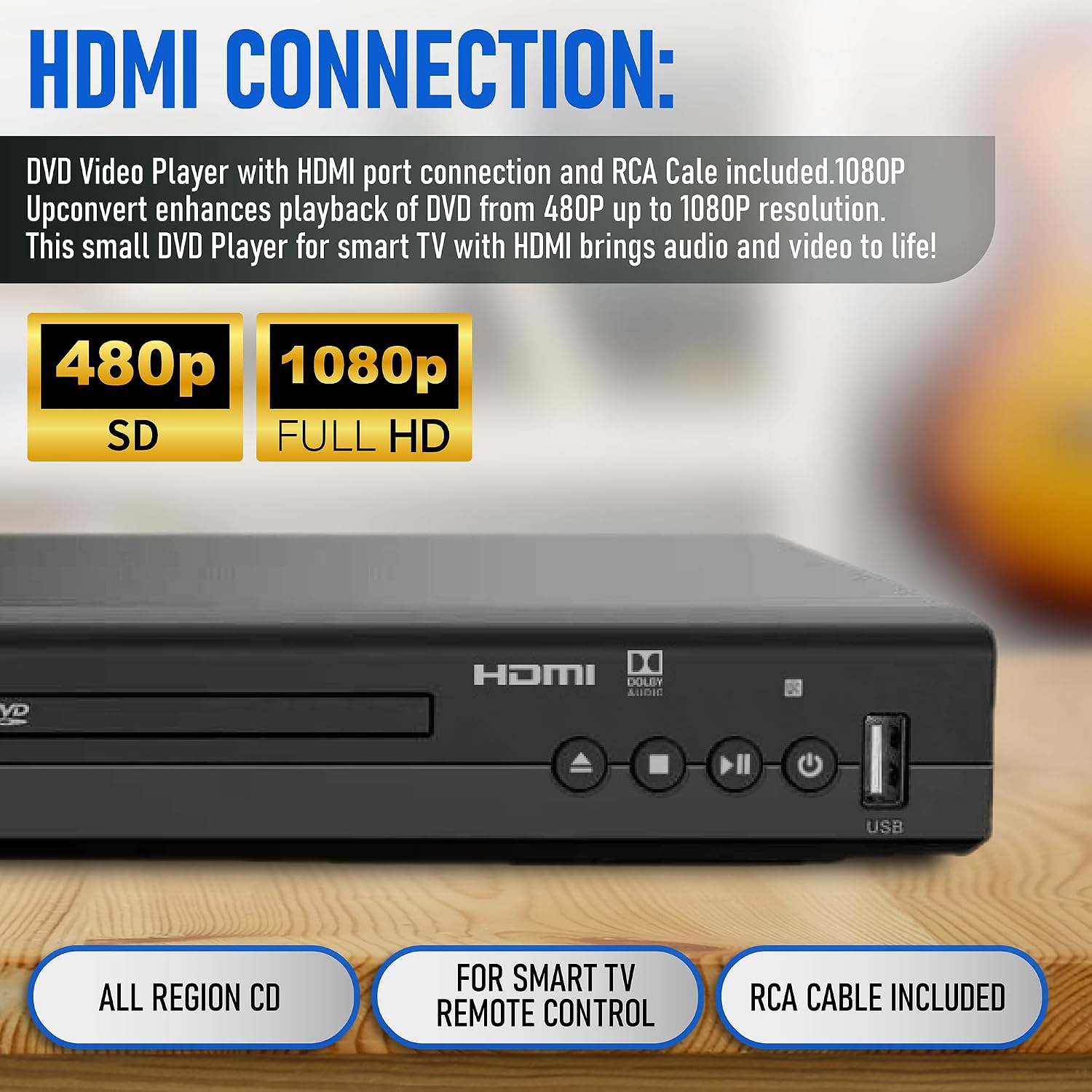
Image: Detail of the DVD player's rear panel showing the HDMI output, capable of 1080p upconversion.
2. Connecting to a TV (RCA)
If your TV does not have an HDMI port, use the included RCA cable for standard definition video and stereo audio.
- Connect the yellow plug of the RCA cable to the VIDEO OUT (yellow) port on the DVD player.
- Connect the red and white plugs to the AUDIO OUT R (red) and AUDIO OUT L (white) ports on the DVD player, respectively.
- Connect the other ends of the RCA cable to the corresponding VIDEO IN and AUDIO IN ports on your television.
- Select the corresponding AV input on your TV using its remote control.

Image: Connection diagram showing HDMI and RCA options for various devices.
3. Power Connection
- Plug the power cord into the AC IN socket on the back of the DVD player.
- Plug the other end of the power cord into a wall outlet.
Operating Instructions
1. Basic Disc Playback
- Press the POWER button on the player or remote control to turn on the unit.
- Press the OPEN/CLOSE button to open the disc tray.
- Place a DVD or CD disc gently onto the tray with the label side facing up.
- Press the OPEN/CLOSE button again to close the tray. The player will automatically begin playback or display the disc menu.
- Use the PLAY/PAUSE, STOP, FAST FORWARD, and REWIND buttons on the remote control to manage playback.
2. USB Media Playback
The player supports playback of media files from a USB storage device.
- Insert your USB flash drive into the USB port on the front of the DVD player.
- The player should automatically detect the USB device and display a menu. If not, press the USB button on the remote control.
- Navigate through your files using the arrow buttons on the remote and press ENTER to select and play.
Supported Formats: AVI, DIVX, MPG, MPEG, VOB for video; MP3 for audio; JPG for images.

Image: Demonstrating USB input for playing various media types.
3. Remote Control Functions
The included remote control provides full functionality for operating your DVD player. Familiarize yourself with the button layout for easy navigation and control.
- Power: Turns the player on or off.
- Open/Close: Opens and closes the disc tray.
- Play/Pause: Starts or pauses playback.
- Stop: Stops playback.
- Navigation Buttons (Up, Down, Left, Right, Enter): Used for menu navigation and selection.
- Volume +/-: Adjusts the audio output volume.
- Screen Fit: Adjusts the aspect ratio to fill the screen.
- USB: Switches input to USB media.
4. Screen Fit Feature
The Screen Fit feature allows you to adjust the picture to fill your entire screen, regardless of the original aspect ratio of the content.
- During playback, press the SCREEN FIT button on the remote control.
- The player will cycle through available aspect ratio options. Select the one that best fits your screen.

Image: The Screen Fit feature ensures the picture fills the entire screen.
5. Multi-Region Playback
This Philips DVD player is designed to play DVDs from all regions (Region 1, 2, 3, 4, 5, 6) and supports both PAL and NTSC video standards. No special settings are required for multi-region playback; simply insert the disc, and the player will adjust automatically.
Maintenance
1. Cleaning the Player
- Unplug the player before cleaning.
- Use a soft, dry cloth to wipe the exterior surfaces. Do not use abrasive cleaners or solvents.
- Keep the disc tray free of dust and debris.
2. Cleaning Discs
- Wipe discs gently from the center outwards using a soft, lint-free cloth.
- Do not use harsh chemicals or abrasive materials on discs.
Troubleshooting
| Problem | Possible Cause | Solution |
|---|---|---|
| No power | Power cord not connected; power outlet not active. | Ensure power cord is securely plugged into the player and a working wall outlet. |
| No picture/sound | Incorrect input selected on TV; cables not connected properly. | Select the correct HDMI or AV input on your TV. Check all cable connections. |
| Disc does not play | Disc is dirty, scratched, or inserted incorrectly; unsupported disc format. | Clean the disc. Ensure the disc is inserted label-side up. Verify the disc is a supported format (DVD, CD, VCD). Note: This player does not support Blu-ray discs. |
| USB device not recognized | USB device not properly inserted; unsupported file system or format. | Ensure the USB device is fully inserted. Check if the USB device is formatted to FAT32. Verify media files are supported (AVI, DIVX, MPG, MPEG, VOB, MP3, JPG). |
| Remote control not working | Batteries are depleted or inserted incorrectly; obstruction between remote and player. | Replace batteries with new ones, ensuring correct polarity. Remove any obstructions and point the remote directly at the player's sensor. |
Specifications
- Brand: PHILIPS
- Model: B0C9RY2D7S
- Media Types: CD, DVD, VCD
- Special Features: Compact design, Progressive Scan, Multi-Region Playback
- Resolution: 1920x1080 (1080P Upconvert from 480P)
- Connector Type: HDMI, RCA, USB
- Connectivity Technology: HDMI
- Color: Black
- Item Weight: 2.2 Pounds (approximately 1 kg)
- Audio Output Mode: Stereo
- Package Dimensions: 10.47 x 10.35 x 2.87 inches (approximately 26.6 x 26.3 x 7.3 cm)
- Manufacturer: Philips

Image: The compact dimensions of the Philips DVD player.
Warranty and Support
This Philips DVD Player comes with a standard manufacturer's warranty. Please refer to the warranty card included in your package for specific terms and conditions, including coverage duration and claim procedures.
For technical support, troubleshooting assistance, or warranty inquiries, please visit the official Philips support website or contact their customer service department. Contact details can typically be found on the Philips website or in the product packaging.