
CV Directo 2023
CELLALLURE Flip Phone User Manual
Model: 2023 | Brand: CV Directo
Introduction
This user manual provides detailed instructions for operating your new CELLALLURE Flip Phone. Designed with ease of use in mind, this phone is ideal for seniors and individuals who require simple, reliable communication with enhanced safety features. Please read this manual thoroughly to ensure proper use and to take full advantage of all features.
Package Contents
- CELLALLURE Flip Phone
- Power Adapter
- Earphones
- User Manual (this document)
Product Overview
The CELLALLURE Flip Phone combines a classic design with modern safety features. Its large buttons, high volume, and intuitive interface make it user-friendly. Key features include a dedicated SOS button for emergencies, three quick-dial buttons, and a camera.

Image: The CELLALLURE Flip Phone in its open position, showing the large keypad and display.
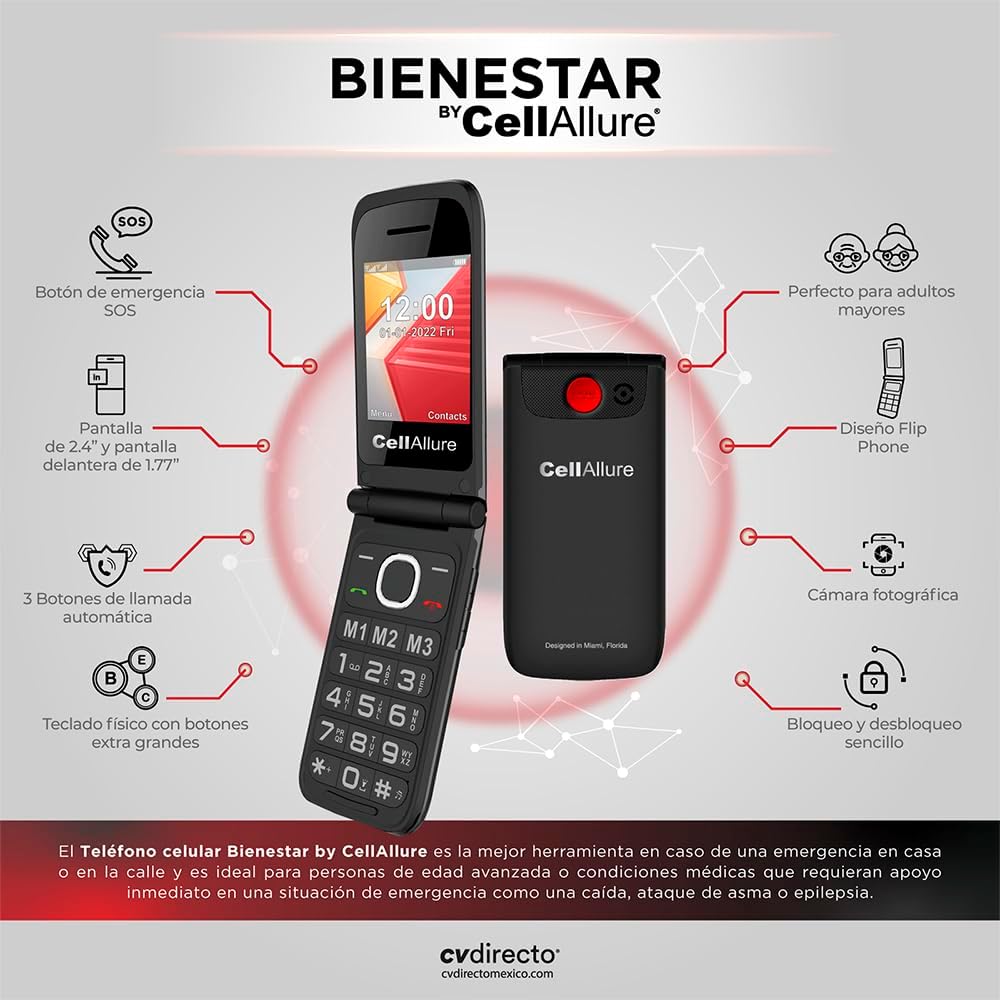
Image: Diagram highlighting key features of the CELLALLURE Flip Phone, including the SOS button, 2.4-inch main display, 1.77-inch front display, automatic call buttons, physical keypad with extra-large buttons, photographic camera, and simple lock/unlock.
Setup
1. Inserting the SIM Card
Your CELLALLURE Flip Phone supports Dual SIM functionality. To insert the SIM card(s):
- Open the back cover of the phone.
- Carefully remove the battery.
- Locate the SIM card slot(s). Insert your SIM card(s) into the designated slot(s) with the gold contacts facing down.
- Reinsert the battery and close the back cover.
2. Charging the Battery
Before first use, fully charge the phone's battery.
- Connect the power adapter to the charging port on the phone.
- Plug the power adapter into a wall outlet.
- The battery indicator on the screen will show charging status. Once fully charged, disconnect the charger.
3. Turning On/Off
- To Turn On: Press and hold the Power/End Call button (red button) until the screen lights up.
- To Turn Off: Press and hold the Power/End Call button until the power off options appear, then confirm.
Operating Instructions
Making and Receiving Calls
- Making a Call: Dial the number using the large keypad and press the Call button (green button).
- Receiving a Call: Simply open the flip phone to answer an incoming call. To end a call, close the flip or press the End Call button (red button).
SOS Emergency Button
The dedicated SOS button on the back of the phone is a critical safety feature, designed for immediate assistance in emergencies.
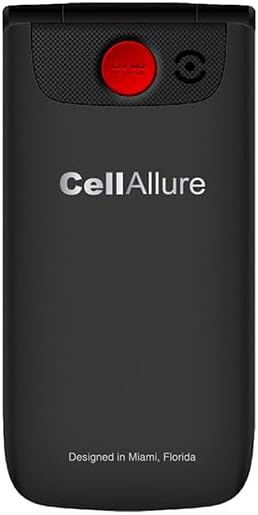
Image: Rear view of the CELLALLURE Flip Phone, clearly showing the prominent red SOS button.

Image: A graphic representation of the SOS button with a red alarm icon, emphasizing its emergency function.
How to Use the SOS Button:
- Step 1: Activate the Protocol. Press and hold the red SOS button on the back of the phone. A single touch activates the security system.
- Step 2: Automatic Dialing. The phone will automatically call up to 5 pre-configured emergency contacts in sequence until one answers.
- Step 3: Automatic Text Message. Simultaneously, your emergency contacts will receive an automatic text message with a pre-set alert (e.g., "Please help me!").
This feature is designed to provide immediate assistance without complex steps, making it a lifesaver in critical situations.
Video: An official product video demonstrating the ease of use and the functionality of the SOS emergency button on the CELLALLURE Flip Phone, showing how it activates calls and messages to pre-set contacts.
Speed Dial Buttons (M1, M2, M3)
The phone features three dedicated speed dial buttons (M1, M2, M3) for quick access to important contacts.
- Setting Up: Refer to the phone's internal settings menu to assign a contact to each M1, M2, and M3 button.
- Using: Simply press and hold the desired M1, M2, or M3 button to automatically dial the assigned contact.
Camera Function
The CELLALLURE Flip Phone includes a basic camera for capturing simple photos.

Image: The front display of the CELLALLURE Flip Phone when closed, showing time and date. The camera lens is visible above the display.

Image: A graphic icon representing a camera, indicating the phone's photographic capability.
- Access the camera application from the main menu.
- Point the camera at your subject and press the designated button (usually the center navigation button) to take a photo.
FM Radio
Enjoy listening to your favorite FM radio stations.

Image: A graphic icon representing radio waves, indicating the phone's FM radio feature.
- Plug in the earphones (they act as an antenna).
- Navigate to the FM Radio application in the menu.
- Scan for available stations and select your preferred one.
Text Messaging
Send and receive simple text messages.
- Go to the 'Messages' menu.
- Select 'New Message' to compose a text.
- Enter the recipient's number or select from contacts, then type your message using the keypad.
- Press 'Send'.
Maintenance
To ensure the longevity and optimal performance of your CELLALLURE Flip Phone, follow these maintenance guidelines:
- Keep the phone dry. Moisture can damage electronic circuits.
- Avoid extreme temperatures. High temperatures can shorten the life of electronic devices and warp or melt certain plastics.
- Do not use harsh chemicals, cleaning solvents, or strong detergents to clean the phone. Wipe it with a soft, dry cloth.
- Handle with care. Do not drop, knock, or shake the phone. Rough handling can break internal circuit boards and fine mechanics.
Troubleshooting
| Problem | Possible Cause | Solution |
|---|---|---|
| Phone does not turn on | Battery is low or depleted. | Charge the battery for at least 30 minutes before attempting to turn on. |
| Cannot make or receive calls | No SIM card inserted or SIM card not properly installed. No network signal. | Ensure SIM card is correctly inserted. Check network coverage in your area. |
| Poor call quality / Low volume | Weak signal. Volume settings too low. | Move to an area with better signal. Adjust call volume using the side buttons. |
| SOS button not working | Emergency contacts not set up. | Ensure emergency contacts are correctly configured in the phone's settings. |
Specifications
| Feature | Detail |
|---|---|
| Brand | CV Directo |
| Model Name | CellAllure |
| Model Year | 2023 |
| Operating System | Proprietary |
| Display Size | 2.4 Inches (Main) |
| RAM Size | 48 MB |
| Digital Storage Capacity | 128 GB (expandable via microSD, if supported, though not explicitly stated for user storage) |
| Processor Speed | 2 Hz |
| Processor Type | Quad Core 2.26GHz |
| Cellular Technology | 4G |
| Special Features | Dual SIM, SOS Button, Large Keys, High Volume |
| Form Factor | Flip |
| Dimensions | 10.9 x 9.9 x 5.9 cm; 280 g |
Warranty and Support
For warranty information and customer support, please refer to the warranty card included in your product packaging or visit the official CV Directo website. Keep your purchase receipt as proof of purchase for any warranty claims.
For further assistance, please contact CV Directo customer service.
Ask a question about this manual
Ask about setup, troubleshooting, compatibility, parts, safety, or missing instructions. Manuals+ will review the question and use this page’s manual context to help answer it.